Cisco Secure Access Help

PDF

Cisco Secure Access Help

Hits filter for access policy rules

Want to summarize with AI?

Log in

Describes the functionality of hit count for access policy rules, which allow users to track traffic matching access rules within specific time ranges for improved policy visibility and analysis.


Hit count for access policy rules helps you understand how often the listed access rules have matched traffic within a selected time range. The hits filter on the Access Policy page lets you view hit counts for a selected duration, rather than relying solely on the default hit count time range of 7 days.

The hits filter feature also introduces a clickable link for the hit count value in the Hits column of the rules tables that shows the rule hit-count activity. These tables include Trusted traffic rules table, Access control rule table, Hybrid mesh firewall (HMF), and the Managed Security Service Provider (MSSP) Manager and Managed rule table. You can open the Events page from the hit-count popover for deeper investigation. The same hit count context is available from the rule drawer as well.

Supported time ranges

By default, the Hits column in the rules table reflects activity from the last 7 days. You can change the duration by selecting a different time range from the hits filter.

The hits filter supports these time ranges: Last 15 minutes, Last 30 minutes, Last 1 hour, Last 4 hours, Last 12 hours, Last 24 hours, and Last 7 days.

The Last 15 minutes, and Last 30 minutes options in the hits filter are available only for the managed organizations; not for the MSSP manager organizations.
Hits filter constraints for the MSSP organizations

These constraints for the hits filter apply to the MSSP manager organizations that do an hourly roll up:

  • The Last 15 minutes, and Last 30 minutes options in the hits filter are not available for the MSSP manager organizations.

  • The identity details for the MSSP manager organizations are not displayed in the hits count popover in the Hits column nor in the Hits field in the side rule drawer.

  • The View in Events option is not available for the MSSP manager organizations.


Usage guidelines for the hits filter

  • Use shorter windows for validation: Select Last 15 minutes, Last 30 minutes, or Last 1 hour when validating whether recent policy changes are matching traffic.

  • Use longer windows for usage review: Select Last 24 hours or Last 7 days when reviewing broader activity patterns across many rules.

  • Use the popover before drilling in: Hover over a hit count to check total hits and last-hit details before opening the events.

  • Select View in Events from the popover when you need event-level detail for the selected rule.

  • Use the rule drawer for rule-level context: Open the rule drawer to view the Hits section alongside rule configuration details.


View the hit count for an access policy rule

Procedure

  1. Select a hit-count time range.

    1. Navigate to Secure > Policy > Access Policy page and locate the row of policy filters above the rules tables.

      By default, the filter is chosen for the last 7 days. Hover over the time range shown on the filter to see the hit count range with the start and end dates.

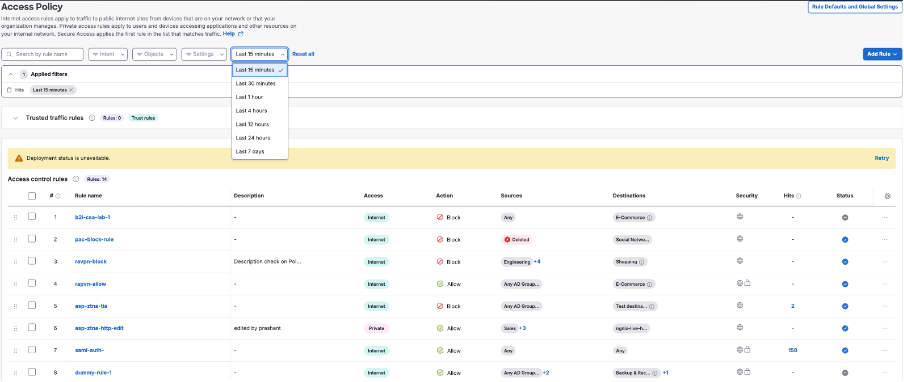
    2. Click the hits filter dropdown and select one of the available time ranges.
      Figure 1. Hits time-range filter for an access policy rule
      Access Policy page with the Hits time-range menu open.

      Verify that the selected Hits filter appears in the Applied filters area.

    3. Review the Hits column in the rules table for the updated hit-count values.

      By default, it displays the hit count for the last 7 days.

  2. View hit details from the rules table.

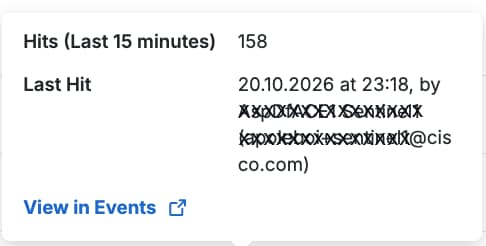
    1. In the rules table, locate the Hits column and hover over a hit-count value.
    2. Review the popover for the hits count in the selected duration and the last hit details.
      Figure 2. Hit-count popover
      Access Policy page with the Hits time-range menu open.
    3. Click on View in Events link to navigate to the Events page for deeper analysis.

      The Events page opens in another tab and displays the event details for the selected time range.

  3. View hit details from the rule drawer.

    1. Click on the hit count value under the Hits column or click on the Rule name in the rules table.

      The side rule drawer opens.

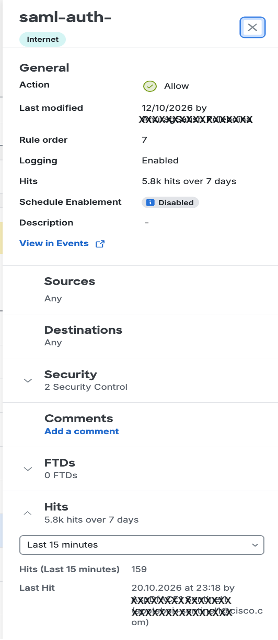
    2. Locate the Hits section in the rule drawer. The filter dropdown displays the currently selected filter time range. Review the hit values for the selected time range displayed in the Hits and Last Hit fields.
      Figure 3. Hits section in the rule drawer
      Access Policy page with the Hits time-range menu open.
    3. Review the hits for the last 7 days displayed in the Hits field in the General section of the rule drawer. Click on the View in Events link to open the Events page in another tab which displays the details for the last 7 days.