Cisco Secure Access Help

PDF

Cisco Secure Access Help

Manage Tenant Control Profiles

Want to summarize with AI?

Log in

Describes Manage Tenant Control Profiles in Cisco Secure Access.


Secure Access tenant controls allow you to provision user connectivity to certain SaaS applications in the cloud. After the tenant is configured, access is limited to only those resources that are approved for your organization. The result is that your organization is protected and secure when users and devices reach those resources in the cloud that are running on shared domain names.

Secure Access supports tenant controls for the following platforms:

You can create tenant control profiles for one or more applications.

To use a tenant control profile in an access rule, see Use Tenant Controls in Access Rules.


Control Cloud Access to Microsoft 365

Use a tenant-control profile to manage access to the cloud-based application Microsoft 365. Once added, you can select the profile in an internet-access rule.

Microsoft 365 Compatibility allows Microsoft 365 traffic to pass through Secure Access without inspection or policy enforcement. This lets the traffic pass through Secure Access unaltered. Secure Access decrypts, the following Microsoft login domains:

  • login.microsoftonline.com

  • login.live.com

  • login.microsoft.com

  • login.windows.net

which decryption enables enforcement of tenant restrictions.

For more information, see the official Microsoft documentation and Microsoft 365 Compatibility.

Note
Microsoft 365 tenant restrictions do not block personal or consumer accounts, such as Hotmail or Outlook.

Before you begin

  • You must have full admin permission in Secure Access. For more information, see Manage Accounts.

  • You need the Tenant Domain and Tenant Directory ID to configure Tenant Controls settings and allow access to the cloud-based application Microsoft 365.

    For more information about this data and how to acquire it, see Azure Active Directory documentation.

Procedure

  1. Navigate to Resources > Internet and SaaS Resources.

  2. Select Tenant Controls.

  3. Click Add or expand the default Global Tenant Controls profile.

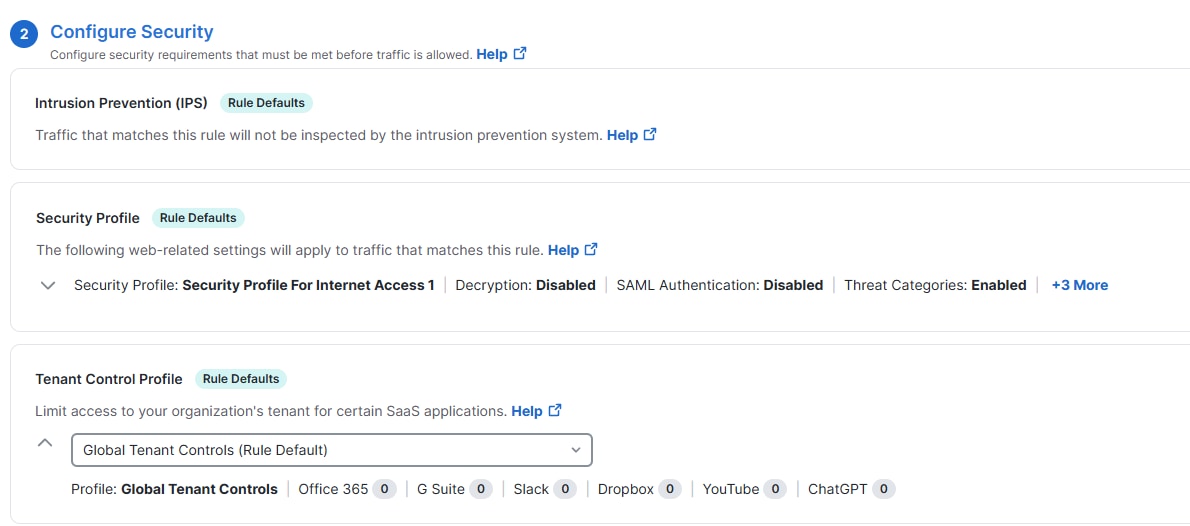
    Tenant controls is enabled by default for a rule. A rule uses the default global tenant controls profile if no other tenant controls profile is configured for that rule.

    Note
    If you do not configure Tenant Control settings for a ruleset, Secure Access uses the default control settings.
    Adding Tenant controls profile while configuring a rule
  4. Choose the version of tenant restrictions you want to configure and follow the corresponding steps below.

  5. To configure Tenant Restriction Version 1 (v1):

    1. Click the Tenant Restriction Version 1 (v1) radio button, to add a Microsoft 365 tenant domain to your organization.
    2. Add your organization's Microsoft 365 Tenant Domain/ID and click Add.
      Note
      You can add multiple Tenant Domains.
    3. (Optional) Add your organization's Tenant Directory ID for Microsoft 365 to track Office 365 access in Azure reports.
      Note
      For more information about how to acquire the Tenant Directory ID, see Microsoft's documentation or contact Microsoft Support.
      The Microsoft V1 interface.
    4. (Optional) Click the Block Personal Microsoft 365 accounts toggle to restrict access to personal accounts.
      Personal Accounts section with option to block access to personal Microsoft 365 accounts
    5. (Optional) Click the Enable Copilot toggle button to allow Microsoft Copilot to access Microsoft 365 applications and services.
      Personal Accounts section with option to block access to personal Microsoft 365 accounts
  6. Configure Tenant Restriction Version 2 (v2).

    1. Click the Tenant Restriction Version 2 (v2) radio button, to add a list of tenants, such as enterprise domains or Azure tenant IDs to your organization.
    2. Add your organization's Microsoft 365 Tenant ID and Policy GUID, then click Add.
      Note
      You can obtain your Microsoft 365 Tenant ID and Policy GUID from the Microsoft Entra portal at entramicrosoft.com. Refer to https://learn.microsoft.com/en-us/entra/external-id/tenant-restrictions-v2#compare-tenant-restrictions-v1-and-v2.
      Add Tenant Controls Setting page with fields to enter Tenant ID and Policy GUID for Microsoft 365
    3. (Optional) Click the Enable Copilot toggle button to allow Microsoft Copilot to access Microsoft 365 applications and services.

      Personal Accounts section with option to block access to personal Microsoft 365 accounts
  7. Click Save.

    The new Tenant Controls profile is now available for selection when you add an internet access rule. For rule requirements specific to tenant controls, see Use Tenant Controls in Access Rules.


Control Cloud Access to Google Workspace

The Secure Access tenant controls profile manages access to the cloud-based application Google Workspace (formerly Google G Suite). Once added, you can select this profile in an internet access rule.

Limitations

  • You can manage Google Workspace access only on the domain level; Secure Access does not support managing access for individual Gmail accounts.

Before you begin

  • Full admin user role. For more information, see Manage Accounts.

  • The following Google Workspace specific data is required to configure Tenant Controls settings and allow access to to the cloud-based suite Google Workspace:

    • Domains. For more information about this data and how to acquire it, scroll to "Use a web proxy server to block accounts" in Google Workspace Admin Help.

    • Google Workspace. A Google Workspace account must be associated with your domain.

Procedure

  1. Navigate to Resources > Internet and SaaS Resources

  2. Select Tenant Controls.

  3. Click Add or expand the default Global Tenant Controls profile.

    Note
    Tenant controls is enabled by default for a rule. A rule uses the default global tenant controls profile if no other tenant controls profile is configured for that rule.

    Add Tenant controls profile while configuring a rule
  4. Give your configuration a descriptive Profile Name and select Google Workspace.


    Add New Tenant Controls Setting page with option to configure Google Workspace as the tenant control profile
  5. Grant access to Google Workspace from within your organization.

    1. Add an enterprise domain and click Add.

      You can add multiple domains.

  6. Click Save.

    The new Tenant Controls setting is now available for selection when you add an internet access rule. For rule requirements specific to tenant controls, see Use Tenant Controls in Access Rules.


Control Cloud Access to Slack

The Secure Access tenant controls profile manages access to the cloud-based application Slack.

Before you begin

  • Full admin user role. For more information, see Manage Accounts.

  • Slack requires the following data to configure tenant controls for access to the cloud-based application:

    • Workspace ID

    • Requester ID (for Business+ or Enterprise Slack Workspace ID)

    For more information about this data, see Approve Slack workspaces for your network.

Procedure

  1. Navigate to Resources > Internet and SaaS Resources.

  2. Select Tenant Controls.

  3. Click Add or expand the default Global Tenant Controls profile.

    Note
    Tenant controls is enabled by default for a rule. A rule uses the default global tenant controls profile if no other tenant controls profile is configured for that rule.

    Add Tenant controls profile while configuring a rule
  4. Give your configuration a descriptive Profile Name and select Slack.

    Add New Tenant Controls Setting page with option to configure Slack as the tenant control profile
  5. Grant access to Slack from within your organization.

    1. Enter a Requester ID and a Workspace ID.

      You can add multiple workspace IDs.

      Add Tenant Controls Setting page with fields to enter Requester ID and Workspace ID for Slack
  6. Click Save.

    The new tenant controls profile is now available when you add an internet access rule. For rule requirements specific to tenant controls, see Use Tenant Controls in Access Rules.


Control Cloud Access to Dropbox

The Secure Access tenant controls profile manages access to the cloud-based application Dropbox.

Before you begin

  • Full admin user role. For more information, see Manage Accounts.

  • Dropbox requires the following data to configure tenant controls for access to the cloud-based application:

    • Team Name. Choose the Team Name to provide a mnemonic identifier for the team.

    • Team ID. For information about the Team ID and how to find it using Dropbox developer tools, see Dropbox for HTTP developers.

Procedure

  1. Navigate to Resources > Internet and SaaS Resources..

  2. Select Tenant Controls.

  3. Click Add or expand the default Global Tenant Controls profile.

    Note
    Tenant controls is enabled by default for a rule. A rule uses the default global tenant controls profile if no other tenant controls profile is configured for that rule.
  4. Give your configuration a good descriptive Profile Name and select Dropbox.

  5. Grant access to Dropbox from within your organization.

    1. Enter a Team Name and a Team ID. You can add multiple teams.
    The Dropbox SSE interface.
  6. Click Save.

    The new Tenant Controls profile is now available when you add an internet access rule. For rule requirements specific to tenant controls, see Use Tenant Controls in Access Rules.


Control Cloud Access to YouTube

Before you begin

  • Full admin user role. For more information, see Manage Accounts.

  • YouTube-specific data is required to configure tenant controls and allow access to the cloud-based application:

    • YouTube Channels

    • YouTube Categories

Procedure

  1. Navigate to Resources > Internet and SaaS Resources.

  2. Select Tenant Controls.

  3. Click Add or expand the default Global Tenant Controls profile.

    Note
    Tenant control is enabled by default for a rule. A rule uses the default global tenant control profile if no other tenant control profile is configured for that rule.

    Add Tenant controls profile while configuring a rule
  4. Give your configuration a descriptive Profile Name and click YouTube.


    Add New Tenant Controls Setting page with option to configure YouTube as the tenant control profile
  5. Grant access to YouTube from within your organization.

    1. Enter the channel handle in the YouTube Channels field and click Add.
      Note
      You can add multiple channels using the respective channel handles. For example: @ciscosystems and @ciscocommunity.

      Add Tenant Controls Setting page with fields to add multiple YouTube channels
  6. Optionally, choose categories from the YouTube Categories drop-down list, for example, Education, Science & Technology.


    Add New Tenant Controls Setting page with option to select YouTube categories
  7. Click Save.


Blocking Behavior for YouTube Tenant Control

When the YouTube Tenant Control feature is enabled, the blocking behavior varies depending on how the user accesses the content. The following scenarios describe the expected user experience when a request is blocked.

Direct Video Access

This scenario occurs when a user attempts to access a specific video directly. This includes the following actions:

  • User pastes a YouTube video URL directly into the browser.
  • User bookmarks and opens a specific video.
  • User refreshes an already opened video page.

If the request is blocked in this scenario, the user experiences the following:

  • The browser is redirected to the organization’s block page.
  • The block page loads normally.
  • The user clearly sees that access to the video is restricted.

In-app Navigation

This scenario occurs when a user navigates to a video from within the YouTube interface. This includes the following actions:

  • User opens YouTube.
  • User clicks a video from the homepage feed.
  • User clicks a suggested video while browsing.

If the request is blocked in this scenario, the user experiences the following:

  • The video player does not load the video.
  • The browser is not redirected to the block page; instead, the video player displays an error message.
  • The page remains on YouTube.
  • The video area displays a playback error, such as:
    • “An error occurred."
    • “Playback error."
    • A spinning loader followed by failure.

Control Access to ChatGPT

The Secure Access tenant controls profile manages access to the cloud-based AI application ChatGPT.

Before you begin

Procedure

  1. Navigate to Resources > Internet and SaaS Resources.

  2. Select Tenant Controls.

  3. Click Add or expand the default Global Tenant Controls profile.

    Note
    Tenant controls is enabled by default for a rule. A rule uses the default global tenant controls profile if no other tenant controls profile is configured for that rule.
  4. Give your configuration a good descriptive Profile Name and select ChatGPT.

    Add New Tenant Controls Setting page with option to configure ChatGPT as the tenant control profile
  5. Grant access to ChatGPT from within your organization. Enter a Workspace ID and click Add.

    You may enter multiple workspace IDs.

  6. Click Save.

    The new Tenant Controls profile is now available when you add an internet access rule. For rule requirements specific to tenant controls, see Use Tenant Controls in Access Rules.

Control Cloud Access to GitHub

The Cisco Secure Access tenant controls profile manages access to the cloud-based application GitHub. After you add the profile, you can select this profile in an internet access rule (access policy) to restrict access to unsanctioned GitHub tenants.

Before you begin

  • Full admin user role. For more information, see Manage Accounts.

  • Your GitHub enterprise must use managed users on GitHub.com.

  • Secure Access requires Enterprise ID to configure tenant controls for access to the cloud-based application, GitHub.

    For more information, refer to the Find the header section in Enterprise administrator documentation.

  • Ensure that your GitHub usernames include your enterprise shortcode to confirm that users belong to your organization. If you use a subdomain of GitHub Enterprise (GHE.com), the header is not required to distinguish traffic to your enterprise resources.

  • Your GitHub enterprise owner must enable the enterprise access restriction feature.

Procedure

  1. In Cisco Secure Access, navigate to Resources > Internet and SaaS Resources.

  2. Click Tenant Controls.

  3. Click Add, or expand the default Global Tenant Controls profile.

  4. Enter a descriptive profile name, and select GitHub.

    Add New Tenant Controls Setting page with option to configure GitHub as the tenant control profile
  5. In the Enterprise ID field, enter the Enterprise ID that you copied from GitHub.

  6. Click Save.

    Add Tenant Controls Setting page with fields to add GitHub Enterprise ID

    The new tenant controls profile is now available when you add an internet access rule. For rule requirements specific to tenant controls, see Use Tenant Controls in Access Rules.


Edit or Delete a Tenant Control Profile

Once you add a Tenant Control profile in your organization, you can edit or remove the profile.

Before you begin

Procedure

  1. Navigate to Resources > Internet and SaaS Resources, and then click Tenant Controls.


    The Resources Tenant Controls interface.
  2. Expand a Tenant Control profile.

  3. (Optional) Edit the Tenant Control profile and then click Save.

  4. To remove the Tenant Control profile, click Delete.


    The Tenant Profile Edit Delete interface.

Use Tenant Controls in Access Rules

To use tenant controls in internet-access rules:

  • Add tenant control profiles for the applications that require such controls.

  • Decryption must be enabled for the rule. Make sure it is enabled in the security profile selected in the rule.

  • The option to select a tenant control profile appears in the Security Controls section of the rule (after you choose destinations and then click Next.)

  • If you enable Microsoft 365 Compatibility in Global Settings:

    Microsoft 365 Compatibility is compatible with Tenant Controls. However, when Tenant Controls are configured for Microsoft 365, Secure Access decrypts three Microsoft login domains (login.microsoftonline.com, login.microsoft.com, and login.windows.net) for the purpose of tenant enforcement. The domain is detected by analyzing the SNI (Server Name Indication) TLS extension. Some applications may not send SNI information in which case the exclusion does not apply. For more information about Microsoft 365 Compatibility, see Global Settings for Access Rules.


Review Tenant Controls Through Reports

Use the Activity Search report to view identity activity when you're tracking attempts to access cloud-based applications that are controlled by the tenant-controls profile.

Before you begin

Procedure

  1. Navigate to Monitor > Activity Search.

  2. In the Response filter, select Allowed or Blocked.


    Activity Search page with option for selecting desired Response filter
  3. Under Event Type, select Tenant Controls.


    Activity Search Page with option for selecting event type
    Note
    Since the blocking of tenants occurs at the vendor level, Secure Access displays tenant controls as Allowed in Activity Search.
  4. To access detailed information about a tenant-control event, from the Action menu, choose View Further Details.


    View details of tenant control event