Cisco Secure Access Help

PDF

Cisco Secure Access Help

Configure Duo for OpenID Connect

Want to summarize with AI?

Log in

Describes Configure Duo for OpenID Connect in Cisco Secure Access. Secure Access supports the use of the OpenID Connect (OIDC) protocol to authenticate and authorize requests from user devices on networks or network tunnels with internet security enabled.


Secure Access supports the use of the OpenID Connect (OIDC) protocol to authenticate and authorize requests from user devices on networks or network tunnels with internet security enabled. Secure Access can also use OIDC to authenticate requests for private resources from user devices that connect with Zero Trust Access (ZTA).

To enable Secure Access to authenticate with OIDC, you must set up the integration of an OIDC identity provider (IdP) in Secure Access. Add Duo as a cloud identity provider (IdP) to provision your organization's users and groups from Duo to Secure Access and use Duo IdP for authentication. Then add the Duo OIDC IdP metadata to Secure Access.

For information about adding Duo as an IdP to Secure Access, see Provision Users and Groups from Duo.

Note

You cannot use the Duo SAML app to integrate OIDC with Secure Access. For more information, see Configure Duo Security for SAML.
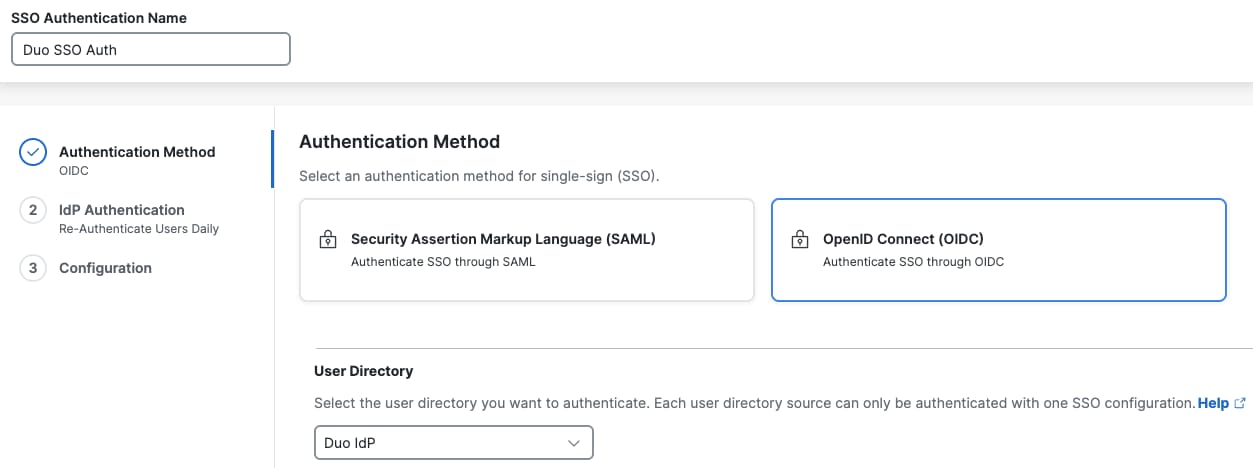
Configure Duo SSO authentication through OIDC in Secure Access

Use your Duo IdP directory in Secure Access to configure Duo SSO in Secure Access.

Before you begin

Procedure

  1. Navigate to Connect > Users, Groups, and Endpoint Devices > Configuration management > SSO authentication.

  2. Click Add SSO authentication.

  3. Enter an SSO Authentication Name.

  4. Under Authentication Method, perform the following:

    1. Choose OpenID Connect (OIDC).

    2. User Directory: Select your Duo IdP directory.

    3. Click Next.

    The Authentication Method interface.
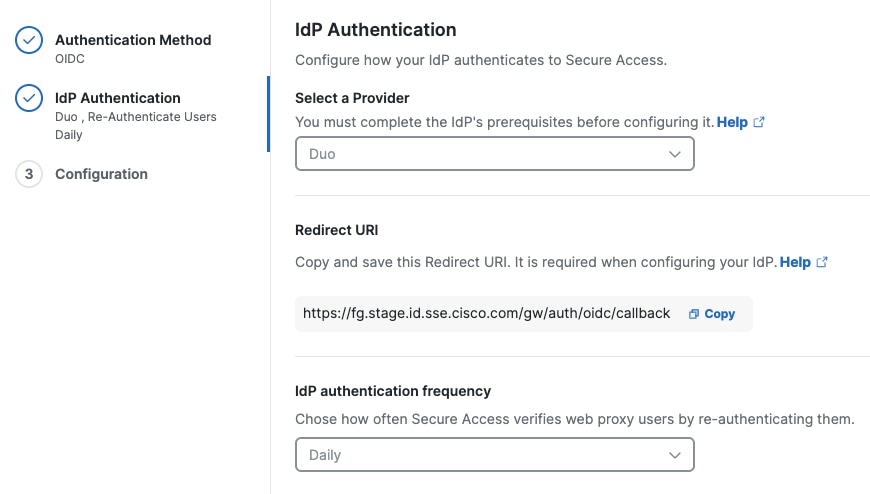
  5. Under IdP Authentication, perform the following:

    1. Select a Provider: Select Duo.

    2. Redirect URI: Copy and save this Redirect URI. It is required when configuring Duo.

    3. IdP authentication frequency: Choose how often Secure Access verifies web proxy users by re-authenticating them. Options are Daily, Weekly, Monthly, Never.

    4. Click Next.

    The IdP Authentication interface.
  6. Configuration: Provide the necessary details to complete the OIDC authentication process for Duo. For more information, see Duo Single Sign-On for Generic OpenID Connect (OIDC) Relying Parties.

    1. The Client ID from the Duo OIDC application.

    2. The Client Secret from the Duo OIDC application.

    3. OIDC Configuration URL: Enter the Discovery URL from the Duo OIDC application, then click Get configuration to populate endpoint details in the fields below.

    4. Click Done.


View Provisioned Users and Groups in Secure Access