Cisco Secure Access Help

PDF

Cisco Secure Access Help

About the Investigate Domain Summary

Want to summarize with AI?

Log in

Describes About the Investigate Domain Summary in Cisco Secure Access. The Investigate Domain Summary displays when you search for a domain name in the Smart Search or Pattern Search.


The Investigate Domain Summary displays when you search for a domain name in the Smart Search or Pattern Search. You can specify a fully qualified domain name (FQDN), for example: subdomain.subdomain.domain.com. Secure Access Investigate is protocol-agnostic.

Note
You must not include the protocol or any URL information in the search query.

Domain Summary Details

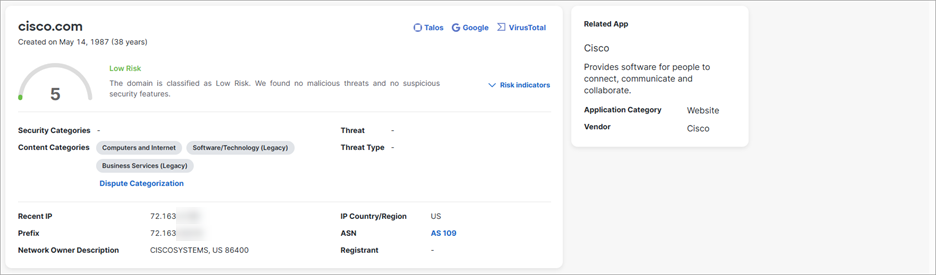
The Domain Summary lists the Investigate Domain Risk Score, sub-scores, security categorizations, content categorizations, and key domain notifications. When a domain is malicious, Investigate displays additional domain details associated with the security

The Domain Summary Details interface.

Investigate Domain Risk Score

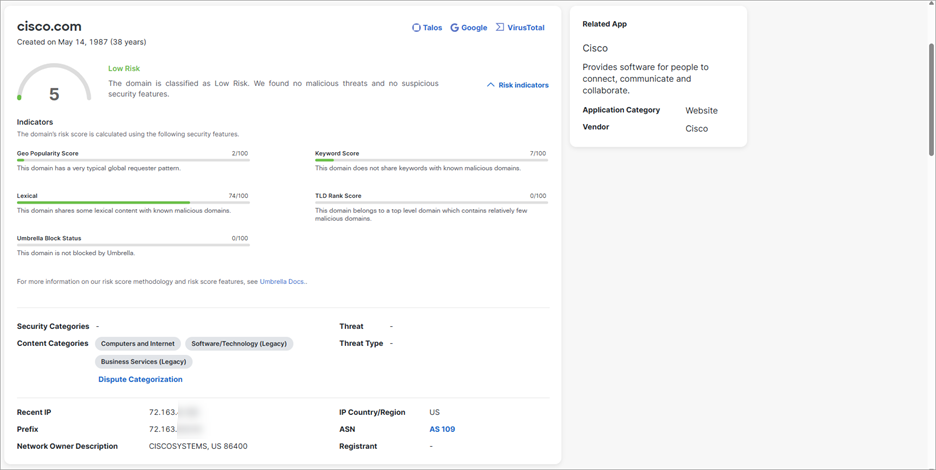
The Investigate Domain Risk Score is based on an analysis of the domain name, the DNS query behavior of the domain, and analyst reviews of the domain.

The Investigate Domain Risk Score interface.

An Investigate Domain Risk Score falls into one of these ranges:

  • High Risk — (90 to 100)

  • Medium Risk — (40 to 90)

  • Low Risk — (0 to 40)

An Investigate Domain Risk score emphasizes the lexical characteristics of domain names along with some key behavioral components. These risk scores are synthesized into one overall score—much like a credit score is made of account balances, lending history, debt ratios, and other components. The DNS behavioral components are:

  • Lexical

    • Keyword Score

    • Lexical Score

  • Behavioral

    • TLD Rank Score

    • Geo Popularity Score

Sub-Component Scores

The behavioral component scores are:

  • Keyword Score

  • Lexical Score

  • TLD Score

  • Geo Popularity

Note
The Secure Access Investigate overall risk score is created from many indicators.

Keyword Score

Many phishing attacks try to take advantage of the weakest link in the security chain: people. If a domain name contains words related to legitimate companies and services, it is more likely to trick people into clicking. This style of social engineering continues to be a common technique for attackers.


Lexical Score

A mainstay of communication between infected machines and command and control servers are domains created using Domain Generation Algorithms (DGAs). A DGA circumvents any need to embed the location of control servers directly in the malware, and it enables attackers to regain control of their botnets even in the face of sink holing and takedowns. Using a generalization of the method behind the Cisco Secure Access DGA score, we can reliably predict when hostnames were generated without having to rely on developing models of what lexical patterns to look for.


TLD Score

Not all top-level domains (TLDs) are created equal. Over the years, the TLDs of choice for spammers have changed according to the following factors: cost, ease of batch registration, verification of registrant identity, and abuse complaint policies. Using our global reach, we can assess the risk indicated by the currently observed abuse levels, and combined with our other indicators, help security analysts make more informed decisions.


Geo Popularity

Global complement of data centers of Secure Access gives us visibility into DNS requests made by clients around the world. Is a domain getting requests from a country where it typically doesn't? Did the number of countries requesting a domain suddenly change? By analyzing requests to domains across all countries in the world, patterns emerge that allow us to detect anomalous behavior and identify increased risk.


About Investigate Passive DNS Timeline

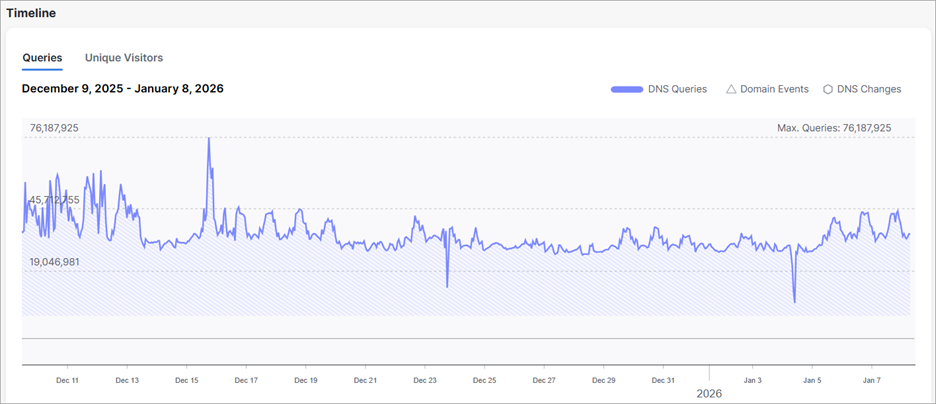
The Passive DNS Timeline displays the DNS query volume, domain events, query history, and DNS changes. You can view the evolution of a domain over time, and view up to four years of DNS changes.

DNS Query Volume

The DNS Query Volume graph uses three icons:

  • Blue Line — The volume of DNS queries over the last 30 days.

  • Diamond — Domain events. The icon is colored red for malware, command and control, and phishing. It is colored yellow for other security events.

  • Pentagon — DNS changes, such as A record changes. We store DNS changes for up to four years.

The About Investigate Passive DNS Timeline 1 interface.

Event History

The Event History uses three lines, from top to bottom, to represent the following event types:

  • DNS Changes—The top line uses dark grey to show DNS record events, such as A record changes.

  • Security Categories—The middle line shows Secure Access security categorization events. Red represents malware, command and control, and phishing. Yellow represents other security events.

  • Query History—The bottom line uses blue to show time periods with DNS query history available.

The About Investigate Passive DNS Timeline 2 interface.

Click on the domain events or DNS changes icons to see details. A panel opens to show events, grouped by resource record type and date. If the view displays more than one event for the selected period, the icon shows the number of available events.

Event History uses the following icons:

Icon Description
The About Investigate Passive DNS Timeline 3 interface. Domain registration date.
The About Investigate Passive DNS Timeline 4 interface. Date that the domain was first seen by our resolvers.
The About Investigate Passive DNS Timeline 5 interface. Domain registration expiration date.

To view more details, hover the pointer over each icon.


Dispute Content Categorization

When a destination is classified in a category which you disagree with, you can dispute the categorization. Secure Access and Cisco Talos share a unified set of content categories. You can submit a category dispute request through Secure Access Investigate or Cisco Talos.

Submit categorization request through cisco Talos

You can submit a domain, an IP address, or a file hash to Cisco Talos, and request that Talos review the content category assigned to the destination. For more information, see Cisco Talos Reputation Center.

Submit categorization request through Investigate

To submit categorization request through Investigate, perform the following steps:

  1. Log into Secure Access and enter a destination you want to query in the Pattern Search or Smart Search.

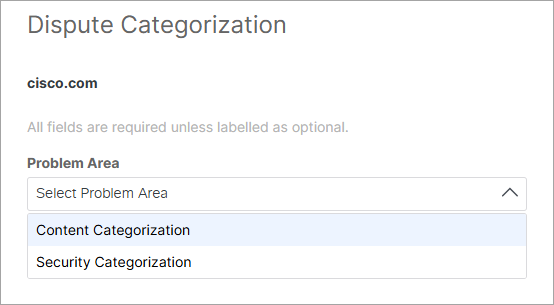
  2. In the Domain Summary view, click Dispute Categorization.

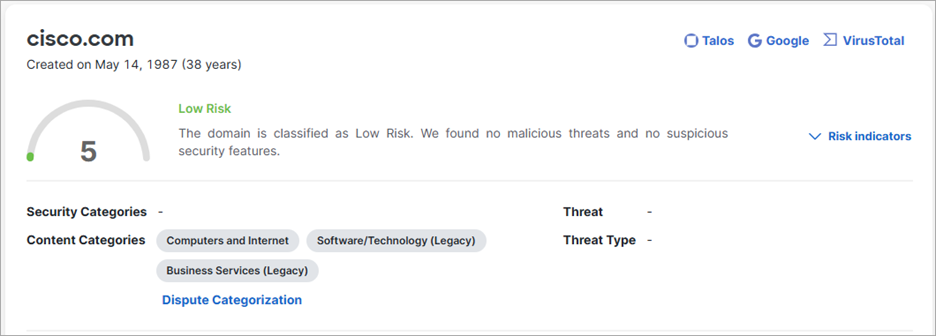
    The Dispute Content Categorization 1 interface.
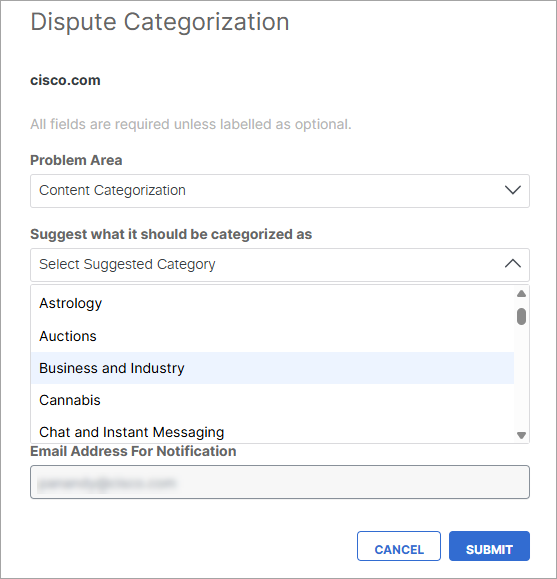
  3. Under Problem Area, choose Content Categorization.

    The Dispute Content Categorization 2 interface.
  4. Choose a category to suggest a new categorization.

    The Dispute Content Categorization 3 interface.
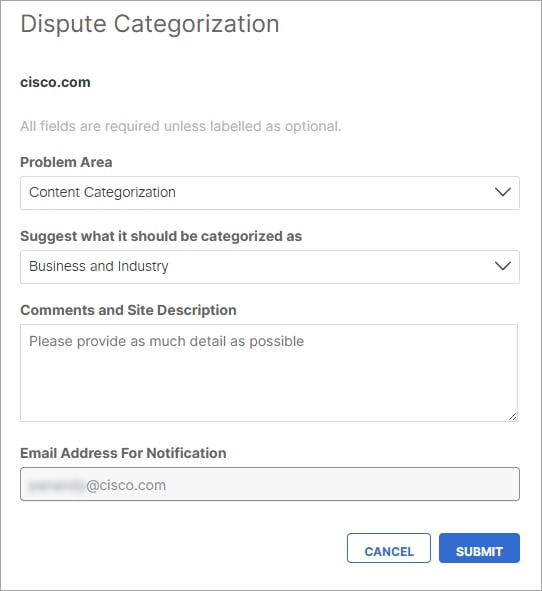
  5. (Optional) Provide comments and a description of the destination for your suggestions.

  6. Enter an email address for the notification. Investigate sends your suggestion directly to Talos for consideration. Talos replies to the email address that you provide with the resolution.

    The Dispute Content Categorization 4 interface.
  7. Click SUBMIT.


About DNS Resolution in Investigate

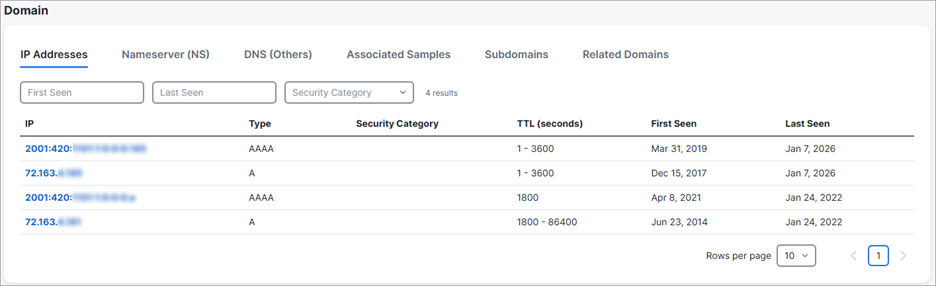
The DNS Resolution includes IP addresses, Nameserver (NS), and other DNS record types, such as TXT records. The DNS Resolution information represents the present and recent history of a domain's DNS settings. By default, the information is sorted from most recent to least recent.

IP Addresses

The IP addresses tab contains information related to the domain. This information includes any security categories (if applicable), TTL(s) (shown as a range), first seen and last seen dates.

The About DNS Resolution in Investigate 1 interface.

Nameserver (NS)

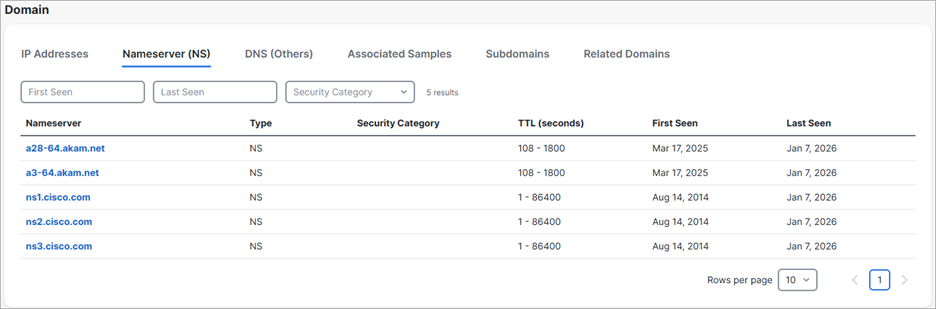
The Nameserver tab holds information about the nameserver related to the domain, including security categories, TTLs (shown as a range), and first seen and last seen dates.

The About DNS Resolution in Investigate 2 interface.

DNS (Others)

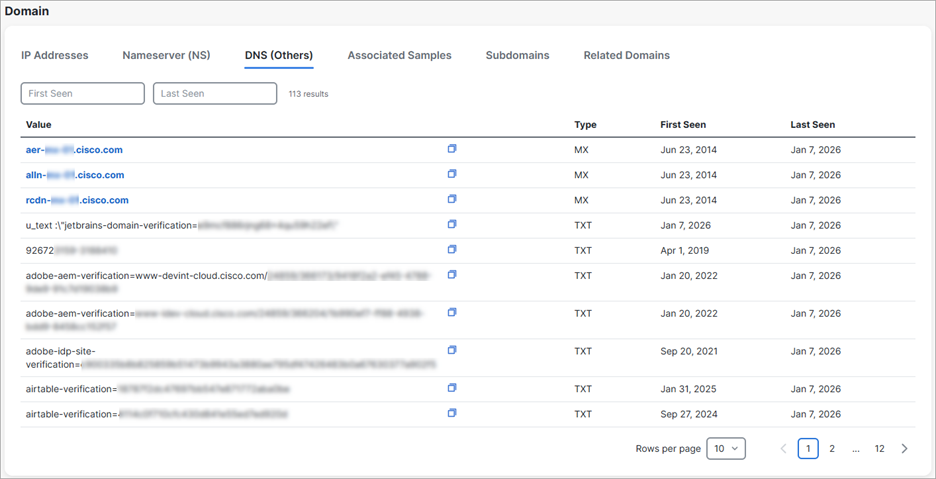
The DNS (Others) tab holds other types of DNS records related to the domain — the value of the DNS record, type of the DNS record, and the first seen and last seen dates.

The About DNS Resolution in Investigate 3 interface.

About Associated Samples in Investigate

When you search for an IP, a domain, or URL, Secure Access Investigate lists any checksum samples associated with the destination. A sample is a type of file, or file-like object created by a process running in memory. Cisco Secure Malware Analytics receives and analyzes submitted file samples and integrates the checksums with Secure Access Investigate. Associated samples are additional file samples known to be related to the main sample.

Cisco Secure Malware Analytics retains checksum samples for one year. You may find that Secure Access Investigate previously listed a sample related to a destination. If Cisco Secure Malware Analytics no longer contains a sample related to the destination, Investigate does not display the sample in the list of associated samples.

Note
Part of the functionality described for the Associated Samples feature of Investigate is only available with both Cisco Secure Malware Analytics and Secure Access Investigate subscriptions. For more information, contact Secure Access support. If you would like to add Cisco Secure Malware Analytics to your existing license, contact your account representative.
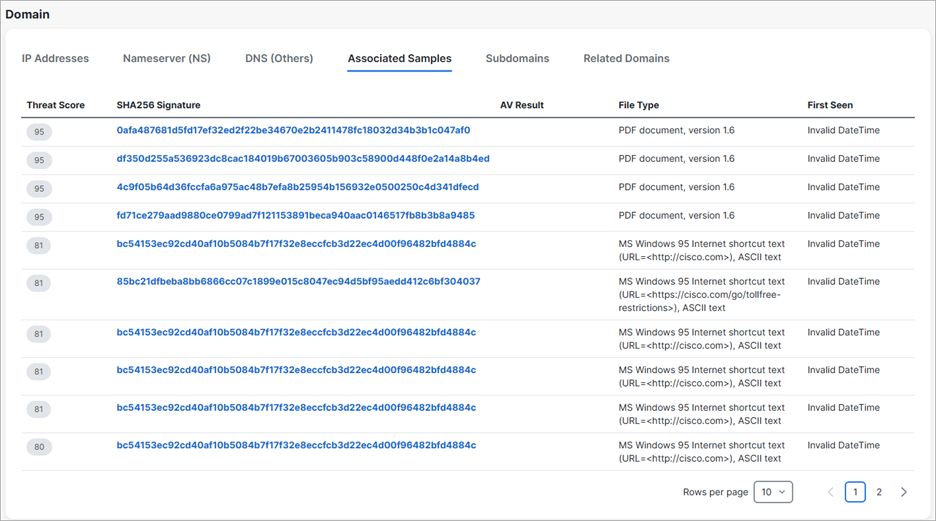
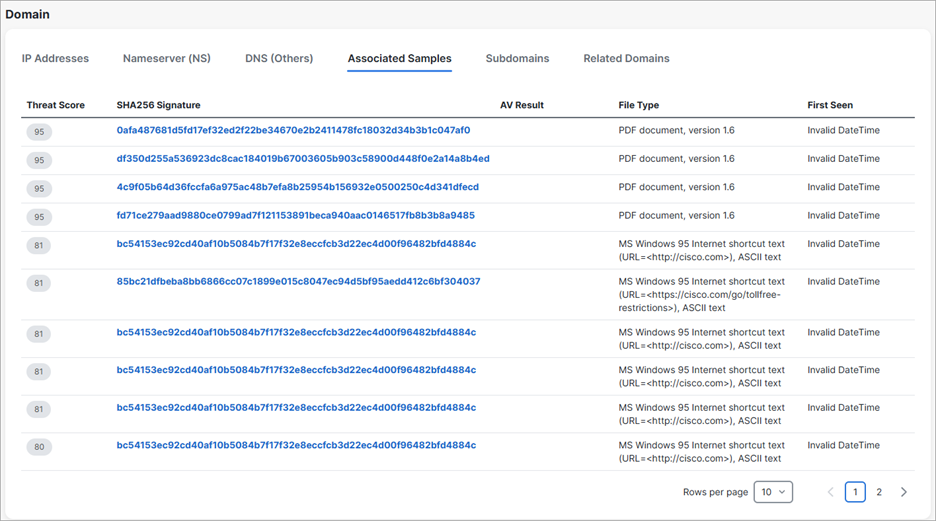
The About Associated Samples in Investigate 1 interface.

Click the link to the SHA-256 signature to display the Investigate Sample View. The Sample view shows information about the individual malware samples, including behavior of the sample on the network.

Note
Some normal, safe domains may have malicious samples associated with them. Malware may use a domain or IP to check internet connectivity or use a domain or IP as a source to determine more data about the host on which it resides—public IP of the infected host or network.

The Associated Sample tab lists up to 10 results per page and includes the following information:

  • Threat Score — The score given to a particular sample based on the analysis performed by Cisco Secure Malware Analytics. A Threat Score is a measure of the amount of system weakening, obfuscation, persistence, modification, data exfiltration, and other behaviors which may be a threat to the host system's integrity. It is intended as an overall threat indicator that can be used as a guide to the likelihood that a submission is malicious. The Threat Score is not an authoritative classification of good and bad software.

  • SHA-256 Signature — The SHA-256 checksum of the associated sample. Use the checksum to pivot to the information about the sample.

  • AV Result — Antivirus results according to ClamAV. A sample can have more than one signature if it is detected under more than one family of malware. A sample may also have no signatures associated.

  • File Type — The type of file associated with the checksum.

  • First Seen — The date when the sample was first seen by Secure Access.


About the Subdomains Tab in Investigate

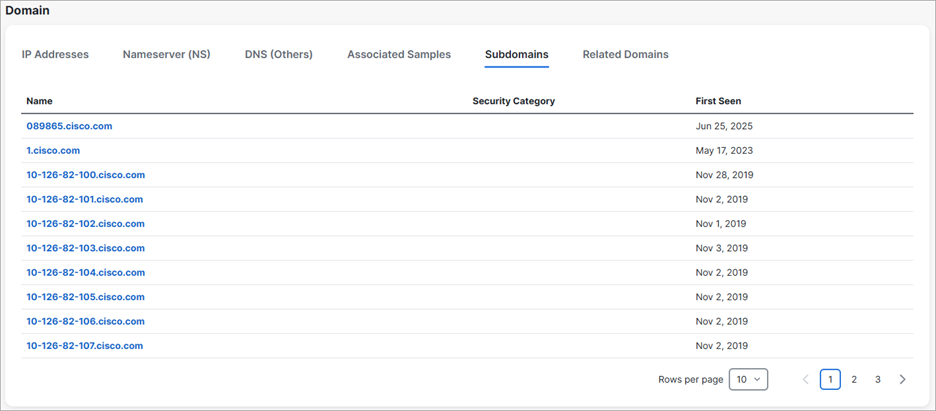
The Subdomains tab lists all subdomains associated with the domain.

  • Name — The subdomain of the domain.

  • Security Category — The type of security risk that this subdomain poses: for example, Malware. The security category is blank if the subdomain poses no risk.

  • First Seen — The date when the subdomain was first detected. This date is determined from the NS records for this sub domain.

The About Associated Samples in Investigate 2 interface.

For information about the subdomain, click the link for the subdomain.


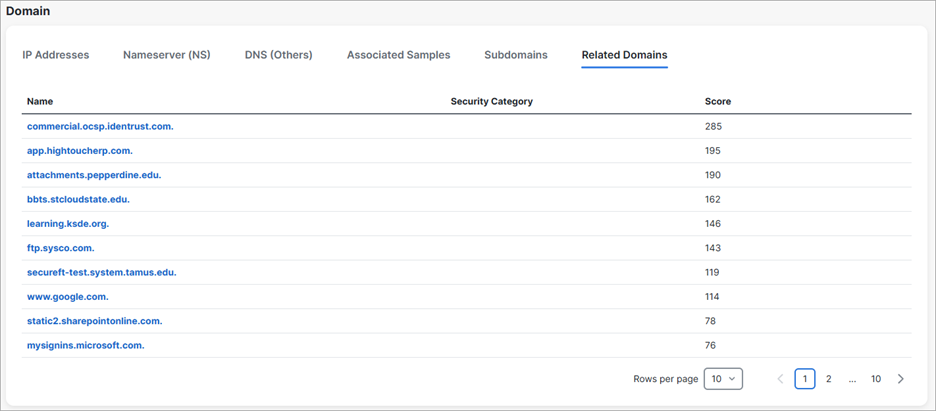
The Related Domains tab lists the domain names that were frequently requested around the same time (up to 60 seconds before or after) as the domain name, but that are not frequently associated with other domain names.

The Score reflects the number of client IP addresses that looked up related sites within 60 seconds of the original domain request.

The About Related Domains in Investigate interface.

About the Geographic Distribution View in Investigate

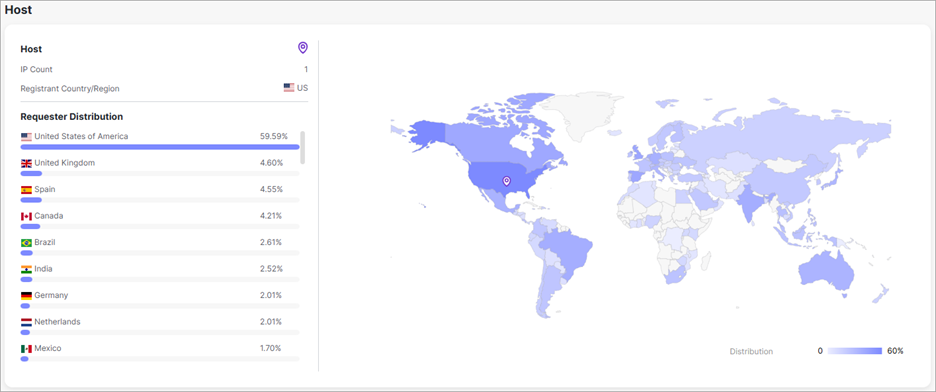
The Geographic Distribution displays a world map of the IP distribution for each searched domain. The map shows the domain host countries (using pins), registrant information, and percentages of that distribution. The geographical representation shows our resolution data plotted across geolocations along with visual indicators to show distribution rates. You can use the Geographic Distribution map to define where a domain request originates.

The About the Geographic Distribution View in Investigate 1 interface.
  • Host — Displays the physical location of the host IP addresses.

  • IP Count — The number of IP addresses registered to the host.

  • Geo Distance (sum, mean) — Lists both the sum and mean distances between hosts in kilometers. The distance between hosts is a mathematical algorithm scoring the relative distances between hosts serving the domain data. This algorithm reflects unusually high scores for the Mean Geo-distance and Sum Geo-distance in the domain features. An alert appears when the mean distance between hosts serving the site is over 3000 kilometers. In our research, we've found that hosts serving a non-malicious domain are geographically close, whereas a domain serving malware is served by hosts found around the globe. Our blog provides more information on how we use distance between domains to determine the maliciousness of certain domains.

  • Registrant Country — Country of origin for the host.

  • Requester Distribution — Hierarchical list in percentage of where in the world the domain requests occurred. Scroll your mouse over various countries on the map to see the percentage for each country.


About the Sample View in Investigate

The Investigate Sample view displays the threat information obtained from a file hash or checksum. You can search for a domain, IP, or URL related to security threats and obtain information about file checksums, threat scores, metadata, and antivirus results.

The Investigate Sample View may include data collected within the last two years by Cisco Secure Malware Analytics. In addition, you can use the Investigate Sample View to analyze a list of checksums gathered from a third-party data feed or in-house security information and event management (SIEM) system.

Note
Part of the Investigate Sample View functionality is only available with both Secure Access Investigate and Cisco Secure Malware Analytics subscriptions. For more information, contact Secure Access support. If you would like to add Cisco Secure Malware Analytics to your existing license, contact your account representative.

Get Started with Sample View

To get started, enter a checksum or file hash in the Investigate Smart Search, or pivot to the Sample view from the Domain or IP Address view.

Note
Investigate Sample View does not contain all data collected by Cisco Secure Malware Analytics. Some of the data collected does not match the criteria that Umbrella Investigate uses to detect security incidents.

If you begin with the Domain or IP Address view, navigate to the Associated Samples tab. Click the link to a sample to display the Sample view.
The About the Sample View in Investigate 1 interface.

Sample View Details

The first part of the Sample View displays information about the checksum.

The About the Sample View in Investigate 2 interface.

Components of a Threat Sample

  • SHA-256, SHA-1 and MD5 checksums of the sample — The hash files or checksums which help to cross-reference samples against VirusTotal and similar databases.

  • Magic Type — A file type based on established file format types that allow files to be associated by the operating system and executed or loaded into memory.

  • Threat Score — The score given to a particular sample based on the analysis performed by Cisco Secure Malware Analytics. A threat score is a measure of the amount of system weakening, obfuscation, persistence, modification, data exfiltration, and other behaviors which may threaten the host system's integrity. The Threat Score is intended as an overall threat indicator or guide to a malicious system. The Threat Score is not an authoritative classification of good or bad software.

  • Size — The size of the sample in bytes.

  • AV Results — The Antivirus results according to ClamAV. A sample can have more than one signature if it is detected under more than one family of malware. A sample may also have no signatures associated with a virus.

  • First Seen — The time stamp for when this sample was first seen by Cisco Secure Malware Analytics.

For more information, see Cisco Secure Malware Analytics.

Behavioral Indicators

The Behavioral Indicators (BI) are key traits and behaviors which may indicate malicious activity. Behavioral indicators include threat severity levels, HTTP Traffic, DNS Traffic, TCP/IP network sessions, processes, artifacts, and registry activities.

Investigate provides two key indicator scores: Severity and Confidence.

  • Severity — Indicates the likely security risk posed by a given behavior, ranging from 0 to 100.

  • Confidence — Indicates the likelihood of the sample exhibiting the stated behavior, ranging from 0 to 100.

The About the Sample View in Investigate 3 interface.

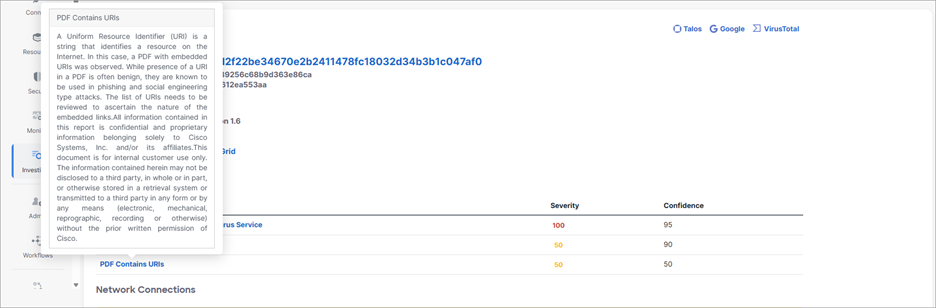
Click on the link to the behavioral indicator to view a description of the indicator.
The About the Sample View in Investigate 4 interface.

Network Connections

A network connection is made by a certain file sample to an IP or a domain. The Network Connections section lists the destination, URLs related to the domain or IP, and security categories for the connection.
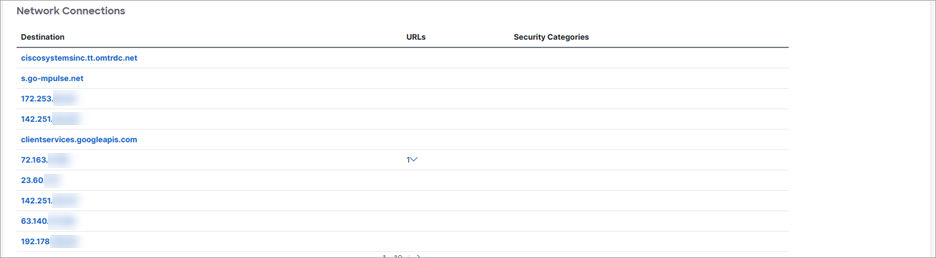
The About the Sample View in Investigate 5 interface.

Click on a destination to display the domain or IP Address view for the destination.

Associated Samples

A sample is a type of file, or file-like object, such as a process running in memory submitted and analyzed by Cisco Secure Malware Analytics. Associated samples are additional file samples known to be related to the main sample.
The About the Sample View in Investigate 6 interface.

Associated Artifacts (Secure Malware Analytics Integration)

A threat artifact is a file that is created or modified during the analysis of a sample. Malware executables often download additional components and infect or modify system files, documents, and running processes. Artifacts are sometimes executables that you can analyze in Cisco Secure Malware Analytics.

The About the Sample View in Investigate 7 interface.

Click on the link to a signature sample to display the details of the sample threat artifact.
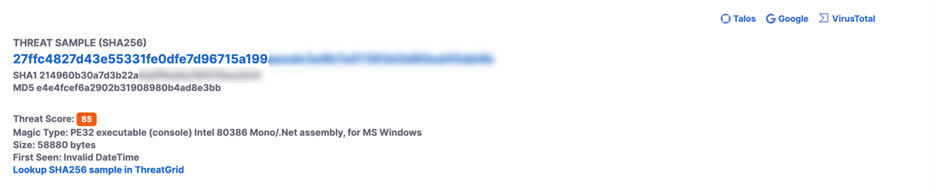
The About the Sample View in Investigate 9 interface.

About the IP Address View in Investigate

The Investigate IP address view includes a collection of data about an IP address: summary of key details, DNS resolution, Autonomous Systems (AS), associated samples, and recent detections. Investigate displays the IP Address view when you use the Smart Search and provide an IP address, or when you link to an IP address from the Domain View. When you search for an IP address, specify the entire IP address. We currently do not support the option to search for a subnet, for example, a /24 network.

Note
The Investigate API /search endpoint accepts an IP subnet.

Summary

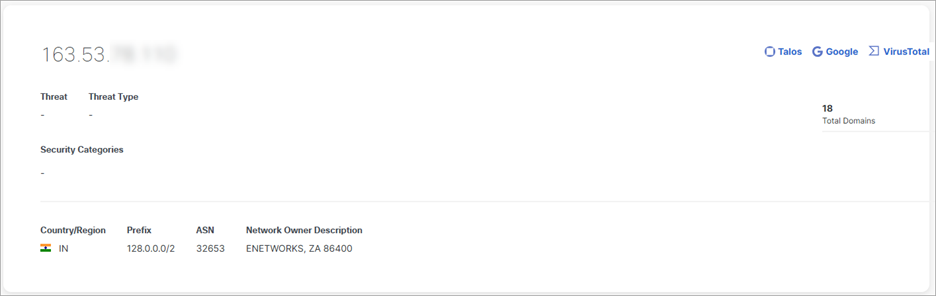
The IP Address summary provides the key details about an IP address: location, network, threats, security categories, links to integrated threat information, and an aggregate of malicious domains hosted on the IP grouped by security category.

The About the Sample View in Investigate 10 interface.
Note
Watch for unexpected results when an IP address belongs to a content delivery network, or CDN. A malicious domain could potentially be hosted on any number of edge servers, depending on the requester's geographic location, load balancing at the CDN and the proxy cache time. As a result, searching for a single IP address belonging to a CDN may show that there are 0 malicious domains for that IP address because the content was being served on other, related IPs belonging to the CDN.

DNS Resolution

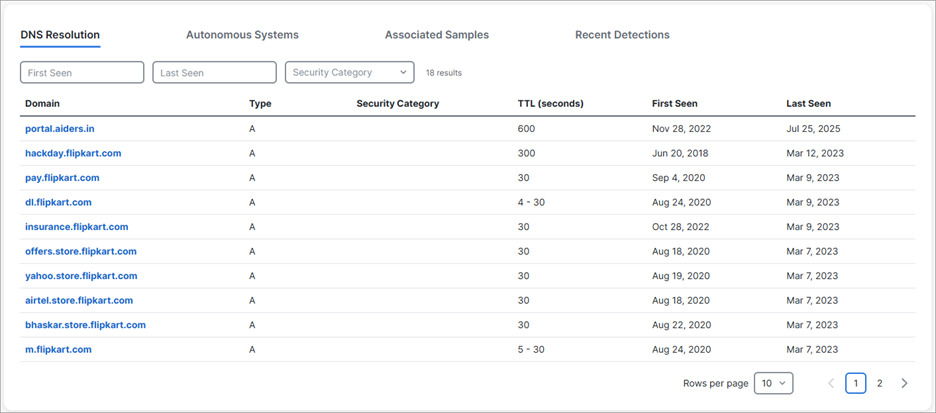
The DNS Resolution tab displays the list of domains associated with the IP address. The DNS Resolution view lists the domain name, type of record, and first seen and last seen dates.

The About the Sample View in Investigate 11 interface.

Autonomous Systems

The Autonomous Systems (AS) tab lists the IP prefix, ASN of the IP address, and Network Owner Description. For more information about an ASN, click the link to the ASN.

The About the Sample View in Investigate 12 interface.

Associated Samples

When you search for an IP, a domain, or URL, Secure Access Investigate lists any checksum samples associated with the destination. A sample is a type of file, or file-like object created by a process running in memory. Cisco Secure Malware Analytics receives and analyzes submitted file samples and integrates the checksums with Secure Access Investigate. Associated samples are additional file samples known to be related to the main sample.

Cisco Secure Malware Analytics retains checksum samples for one year. You may find that Secure Access Investigate previously listed a sample related to a destination. If Cisco Secure Malware Analytics no longer contains the sample associated with the destination, Investigate does not display the sample in the list of associated samples.

Note
Part of the functionality described for the Associated Samples feature of Investigate is only available for customers of both Cisco Secure Malware Analytics and Secure Access Investigate. For more information, contact Secure Access support.
The About the Sample View in Investigate 13 interface.

The Associated Sample tab lists up to 10 results per page and includes the following information:

  • Threat Score — The score given to a particular sample based on the analysis performed by Cisco Secure Malware Analytics. A Threat Score is a measure of the amount of system weakening, obfuscation, persistence, modification, data exfiltration, and other behaviors which may be a threat to the host system's integrity. It is intended as an overall threat indicator that can be used as a guide to the likelihood that a submission is malicious. The Threat Score is not an authoritative classification of good and bad software.

  • SHA-256 Signature — The SHA-256 checksum of the associated sample. You can use the checksum to pivot to the specific information about the sample.

  • AV Result — Antivirus results according to ClamAV. A sample can have more than one signature if it is possibly detected under more than one family of malware. A sample may also have no signatures associated.

  • File Type — The type of file associated with the checksum.

  • First Seen — The date when the sample was first seen by Secure Access.

Recent Detections

The About the Sample View in Investigate 14 interface.