Cisco Secure Access Help

PDF

Cisco Secure Access Help

Rule Defaults: Default Settings for Access Rules

Want to summarize with AI?

Log in

Describes Rule Defaults: Default Settings for Access Rules in Cisco Secure Access. When you create a new access rule, Secure Access configures the rule with the default rule settings unless you select other options in the rule.


When you create a new access rule, Secure Access configures the rule with the default rule settings unless you select other options in the rule. The rule defaults are a collection of controls for endpoint security posture and security profiles, and the zero trust authentication interval property.

You can modify the default rule settings. For more information, see Edit Rule Defaults and Global Settings.

Note
Important Information About Changing Rule Defaults

If you modify a rule default, all existing rules that are configured to use a particular rule default will change to use the new default.

For example, if you change the default IPS Profile from Balanced Security and Connectivity to Maximum Security, the IPS profile in all existing rules that are configured to use the default IPS Profile will now use the Maximum Security settings for IPS.

Existing rules that are configured to use custom settings are not affected by changing the rule default. To determine whether a rule uses default or custom settings, see About the Access Policy.
Zero Trust Access: Endpoint Posture Profiles

Client-based and browser-based Zero Trust Access (ZTA) profiles specify end-user device requirements when connecting to private and internet resources using ZTA.

Choose from these types of Private Access posture profiles:

  • Client-based—Select as the default profile for devices where the Cisco Secure Client is installed.

  • Browser-based—Select as the default profile for devices where the Cisco Secure Client is not installed.

For Internet Access, which designates the default requirements for client-based ZTA connections to internet destinations, select a client-based posture profile from the drop-down menu.

Note
Internet Access posture profiles are applied at the global level, not at the rule level.

For more information about Zero Trust posture profiles, see Manage Zero Trust Access Posture Profiles.


Zero Trust Access: User Authentication Interval

The Zero Trust Access User Authentication Interval is sometimes known as step-up authentication.

For the ZTA user authentication interval, specify the default frequency with which end users must verify their identity, in order to connect to any private resource using client-based zero trust access. When disabled, users are not prompted to re-authenticate to the network.

Note: iOS clients do not support the User Authentication Interval option. The User Authentication Interval must be disabled in access rules that apply to iOS devices.


User Authentication Default Interval Settings


Configure Access Rule Editing Sessions

Use the editing-session settings to control how long an administrator can lock and edit an access rule, and to determine whether they can extend the active session.

Before you begin

You must have the Full Admin user role to configure rule defaults and global settings. For more information, see Manage Accounts.

Procedure

  1. In the global settings panel, locate the Editing sessions.

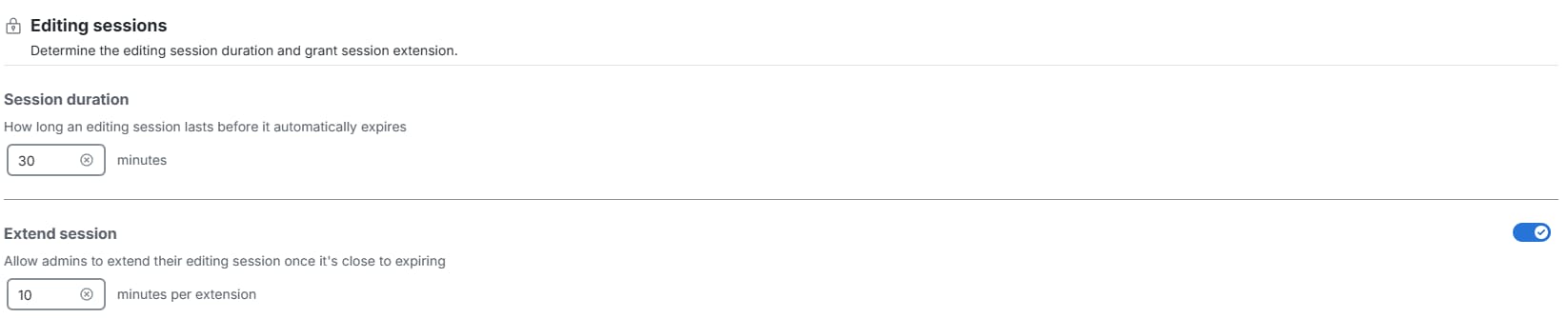
  2. In the Session duration section, enter the number of minutes that an access rule remains locked for an editing session before it expires.

  3. To allow administrators to extend a session, enable the Extend session toggle button, and then enter the number of minutes to add under minutes added per extension.

    Note
    You can extend an editing session only once. The maximum extension duration is 40 minutes.
  4. Click Save.

    Editing session screen with the information on session and extend session duration
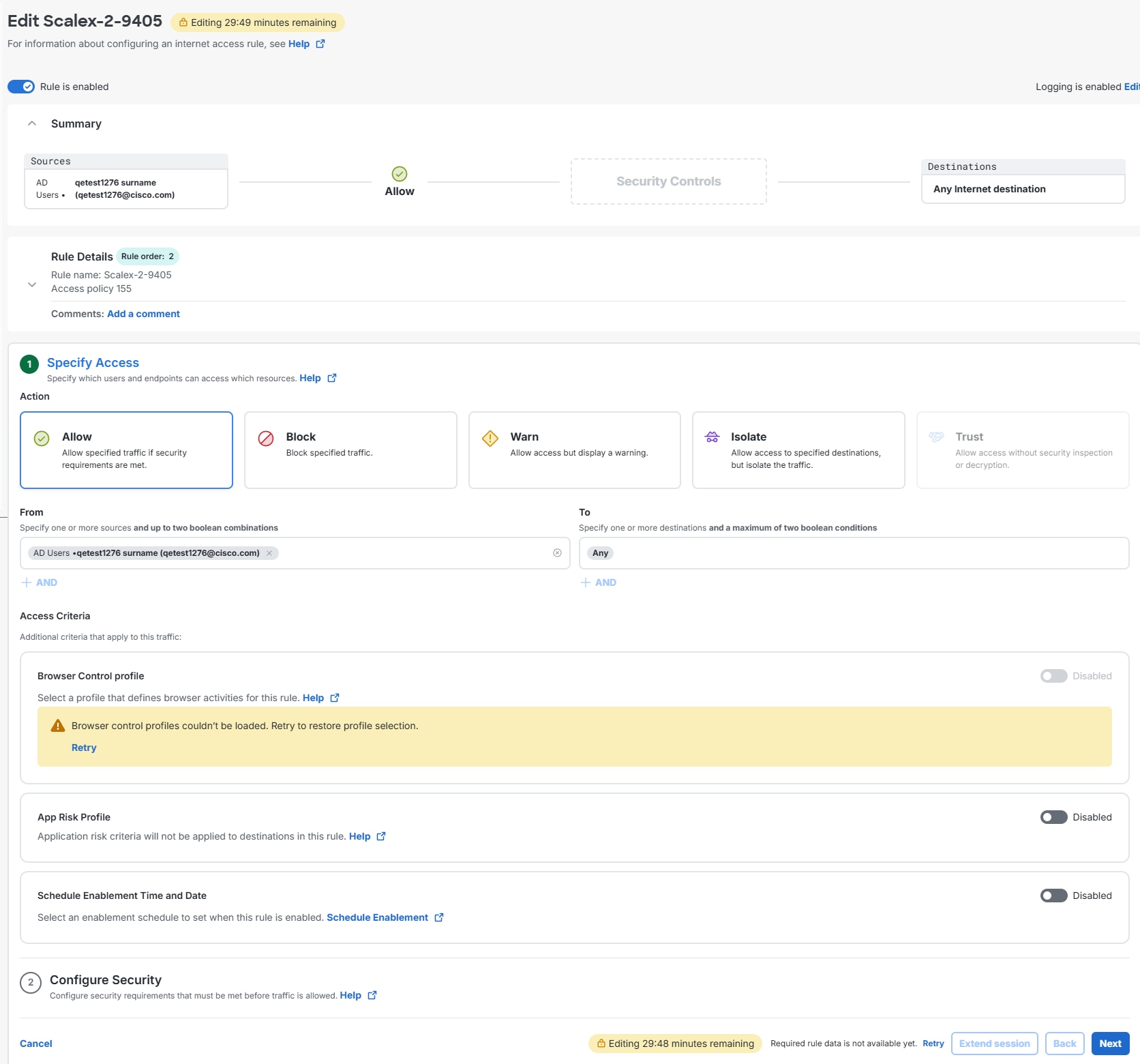
  5. While editing a rule, the Internet Access Rule and Private Access Rule page both shows the remaining time at the top and bottom. Click Extend session before the time expires to extend the session. If another admin opens the rule during an active session, Secure Access displays a dashboard notification and opens the rule in preview mode.

    Time remaining and extend session duration
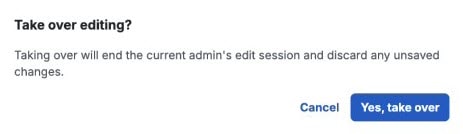
  6. To take over editing, click Take Over Editing, and then click Yes, take over. This action ends the current administrator's session and discards any unsaved changes.

    Take over editing screen

Intrusion Prevention (IPS)

Enable or disable intrusion prevention by default for all new private access and internet access rules. When IPS is enabled, you can choose a default intrusion prevention profile for all new rules of both types. For more information about IPS profiles, see Manage IPS Profiles.


The Default Rules IPS interface.

Security Profile

A security profile lets you configure settings that you can use in a rule as a set. Choose a profile to apply to all new access rules of each type (internet and private access). For more information about Security profiles, see Manage Security Profiles.


The Security Profile Rule Defaults interface.

Isolation Profile

Isolation profiles allow you to define granular security controls for web traffic that is redirected to an isolated browser. This setting applies only to internet access rules. For more information about Isolation Profiles, see Manage Remote Browser Isolation Profiles.

The Rbi14 interface.

Select the default isolation profile from the drop-down list.


Tenant Control Profile

Limit access to your organization's tenant for certain SaaS applications. This setting applies only to internet access rules. For more information about tenant control profiles, see Manage Tenant Control Profiles.


The Default Rules Tenant interface.



