Cisco Secure Access Help

PDF

Cisco Secure Access Help

Manage API Keys for Provisioning Identities

Want to summarize with AI?

Log in

Describes Manage API Keys for Provisioning Identities in Cisco Secure Access. Cisco Secure Access supports the management of Microsoft Active Directory (AD) endpoint devices and Security Group Tags (SGTs) in Secure Access through the Cisco Secure Access Identities Registration API.


Cisco Secure Access supports the management of Microsoft Active Directory (AD) endpoint devices and Security Group Tags (SGTs) in Secure Access through the Cisco Secure Access Identities Registration API. For more information, see Cisco Secure Access Identities Registration API.

You can also provision users, groups, and endpoint devices by uploading AD identities in comma-separated values (CSV) files. For information about uploading CSV files to Secure Access, see Import Users and Groups from CSV File and Manage Machine Tunnels.



Guidelines

  • For general information about adding, refreshing, or removing Secure Access API keys, see Manage API Keys.

  • Generate an API key for provisioning endpoint devices and Security Group Tags (SGTs) in Secure Access on Connect > Users, Groups, and Endpoint Devices > Integrate Directories. Secure Access generates the API key with these attributes:

    • The Deployments / Identities key scope and Read / Write permissions.

      • You can add more API keys in Secure Access to manage the endpoint devices in the organization. Create and manage API keys on the Admin > API Keys page.

    • A default expiry date of 90 days. You can modify the API key's expiry date at any time.

    • A default key name of API Provisioning Key.

  • Secure Access only displays the active endpoint devices in the organization. For more information, see View Endpoint Device Details.

  • Use the Cisco Secure Access Identity Endpoints API to update an endpoint device in Secure Access. For more information, see Cisco Secure Access Identities Registration API.


Add the API Key for Managing Identities

Add an API key in Secure Access to manage the endpoint devices and Security Group Tags (SGTs) for the organization.

Note
You can add API keys with the Deployments / Identities key scope on the Admin > API Keys page in Secure Access.

Before you begin

Procedure

  1. Navigate to Connect > Users, Groups, and Endpoint Devices, and then click Configuration management.


    The Users Device Configuration Management interface.
  2. On the Configurations tab, click Integrate directories.


    The Integrate Directories Button interface.
  3. For Provisioning Method, click Manual Upload, and then click Next.


    The Secure Access Provision Manual Upoad interface.
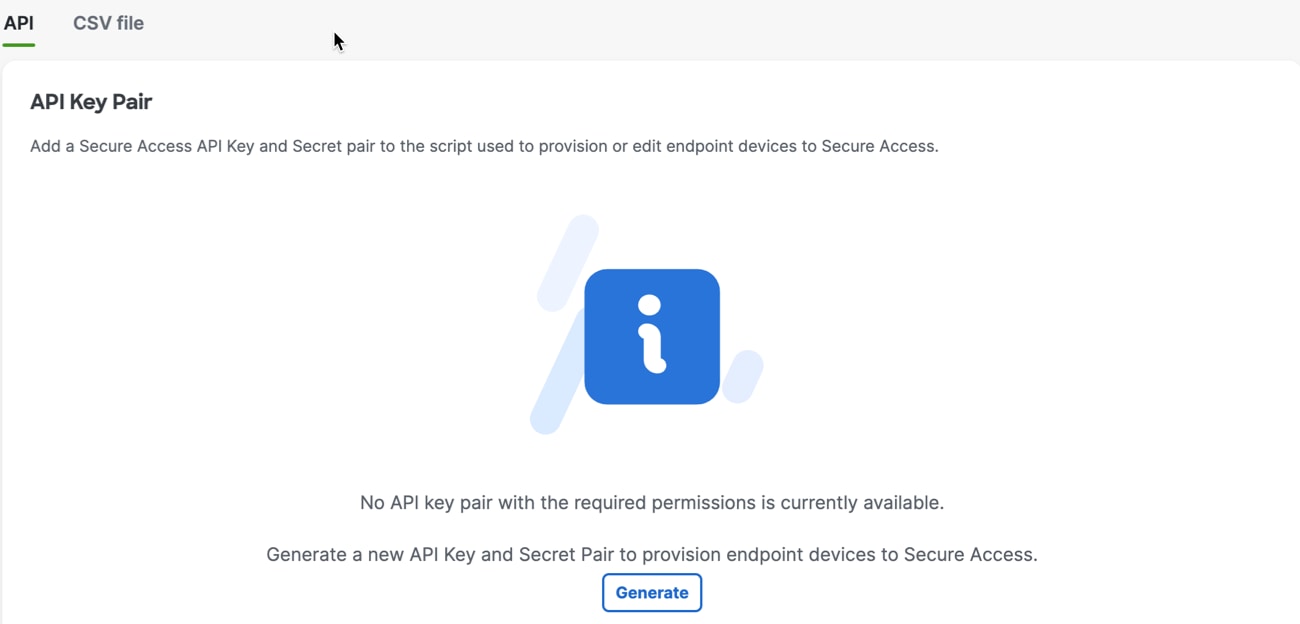
  4. On Integrate Directories, click the API tab.


    The Endpt Devices Generate Key interface.
  5. Click Generate to add an API key and secret.


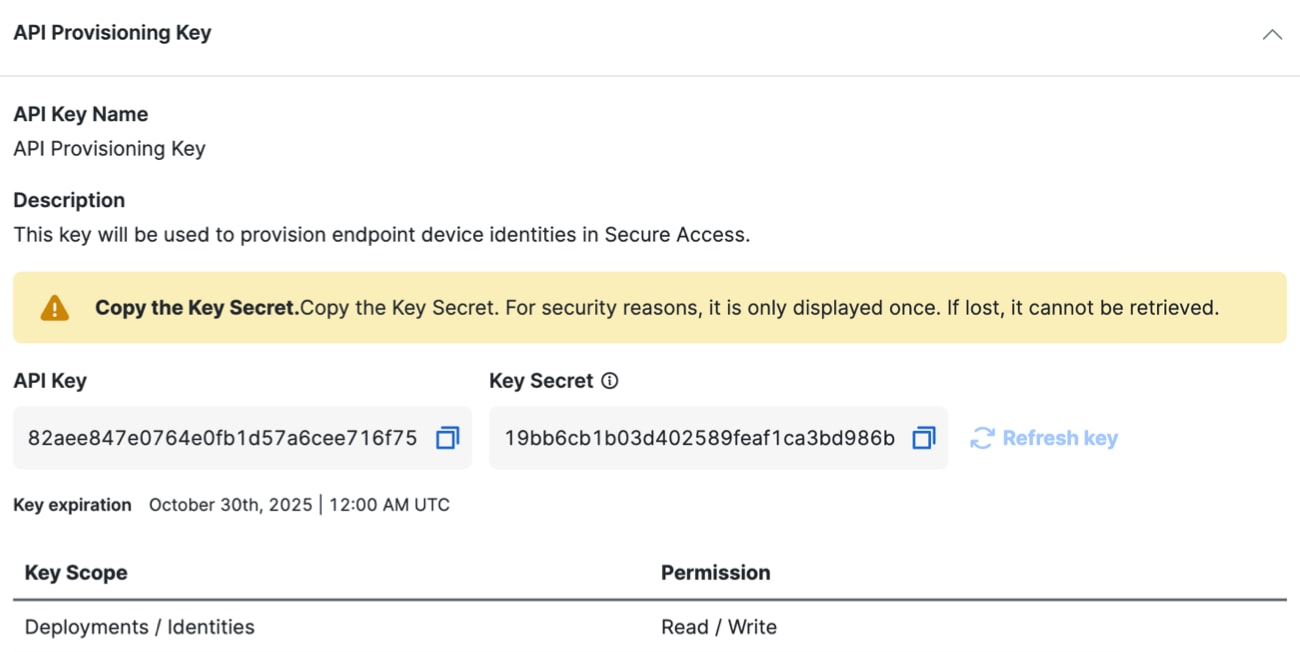
    The Endpoint Devices Copy Key2 interface.
  6. Copy the value of API Key and the value of Key Secret to your local environment.

  7. Click Done.


Refresh the API Key for Managing Identities

Refresh the API key used to manage the endpoint devices and Security Group Tags (SGTs) in Secure Access.

Note
You can refresh any API keys that you added in the organization on the Admin > API Keys page in Secure Access.

Before you begin

Procedure

  1. Navigate to Connect > Users, Groups, and Endpoint Devices, and then click Configuration management.


    The Users Device Configuration Management interface.
  2. On the Configurations tab, click Integrate directories.


    The Integrate Directories Button interface.
  3. For Provisioning Method, click Manual Upload, and then click Next.


    The Secure Access Provision Manual Upoad interface.
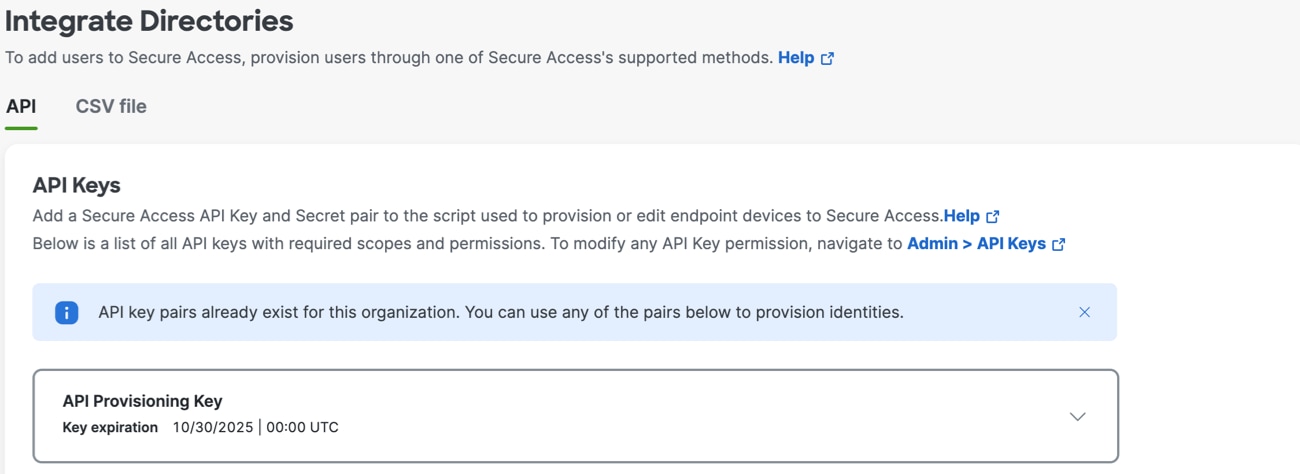
  4. On Integrate Directories, click the API tab.


    The Ug Display Keys interface.
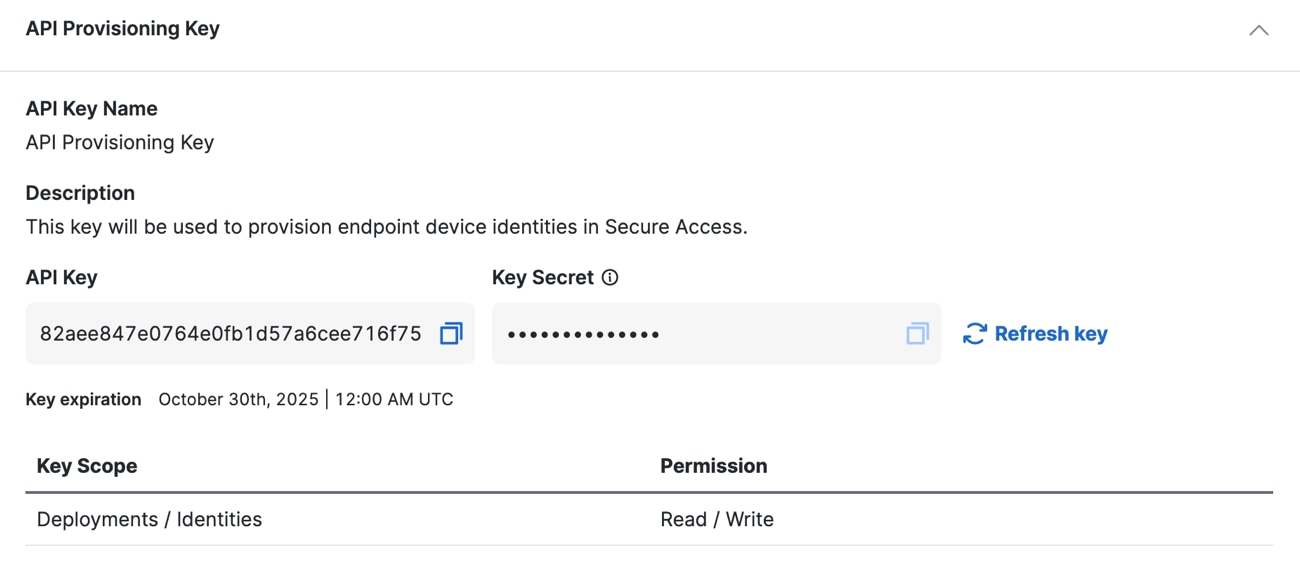
  5. Expand an API key, and then click Refresh key.


    The Ug Refresh API Key interface.
  6. Copy the value of API Key and the value of Key Secret to your local environment.

  7. Click Done.


Delete API Keys

To remove the API keys that you added in Secure Access, navigate to Admin > API Keys and delete the keys. For more information, see Manage API Keys.


View Details About Provisioned API Keys

Note
You can view all API keys added in the organization on the Admin > API Keys page in Secure Access. For more information, see Manage API Keys.

Before you begin

  • A minimum user role of Read-only. For more information, see Manage Accounts.

Procedure

  1. Navigate to Connect > Users, Groups, and Endpoint Devices, and then click Configuration management.

  2. On the Configurations tab, click Integrate directories.

  3. For Provisioning Method, click Manual Upload, and then click Next.


    The Secure Access Provision Manual Upoad interface.
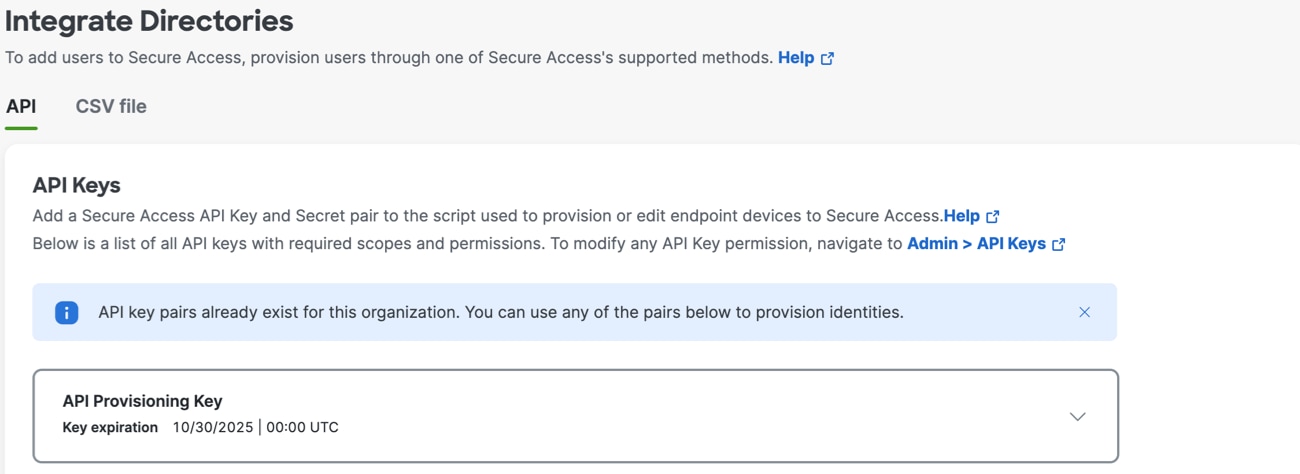
  4. Navigate to Integrate Directories, and then click on the API tab.


    The Ug Display Keys interface.
  5. Secure Access displays the list of API keys in the organization configured with the Deployments/identities key scope and Read/Write key permissions.

  6. Expand an API key to view the key details.


View Details for Identities Provisioned with the API

Note
Secure Access only displays the API Provisioned component if the organization provisioned an API key for managing the endpoint devices and Security Group Tags (SGTs).

Before you begin

  • A minimum user role of Read-only. For more information, see Manage Accounts.

Procedure

  1. Navigate to Connect > Users, Groups, and Endpoint Devices, and then click Configuration management.

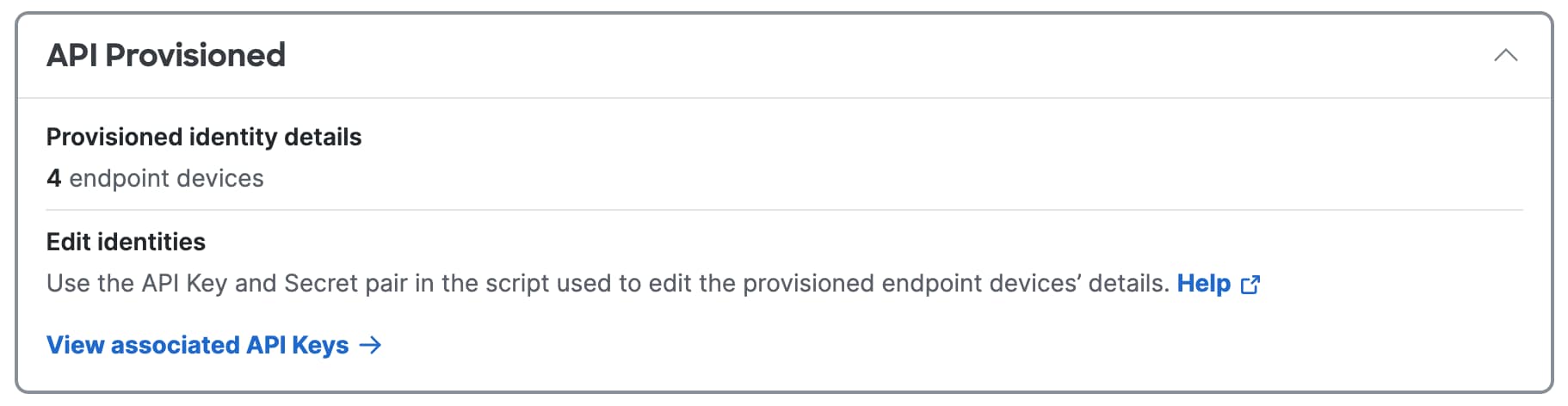
  2. On the Configurations tab, navigate to Directories, and then expand the API Provisioned component.

    Secure Access displays the number of identities that the organization provisioned with the Cisco Secure Access Identities Registration API.


    The API Provisioned Open Card interface.

View Endpoint Devices

You can view the details about the endpoint devices in Secure Access. For more information, see View Endpoint Device Details.

Before you begin

  • A minimum user role of Read-only. For more information, see Manage Accounts.

Procedure

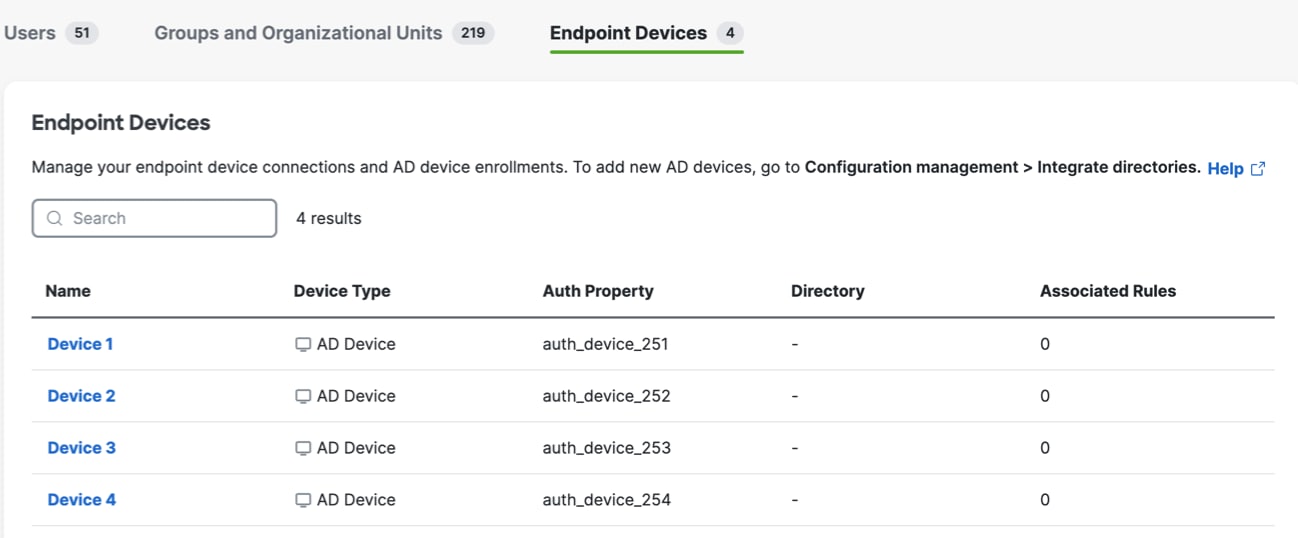
Navigate to Connect > Users, Groups, and Endpoint Devices, and then click on the Endpoint Devices tab.

The Endpoint Devices Table View2 interface.