Cisco Secure Access Help

PDF

Cisco Secure Access Help

Enable SaaS API Data Loss Prevention for Box Tenants

Want to summarize with AI?

Log in

Describes Enable SaaS API Data Loss Prevention for Box Tenants in Cisco Secure Access. To apply DLP SaaS API rules to files in a Box tenant, you must authorize the tenant using the procedure described below.


To apply DLP SaaS API rules to files in a Box tenant, you must authorize the tenant using the procedure described below. Once the tenant is authorized, for each file residing in the tenant, when Secure Access finds data in violation of an enabled SaaS API rule it will enforce the action of that rule.

Limitation

Secure Access supports SaaS API Data Loss Prevention only for Box Enterprise accounts.

Prerequisites

  • Chrome or Firefox (recommended) with pop-up blockers and ad blockers disabled (only for the duration of authorization).

  • The user performing the installation must use a Box account with Box admin privileges. (Co-admin privileges are insufficient.)
Authorize a Tenant

Procedure

  1. Navigate to Admin > Authentication.

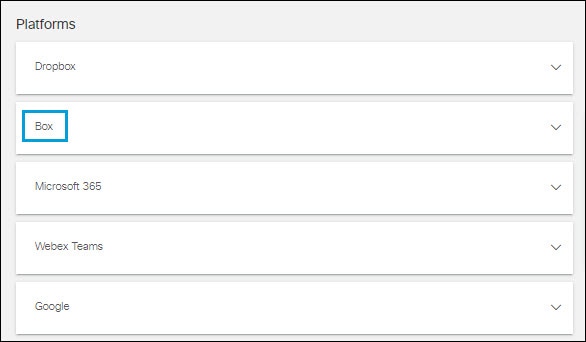
  2. Under Platforms, click Box.


    Platforms page displaying options for Box
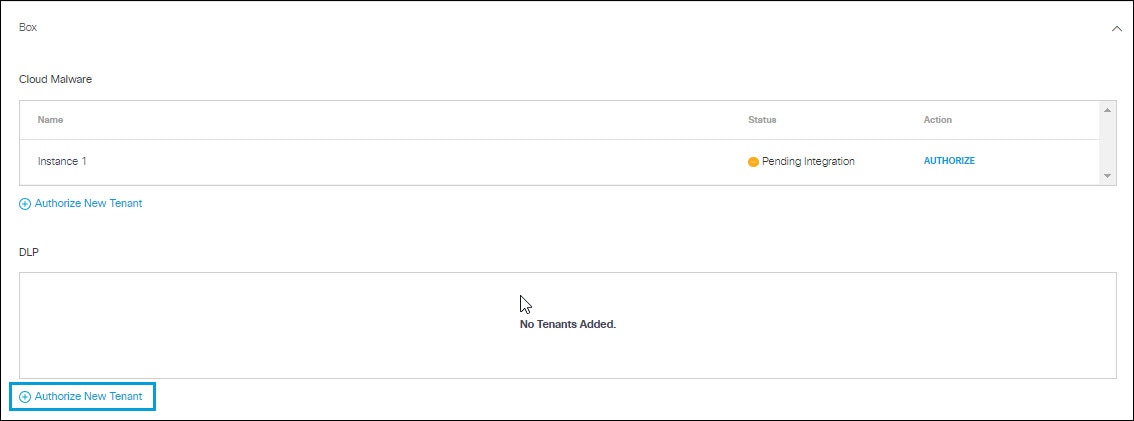
  3. In the DLP subsection, click Authorize New Tenant to add a Box tenant to your Secure Access environment.


    Box page displaying the option to authorize a new tenant
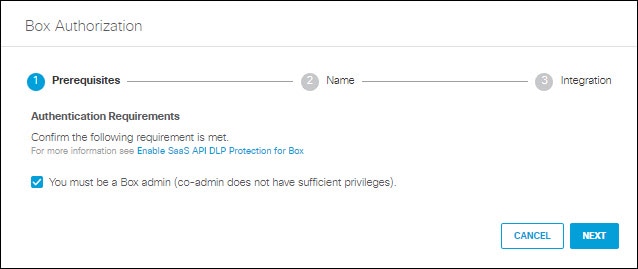
  4. In the Box Authorization dialog, check the checkbox to verify you meet the prerequisite, then click Next.


    Box Authorization page displaying the option to proceed to the next step.
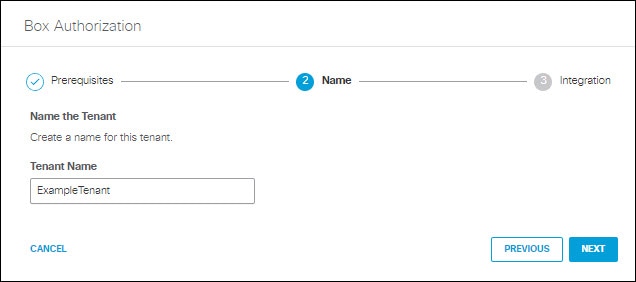
  5. Enter the name of your tenant, then click Next.


    Box Authorization page displaying options for tenant name and next
  6. Click Next to be redirected to the Box login page.

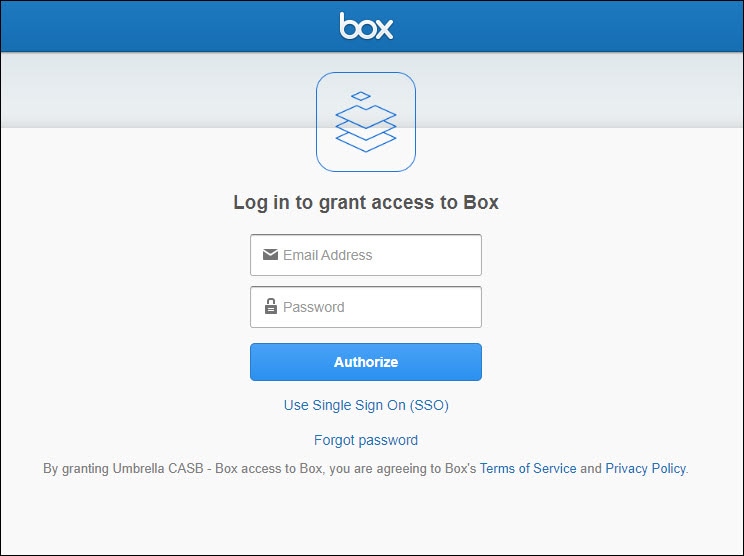
  7. Log in to Box with admin privileges to grant access.


    Box page displaying the option to log in
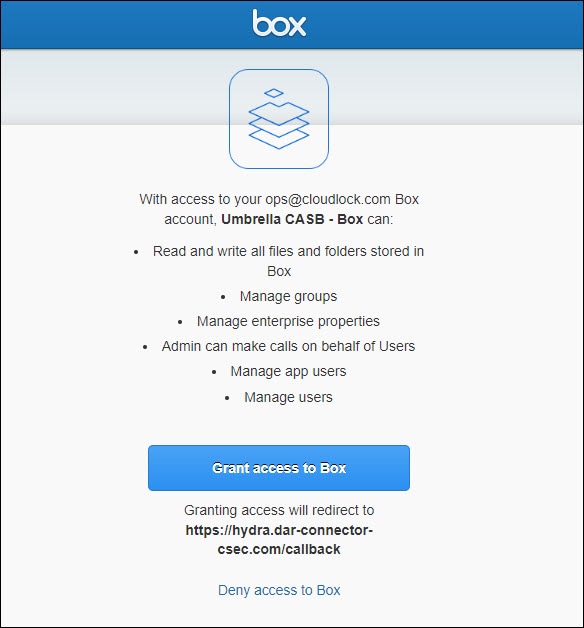
  8. Click Grant access to Box to complete the authorization.


    Box page displaying the option to grant access to Box
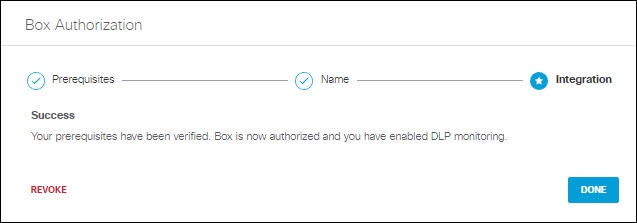
  9. You are redirected to the Secure Access Dashboard and a message appears showing the integration was successful. It may be up to 24 hours for the integration to be confirmed and appear as Authorized. Click Done to complete.


    Box Authorization page displaying the option for done

Revoke Authorization

Procedure

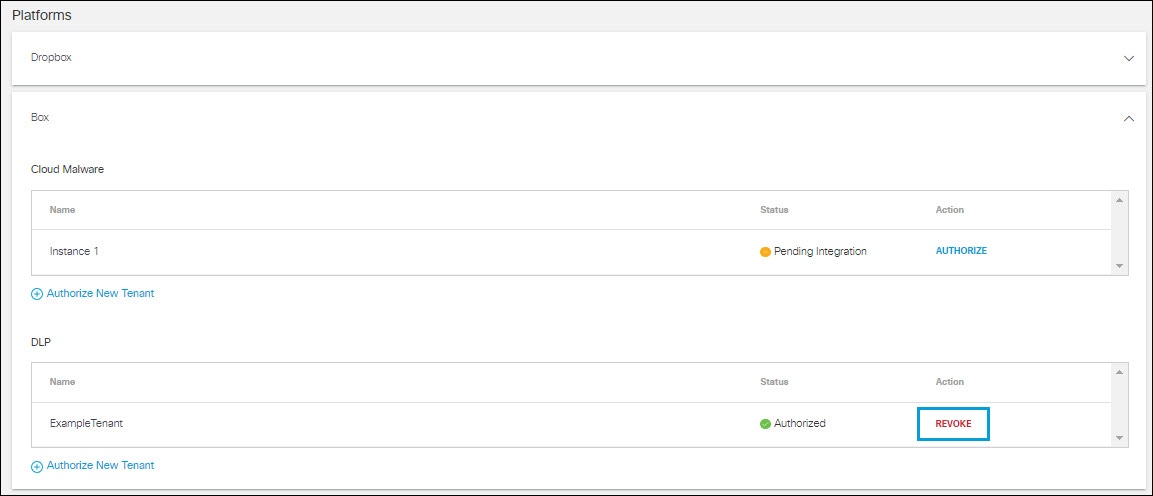
  1. Under Action, click Revoke. You can revoke any authorized tenant.


    Platforms page displaying options for action and revoke.
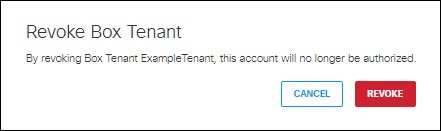
  2. Confirm to proceed. The selected account will no longer be authorized.


    Revoke Box Tenant page displaying the option to revoke