Cisco Secure Access Help

PDF

Cisco Secure Access Help

Application Portal for Zero Trust Access Browser-Based User Access

Want to summarize with AI?

Log in

Describes Application Portal for Zero Trust Access Browser-Based User Access in Cisco Secure Access. Provide your users with an application portal that displays links to private resources that are enabled for browser-based Zero Trust Access.


Provide your users with an application portal that displays links to private resources that are enabled for browser-based Zero Trust Access.

If you do not set up this portal, you must give browser-based users a special link for each resource. These links are created during private resource configuration.

The application portal lets you give users just the one URL for the portal, simplifying browser-based user access to these resources and streamlining administrative overhead.

All private resources that are configured to appear on the portal will be visible to all users who have access to the portal.

What Users Experience

  1. Users point their browser to the portal URL that you provide.
  2. Users sign in to Zero Trust Access.
  3. The user sees all resources that are configured to be displayed in the portal.
  4. The user clicks an application to open a new browser tab with that resource.
Prerequisites

Users and User Endpoint Devices Prerequisites

  • Supported browsers
  • Cisco Secure Client is NOT required on user devices.

Application Portal Prerequisites

  • If you will upload a company logo for the portal or logos for applications, create or obtain graphics that meet these requirements:
  • File type: PNG, transparent background recommended
  • Size: 250 x 150 pixels
  • All configurations required for browser-based zero trust access to a private resource must be completed before users can use the portal. This includes but is not limited to private resource configuration, posture profiles, user authentication, and access rules. See Configure Browser-based Zero Trust Access to Private Resources.

Configure an Application Portal for Zero Trust Access Browser-Based User Access

Procedure

  1. Enable and configure the Application Portal:

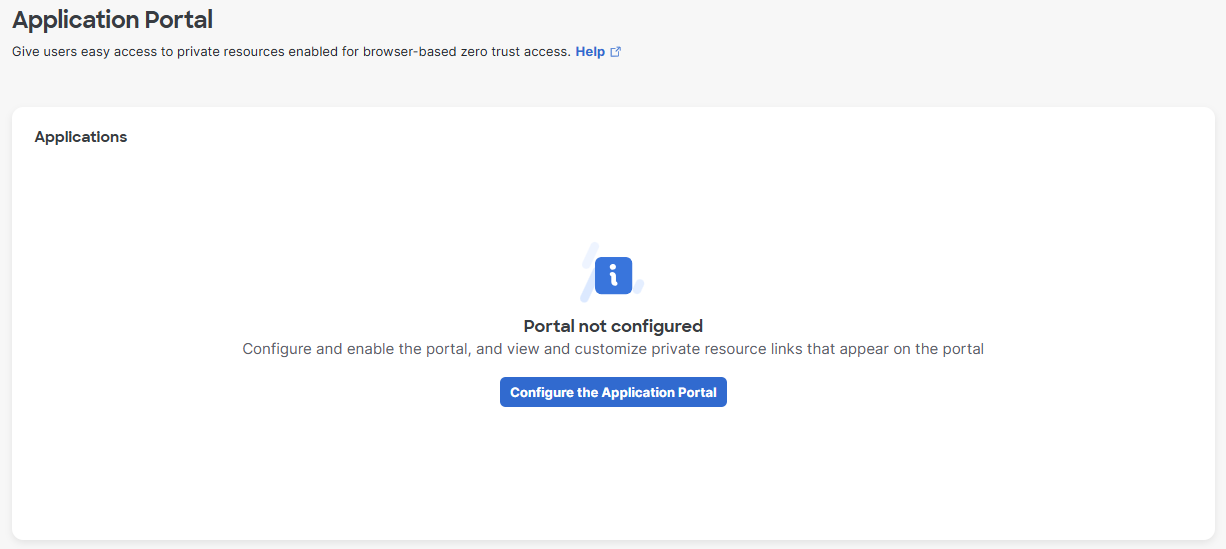
    1. Navigate to Resources > Destinations > Application Portal and click Configure the Application Portal.


      Application Portal page displaying option to configure the application portal
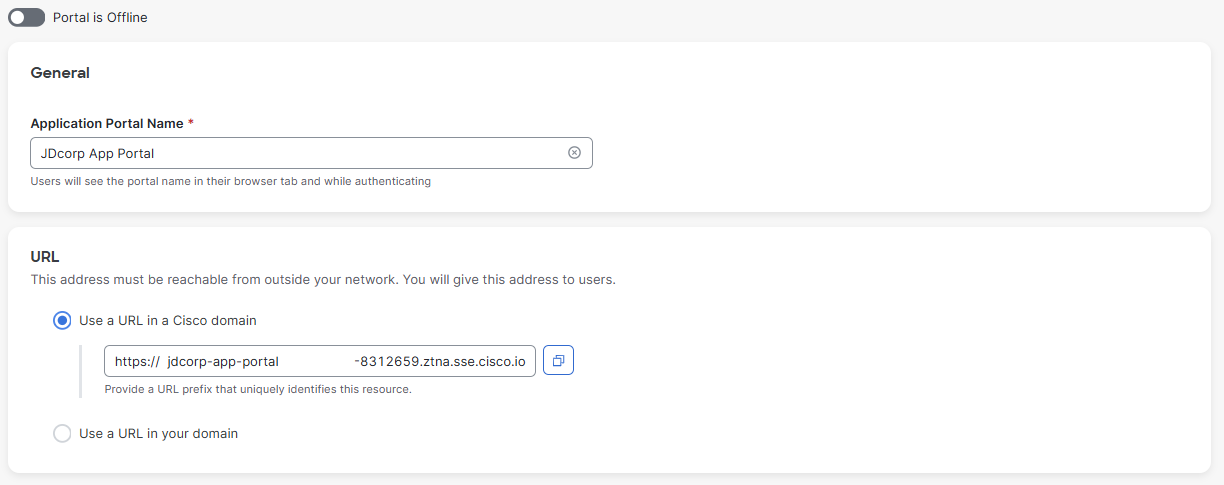
    2. Enter an Application Portal Name and URL for the portal. The portal hostname/URL and alias must be unique.


      General section with fields to enter the application portal name and URL for the portal
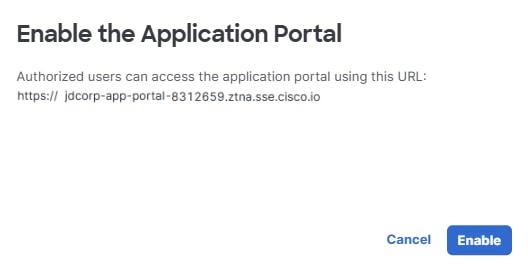
    3. Enable the portal by sliding the activation toggle to right.


      Enable the Application Portal page with enable option
    4. Click Save to enable the configured Application Portal. The server identity certificate should be signed by a public certificate authority unless you will install the validating root certificate in the trust store of user endpoint devices.


      Save the configurations to enable the application portal
  2. Configure each Private Resource that you want to appear on the portal:

    1. Enable browser-based Zero Trust Access.

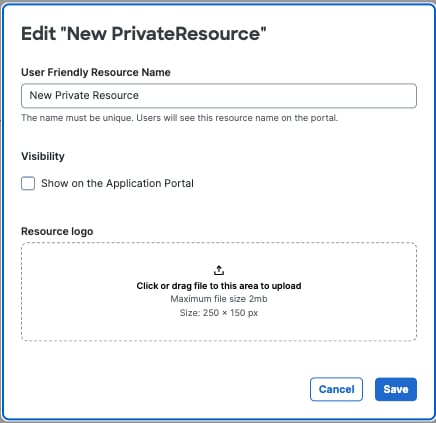
    2. Select the option to display the resource on the application portal.

    3. Configure the application portal name and optional logo.

  3. Create at least one private access rule to grant authorized users access to the portal itself.

    1. In the Destinations box, choose Select Destinations > Private Resources and select the Application Portal Name that corresponds to the portal you defined.

  4. Ensure that the toggle at the top of the Application Portal configuration page is set to Online.

  5. Distribute the portal URL to your users.


Filter Policies Based on Applications

You can add or remove applications your access policy and thusly modify which applications are visible to your employees or end users. Allow or block users from certain applications by adding or removing applications as a private resource to a rule. You must configure an application portal for your ZTA experience first. See Application Portal for Zero Trust Access Browser-Based User Access for more information.

If you are unsure if an application is associated with a rule, navigate to Resources > Settings > Destinations > Private Resources and view what resources are associated to rules. You can view the applications currently available to your organization on the Resources > Application Portal page.

Before you begin

You must have the following already established before you start this procedure:
  • You must have Admin permissions to execute the following procedure. See Edit Account Settings for more information,

  • You must have at least one rule associated to your access policy.

  • You must have the application portal already configured for Zero trust Access browser-based access. See Application Portal for Zero Trust Access Browser-Based User Access for more information.

  • You must have at least one application added to your application portal.

Procedure

  1. In the Secure Access dashboard, navigate to Secure > Access Policy.

  2. Locate and select the rule you want to update and edit it. You can do this by either selecting the checkbox by the rule name, clicking the ellipses icon (...) and clicking Edit; you can also click the Rule Name and clicking Edit from the pop-up window.

  3. In the Specify Access section of the rule configuration page, in the To field, click + Add to add an application as a private resource.

    To remove an application from a rule, click + Add for the To field box and then manually remove the application of your choice.
  4. Save the changes made to the rule. You can verify the changes by viewing the Resources > Settings > Destinations > Private Resources page and select the application you just added or removed. If added to a rule, the rule is included in the list of Associated Rules. If the application has been removed, it is not include in the list.


(Optional) Modify Settings

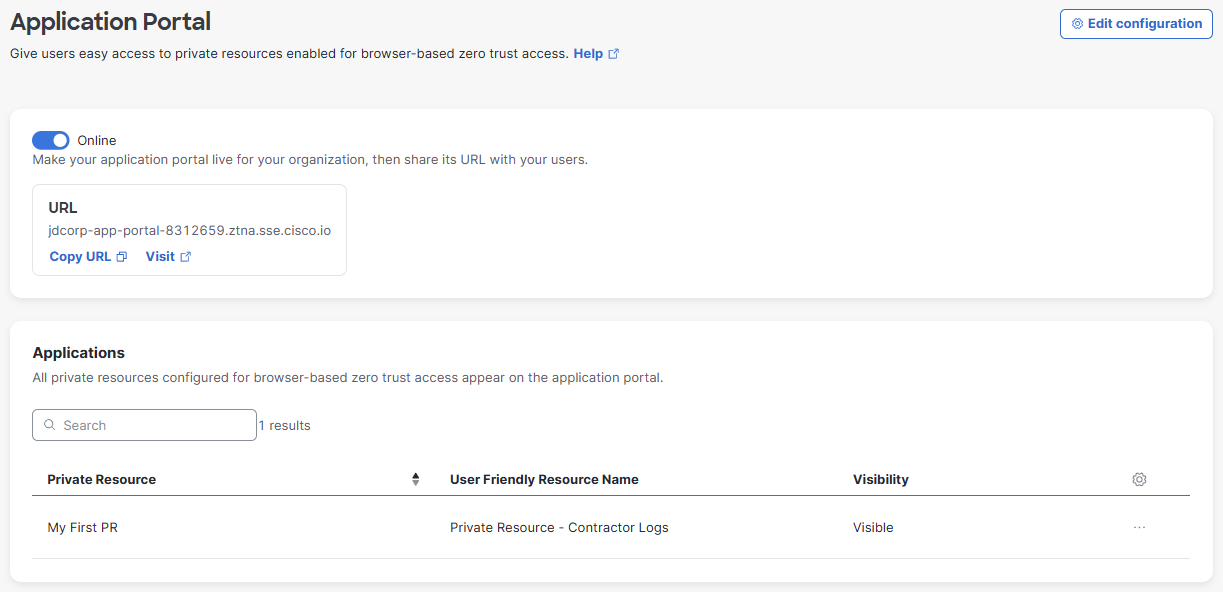
  • After the portal is configured, you can view the private resources that have been configured to display on the portal, and optionally edit display settings.
  • To modify the portal configuration or certificate, click Edit Configuration in the top right corner of the Application Portal page.
  • If you disable the portal (using the Online toggle at the top of the page), users can continue to access private resources if they have the direct URL that is defined for browser-based zero trust access on the resource's configuration page.