Cisco Secure Access Help

PDF

Cisco Secure Access Help

Add Policies to a Chromebook Device

Want to summarize with AI?

Log in

Describes how to add policies to a Chromebook Device in Cisco Secure Access. Add a Chromebook-specific access policy in Secure Access to protect all Chromebook devices that are connected to your network.


Add a Chromebook-specific access policy in Secure Access to protect all Chromebook devices that are connected to your network. By creating an internet access rule for the policy, you specify how traffic to internet destinations is handled.

Tip

To maintain end-user privacy when Chromebooks are connected at remote locations, disable content logging and include only security-related events in your reporting.

Procedure

Before you begin

Procedure

  1. Navigate to Secure > Access Policies.

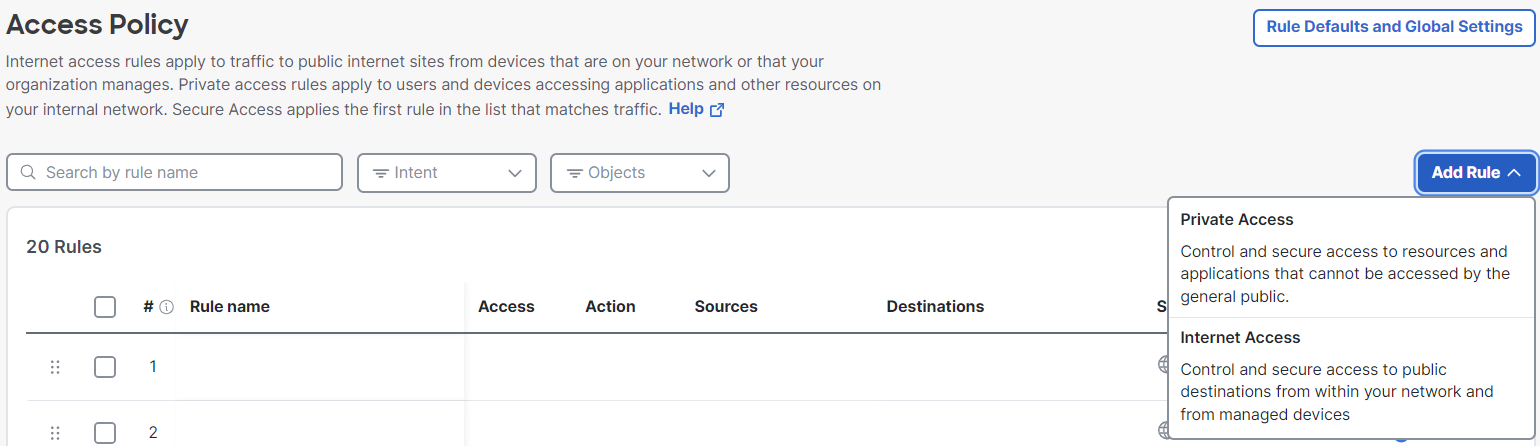
  2. On the Access Policy page, click .


    Full admin access to Secure Access. See Manage Accounts. Navigate to Secure Access Policies. On the Access Policy page, click Add Rule Internet Access.
  3. On the Add New Internet Access Rule page, complete the Rule name and Rule order fields and specify the desired access for the rule. For more information, see Add an Internet Access Rule.

  4. Click the From field and do one of the following:

    • To choose a Google Workspace user:

      1. Click Users.

      2. Click Google Workspace Users.

      3. Check the checkbox for the user.

    • To choose a Google Workspace organizational unit:

      1. Click User Groups and Organizational Units.

      2. Click Google Workspace Organizational Units.

      3. Click the checkbox for the Google Workspace organizational unit.

    • To choose a Chromebook device:

      1. Click Roaming Devices.

      2. Click Chromebooks.

      3. Click the checkbox for the Chromebook.

  5. Choose your destination and configure security requirements. For more information, see Add an Internet Access Rule.