Cisco Secure Access Help

PDF

Cisco Secure Access Help

Integrate the Google Workspace Identity Service

Want to summarize with AI?

Log in

Describes how to integrate the Google Workspace Identity Service in Cisco Secure Access. If you use the Google Workspace Identity service to manage organizational units (OUs) and user accounts, you can integrate the service with Secure Access to synchronize that information with Secure Access policies.


If you use the Google Workspace Identity service to manage organizational units (OUs) and user accounts, you can integrate the service with Secure Access to synchronize that information with Secure Access policies.

Note

When managing users and Chromebooks in the Google Admin console, it's common practice to create logical groups of users to which you apply specific internet-access and content-filtering policies. For example, you might create a "staff and students" group with two subgroups for that group: "high-school students" and "middle-school students."

Note

These users and groups are currently intended exclusively for Chromebook (DNS/SWG) identification. The users cannot be utilized for other purposes, such as SAML authentication.

This section explains how to install the Cisco User Management for Secure Access app on your organization's Google Workspace. The application authorizes Secure Access to retrieve OUs and users from your Google Workspace account.
Limitations

  • You can import only Google Workspace users and organizational units. You cannot import Google Workspace groups.

  • Google Workspace user and organizational unit updates can take up to 1 hour to appear on Secure Access.

  • If you have more than 250K users and organizational units to import from Google Workspace, you must create a support case. Contact Cisco support at https://www.cisco.com/c/en/us/support/web/tsd-cisco-worldwide-contacts.html.


Integrate the Google Workspace Identity Service

Before you begin

The Google Workspace super administrator must have a Secure Access account with the Full Admin role. For more information about Secure Access user accounts, see Manage Accounts.

Procedure

  1. Sign into the Google Workspace administration console with your Google Workspace super administrator ID.

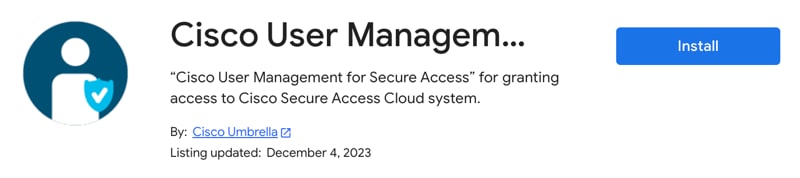
  2. From Google Workspace Marketplace, navigate to the Cisco User Management for Secure Access app.

  3. Click Install.


    Console with your Google Workspace super administrator ID. From Google Workspace Marketplace, navigate to the Cisco User Management for Secure Access app. Click Install.
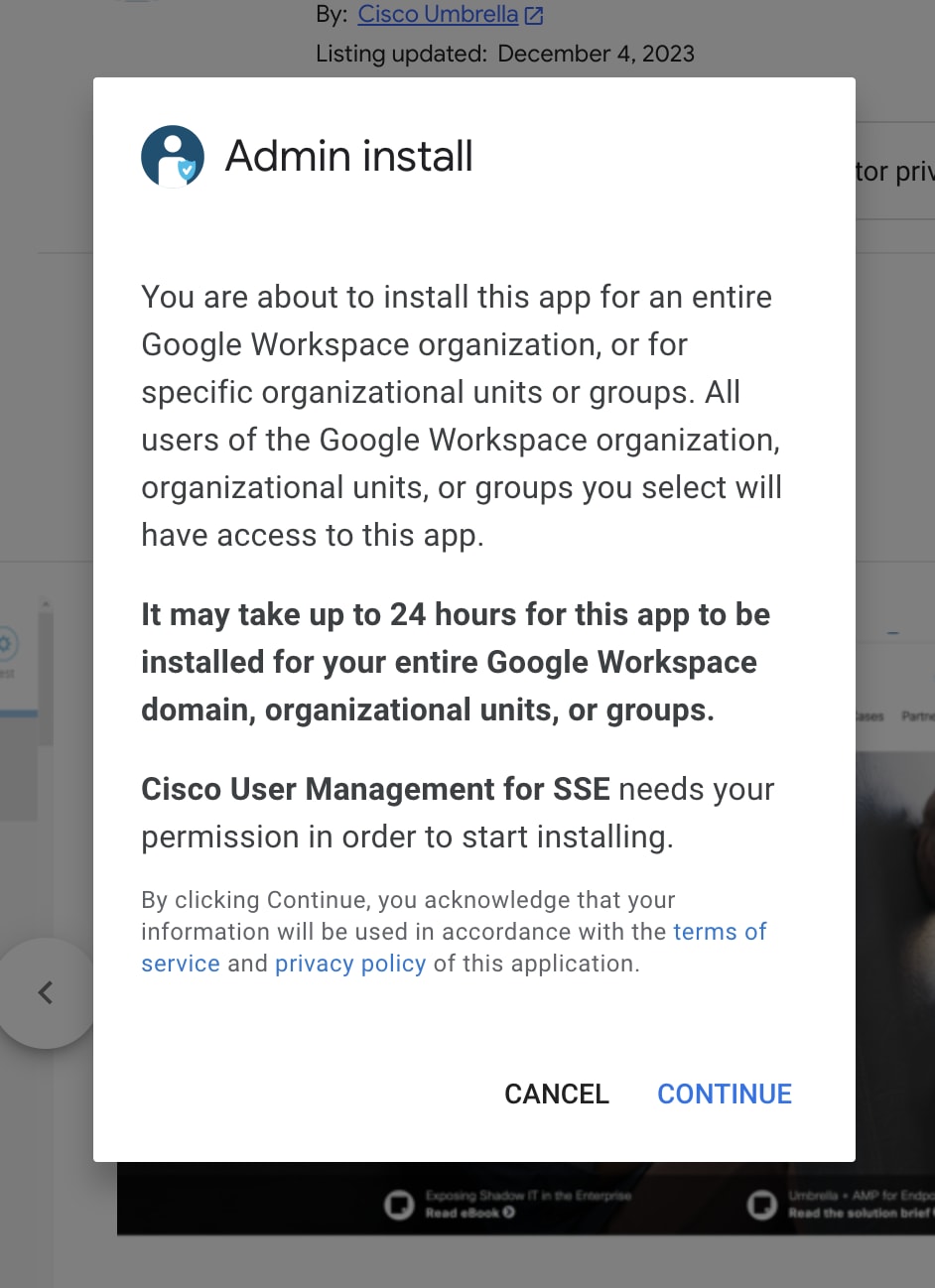
  4. In the Admin install pop-up window, click CONTINUE.


    From Google Workspace Marketplace, navigate to the Cisco User Management for Secure Access app. Click Install. In the Admin install pop-up window, click CONTINUE.
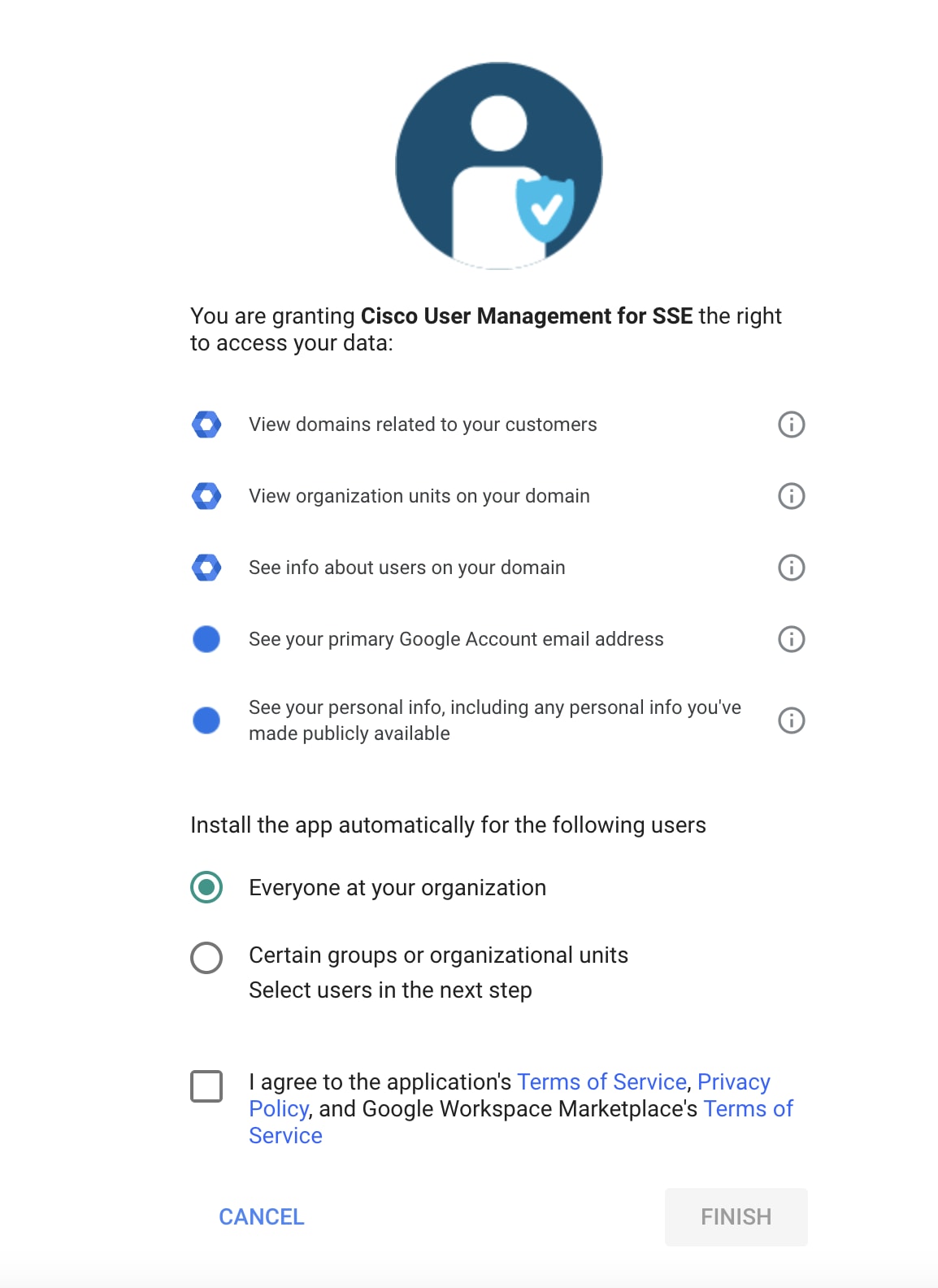
  5. Click the checkbox to agree to the Terms of Service statements and Privacy Policy.

  6. Click FINISH.

    Result: The app installs in your organization's instance of Google Workspace.


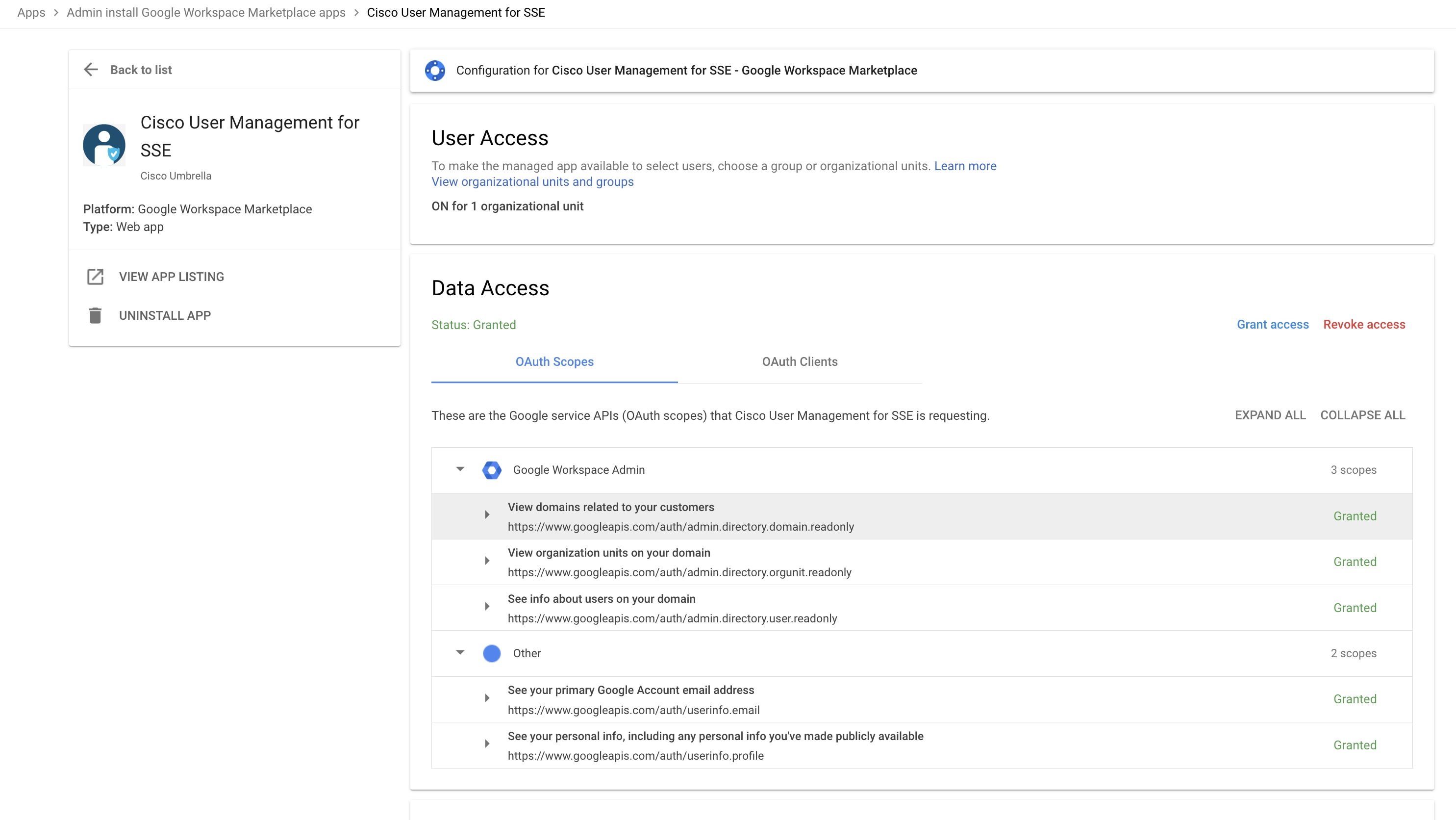
  7. To confirm that the app has installed, navigate to Apps > Admin install Google Workspace Marketplace apps > Cisco User Management for SSE.

    Result: The Cisco User Management for Secure Access app displays.


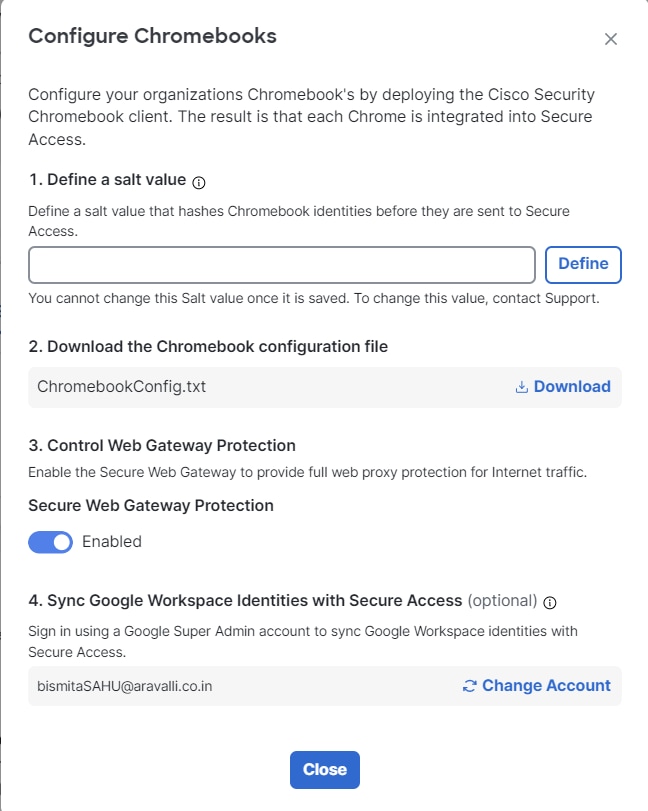
  8. In Secure Access, navigate to Connect > End User Connectivity > Internet Security > ChromeOS > Configure.

  9. In the Configure Chromebooks pop-up window, follow the instructions in Step 4 to sync your Google Workspace identities with Secure Access.


    Internet Security ChromeOS Configure. In the Configure Chromebooks pop-up window, follow the instructions in Step 4 to sync your Google Workspace identities with Secure Access.
    Your organization's Google Workspace users and organizational units sync with Secure Access. A sync may take up to 1 hour. After the sync, the Secure Access policy rules display the Google Workspace OUs and users. For more information, see Manage the Access Policy.