Cisco Secure Access Help

PDF

Cisco Secure Access Help

Maintain and Monitor Resource Connectors and Connector Groups

Want to summarize with AI?

Log in

Understand how to prevent, identify, and address issues with resource connectors and connector groups.


Maintain and monitor resource connectors and groups to prevent, identify, and address issues.

About Resource Connector Software Updates

Secure Access manages the updates of the Secure Access software on the connectors in your organization using over-the-air (OTA) updates.

If the connector software has not reached last date of support (LDOS), Secure Access upgrades the connector automatically.

To avoid impacting the private resources supported by the connector, Secure Access updates only one connector in a group at a time. Secure Access checks for software updates daily on each resource connector deployed in the organization.

About Connector OS Updates

Secure Access does not upgrade the operating system (OS) on the resource connectors deployed in your environment automatically.

An organization must deploy new resource connectors with the latest version of the OS in the connector image and delete the connectors with the outdated connector image.

  • When security vulnerabilities are reported to Cisco, Secure Access publishes an updated connector image.

    For information about OS vulnerabilities addressed in a specific connector image, see Secure Access Release Notes for Resource Connectors.

  • New versions of the connector image will have the latest operating system version. Secure Access may also periodically issue connectors with the latest operating system even if there are no other changes.

About Last Date of Support for Connector Images

Secure Access supports a connector software version for up to six months. After six months, Secure Access sets the status of the connector software to last day of support (LDOS).

Secure Access supports a connector OS for up to one year. After one year, Secure Access sets the status of the connector OS to LDOS.

To ensure that Secure Access continues to support the connectors in the organization, deploy a new connector in the environment:

  1. Obtain the new connector image. For more information, see Obtain the Connector Image.

  2. Deploy the new connector image provided by Cisco. For more information, see Add Connectors to a Connector Group.

  3. Delete the connector image in Secure Access. For more information, see Disable, Revoke, or Delete Resource Connectors and Groups.

Comparison of Connector Software Upgrades and OS Upgrades

For VM-based resource connectors:

Secure Access delivers software upgrades automatically as long as the connector software is not at LDOS.

However, there is no automatic upgrade mechanism for the OS. When the OS reaches LDOS, the organization must manually upgrade. Delete the resource connector and then deploy a new resource connector instance with the latest OS.

Importantly, connectors running on unsupported OS versions will not receive software updates. Ongoing monitoring is required to ensure both software and OS remain supported.

For container-based resource connectors:

Secure Access delivers software upgrades automatically as long as the connector software is not at LDOS.

Both the connector software and the container OS software are upgraded together as part of the automatic upgrade.

Organizations are required to manage and update the host OS independently. Ongoing monitoring is required to ensure both the connector and container software remain supported.

Managing Certificate Renewals on the Connector

Secure Access updates the certificate for a resource connector automatically. However, if a resource connector is shutdown during the two week period prior to the expiration of the connector's certificate, Secure Access cannot renew the connector's certificate.

Once the certificate expires on the connector, you must redeploy the connector. For more information, see Monitor Connector Status.


Monitor Connector Group Status

Check Connector Group Status on the Overview Page

Check the Connectivity section on the Overview page for status and health of your connector groups. Click a status tile to see the connector groups that are experiencing the problem.

Status Status Message Recommendations
Disconnected Click the Disconnected tile to see which connector groups have this problem, then click a connector group to see which connectors are problematic. For more information, see Troubleshoot Resource Connectors and Connector Groups
Warning This indicates that users have failed to reach resources in at least one connector group. Click the Warning tile to see which connector groups have this problem, then click a connector group to see which connectors are problematic. For more information, see Troubleshoot Resource Connectors and Connector Groups
Overloaded CPU Click the Warning tile to see which connector groups have CPU loads over 70%. If this situation continues, increase connector group capacity as needed by deploying additional connectors in the group. For more information, see Add Connectors to a Connector Group.

Check Connector Group Status on the Connector Groups Page

On the connector group listing page, scroll down to the table of connector groups and check the Status column. If any of the connectors in a group have connectivity issues that affect end user connectivity to resources, Secure Access displays a warning. Click a connector group to see the connectors that are showing warnings. For more information, see Monitor Connector Status.

Status Description Action Required
Connected At least one connector in the group is connecting user traffic to private resources, and the connectors are not overloaded. None
Overloaded The running average CPU load of all connectors in the group is above the recommended threshold (70% usage.) Deploy additional connectors in the group. Be sure to use the current provisioning key shown for the connector. For more information, see Add Connectors to a Connector Group.
Disabled The connector group or all connectors in a group have been intentionally disabled by an administrator and are not forwarding traffic to resources. If you want to re-enable connectors or connector groups, click the ellipsis menu at the end of the applicable table row.
Unestablished The connector group is not yet fully set up. Add at least one connector and one private resource to the group. For more information, see Add Connectors to a Connector Group and Assign Private Resources to a Connector Group as applicable.
Disconnected All connectors in the group are disconnected. The connector group is not forwarding any traffic to private resources. For more information, see Troubleshoot Resource Connectors and Connector Groups.

View Connector Groups in Secure Access

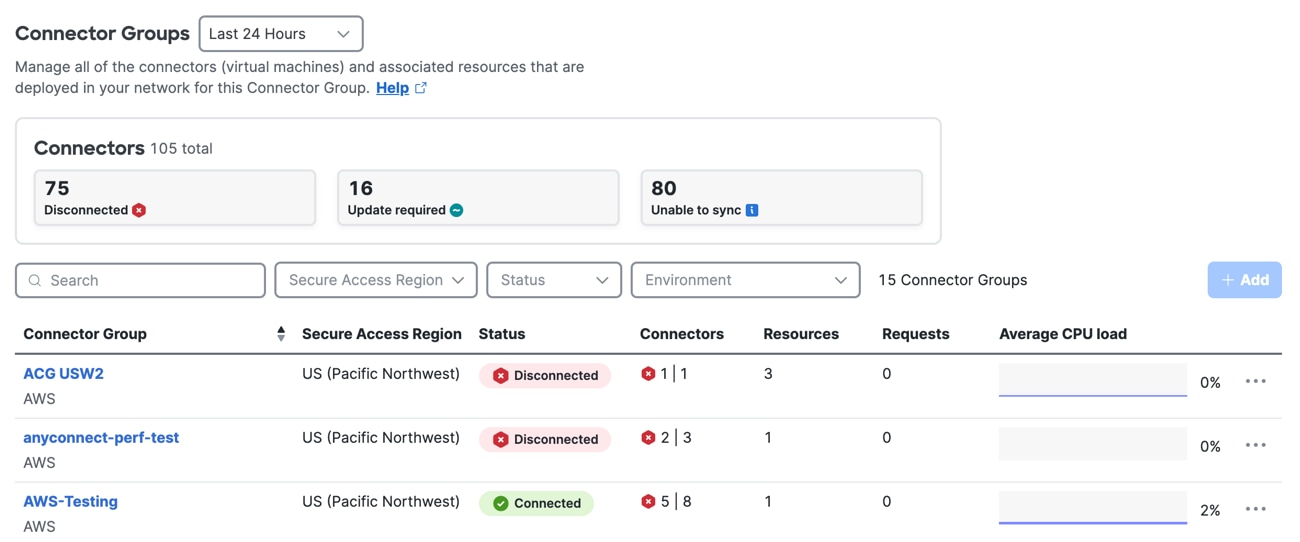
View the name, Secure Access region, status, number of connectors, number of resources, number of requests, and average CPU load for the resource connector groups in the organization.

Before you begin

  • A minimum user role of Read-only. For more information, see Manage Accounts.

Procedure

Navigate to Connect > Network Connections, and then click Connector Groups.

Secure Access displays the details about each connector group in the organization.

The Connector Groups Nav interface.
  • Connector Group—The unique identifier of the connector group.

  • Secure Access Region—The label for the Secure Access region where the connectors in the connector group are deployed.

  • Status—The basic diagnostic information about the connector group.

  • Connectors—The number of resource connectors in the connector group.

  • Resources—The number of resources supported by the connector group.

  • Requests—The number of requests sent to the connectors in the connector group.

  • Average CPU Load—The graph of the average CPU load on the connector group.

The Connector Groups Table All interface.

View Connectors in Secure Access

View the status and notification details for the resource connectors deployed in the organization.

Before you begin

  • A minimum user role of Read-only. For more information, see Manage Accounts.

Procedure

  1. Navigate to Connect > Network Connections.

    The Connector Groups Nav interface.
  2. On Connector Groups, navigate to the Connector Groups table and then click on the name of a connector group.

    The Connector Group Table interface.
  3. On Connectors, navigate to the Connectors table.

    • Connector ID—The unique identifier of the connector.

    • Tunnel status—The descriptive label for the status of the connector tunnel.

    • Tunnel diagnostics—The basic diagnostic information about the connector.

    • CPU load—The graph of the CPU load on the connector.

    The Connectors All Table Columns interface.

Monitor Connector Status

Secure Access provides notifications about the status of the resource connectors deployed in the organization.

A connector's status consists of various states and a notification for each state. The value of the notification depends on the conditions detected on the resource connector.

A resource connector that has not been confirmed in Secure Access is either in the announced or reachable state. You can use the Secure Access Resource Connector and Connector Groups API to view the status of a resource connector in the announced or reachable state. For more information about confirming the deployment of a resource connector in Secure Access, see Step 2 – Confirm Connectors.

Tunnel Status

For each resource connector, Secure Access provides the state and information about the connectivity on the connector tunnel.

Status Label Status Description Example Status Message Action Required
Connected The connector is sending user traffic to private resources as expected.

Connected

Last update on Oct 8, 2025, at 2:34 AM UTC

None
Disconnected The connector is no longer sending user traffic to private resources.

Disconnected

Last update on Oct 8, 2025, at 2:34 AM UTC

Run diagnostics to identify the issue. If problems persist, contact Support.

Disabled An administrator has disabled this connector intentionally.

Disabled

Last update on Oct 8, 2025, at 2:34 AM UTC

Re-enable the connector in Secure Access. For more information, see Enable a Connector in Secure Access

Connected warning

The connector is sending user traffic to private resources as expected.

Secure Access detects a condition on the resource connector.

Connected warning

Last update on Oct 8, 2025, at 2:34 AM UTC

Check the summary of the connector status and the diagnostic information provided at the top of the page.

Certificate Status

For each resource connector, Secure Access provides the state and information about the certificate used for securing communications with the connector.

Status Label Status Description Example Status Message Action Required
Expired The certificate for the resource connector expired.

Expired

This connector's certificate expired Oct 8, 2025.

Deploy a new resource connector.

Expiring soon

The connector's certificate will expire within ten days from the current date.

Expiring soon

This connector's certificate will expire on Oct 8, 2025.

Deploy a new resource connector.
Valid

The certificate is valid and will remain valid for more than ten days from the current date.

Valid

This connector's certificate will expire on Oct 8, 2025.

None
Not synced

Secure Access is unable to sync with the connector.

Secure Access was unable to sync with the connector for the last three days and 15 minutes from the current date.

Not synced

Expiry date is Oct 8, 2025. Data may be out-of-date.

Check your firewall settings.

Unknown

Secure Access is unable to sync with the connector.

No information is available for the last three days.

Unknown

Connector has not synced in 3 days or more.

Check your firewall settings.

Unknown (may be expired)

Secure Access is unable to sync with the connector for the last three days.

The connector expiration date has passed.

Unknown (may be expired)

Connector has not synced in 3 days or more.

Check your firewall settings and run diagnostics.

Configuration Status

For each resource connector, Secure Access provides the state and information about the tunnel configuration.

Status Label Status Description Example Status Message Action Required
Synced Secure Access synced with the connector and obtained the tunnel configuration. Synced

None

Not synced

Secure Access cannot sync with the connector and did not get the latest tunnel configuration.

Not synced

Cannot retrieve the DNS configurations or status of the tunnel configuration. Check your firewall settings.

Check your firewall settings.

OS Version Status and Connector Software Version Status

For each resource connector, Secure Access provides the state and information about the connector software version and the OS version of the connector image.

A connector status may apply to the connector software version, the OS version of the connector image, or both versions.

Status Label Status Description Example Status Message Action Required

Vulnerable

OS version

The OS version of the connector image has vulnerabilities.

Vulnerable

2402180000 (latest 2505200000)

This OS version presents vulnerabilities. Delete this connector and deploy a new one using the latest image.

Delete this connector and deploy a new one using the latest connector image.

Vulnerable

Connector software version

The connector software version has vulnerabilities.

Vulnerable

v2.0.60 (latest v2.0.90)

This connector version presents vulnerabilities. Delete this connector and deploy a new one using the latest image.

Delete this connector and deploy a new one using the latest connector image.

Not supported

Connector software version

The connector software has not been updated in the last six months.

Not supported

v2.0.60 (latest v2.0.90)

This connector version is not supported. Delete this connector and deploy a new one using the latest image.

Delete this connector and deploy a new one using the latest version of the connector image.

Not supported

OS version

This OS version of the connector image is not supported and has not been updated in over a year.

Not supported

2410180000 (latest 2505200000)

This OS version is not supported. Delete this connector and deploy a new one using the latest image.

Delete this connector and deploy a new one using the latest image.

Update failed

Connector software version only

The software update for this connector failed.

Update failed

v2.0.60 (latest v2.0.90)

Connector update failed. Delete and replace it or run diagnostics.

Verify that your firewall rules allow for outbound traffic. Secure Access will automatically retry the update.

Not synced

Connector software version

OS version

Secure Access was unable to sync with the connector for the last three days and 15 minutes from the current date.

Not synced

v2.0.60 (latest v2.0.90)

Data may be out of date.

Cannot retrieve data.

Check your firewall settings and run diagnostics.

Unknown

Connector software version

OS version

Secure Access cannot sync with the connector for the last three days.

Not synced

v2.0.60 (latest v2.0.90)

Data may be out-of-date.

Check your firewall settings and run diagnostics.

Outdated

Connector software version

Firewall settings may have blocked Secure Access from updating the connector software, or the connector was not available when the update was scheduled to occur.

Outdated

v2.0.60 (latest v2.0.90)

Automatic connector updates occur daily during off-hours. This connector will be updated automatically during the next update period.

If a connector is offline during an update or deployed later, its version will be listed as outdated. To resolve this condition, wait for the next automatic update or deploy a new connector using the latest image.

Outdated

OS version

The latest version of the OS is no longer supported.

Outdated

2505200000

This connector’s OS is outdated. It is operational, but will be unsupported in 30 days. Delete and replace it before that date.

Delete this connector and deploy a new one using the latest connector image.

Updating

Connector software version only

Secure Access is updating the connector.

Updating

v2.0.60 (latest v2.0.90)

Automatic update in progress.

None

Up-to-date

Connector software version

OS version

The latest version of the connector software or OS version is installed on the connector.

Up-to-date

2505200000

None


View a Connector's Status

View the status and notification details for a resource connector deployed in the organization.

Secure Access provides detailed state information for a connector in the Connector Status.

A connector's status consists of these states:

  • Tunnel status

  • Certificate status

  • Configuration status

  • Connector IP address

  • Connector version

  • Added

  • OS version

Each status has a label and a notification. A notification varies depending on the conditions detected on the resource connector.

Before you begin

  • A minimum user role of Read-only. For more information, see Manage Accounts.

Procedure

  1. Navigate to Connect > Network Connections.

    The Connector Groups Nav interface.
  2. On Connector Groups, navigate to the Connector Groups table and then click on the name of a connector group.

    The Connector Group Table interface.
  3. On Connectors, navigate to the Connectors table.

    The Connectors All Table Columns interface.
  4. Navigate to the Connector ID column and then click on the ID of a resource connector.

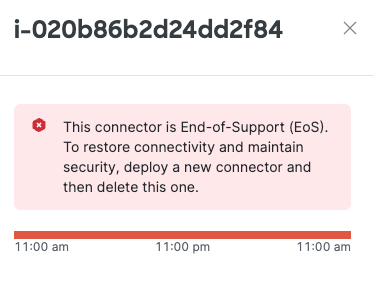
    • At the top of the page, Secure Access displays the connector ID.

    • If error conditions are detected on the connector, Secure Access provides a summary of the connector status during the last 24 hours and recommended steps to resolve the error conditions.

    The Connector ID Overall Status interface.
  5. Navigate to Connector status.

    Tunnel status—The state of the tunnel on the connector and the last date when Secure Access synced with the tunnel.

    The Connector Tunnel Status interface.

    Certificate status—The state of the certificate that is associated with the connector and the expiry date of the certificate.

    The Connector Certificate Status interface.

    Configuration status—The state of the tunnel configuration associated with the connector and the date when Secure Access last synced with the resource connector.

    The Connector Configuration Synced interface.

    Connector IP address—The IP address of the resource connector.

    The Rc Display IP Cropped interface.

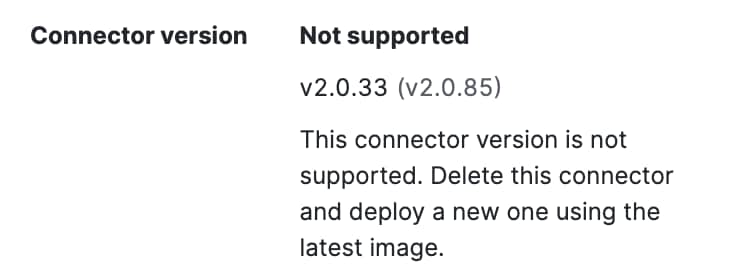
    Connector version—The state of the connector software and the latest version of the software deployed on the connector.

    The Connector Version Not Supported interface.

    Added—The date when the connector first registered with Secure Access.

    The Connector Added Status interface.

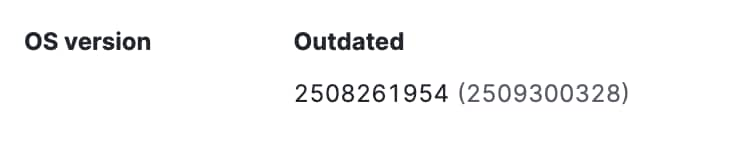
    OS version—The state of the base operating system (OS) of the connector image and the latest version of the OS.

    The Connector Os Version interface.
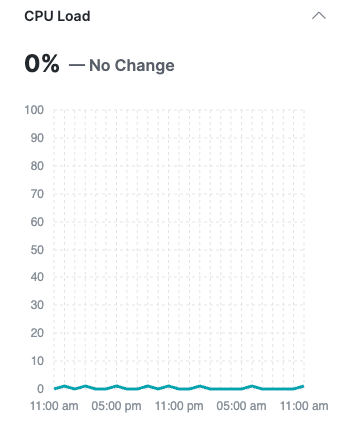
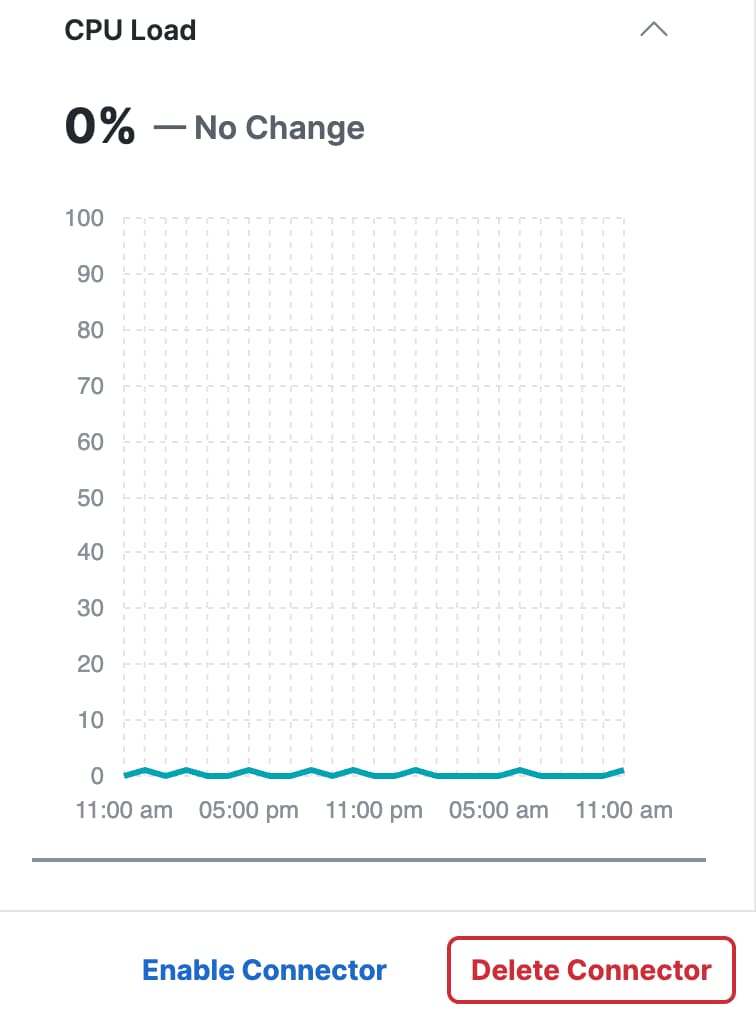
  6. Navigate to CPU load.

    A graph of the CPU load on the connector for the last 24 hours.

    The Connector Details Cpu Load interface.

Enable a Connector in Secure Access

If a connector is disabled, you can re-enable it in the Secure Access organization.

Before you begin

Procedure

  1. Navigate to Connect > Network Connections.

    The Connector Groups Nav interface.
  2. On Connector Groups, navigate to the Connector Groups table, and then click on the name of a connector group.

    The Connector Group Table interface.
  3. On Connectors, navigate to the Connectors table.

    The Connectors All Table Columns interface.
  4. Navigate to the Connector ID column, and then click on the ID of a resource connector.

  5. Navigate to the bottom of the page after CPU load and click Enable Connector.

    The Connector Details Butons interface.
  6. Click Enable.

    Secure Access enables the connector and the connector begins to send traffic to the private resources.

Increase Connector Group Capacity

In order to accommodate traffic volume, you may need to add connectors to a connector group. To check connector group capacity utilization, navigate to the Overview page and look at the Connectivity section. If you see Overloaded CPU, especially if this status continues over time, consider adding more connectors.

For more information, see Add Connectors to a Connector Group.


Check Connector CPU Load

  1. Navigate to Connect > Network Connections > Connector Groups.
  2. Locate the connector group of interest.
  3. Check the Average CPU load column. If you see Incomplete data or a break in the line, this indicates that at least one connector was not fully active during the entire time period, because it was newly deployed, experiencing connectivity issues, or unable to communicate with the Secure Access cloud.
  4. If the average load is unexpectedly high, click the connector group name and look at the CPU Load column for individual connectors to look for problems.