Cisco Secure Access Help

PDF

Cisco Secure Access Help

Enable SaaS API Data Loss Prevention for Dropbox Tenants

Want to summarize with AI?

Log in

Describes Enable SaaS API Data Loss Prevention for Dropbox Tenants in Cisco Secure Access and explains Prerequisites and Limitation. It summarizes the behavior, configuration context, and operational considerations presented throughout the topic.


Prerequisites

  • Chrome or Firefox (recommended) with pop-up blockers and ad blockers disabled (only for the duration of authorization)

  • Secure Access DLP Connector must be installed in the tenant by a Dropbox Admin User.

  • It is recommended to use a service account for the installation.

Limitation

  • Secure Access supports SaaS API Data Loss Prevention only for Dropbox Enterprise accounts.

Authorize a Tenant

Procedure

  1. Navigate to Admin > Authentication.

  2. Under Platforms, click Dropbox.

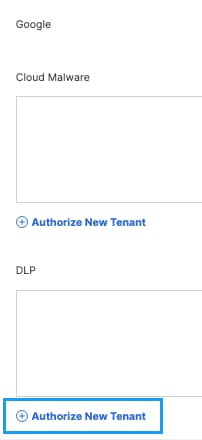
  3. Under DLP, click Authorize New Tenant to add a Dropbox tenant to your Secure Access environment.


    Google page displaying the option to authorize a new tenant
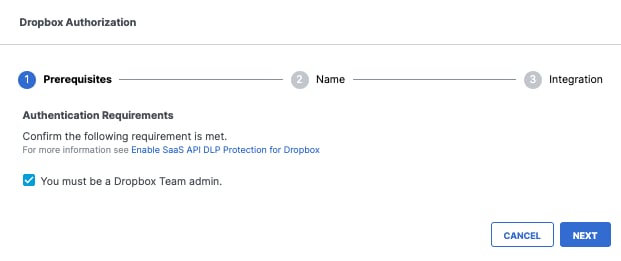
  4. In the Dropbox Authorization dialog, check the checkbox to verify you meet the prerequisite, then click Next.


    Dropbox Authorization page displaying the option to proceed to the next step
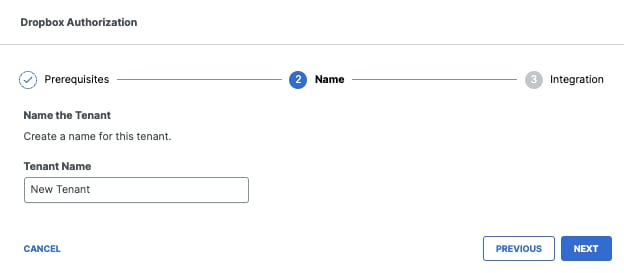
  5. Enter the tenant name, then click Next.


    Dropbox Authorization page displaying the option to proceed to the next step
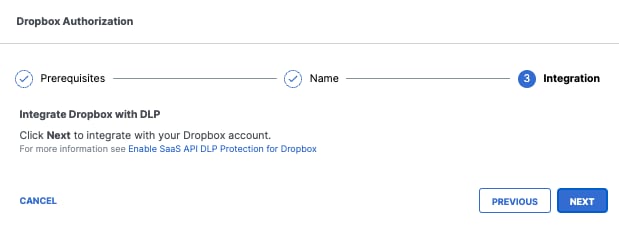
  6. Click Next to be redirected to the Dropbox login page.


    Dropbox Authorization page displaying the option to proceed to the next step
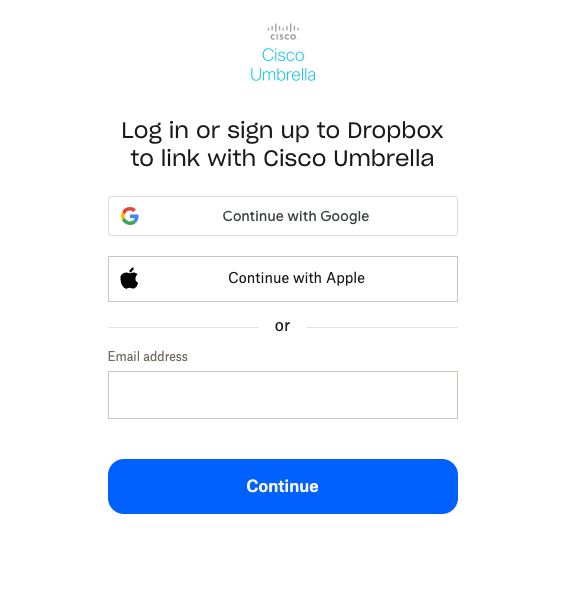
  7. Log in to Dropbox with Dropbox Team admin credentials to grant access.


    Dropbox page displaying options to sign in or log in
  8. You are redirected to the Secure Access Dashboard and a message appears showing the integration was successful. It may take up to eight hours for the integration to be confirmed and appear as Authorized.

  9. Click Done to complete.


Revoke Authorization

Procedure

  1. Under Action, click Revoke. You can revoke any authorized tenant.


    DLP page displaying options for actions and revoke
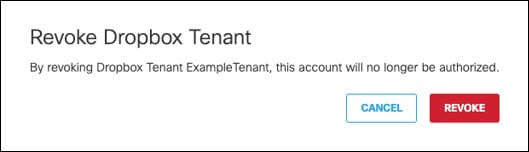
  2. Confirm to proceed. The selected account will no longer be authorized.


    Revoke Box Tenant page displaying the option to revoke