Cisco Secure Access Help

PDF

Cisco Secure Access Help

Manage CA Certificates for VPN Connections and Zero Trust Access Enrollment

Want to summarize with AI?

Log in

Describes Manage CA Certificates for VPN Connections and Zero Trust Access Enrollment in Cisco Secure Access. Secure Access authenticates users and devices using the organization's Certificate Authority (CA) certificate.


Secure Access authenticates users and devices using the organization's Certificate Authority (CA) certificate.

Certificates described in this section are used for the following purposes:

Prerequisites

Install an Identity Certificate on User Devices

Install on the user devices in your organization an identity certificate signed by your corporate Certificate Authority (CA) and validated by the certificate you will upload.
View Notifications About Expired CA Certificates for Client Authentication

Procedure

  1. Navigate to Secure > Certificates > Client authentication.

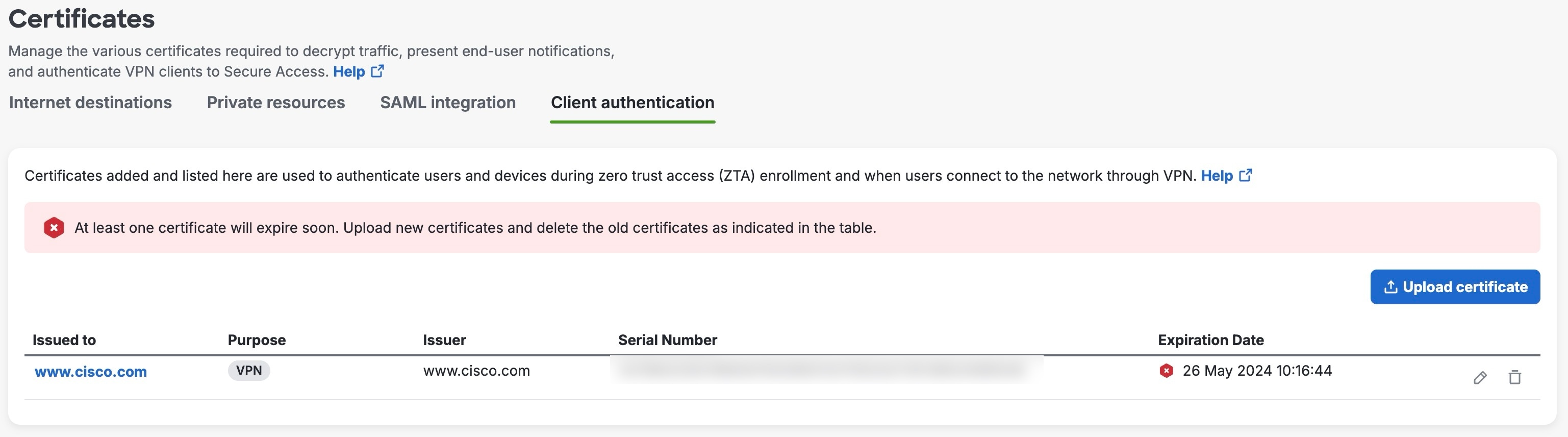
  2. Secure Access displays a banner if a certificate has expired or will expire within 90 days:


    Warning message indicating the certificate will expire


Upload Certificate Authority (CA) Certificates for client authentication

Procedure

  1. Navigate to Secure > Certificates > Client authentication.

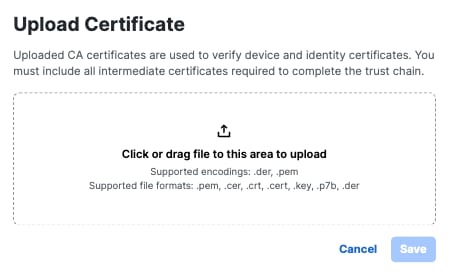
  2. Click Upload certificate.


    Upload Certificate page displaying options to click or drag file to upload and save
  3. Upload your signed CA root certificate.

  4. Select VPN Authentication or ZTA enrollment or Endpoint DLP Enrollment both purposes for the certificate.

    Certificates must have at least one purpose selected.

  5. (Optional) Configure certificate revocation settings. For details, see Manage Certificate Revocation Settings.

  6. Click Save.

  7. If you enabled ZTA enrollment, download and distribute the configuration file that is generated after you click Save. See Enroll Devices in Zero Trust Access Using Certificates.

  8. If you enabled Endpoint DLP Enrollment, download and distribute the choice file that is generated after you click Save. See Enroll Devices in Endpoint DLP Using Certificates.


View Uploaded CA Certificates

Procedure

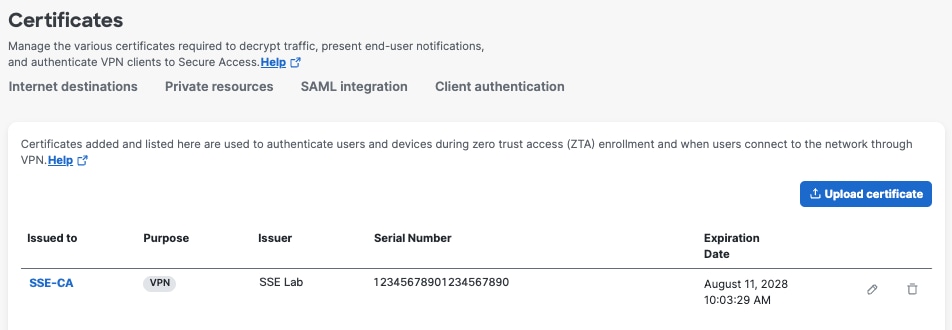
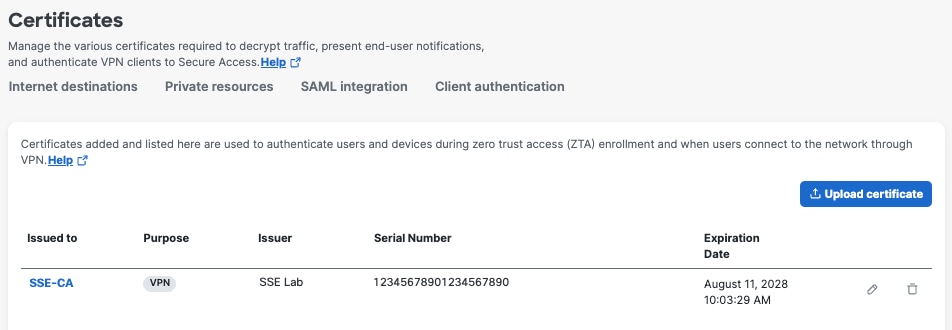
Navigate to Secure > Certificates > Client authentication. Secure Access lists the certificates uploaded by your organization.

Certificates page displaying options for Issued To, Purpose, Issuer, Serial Number, and Expiration Date

What to do next

Issued to—The name issued to the CA certificate.

Purpose —Whether the certificate is used for VPN authentication or Zero Trust Access enrollment or Endpoint DLP enrollment or multiple purposes.

Issuer—The CA that issued the certificate.

Serial Number—The serial number of the certificate.

Expiration Date—The date when the certificate is no longer valid.


Manage Certificate Revocation Settings

Procedure

  1. Navigate to Secure > Certificates > Client authentication.

  2. Click a CA certificate Issued to link to open the certificate details.


    Certificates page displaying options for Issued To, Purpose, Issuer, Serial Number, and Expiration Date
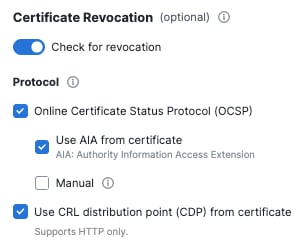
  3. For Revocation settings, enable Check for revocatione.

  4. For Protocol, check Online Certificate Status Protocol both Use AIA from certificate and Manual.

  5. For Protocol, check Use CRL distribution point (CDP) from certificate.


    Page displaying options for Check for revocation, Online Certificate Status Protocol, and Use CRL distribution point (CDP) from certificate
  6. Click Save.


View CA Certificate Details

Procedure

  1. Click a certificate name to view details.

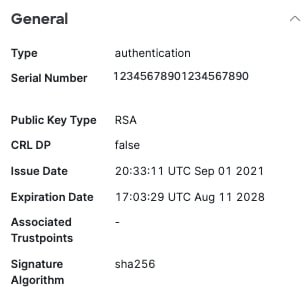
  2. General certificate details:

    • Type—The type of the certificate.

    • Serial Number—The serial number of the certificate

    • Purpose —Whether the certificate is used for VPN authentication or Zero Trust Access enrollment or Endpoint DLP enrollment or multiple purposes.

    • Public Key Type—The type of the public key.

    • CRL DP—Certificate Revocation List (CRL) Distribution Point. The location where you can check the revocation of the certificate.

    • Issue Date—The date from which the certificate is valid.

    • Expiration Date—The date when the certificate is not valid.

    • Associated Trustpoints

    • Signature Algorithm—The cryptographic hash algorithm (Secure Hashing Algorithm 256).


    General page displaying certificate details
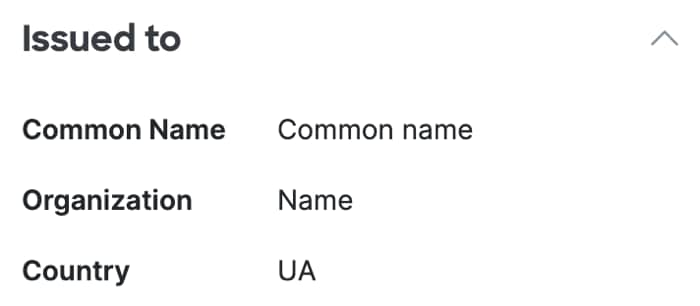
  3. Issued to certificate details.

    The entity that uses the certificate to build a trust relationship with Secure Access.

    • Common Name—The fully-qualified domain name that is secured by the certificate.

    • Organization—The organization that is issued the certificate.

    • Country—The country where the certificate was issued specified in the two-character country code.


    Issued to window displaying options for common name, organization, and country
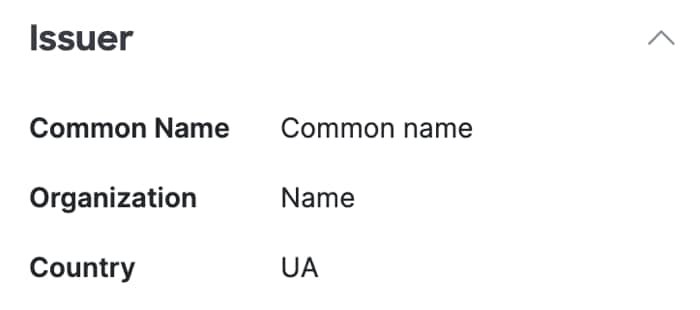
  4. Issuer certificate details. The issuer is the entity (trusted authority) that issues the certificate.

    • Common Name—The fully-qualified domain name that is secured by the certificate.

    • Organization—The organization that issued the certificate.

    • Country—The country where the certificate was issued specified in the two-character country code.


    Issuer window displaying options for common name, organization, and country

Change the Purpose of an Uploaded CA Certificate

Certificates must have at least one purpose selected.

Deselecting a purpose is the equivalent of deleting a certificate that is used for that purpose. For the effects of doing so, see Delete a CA Certificate, below.

If you enable "ZTA enrollment" or "Endpoint DLP Enrollment", a corresponding new configuration file is generated after you click Save. You must download and distribute this file to user devices that will depend on this certificate for Zero Trust Access or Endpoint DLP certificate-based enrollment.

If your organization has a Cisco-provided CA certificate intended to authenticate VPN connections: This certificate cannot be used for Zero Trust Access enrollment and the option is not available for that certificate.

To change the purpose of a CA certificate:

Procedure

  1. Navigate to Secure > Certificates > Client authentication.

  2. Click the pencil icon to modify the certificate.

  3. Click Save.

  4. If you enabled ZTA enrollment or Endpoint DLP enrollment, download and distribute the corresponding newly generated configuration file to user devices.


Delete a Client Authentication CA Certificate

Deleting a CA certificate has different effects depending on the configured purpose of the certificate:

  1. Deleting a CA certificate used for VPN authentication immediately prevents access.

  2. Deleting a CA certificate used for Zero Trust Access enrollment prevents new enrollments and enrollment renewals authenticated by that certificate, but does not terminate existing connections or immediately prevent further access. See Unenroll a Device from Zero Trust Access.

To delete a CA certificate:

Procedure

  1. Navigate to Secure > Certificates > Client authentication.


    Certificates page displaying options for Issued To, Purpose, Issuer, Serial Number, and Expiration Date
  2. To remove a certificate, follow the steps in one of the options:

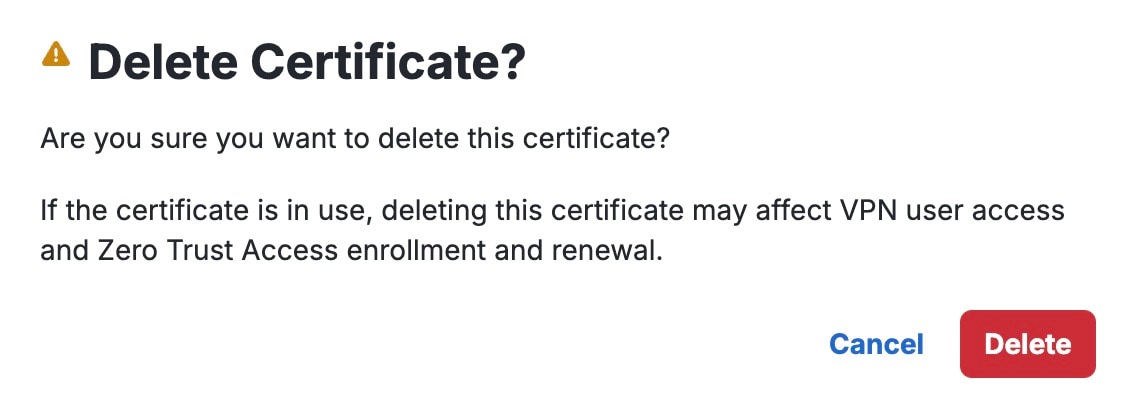
    a. Click on a certificate Issued to link to open the certificate details, and then click Delete. Click Delete again to confirm the removal of the certificate.

    b. Click on the delete icon to Delete. Click Delete again to confirm the removal of the certificate.


    Certificates page displaying options for Issued To, Purpose, Issuer, Serial Number, and Expiration Date

What to do next

Expired Certificates

For certificates used for Zero Trust Access enrollment: If a CA certificate expires and you replace it, you must re-generate the configuration file and distribute it to all user devices that use Zero Trust Access.