Cisco Secure Access Help

PDF

Cisco Secure Access Help

Manage Certificates for Private Resource Decryption

Want to summarize with AI?

Log in

Describes Manage Certificates for Private Resource Decryption in Cisco Secure Access. Private resources are applications, networks, or subnets that are not publicly accessible from outside your network.


Private resources are applications, networks, or subnets that are not publicly accessible from outside your network. Protect your private resources with the Secure Access Intrusion Prevention (IPS) profile and Data Loss Prevention (DLP) policy.

To connect user traffic with a private resource and decrypt that traffic for inspection by the IPS or the DLP policy, Secure Access requires a certificate. When you configure a private resource and enable decryption, you must upload the hosting server's certificate to Secure Access. Endpoint devices must be able to validate the certificates that you upload.

Include any intermediate certificates required to complete the certificate chain. If multiple resources are hosted from a single server, you can use a single certificate for all of those resources.

You can upload and manage the use of your certificates with private resources in Secure Access. For more information, see Upload Private Resource Certificates.
Install a Certificate Authority Certificate on a Private Resource

Before you install a certificate on a private resource, complete or meet these prerequisites:

  • Add a private resource in Secure Access with decryption enabled. Secure Access uses decryption to inspect traffic with Intrusion Prevention (IPS) and the Data Loss Prevention policy or validate a custom domain. For more information about private resources, see Add a Private Resource.

Secure Access requires a Privacy-Enhanced Mail (PEM) formatted certificate and key. Install your corporate Certificate Authority (CA) root certificate on the private resource in your organization. For more information, see Upload Private Resource Certificates.

Upload Private Resource Certificates

You can upload a certificate key pair directly on a private resource in Secure Access. For more information, see Add a Private Resource: Decryption.

Alternatively, upload certificates for any private resources in Secure Access. When you configure a private resource you can select from the list of certificates.

Before you begin

Procedure

  1. Navigate to Secure > Certificates > Private Resources.

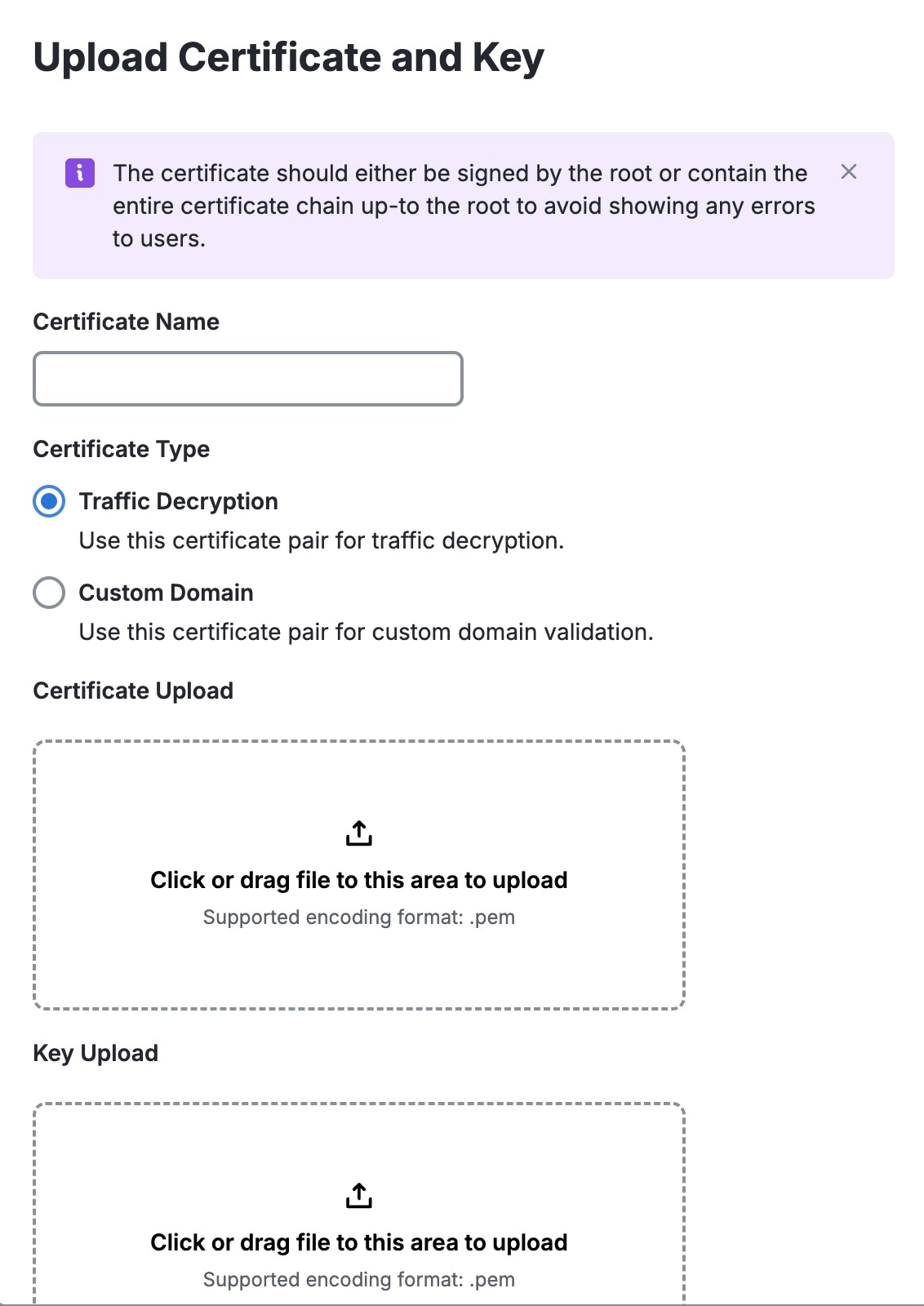
  2. Click Upload Certificate and Key.


    Upload Certificate and Key page displaying options for certificate name, certificate upload, and key upload

  3. Customize the certificate name, upload the hosting server's certificate and any intermediate certificates required to complete the chain, then click Save.

What to do next

Navigate to Resources > Private Resources to configure the private resource to use this certificate-key pair.


View Notifications About Expired Private Resource Certificates

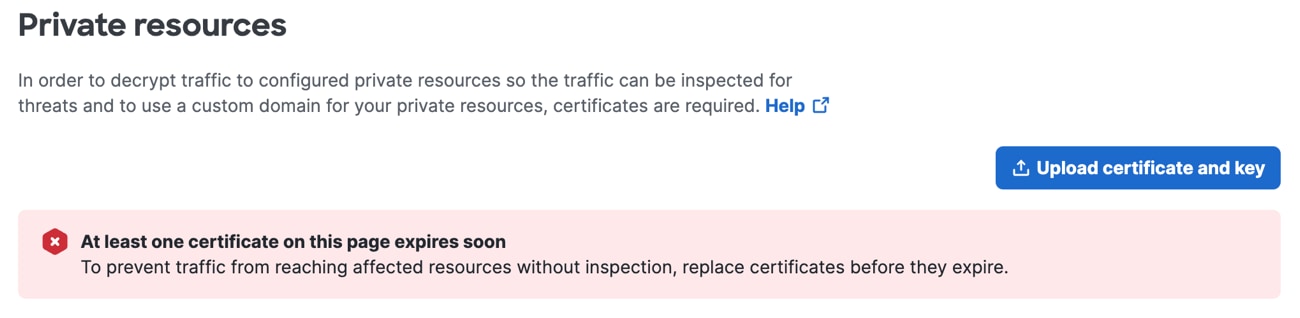
When a certificate for the decryption of a private resource has expired or will expire within 90 days, Secure Access displays an expiry banner on the Private Resources page.

Users with the Full Admin or Security Administrator role can close the banner, or replace or delete the certificates. If the certificate is not updated, the expiry banner will reappear the next time you open the Private Resources page.

For information about uploading certificates, see Upload Private Resource Certificates.

For information about viewing the certificates for private resources in the organization or replacing or deleting the certificates, see View, Replace or Delete Private Resource Certificates

Before you begin

Procedure

  1. Navigate to Secure > Certificates .

  2. Click the Private resources tab.

    If a certificate for the decryption of a private resource has expired or will expire within 90 days, Secure Access displays a notification.


    Private Resources page displaying an option to upload certificate and key

View, Delete, or Replace a Private Resource Certificate

After uploading certificates for the private resources in an organization, administrators can view, replace, or delete the certificates.

Before you begin

Procedure

  1. Navigate to Secure > Certificates.


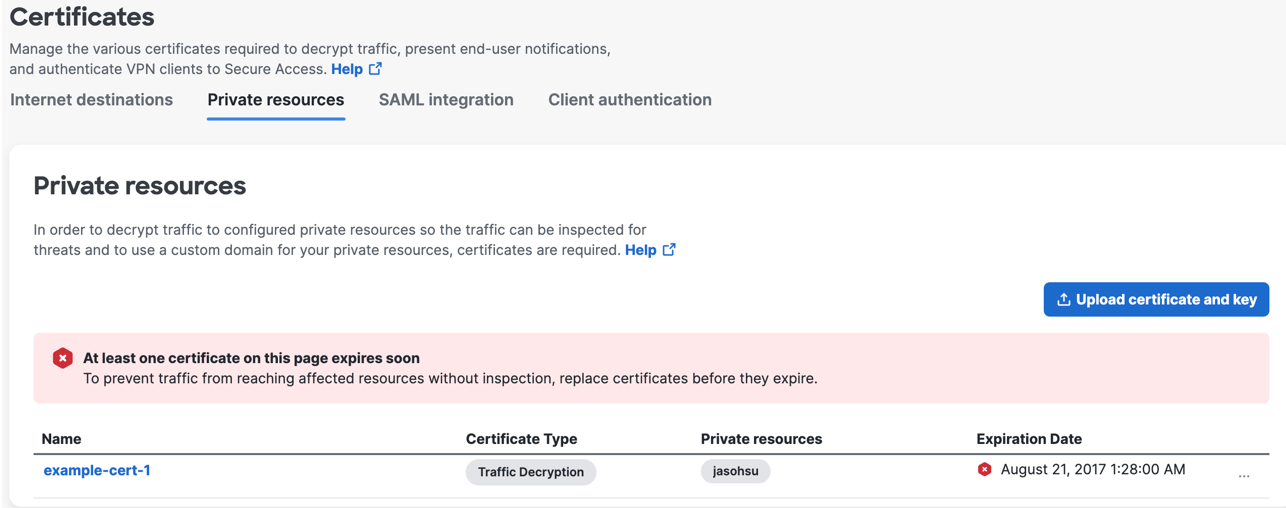
    Certificates page displaying options for Private Resources and to upload certificate and key
  2. Click the Private resources tab and navigate to the table of certificate information.

    Secure Access displays the details about each certificate uploaded for the private resources in the organization.

    • Name—The name used to identify the certificate in the organization.
    • Certificate type—The label that describes how the system uses the certificate, either Traffic Decryption or Custom Domain.
    • Private resources—The list of the private resources that are associated with the certificate.
    • Expiration date—The date and time when the certificate expires.
    1. To modify a certificate, click on the name of certificate in the table and then choose Delete or Replace certificate and key, or click the ellipsis (...) at the end of a row in the table and then choose Delete or Replace.

      You can modify the name of the certificate and the certificate and key.

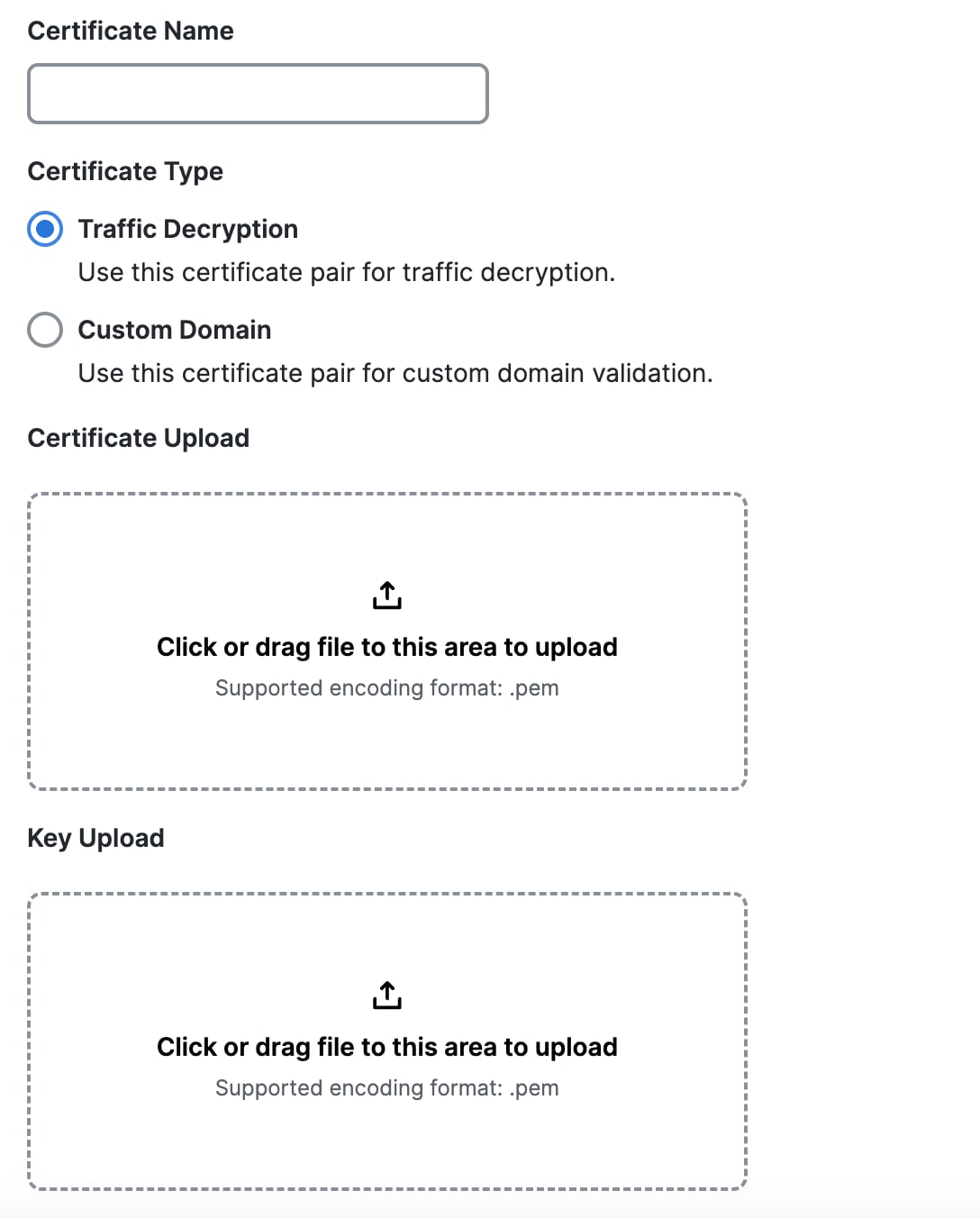
  3. To replace a certificate, upload a new certificate and key, and then click Save.

    The certificate should either be signed by the root or contain the entire certificate chain up-to the root to avoid showing any errors to users.


    Page displaying options for certificate name, certificate type, certificate upload, and key upload
  4. To delete a certificate, click Delete.

    If the certificate is in use by a private resource, you can not remove the certificate. Instead, modify or remove the private resource or replace the certificate.

    1. Click Delete to confirm the deletion of the certificate.