Cisco Secure Access Help

PDF

Cisco Secure Access Help

Microsoft Edge for Business Third-Party Integration

Want to summarize with AI?

Log in

Integrate Microsoft Edge for Business with Cisco Secure Access to enable secure access to private applications, enhance security and compliance for unmanaged devices, and provide advanced management and monitoring features for enterprise environments.


This integration allows Cisco Secure Access security policies, and posture checking to be applied within the Microsoft Edge for Business browser, focusing on scenarios involving unmanaged devices.

What is Microsoft's Edge for Business?

Microsoft Edge for Business is a secure enterprise browser built into Windows. It separates work and personal browsing into dedicated windows, helping users maintain focus and security.

By integrating Microsoft's Edge for Business with Cisco Secure Access, you can:

  • Increase adoption of Cisco Secure Access for third-party and bring your own device (BYOD) environment.

  • Ensure secure access to unmanaged devices.

  • Enhance data protection through browser-based controls.

  • Simplify deployment and management for contractor access.

  • Support Zero Trust Network Access (ZTNA) requirements through Microsoft integration.

When Microsoft's Edge for Business is configured, Cisco Secure Access receives device posture information from Edge. This data enables Cisco Secure Access to:

  • Securely manage access to private applications for third-party contractors and users on unmanaged devices.

  • Configure clientless posture profiles specific to Microsoft Edge for Business.

  • Display an "access denied" page and block access to the private resource when a trusted browser attempts to access a private resource.

  • Define a trusted browser as Microsoft Edge for Business operated by a user authenticated with an Entra ID account.

  • Monitor and audit all private application access through Microsoft Edge for Business.

Add Third-Party Integration for Microsoft Edge for Business

Organizations can integrate Microsoft Edge for Business with third-party products or services in Cisco Secure Access by deploying an HTTP listener within their on-premises or cloud environment.

You can add upto three third-party Integrations for Microsoft Edge for Business.

Before you begin

Procedure

  1. Navigate to Admin > Third-party Integrations.

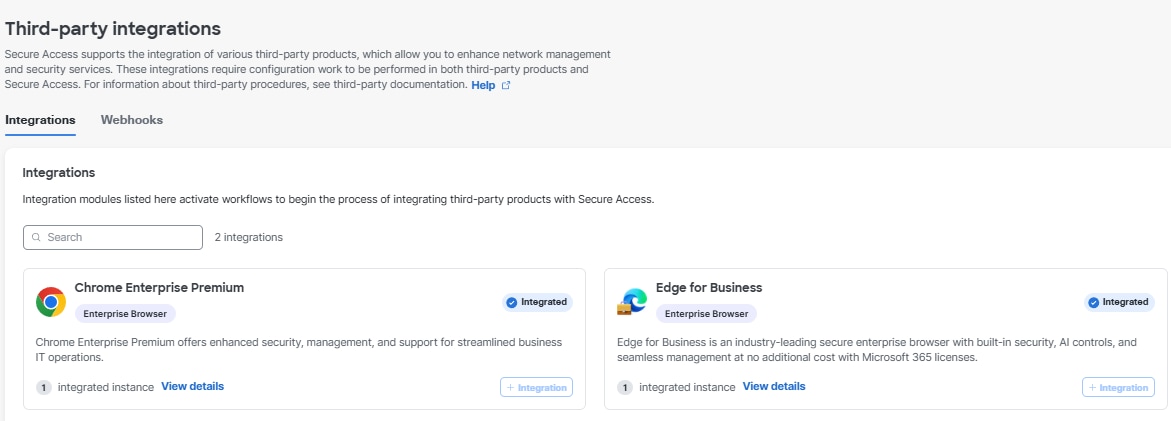
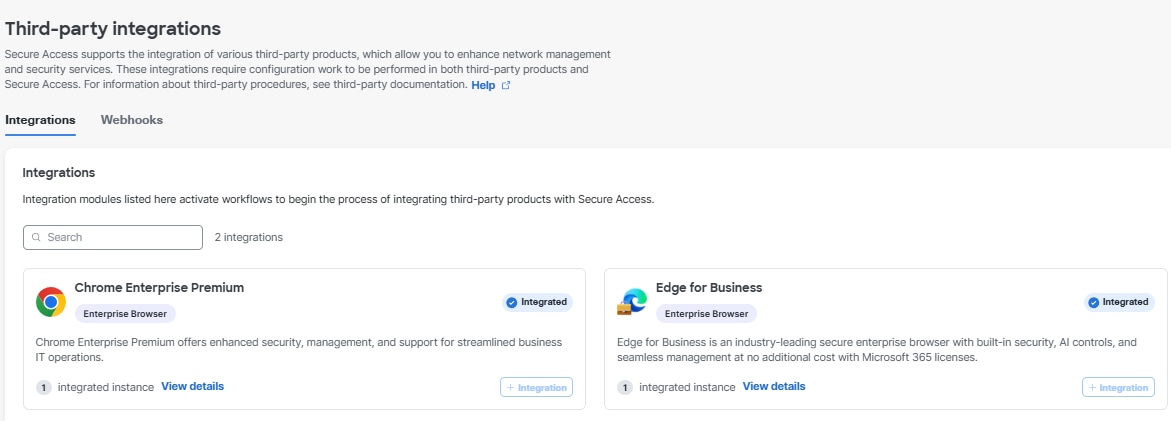
  2. Navigate to Edge for Business, then click + Integrate.

    The Third Pary Integration Ms Edge Business Card to Be Integrated interface.
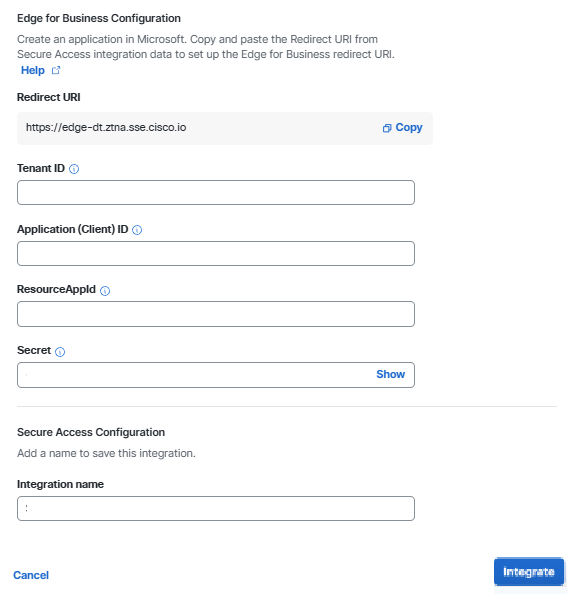
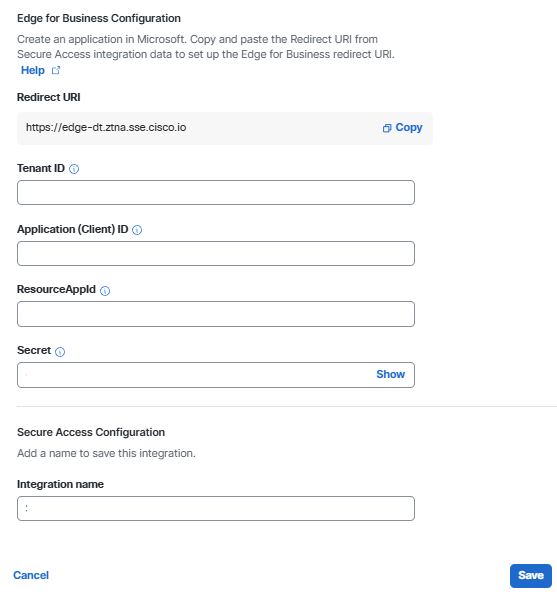
  3. For Edge for Business, enter the details for third-party integration:

    1. Navigate to Edge for Business Configuration.
    2. Tenant ID: It is the Microsoft Entra ID. Find the Tenant ID on the Properties page of your registered app in the Microsoft Entra admin center. For more information, see Find tenant ID through the Microsoft Entra admin center or Set up a new Microsoft Entra tenant.
    3. Application (Client) ID: The unique identifier of your application used by Microsoft Edge for Business to validate security tokens received from the Microsoft identity platform. Find the Application (Client) ID in the Overview page of your registered app in the Microsoft Entra admin center. For more information, see Register an application in Microsoft Entra ID.
    4. ResourceApp ID: This ID is from the Microsoft Entra ID portal. This identifier associates with the resource application registered in the Microsoft Entra ID portal.
    5. Secret: The application password used by the registered app to identify itself. For more information, see Add and manage application credentials in Microsoft Entra ID.
    6. Integration name: Enter a descriptive name to help you identify the purpose of the integration in Secure Access.
    The Edge for Business Configuration Integration Button interface.
  4. Click Integrate.

After creating an MDM integration, it may take up to 24 hours for the integration to take effect in a posture profile used in an access rule. During this time, devices will not be granted access to private or internet resources protected by the access rule.

What to do next

Define a client-based Zero Trust Connection endpoint posture profile for Microsoft Edge for Business. For more information, see Add a Browser-Based Zero Trust Access Posture Profile.


View Third-Party Integration for Microsoft Edge for Business

In your Secure Access organization, view the third-party integrations configured for Microsoft Edge for Business.

Before you begin

  • A minimum user role of Read-only. For more information, see Manage Accounts.

Procedure

  1. Navigate to Admin > Third-party Integrations.

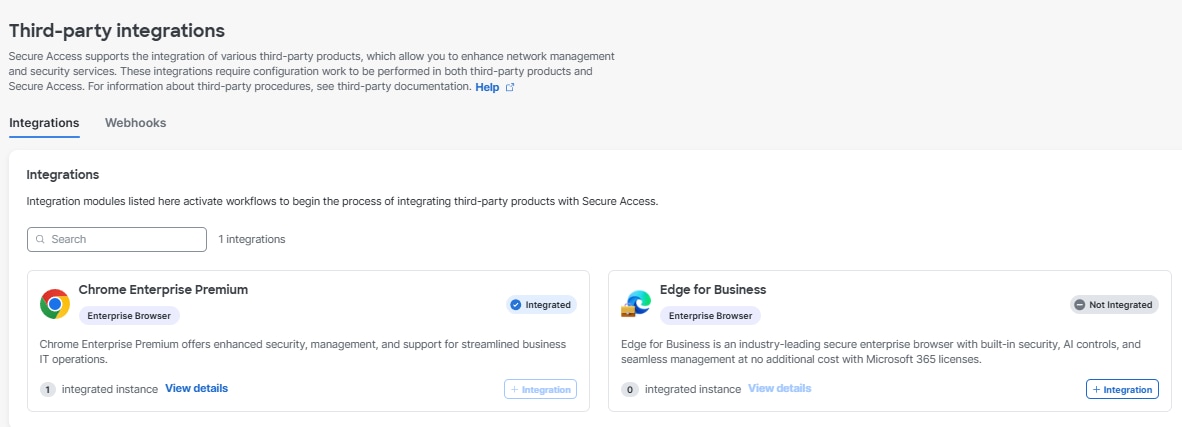
  2. On the Integrations tab, navigate to Edge for Business.

    The Third Party Resource Fields View Enabled interface.
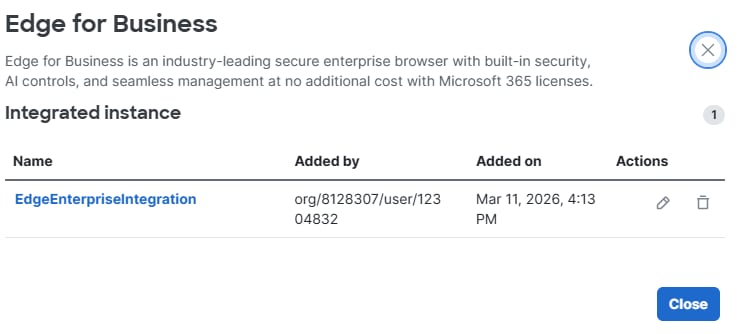
  3. Click View details.

    Secure Access displays the list of Third-party Integrations that are set up to receive push notifications.

    • Name—The name of the Third-party Integration for Microsoft Edge for Business.

    • Added by—The organization ID and user account that added the Third-party Integration.

    • Added on—The date and time when the organization added the Third-party Integration.

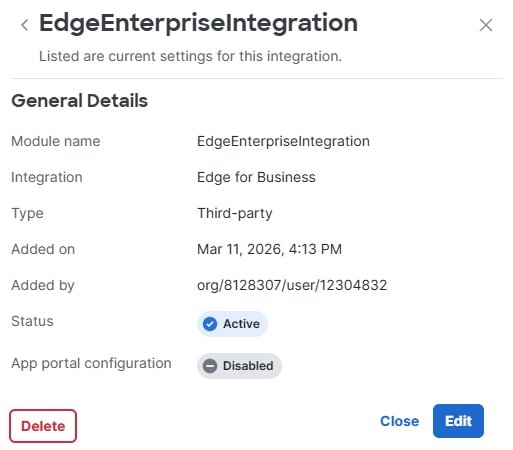
  4. Navigate to the Microsoft Edge for Business table and click on the name of a Third-party Integration to view the details about the integration.

    • Module name—The name of the Third-party Integration for Microsoft Edge for Business.

    • Integration—The type of the Third-party Integration.

    • Type—The type of the Secure Access integration.

    • Added on—The date and time when the organization added the Third-party Integration.

    • Added by—The organization ID and user account that added the Third-party Integration.

    • Status—The status of the Third-party Integration, either Active or Inactive.

    • App portal configuration—The status of the App portal configuration, either Enabled or Disabled.

  5. Click Close.


Edit a Third-Party Integration for Microsoft Edge for Business

Organizations can edit a Third-party Integration for Microsoft Edge for Business in Secure Access. The integration requires the deployment of an HTTP target service in the organization's on-premises or cloud environment.

Before you begin

Procedure

  1. Navigate to Admin > Third-party Integrations.

  2. Navigate to Edge for Business, and then click View details.

    The Third Party Resource Fields interface.
    1. To edit the integration settings, in the Integrated instance table, click the Edit (pencil) icon next to the respective instance name.
    For Business, and then click View details. To edit the integration settings, in the Integrated instance table, click the Edit (pencil) icon next to the respective instance name.
  3. Navigate to Edge for Business Configuration.

    1. Tenant ID: It is the Microsoft Entra ID. Find the Tenant ID on the Properties page of your registered app in the Microsoft Entra admin center. For more information, see Find tenant ID through the Microsoft Entra admin center or Set up a new Microsoft Entra tenant.
    2. Application (Client) ID: This ID is from the Microsoft Entra ID portal. This unique identifier refers to the application registered in the Microsoft Entra ID portal. For more information, see Register an application in Microsoft Entra ID.
    3. ResourceApp ID: This ID is from the Microsoft Entra ID portal. This identifier associates with the resource application registered in the Microsoft Entra ID portal.
    4. Secret: This ID is from the Microsoft Entra ID portal. This value associates with the application registered in the Microsoft Entra ID portal. For more information, see Add and manage application credentials in Microsoft Entra ID.
    5. Integration name: The name must be alphanumeric with characters length between 2 and 250. Choose a meaningful name that begins with an alphabetic character.

      The name of the integration must be unique for all Third-party Integrations in the organization.

    The Integration Details interface.
  4. Click Save.