Cisco Secure Access Help

PDF

Cisco Secure Access Help

Remote Browser Isolation Advanced Isolation Controls Reference

Want to summarize with AI?

Log in

Refer to this topic to learn about the advanced isolation settings you can configure in Remote Browser Isolation profiles.


This topic provides detailed definitions for the settings available within a Remote Browser Isolation (RBI) profile.

  • Watermarking
  • Copy, Paste and Keyboard Control
  • Document Isolation
  • File Transfers

Watermarking

Watermarks are a visual overlay to the isolated session to discourage unauthorized screen captures or data sharing. You can apply Watermark to isolated browser window, isolated documents, or both. You can click Preview Watermark to see a sample of the watermark.

The Rbi4 interface.

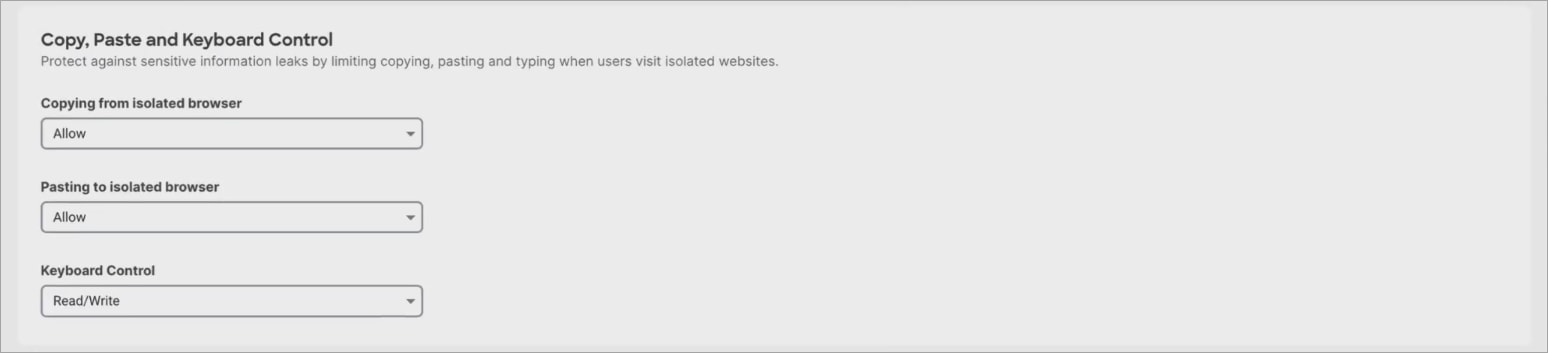
Copy, Paste and Keyboard Control

You can define how users can interact with web content and their local clipboard.

  • Copying from isolated browser:

    • Allow/Block: Controls if a user can copy text from the isolated browser to their local machine.

  • Pasting to isolated browser:

    • Allow/Block: Controls if a user can paste text from their local machine into the isolated browser.

    • Limit: Sets the maximum number of characters allowed for a single paste operation.

      The Rbi5 interface.
  • Keyboard control:

    • Read/Write: Users can interact with the website normally, including typing into text fields and forms.

    • Read-Only: Users can view content and click navigation elements (like buttons or links), but all text input fields and web forms are disabled.


Document Isolation

You can control how files are handled when opened within an isolated session.

  • Original Download of Isolated Documents: When enabled, the original file download is blocked.

    The Rbi6 interface.
  • Safe Downloads of Isolated Documents: When allowed, the user is provided with a Safe Download — a sanitized PDF version of the document. Sanitization removes active code, macros, and embedded links to prevent malware execution.

    The Rbi7 interface.
  • Optimize Safe PDF: You can set the optimization option to either improve the PDF quality or reduce the size.

    The Rbi8 interface.
  • Sharing and Printing of Isolated Documents:

    • Allow sharing of original download URL: Enables the ability to generate a shareable URL for the original document.

    • Hide the document print action: Disables the print action for the document.

      The Rbi9 interface.
  • AdobeTM Viewer for PDF and Microsoft Office Documents: When enabled, PDF and Microsoft Office documents are displayed using an integrated Adobe viewer within the isolated browser.

    The Rbi10 interface.
  • Encrypted Documents Options:

    • Do Not Prompt: If a user attempts to open a password-protected file, they are not prompted to enter the password. Without authentication, encrypted documents are not accessible.

    • Password Prompt: If a user attempts to open a password-protected file, they are prompted to enter the password within the isolated session.

      The Rbi11 interface.

File Transfers

You can manage the upload and download of files during an isolated session. The transfer of document-style files (for example, .docx, .pdf) is governed by your organization's File Type Control policies. But using the Isolation profile, you can specifically Block or Allow the upload or download of non-document files (such as .exe or .zip) that occur within the isolated environment. This acts as a secondary layer of protection specific to isolation.

The Rbi12 interface.