Cisco Secure Access Help

PDF

Cisco Secure Access Help

Allow SSH and RDP Access to Private Resources

Want to summarize with AI?

Log in

Describes Allow SSH and RDP Access to Private Resources in Cisco Secure Access. Secure Access Packages and Feature Availability.Not all of the features described here are available to all Secure Access packages.


Note
Secure Access Packages and Feature Availability.

Not all of the features described here are available to all Secure Access packages. Information about your current package is listed on the Admin > Licensing page. For more information, see Determine Your Current Package. If you encounter a feature here that you do not have access to, contact your sales representative for more information about your current package. See also, Cisco Secure Access Packages

You can allow Zero Trust Access to private resources using SSH and Microsoft's Remote Desktop Protocol (RDP).

Note
You can set your keyboardlayout to an alternate language upon logging into your RDP. If you opt to switch the input method for your keyboard, the keyboard layout is in effect until you log out or the session terminates. You must reselect the language preference the next time you or a user logs into the remote desktop. This option supports browser-based RDP access only.
Browser-Based Zero Trust Access


Configuration overview: Browser-based zero trust access using SSH or RDP

Use the following procedure to allow clientless browser-based Zero Trust Access to private resources using SSH or RDP:

Procedure

  1. If you are using older SSH servers, see Details: Supported options for SSH.

  2. Configure your private resource:

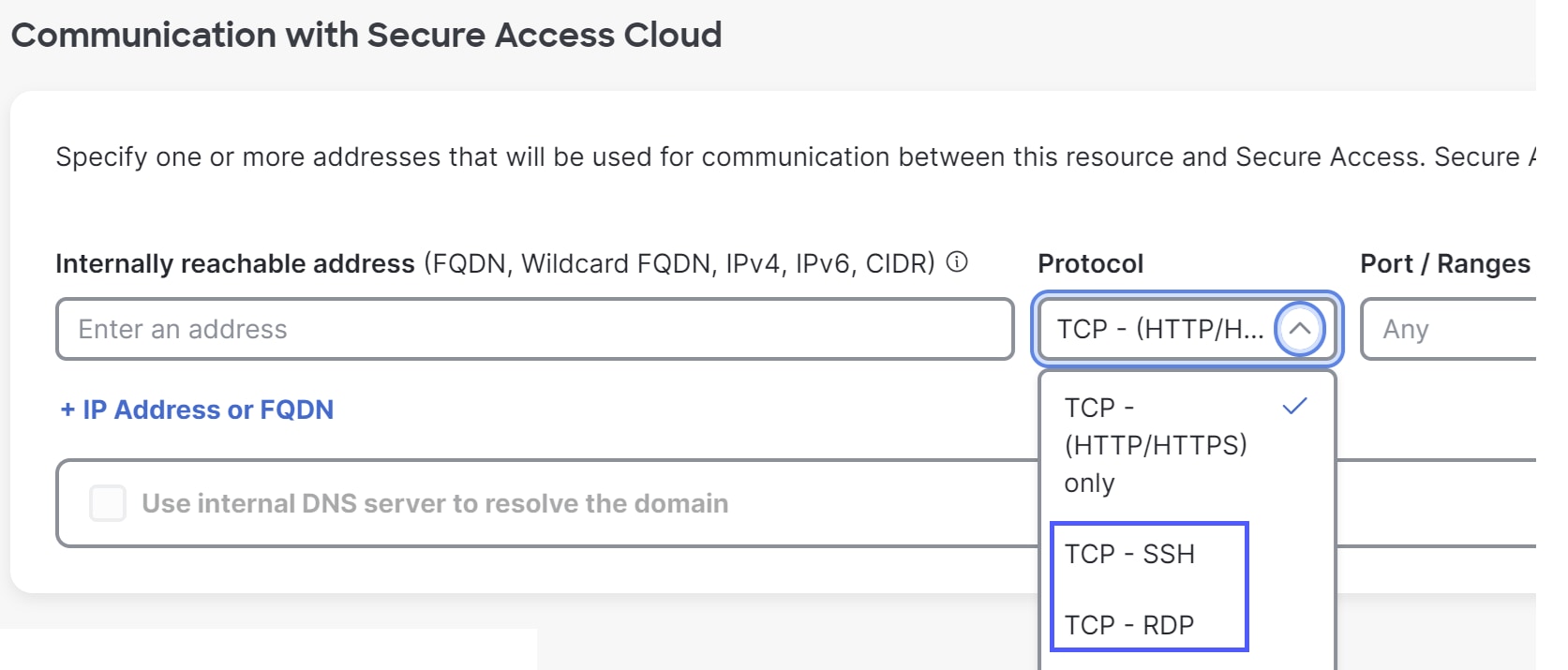
    1. Allow access using the applicable protocol for the internally reachable address. See Add a Private Resource.


      Communication with Secure Access Cloud page showing configuration fields for addresses used for communication between resource and Secure Access
    Note
    The resource name will appear at the top of your users' SSH or RDP window.
  3. In the Private Resource, enable Zero-trust connections, then enable and configure browser-based connections.

  4. Follow the instructions for granting access to private destinations in Get Started With Private Access Rules.

  5. If your environment has a web proxy or firewall between end user browsers and the Secure Access cloud, you must allow websocket access on port 443 from your users' browsers to Secure Access.

  6. When you give users the applicable SSH or RDP credentials or private key for the resource, also provide the public URL for browser-based Zero Trust Access that you configured on the Private Resource page. Neither Secure Access nor the browser stores the credentials or private key.


Notes for browser-based SSH and RDP access

  • For limits on the number of user sessions, see the Service Connections section in Limitations and Range Limits.

  • You can set your keyboardlayout to an alternate language upon logging into your RDP. If you opt to switch the input method for your keyboard, the keyboard layout is in effect until you log out or the session terminates. You must reselect the language preference the next time you or a user logs into the remote desktop. This option supports browser-based RDP access only.

  • For those who configure a private resource to use RDP, logging into your RDP presents the option to select an alternate language for your keyboard layout. This election remains in effect until the end of the session. At this time we support English, French, German, Chinese, and Hindi.

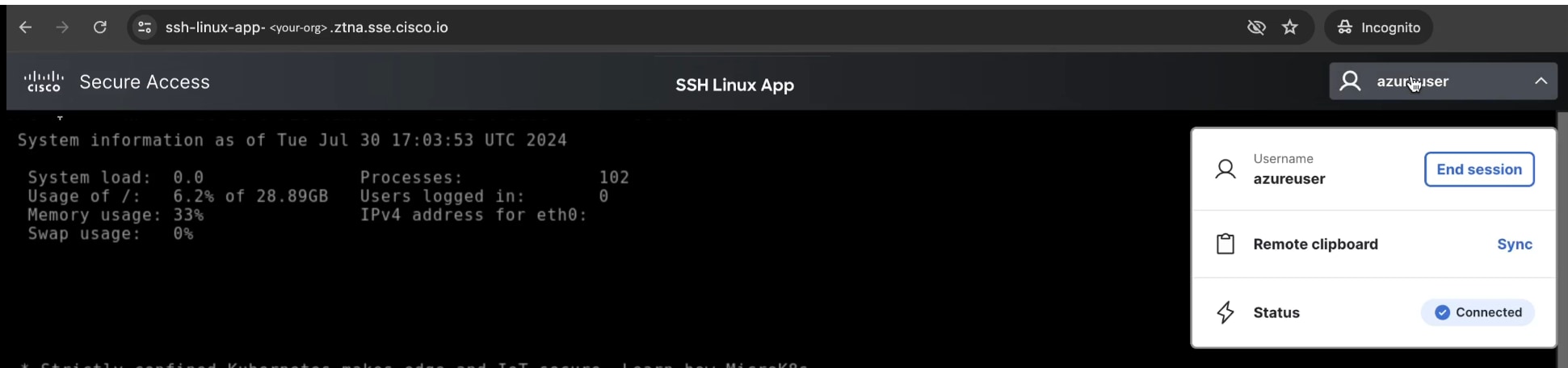
  • The user experience will look like this:


    The SSH End User Experience interface.
  • SSH and RDP users can paste text copied from their local machine by using the remote clipboard feature, shown in the image above. Follow these steps in order for each text string that needs to be copied and pasted:

    1. Copy text on your local machine.

    2. Click Sync to the right of the Remote clipboard menu item in the browser-based SSH or RDP session.

    3. Paste into the remote session.

    Note

    The Sync button is not necessary when copying from the remote session to your local machine.

  • RDP users will not be able to upload files or images.


Supported options for SSH access

Most SSH connections will be successful. If you are using older SSH servers, the following options are supported.

Key Exchange (KEX) Symmetric Cipher Message Authentication Code (MAC) Server Host Key Algorithm Compression Schemes Authentication
diffie-hellman-group-exchange-sha256 aes256-gcm@openssh.com hmac-sha2-512 ssh-ed25519 zlib password
diffie-hellman-group1-sha1 aes128-gcm@openssh.com hmac-sha2-512- etm@openssh.com ssh-ed25519- cert-v01 @openssh.com zlib@openssh.com public key
diffie-hellman-group14-sha1 hmac-sha2-256 hmac-sha2-256 ecdsa-sha2- nistp521 none n/a
diffie-hellman-group-exchange-sha1 hmac-sha2-256-etm@openssh.com hmac-sha2-256-etm@openssh.com ecdsa-sha2-nistp384 n/a n/a
n/a hmac-sha1 hmac-sha1 ecdsa-sha2-nistp256 n/a n/a
n/a hmac-sha1-96 hmac-sha1-96 ssh-rsa n/a n/a
n/a hmac-md5 hmac-md5 ssh-dss n/a n/a
n/a hmac-md5-96 hmac-md5-96 n/a n/a n/a
n/a hmac-ripemd160 (hmac-ripemd160@openssh.com ) hmac-ripemd160 (hmac-ripemd160@openssh.com ) n/a n/a n/a

Client-Based Zero Trust Access

Client-based SSH and RDP access does not require special configurations. No user experience specific to Secure Access is required.