Cisco Secure Access Help

PDF

Cisco Secure Access Help

Troubleshoot Endpoint Data Loss Prevention for Mac

Want to summarize with AI?

Log in

This concept describes how to locate Endpoint DLP logs and troubleshoot common enrollment errors on macOS devices.


Pre-Enrollment Errors

Error Description Condition
Cannot begin enrollment Cannot begin enrollment. Contact your IT help desk about these errors. Occurs when there is a TPM error .
Device registration error An issue with the Device Desktop occurred. Contact your IT help desk. Occurs when Duo desktop is not installed, is not running, or is non-responsive. The user is asked to ensure that the app is running or contact IT help desk for assistance.
Server certification error Error initiating enrollment Client is unable to verify the proxy server certificate.

Enrollment Errors

Error Description Condition
Certification enrollment error Occurs when the certificate does not install in the background during enrollment. The certificate is required for Endpoint DLP to work properly.
No network connection Occurs when the user doesn't have an active or working internet connection (wired or wireless).
Missing Choice File for Windows Occurs when the the choice file downloaded from the Secure Access dashboard is not pushed to the target device and is not available at the location C:\ProgramData\Cisco\Cisco Secure Client\EDLP\enrollment_choices
Missing Choice File for mac Occurs when the the choice file downloaded from the Secure Access dashboard is not pushed to the target device and is not available at the location /opt/cisco/secureclient/edlp/enrollment_choices
Missing Identity (aka bootstrap or user) Certificate Occurs when the identity certificate is not available on the Login Keychain.
Expired Identity Certificate Occurs when the identity certificate is not valid during and after enrollment. Expired certificates lead to enrollment failure or if certificate expires after enrollment then existing enrollment will be removed.
Unsigned Identity Certificate Occurs when the identity certificate is not signed by the same root CA uploaded into secure access dashboard and marked for EDLP. See section Upload a Root CA.
User Not Provisioned Occurs when the user for which enrollment is failing is not provisioned in your secure access org. View Users Provisioned in Secure Access
401 error messages during enrollment Contact your IT help desk. Occurs when the client lacks sufficient authorization.
Trusted Platform Module (TPM) is unavailable Occurs when the TPM is unavailable.
Expired or Invalid or Revoked Secure Access Certificate Occurs when the secure access certificate is not valid during and after enrollment. Expired or revoked certificates will lead to deletion of enrollments.
Timeouts Occurs when the domains mentioned under the networking requirements are not allowed in your network firewall and that the destinations are not reachable.

Post-Enrollment Errors

Error Description Condition
Network not allowed Your organization requires you to be on an authorized network to log in. Occurs when a private resource is not configured to allow Endpoint DLP. Also occurs when the destination is not a configured private resource, but rather is an IP address that was typed directly into an access rule.
User blocked explicitly Location not allowed. Your organization requires you to use a different operating system. Contact your IT help desk. Occurs when the user is blocked by a rule that denies access or when the user does not have permission to connect or access the resource.
Access protocol block Location not allowed. Your organization requires you to use a different operating system. Contact your IT help desk. User does not have permission to connect to the resource using the current protocol.
User location block Location is not allowed. Occurs when the user did not match any rule and is blocked by default or when the user is not allowed access to the application from their current location.

Extract and Stream Logs for Cisco Secure Client - Endpoint DLP on macOS

This document explains how to extract and stream logs for Cisco Secure Client - Endpoint DLP on macOS.

Overview

macOS uses the Unified Logging System, which can be accessed using the log CLI utility.

You can use two primary commands:

  • log show → Extract historical logs

  • log stream → View live / real-time logs

Filtering uses a predicate, typically by subsystem or optionally by category.

Historical Logs (log show)

Use the log show command to view past logs. You can filter by time window and subsystem.
log show --style syslog --info --predicate 'subsystem == "com.cisco.secureclient.edlp"' --last 1h

Example time filters:

--last 30m → last 30 minutes

--last 2h → last 2 hours

--last 1d → last 1 day

Specify explicit time ranges:
log show --style syslog --info --predicate 'subsystem == "com.cisco.secureclient.edlp"' \
  --start "2026-03-10 10:00:00" \
  --end   "2026-03-10 11:00:00"

Live Logs (log stream)

Use log stream to monitor logs as they are generated.
log stream --style syslog --level info --predicate 'subsystem == "com.cisco.secureclient.edlp"'

Filter by Category (Optional)

A specific functional area, filter by category:

  • Core Agent Logs

    log stream --style syslog --level info --predicate 'subsystem == "com.cisco.secureclient.edlp" AND category == "agent"'
  • Enrollment Logs

    log stream --style syslog --level info --predicate 'subsystem == "com.cisco.secureclient.edlp" AND category == "csc_edlpenroll"'

When to Filter by Category

  • Use subsystem only → When debugging full product behavior.

  • Add category filter → When isolating issues in core agent or enrollment flows.

Logging Levels

Use different logging levels depending on your troubleshooting needs:

  • default → Normal operational logging

  • info → Standard troubleshooting

  • debug → Deep troubleshooting (high volume)

Note
The log show command does not use --level flag. Use --info or --debug instead.

The log stream command supports both --level info and --level debug options.

Enable debug logging:

In addition to specifying the appropriate debug flag, you must update the config.ini file to enable debug logging.

Open
 /opt/cisco/secureclient/edlp/etc/config.ini 
[logger]
level = info

Change the value under [logger] from level = info to level = debug. Save the file and restart the Endpoint DLP service.

Save Logs to a File

  • Save historic logs

    log show --style syslog --info --predicate 'subsystem == "com.cisco.secureclient.edlp"' --last 1h > edlp.txt
  • Stream and Save Live Logs

    log stream --style syslog --level info --predicate 'subsystem == "com.cisco.secureclient.edlp"' | tee edlp.log

Best Practices

  • Use subsystem-only filtering for complete log capture.

  • Add category filtering only when narrowing investigation scope.

  • Use --level debug only when necessary.

  • Always include a time window (--last) when using log show to avoid large outputs.

  • Redirect logs to a file when collecting for support or bug reports.

Log Retention

On macOS, log retention is not time-based, but it is based on size and storage size.

Unified Logging system keeps in a rolling store and automatically older entries when:

  • The log store reaches internal size limits.

  • The system needs disk space.

  • The Mac is rebooted (some transient logs may be lost).

    Retention depends on:

  • System activity volume.

  • Whether debug logging is enabled.

  • Available disk space.

  • macOS version.

High-volume debug logging can cause older logs to be replaced quickly. When you troubleshoot using debug logs, collect debug logs promptly to avoid losing important entries.

Log Type Typical Retention
default, error, fault Several days to weeks
info Usually hours to a few days
debug Often only hours (sometimes less under load)

Logging with the Console Application

You can use the console graphical user interface (GUI) application on macOS to stream and monitor Endpoint DLP logs in real time.

Procedure

  1. Launch the Console application.

  2. In the search bar at the top right, enter “edlp”.

  3. By default, the search filter is set to ANY. Double-click on ANY to change it to SUBSYSTEM.

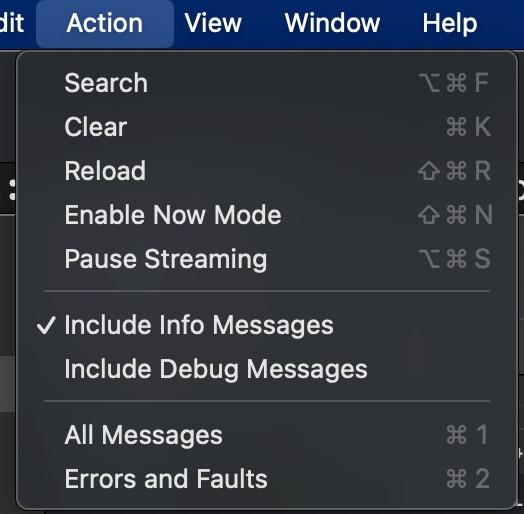
  4. To view Info or Debug Messages, from the Action menu, choose Include Info Messages or Include Debug Messages.

  5. You can add additional keyword searches for a category or specific keywords if you are looking for a particular log line.

    Note
    By default, the console application does not display info or debug level logging. To enable these, select Action in the top menu bar and choose Include Info Messages or Include Debug Messages.
    Console application does not display info or debug level logging. To enable these, select Action in the top menu bar and choose Include Info Messages or Include Debug Messages.
    Note
    Logs streamed in the console application are not retained indefinitely and may disappear after some time. To save logs for later review, use the command line log stream command and redirect output to a file.