Cisco Secure Access Help

PDF

Cisco Secure Access Help

Enable Cloud Malware Protection for Slack Tenants

Want to summarize with AI?

Log in

Describes Enable Cloud Malware Protection for Slack Tenants in Cisco Secure Access. Secure Access supports Cloud Malware protection for all messages and files within your Slack deployment.


Secure Access supports Cloud Malware protection for all messages and files within your Slack deployment.

Prerequisites

  • Chrome or Firefox (recommended) with pop-up blockers and ad blockers disabled (only for the duration of authorization)

  • You must have an active Slack tenant and Slack admin privileges (co-admin does not have sufficient privileges).

Limitations

  • A tenant that fails to authenticate cannot be deleted.

Authorize a Tenant

Procedure

  1. Navigate to Admin > Authentication.

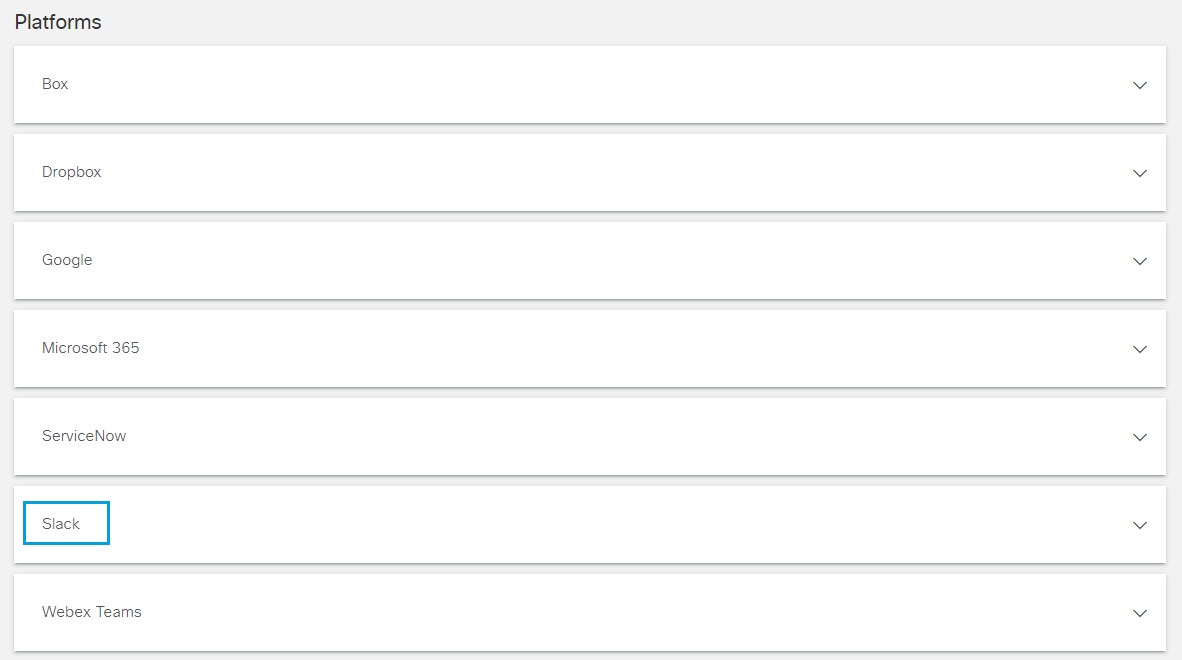
  2. In the Platforms section, click Slack.

    Platforms page displaying options for Slack
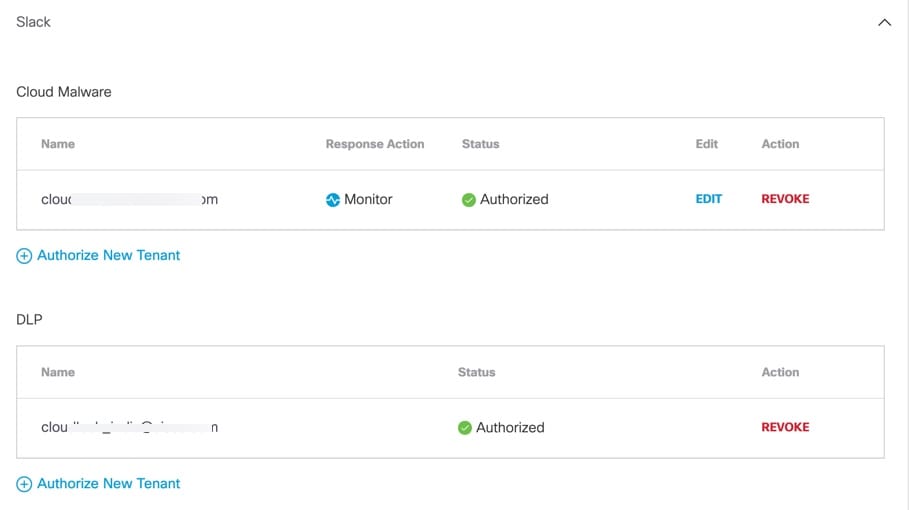
  3. In the Cloud Malware section, click Authorize New Tenant to add a Slack tenant to your Secure Access environment.

    Slack page displaying the option to authorize a new tenant
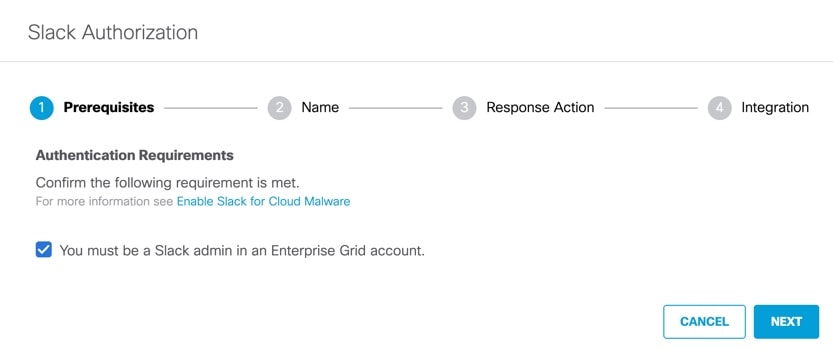
  4. In the Slack Authorization dialog box, check the checkbox to verify you meet the prerequisite and then click Next.

    Slack Authorization page displaying the option to proceed to the next step
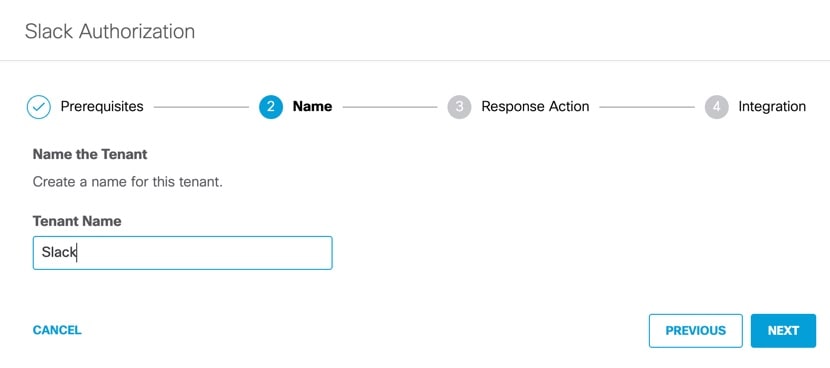
  5. Add a Tenant Name and then click Next.

    Slack Authorization page displaying options for tenant name and next
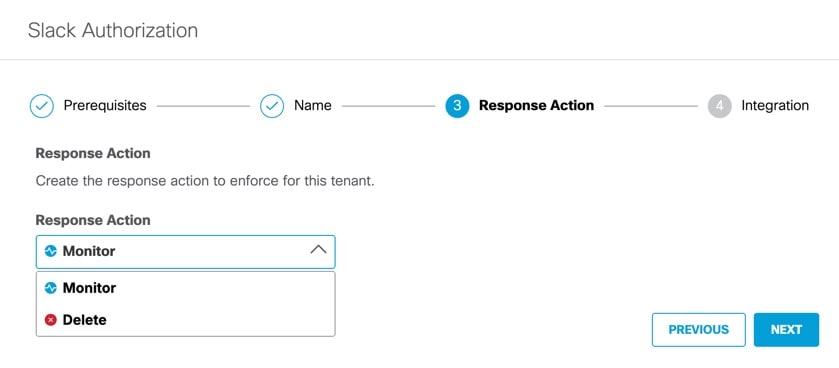
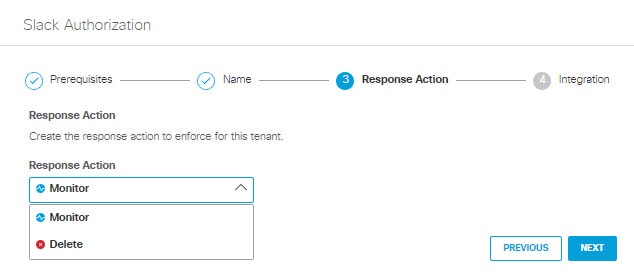
  6. Select a Response Action for Secure Access to automatically apply to Slack messages and files found with malware and then click Next.

    • Choose Monitor to cause Secure Access to log messages and files detected with malware. You will be able to manually delete these from the Cloud Malware report.

    • Choose Delete to automatically delete the message or file.

    Slack Authorization page displaying options for monitor, delete, and next
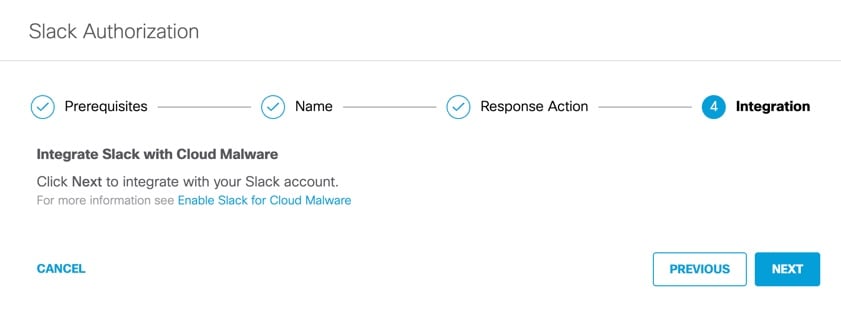
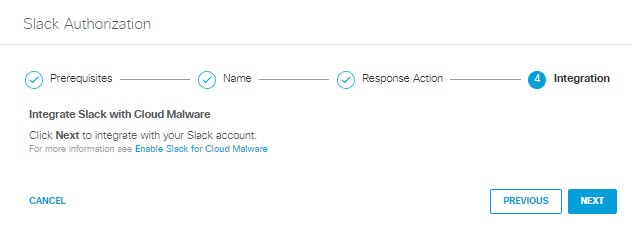
  7. Click Next to integrate with Slack.

    Slack Authorization page displaying the option to proceed to the next step
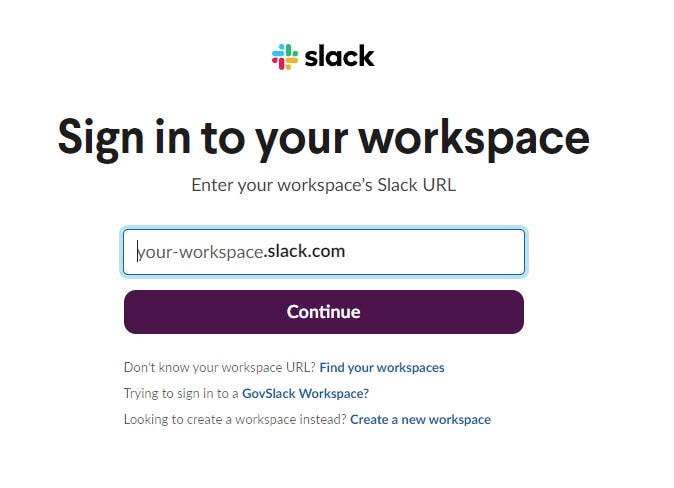
  8. If you are not already logged in, the Slack login page will appear; log in to Slack with admin credentials to grant access.

    Slack page displaying the option to sign in

    If you are already logged in to Slack with admin credentials, the Slack login page does not appear; proceed to Step 9.

  9. Screens with prompts from Slack will appear .

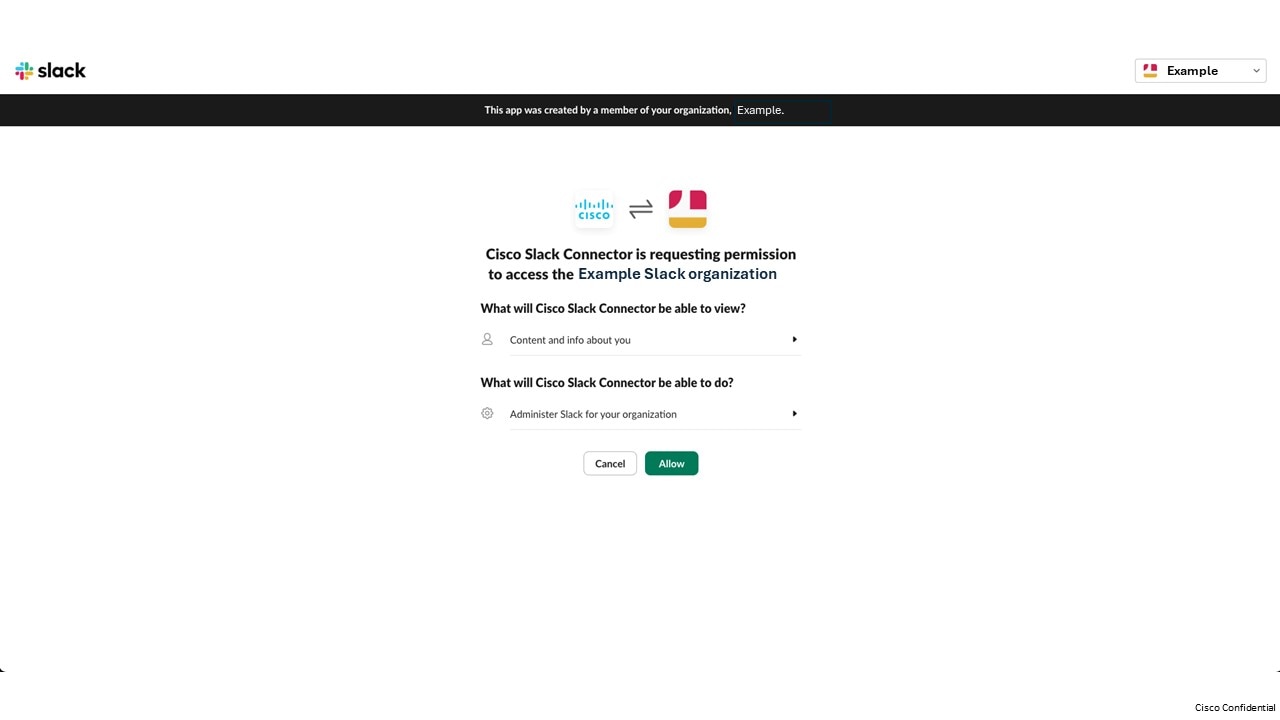
    1. Click Allow to authorize the Cisco Slack Connector to view content and information about your Slack account, and to administer Slack for your account.

      Slack page displaying the option to allow
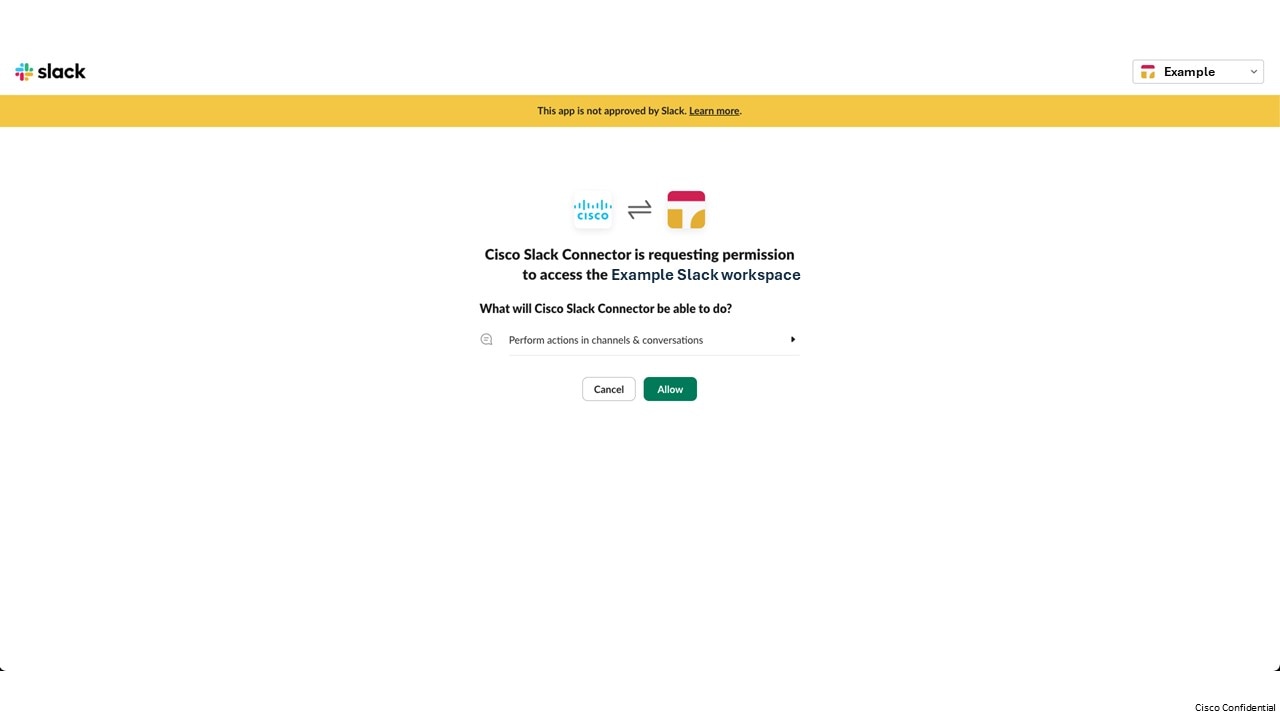
    2. Click Allow to authorize the Cisco Slack Connector to perform actions in channels and conversations associated with your Slack account.

      Slack page displaying the option to allow
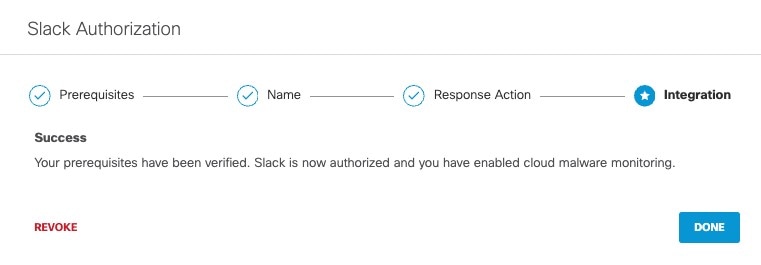
  10. You are redirected to Secure Access and a message appears showing the integration was successful. (It may be up to 24 hours for the integration to be confirmed and appear as Authorized in the Platforms section of the Authentication page.)

  11. Click Done.

    Slack Authorization page displaying options for revoke and done

Edit a Tenant

You can change the Response Action you have selected for a tenant.

Procedure

  1. Navigate to Admin > Authentication.

  2. In the Platforms section, click Slack.

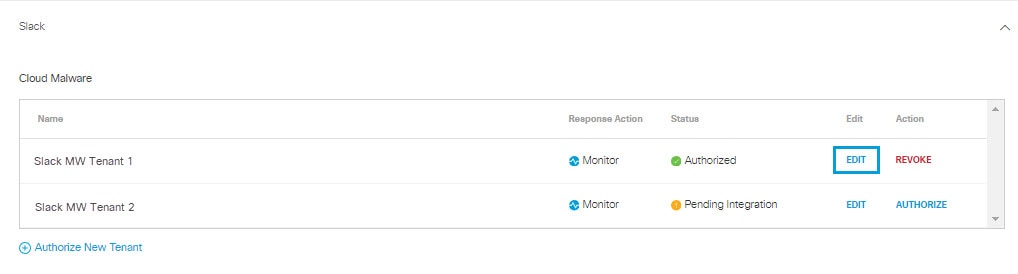
  3. In the Cloud Malware section , from the Edit column, click Edit. You can edit any tenant.


    Slack page displaying the option to edit.
  4. Select a Response Action for Secure Access to automatically apply to Slack messages and files found with malware and then click Next.

    • Choose Monitor to cause Secure Access to log messages and files detected with malware. You will be able to manually delete these from the Cloud Malware report.

    • Choose Delete to delete the message or file.


    Slack Authorization page displaying options for monitor, delete, and next
  5. Click Next.


    Slack Authorization page displaying the option to proceed to the next step

    The new Response Action is displayed.


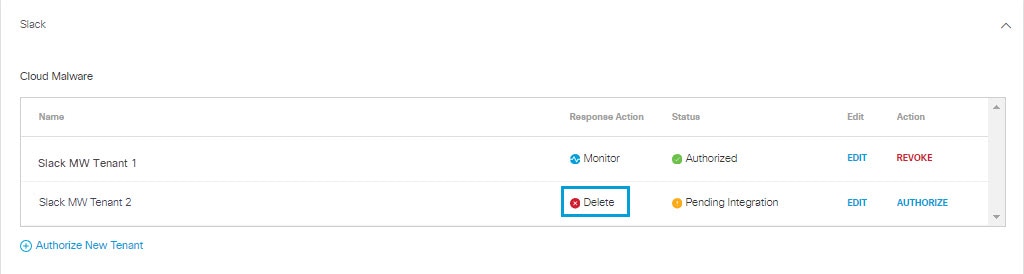
    Slack page displaying options for response action and delete

Revoke Authorization

Procedure

  1. Navigate to Admin > Authentication.

  2. In the Platforms section, click Slack.

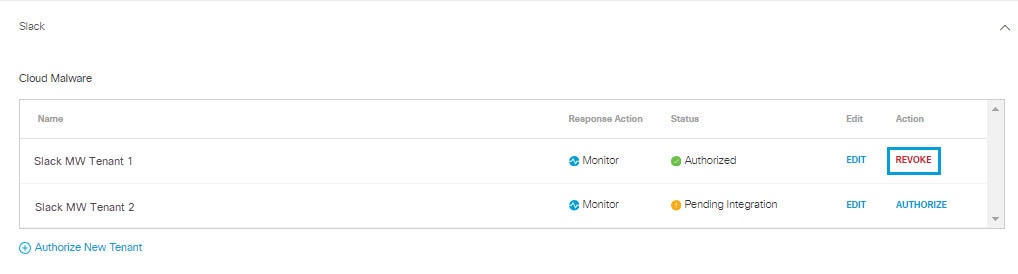
  3. From the Action column, click Revoke. You can revoke any authorized tenant.


    Slack page displaying the option to revoke
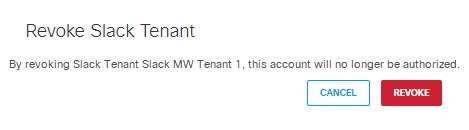
  4. Click Revoke. The selected account is no longer authorized.


    Revoke Slack Tenant page displaying the option to revoke.