Cisco Secure Access Help

PDF

Cisco Secure Access Help

Enable SaaS API Data Loss Prevention for Microsoft 365 Tenants

Want to summarize with AI?

Log in

Describes Enable SaaS API Data Loss Prevention for Microsoft 365 Tenants in Cisco Secure Access. It summarizes the behavior, configuration context, and operational considerations presented throughout the topic.


You can enable SaaS API Data Loss prevention for authorized tenants that use the following Microsoft 365 applications:

Note
You cannot add an application to an existing tenant. If you have an existing Microsoft 365 tenant that uses one or two of these applications and you wish to add another application to that tenant, you must first revoke authorization for the existing tenant, then create a new tenant using all the desired applications.
Prerequisites for Enable SaaS API Data Loss Prevention for Microsoft 365 Tenants

  • Chrome or Firefox (recommended) with pop-up blockers and ad blockers disabled (only for the duration of authorization)
  • The user performing the installation must use a service account with a Microsoft 365 Global Admin and active license
  • SharePoint Online and OneDrive must be enabled
  • Audit log must be enabled for Microsoft 365. For more information, refer to Microsoft technical documentation and search for Turn auditing on or off.
  • The following IP addresses must be allowed if there are Firewall rules that prevent third-party applications:
    • 146.112.161.0/24
    • 146.112.163.0/24
    • 146.112.165.0/24
    • 146.112.167.0/24
  • Users must have the following API permissions for Microsoft:
API/ Permissions Name Type Description Admin Consent Required
Microsoft Graph
Directory.AccessAsUser.All Delegated Access directory as the signed-in user Yes
Directory.Read.All Application Read directory data Yes
Files.Read.All Delegated Read all files that user can access No
Files.Read.All Application Read files in all site collections Yes
Sites.Read.All Delegated Read items in all site collections No
User.Read Delegated Sign in and read user profile No
User.Read.All Application Read all users' full profiles Yes
Microsoft 365 Management APIs
ActivityFeed.Read Application Read activity data for the Organization Yes
SharePoint
Site.FullControl.All Application Full control of all site collections Yes
User.Read.All Application Read user profiles Yes

Authorize a Microsoft 365 Tenant

Procedure

  1. Navigate to Admin > Authentication.

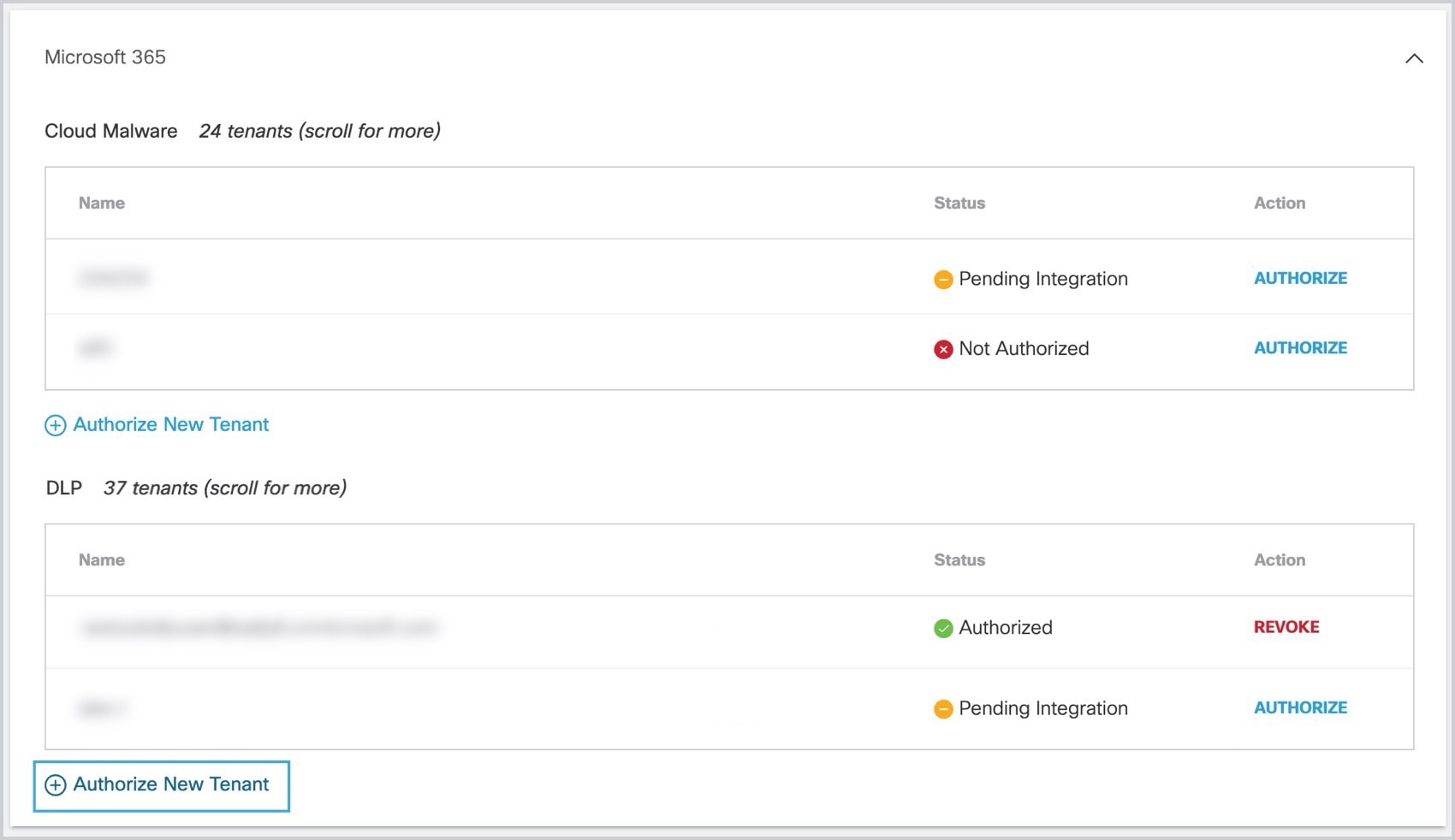
  2. Under Platforms, click Microsoft 365.


    Microsoft 365 page displaying the option to authorize a new tenant
  3. Click Authorize New Tenant in the DLP subsection to add a Microsoft 365 tenant to your Secure Access environment.

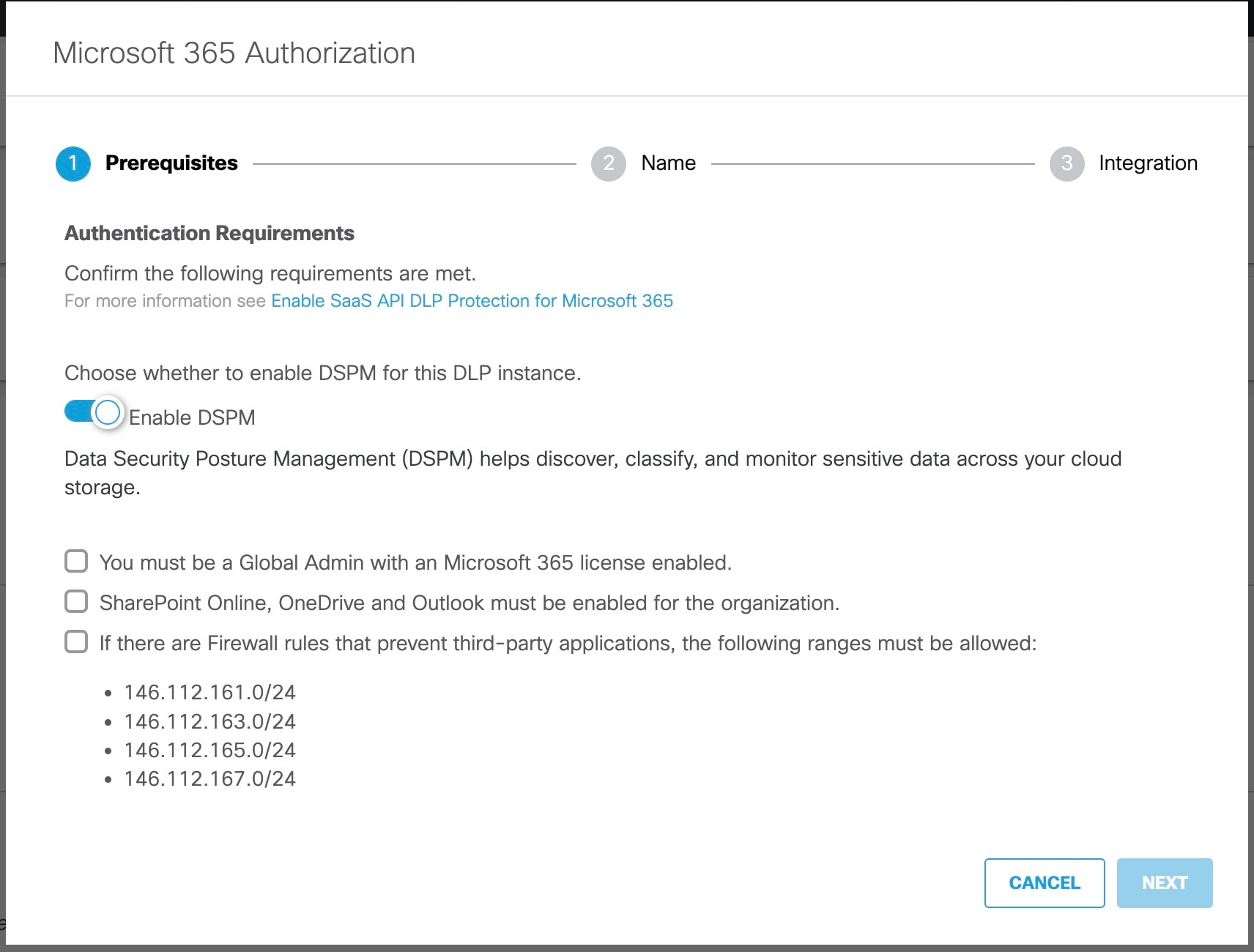
  4. In the Microsoft 365 Authorization dialog, check the checkboxes to verify you meet the prerequisites, then click Next.

    The Microsoft Enable Dspm interface.
    Note
    You can enable DSPM at this step. This authorizes the tenant for SaaS API DLP workflows and Data Security Posture Management discovery and posture assessment.
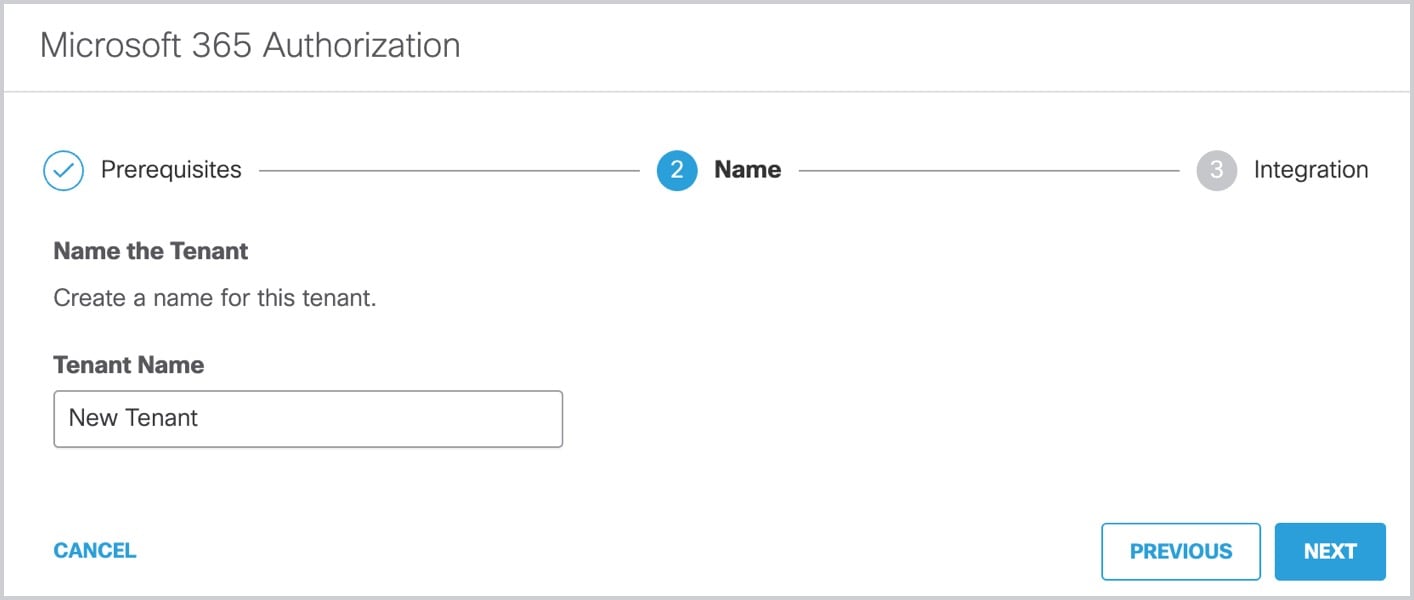
  5. Provide a name for your tenant, then click Next.


    Microsoft 365 Authorization page displaying the option to proceed to the next step
  6. Click Next to be redirected to the Microsoft 365 login page.

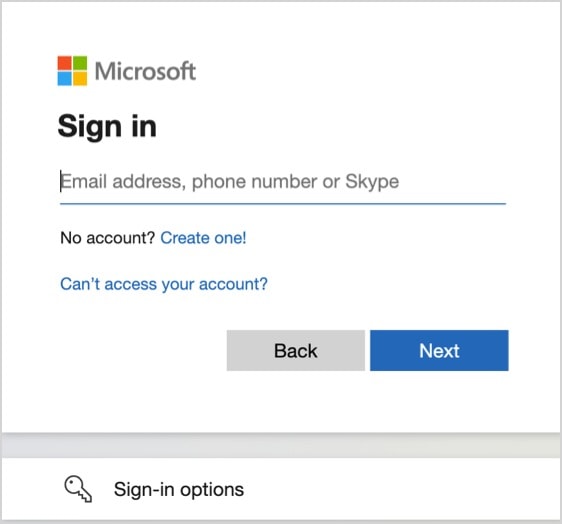
  7. Log in to Microsoft 365 with admin credentials to grant access.


    Microsoft page displaying the option to sign in

    You are redirected to Secure Access and a message appears showing the integration was successful.

  8. Click Done to complete.


Revoke Authorization

Procedure

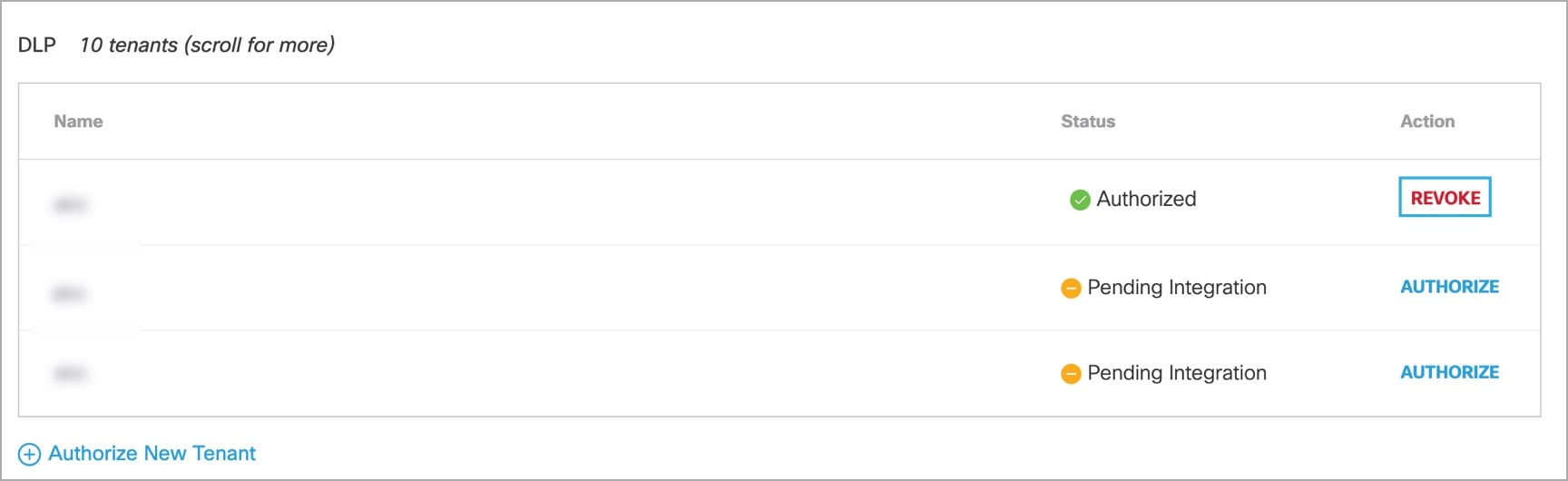
  1. Under Action, click Revoke. You can revoke any authorized tenant.


    DLP page displaying options for actions and revoke
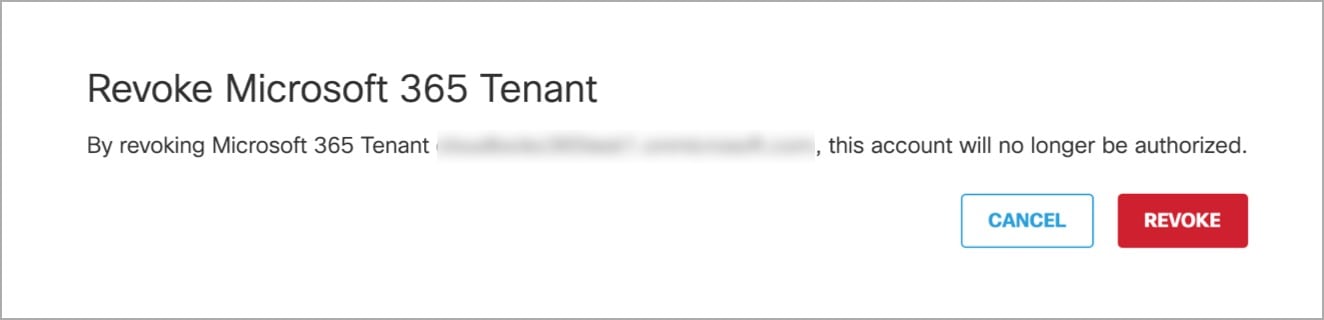
  2. Confirm to proceed. The selected account is not authorized.


    Revoke Microsoft 365 Tenant page displaying the option to revoke