Cisco Secure Access Help

PDF

Cisco Secure Access Help

Security Profiles for Internet Access

Want to summarize with AI?

Log in

Describes Security Profiles for Internet Access in Cisco Secure Access. A Security profile for internet access includes security controls and other settings such as acceptable use controls that you configure as a set.


A Security profile for internet access includes security controls and other settings such as acceptable use controls that you configure as a set. Once you add the security profile in Secure Access, you can use this profile on one or more internet access rules in the Access policy. For example, you can use different security profiles for different sets of users, or for different types of destinations.

Note
Secure Access comes with a partially configured security profile for internet access; you must either configure that profile to suit your needs or create a different security profile and designate that profile as the default security profile for internet access rules.

To configure security profiles for internet access, see detailed information in Add a Security Profile for Internet Access.

Functionality Included in a Security Profile for Internet Access


Decryption

Decryption is necessary for proper functioning of all features enabled in the security profile, and for processing traffic to most internet destinations in general. When enabled, all internet traffic will be decrypted except as specified in the selected Do Not Decrypt list. For more information about decryption, see Manage Traffic Decryption.

Generally, you should disable decryption only if the security profile will be used in rules that:

  • Have only destinations to which traffic should never be decrypted, for example for privacy or confidentiality reasons, such as medical or financial sites, for locations that regulate this traffic.
  • Have sources that only include devices on which you cannot install certificates required to decrypt and inspect traffic, such as devices that are not managed by your organization, for example vendors' or contractors' devices.
  • Have only sources that cannot respond to certificates required for decryption, such as IoT devices, printers, or kiosks
  • Allow access to applications that will not work properly if decryption is enabled, including Microsoft 365 and applications that use certificate pinning.
  • Include only known safe destinations.

    For example, use this profile for rules that control access to the sites that IoT devices access in order to update their software.

If you enable decryption, you can opt not to decrypt traffic to specific destinations. For more information, see Important Information About Do Not Decrypt Lists.


SSO Authentication

If your organization uses SSO authentication, you should generally enable this option on the networks and tunnels configured for the rules that use this profile.

Requirements for Enabling OIDC Authentication

  • Configure Open ID Connect (OIDC) authentication to authorize connections to the Secure Web Gateway (SWG) from user devices on networks and network tunnels, and connections using Zero Trust Access (ZTA). For more information, see Configure Integrations with OIDC Identity Providers.

Requirements for Enabling SAML Authentication

  • Configure SAML authentication to authorize connections to the SWG from user devices on networks and network tunnels, and connections using Zero Trust Access (ZTA). For more information, see Configure Integrations with SAML Identity Providers.
  • Decryption must also be enabled for network SAML enforcement.

Requirements for Disabling SAML Authentication

  • Decryption is disabled in the security profile, or is enabled only for notifications.
  • The security profile will be used in rules that include sources that:
    • Are not configured for SAML authentication.
    • Cannot be authenticated using SAML. For example, if the rule source includes:
      • Devices that are not managed by your organization, when certificates are required for authentication but cannot be installed on the device. Such devices might be used by contractors or vendors on your guest network.
      • Devices such as IoT devices, printers, or kiosks that cannot respond to authentication requests or present certificates required for authentication.
    • Should not be authenticated using SAML. For example, if users should not be identified for privacy or confidentiality reasons, such as by regulation or policy.

Security and Acceptable Use Controls

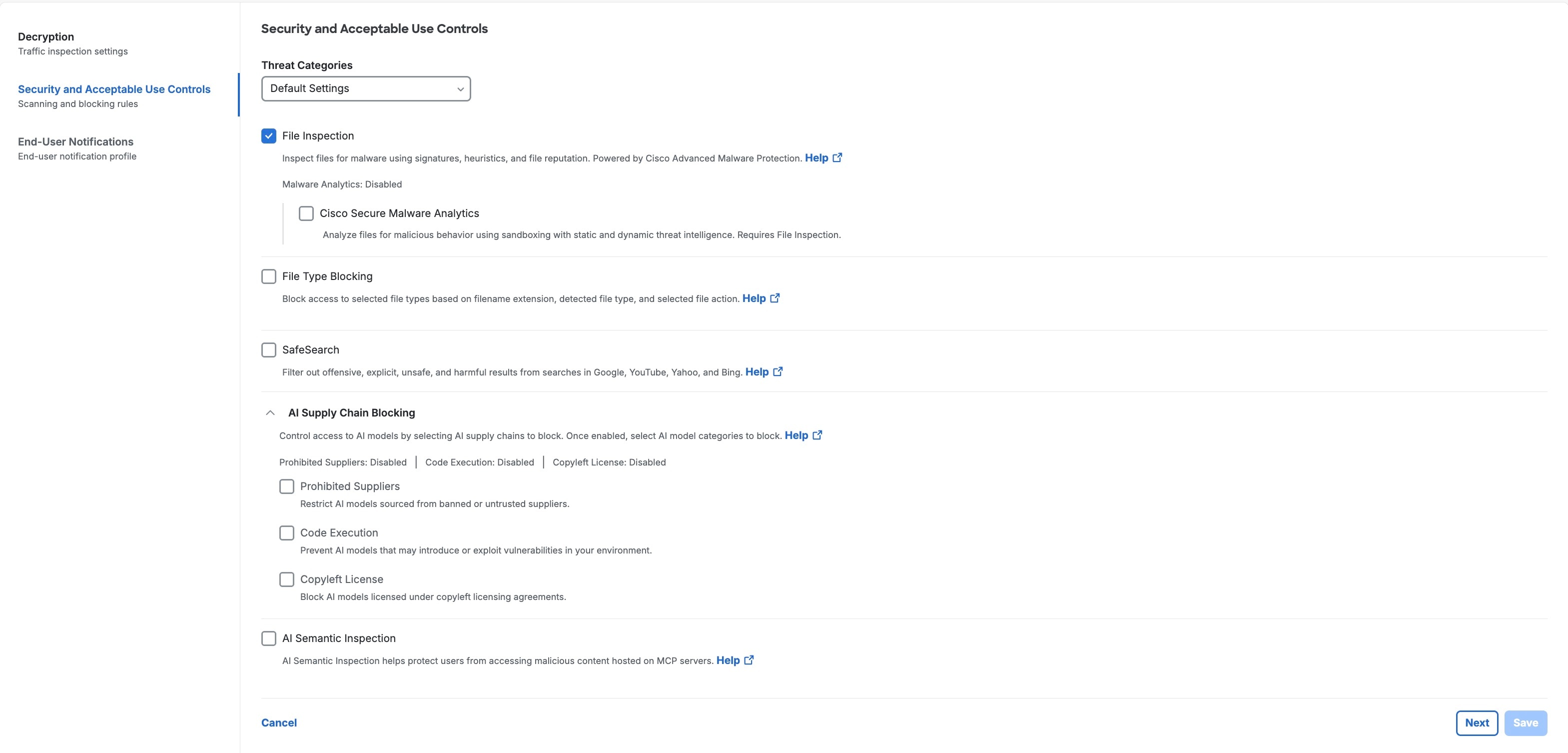
Configure security and control the use of the threat categories, file inspection, file type blocking, SafeSearch settings, and AI supply chain blocking.

Option Description More Information
Threat Categories Block traffic to sites that have been categorized as risky or threatening. Manage Threat Categories
File inspection Block download of files known to carry threats, and analyze files for suspicious behaviors. Manage File Inspection
File type blocking Block files based on filename extension, such as executable files. Manage File Type Controls
SafeSearch Return only family-friendly search results in popular search engines. Enable SafeSearch
AI Supply Chain Blocking Block end user attempts to download AI model files that are developed or authored by prohibited suppliers, released under a copyleft license, or capable of executing arbitrary code. AI Supply Chain Report
Note

For acceptable use controls on access to web sites based on categories that are not known security threats, see Manage Content Category Lists. You will specify these categories or lists in access rules.


End-User Notifications

You configure two types of end-user notifications in security profiles for internet access:

  • Block notifications that end users see instead of a browser error when they attempt to access a destination that is blocked by an access rule.
  • Warning notifications that end users must click through in order to access destinations in rules configured with the Warn action.

For information about configuring Block and Warn pages, see Manage Notification Pages.


Get Started: Security Profiles for Internet Access


Add a Security Profile for Internet Access

A Cisco Secure Access Security profile is a set of security controls and other settings that you can use in access rules.

For information about each of the components or controls that you can configure in a Security profile for internet access, see Security Profiles for Internet Access.

Prerequisites

  • Full Admin user role. For more information, see Manage Accounts.

  • In Secure Access, configure the components that you will select in a security profile for internet access.

Procedure

Note

You can add up to 100 security profiles in Secure Access for the organization.

Configure the settings on a Security profile and add the profile to the organization. After you add the Security profile, configure any related security settings and use the Security profile in an access rule.

For more information, see:


Add a Security Profile

Procedure

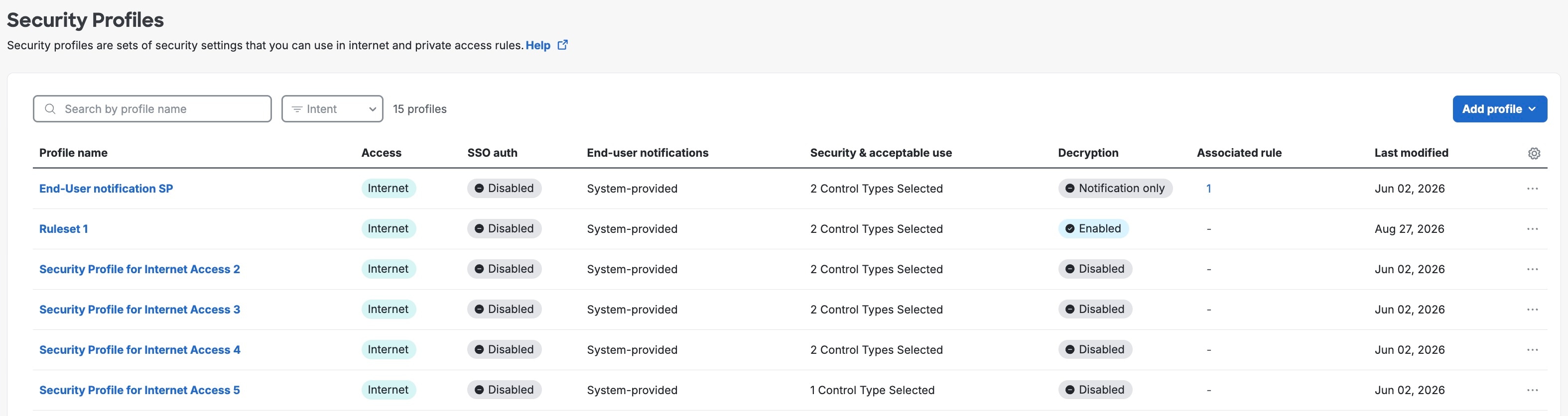
  1. Navigate to Secure > Security Profiles.


    Add new security profiles and manage existing options on the Security Profiles page
  2. Click Add Profile, and then select Internet Access.


Enable or Disable Decryption

Procedure

  1. Navigate to Decryption.

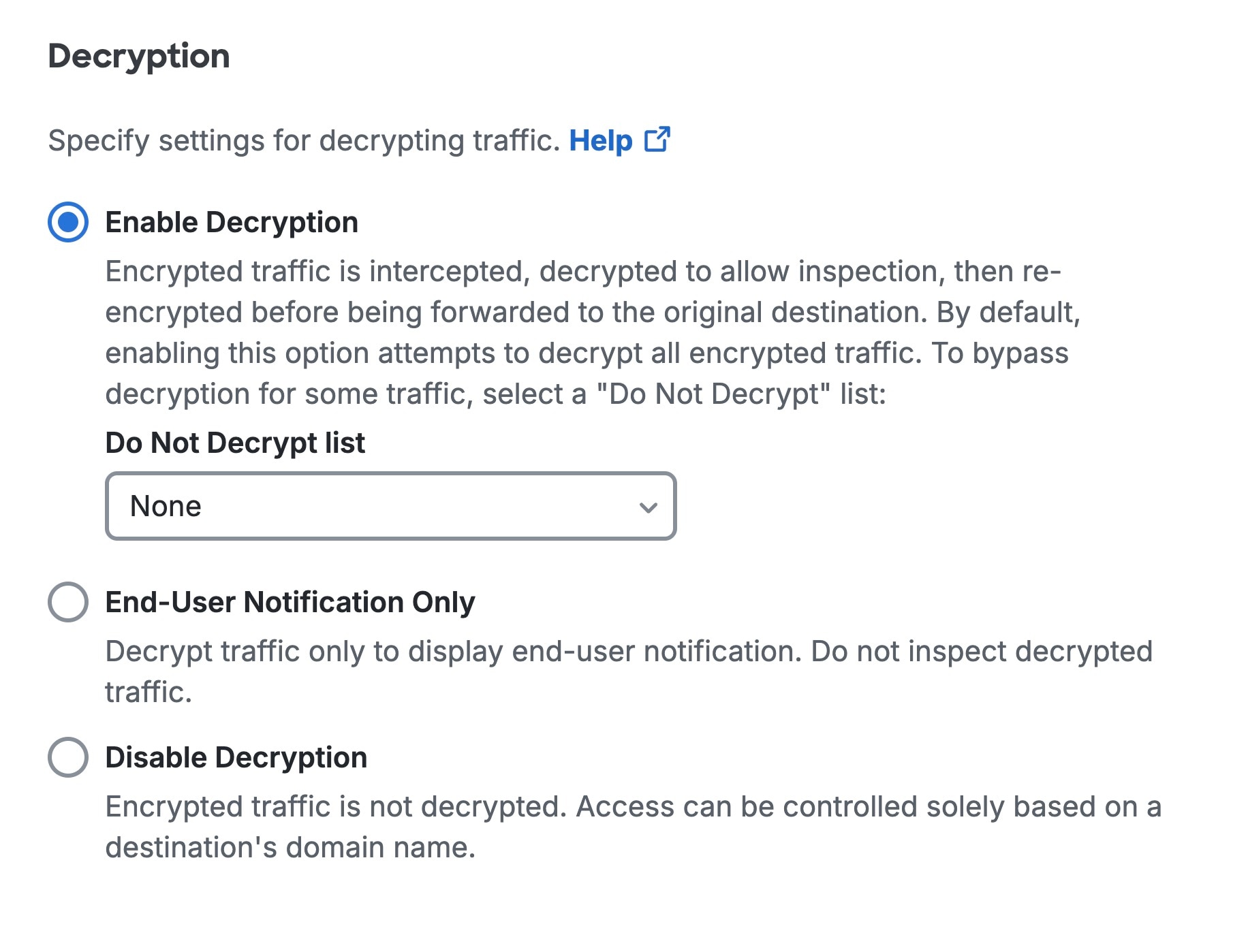
  2. Choose a decryption option.

    Note
    Decryption is required for most security features to work properly. For more information about decryption, see Manage Traffic Decryption.

    Select decryption options and save changes on the Decryption page
    1. Click Enable Decryption

      Encrypted traffic is intercepted, decrypted to allow inspection, then re-encrypted before being forwarded to the original destination. By default, enabling this option attempts to decrypt all encrypted traffic. To bypass decryption for some traffic, select a Do Not Decrypt list.

    2. Click Enable Decryption for End-User Notification Only.

      Decrypt traffic only to display end-user notification. Do not decrypt traffic for inspection.

      Note
      A root certificate is required in any situation in which the system must proxy and decrypt traffic intended for a website.
    3. Click Disable Decryption.

      Encrypted traffic is not decrypted. Access can be controlled solely based on a destination's domain name.

  3. Click Save.

What to do next

Note
If you enabled decryption, choose a Do Not Decrypt list. For more information, see Add a Do Not Decrypt List for Security Profiles.

SSO Authentication

Enable or disable SSO Authentication. For information about the SSO authentication setting on the profile, see Security Profiles for Internet Access.

Procedure

  1. Navigate to SSO Authentication.

  2. Click SSO enabled to toggle the setting on.

    Note

    If you enable this option, ensure that decryption is enabled in the same security profile and in any rule in the Access policy that uses this profile.


    Enable SSO authentication and save settings on the SSO Authentication page
  3. Click Save.

What to do next

Note

(Optional) Click SSO disabled to toggle the setting off.


Configure Security and Acceptable Use Controls

Configure security and acceptable use controls in the Security Profile. Depending on your requirements, you can enable multiple kinds of scanning and blocking. For information about these settings, see Security Profiles for Internet Access.

Security and Acceptable Use Controls page displaying options for Threat categories and Edit

Threat Categories

Procedure

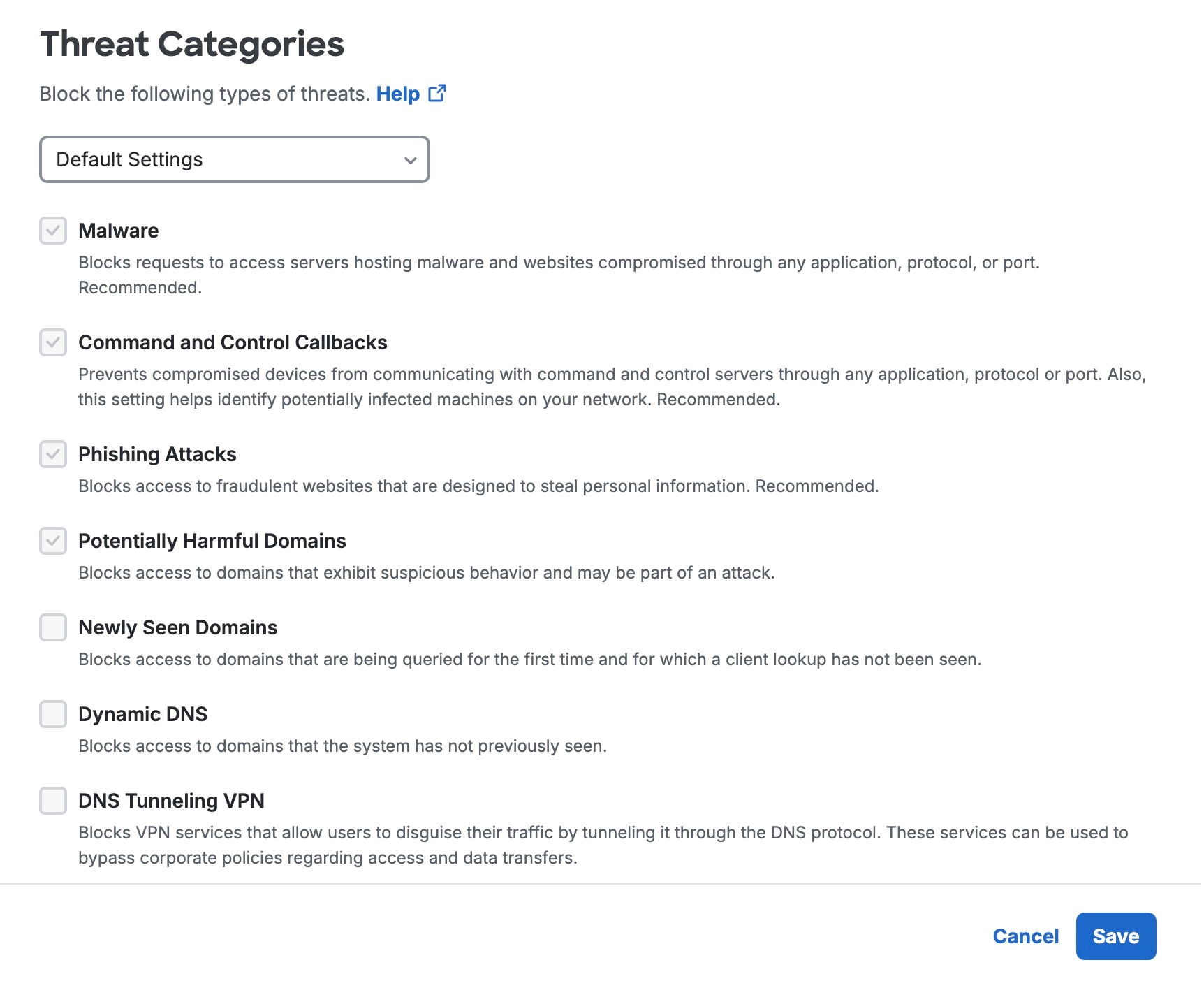
  1. Click the Threat Categories dropdown and expand your setting to open the dialog box.


    Threat Categories configuration showing options to block malware, command and control callbacks, phishing attacks, and potentially harmful domains.

  2. To block access to known malicious sites and potentially risky sites based on threat category, choose from the existing lists of threat categories.

  3. Click Save.


File Inspection

Procedure

  1. For File inspection, click Edit.

  2. Choose the file inspection and analysis tools to use to protect traffic that matches rules that use this security profile.

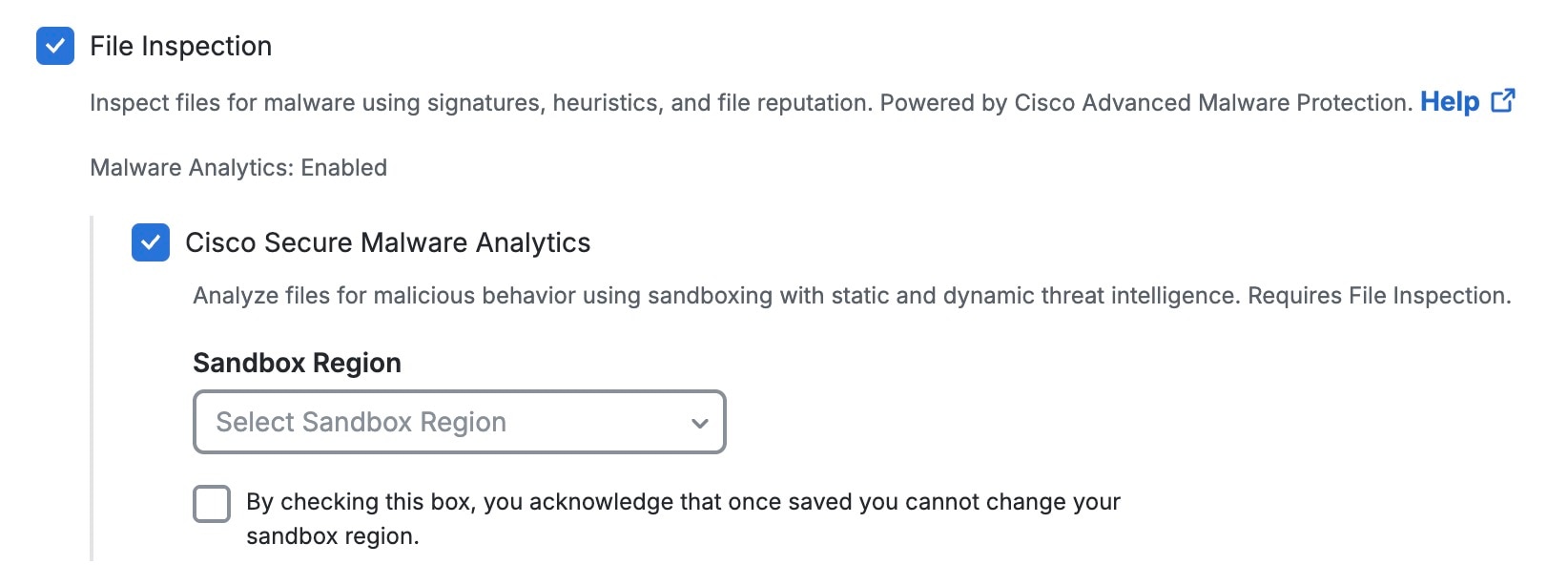
    If this is the first time you enable Cisco Secure Malware Analytics, Secure Access displays the option to select a sandbox region. Before you enable Cisco Secure Malware Analytics, we recommend that you review the instructions about this option. For more information, see Enable File Analysis by Cisco Secure Malware Analytics.
    1. Click File Inspection is Enabled.

    2. (Optional) Click Cisco Secure Malware Analytics is Enabled.


    File inspection and Cisco Secure Malware Analytics are enabled on the File Inspection page.
  3. Click Save.


File Type Blocking


SafeSearch

Procedure

  1. Enable the SafeSearch to filter out offensive, explicit, unsafe, and harmful search results in Google, YouTube, Yahoo, and Bing.


    SafeSearch is enabled and changes can be saved on the Safe Search page
  2. Click Save.


AI Semantic Inspection

Before you begin

Ensure that Decryption is enabled for the profile.

Procedure

  1. For AI Semantic Inspection, click Edit.

    The Edit Ai Semantic Inspection interface.
  2. Enable this option to inspect the MCP traffic flowing through Secure Access.

    The Edit Ai Semantic Inspection Enable interface.
  3. Click Save.


Configure End-User Notifications

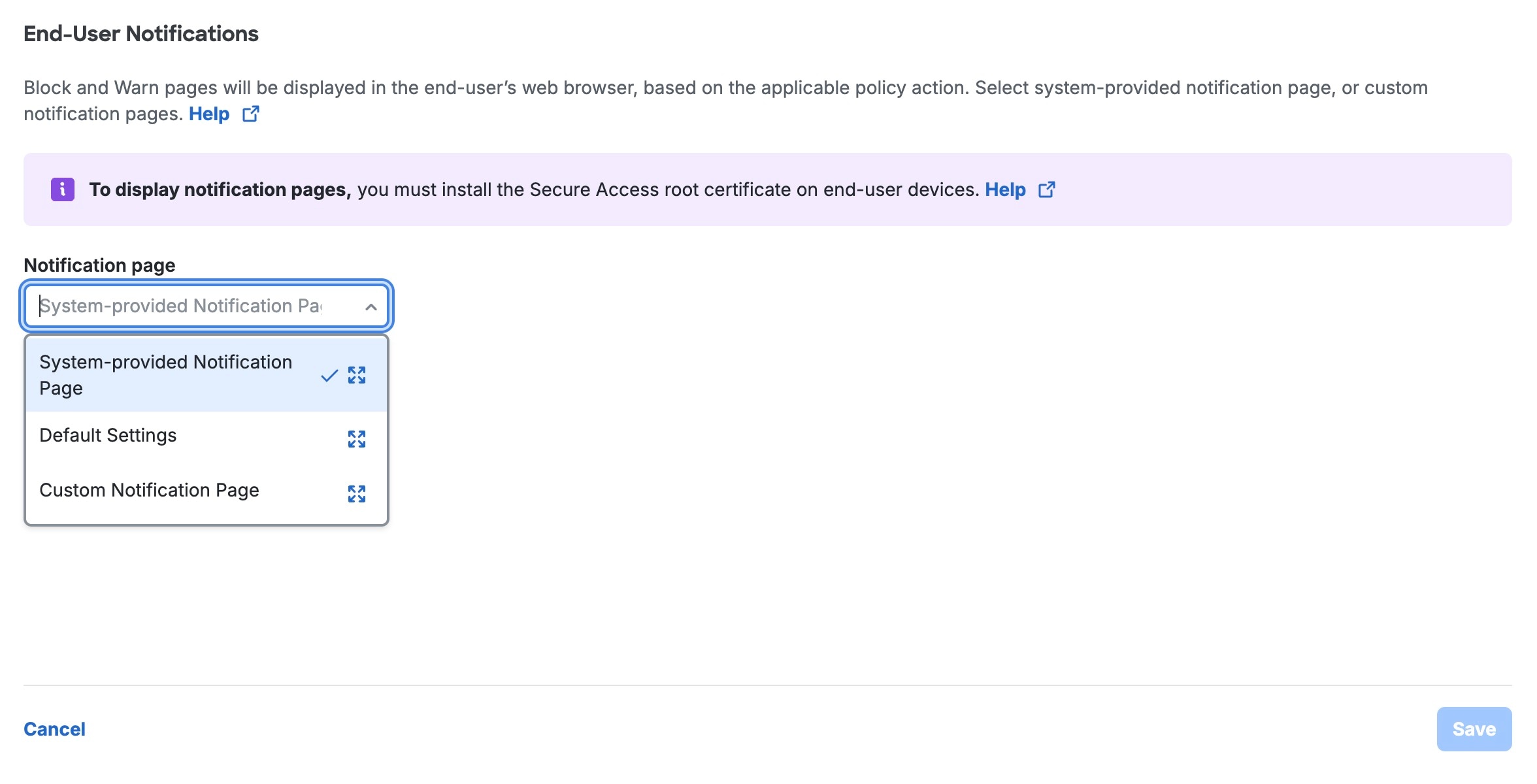
Configure end-user notifications for the organization. Secure Access displays Block and Warn pages in the end-user's web browser. The display of the Block or Warn page is based on the action that you configure in each rule where the security profile is used. For more information, see Manage Notification Pages.

Procedure

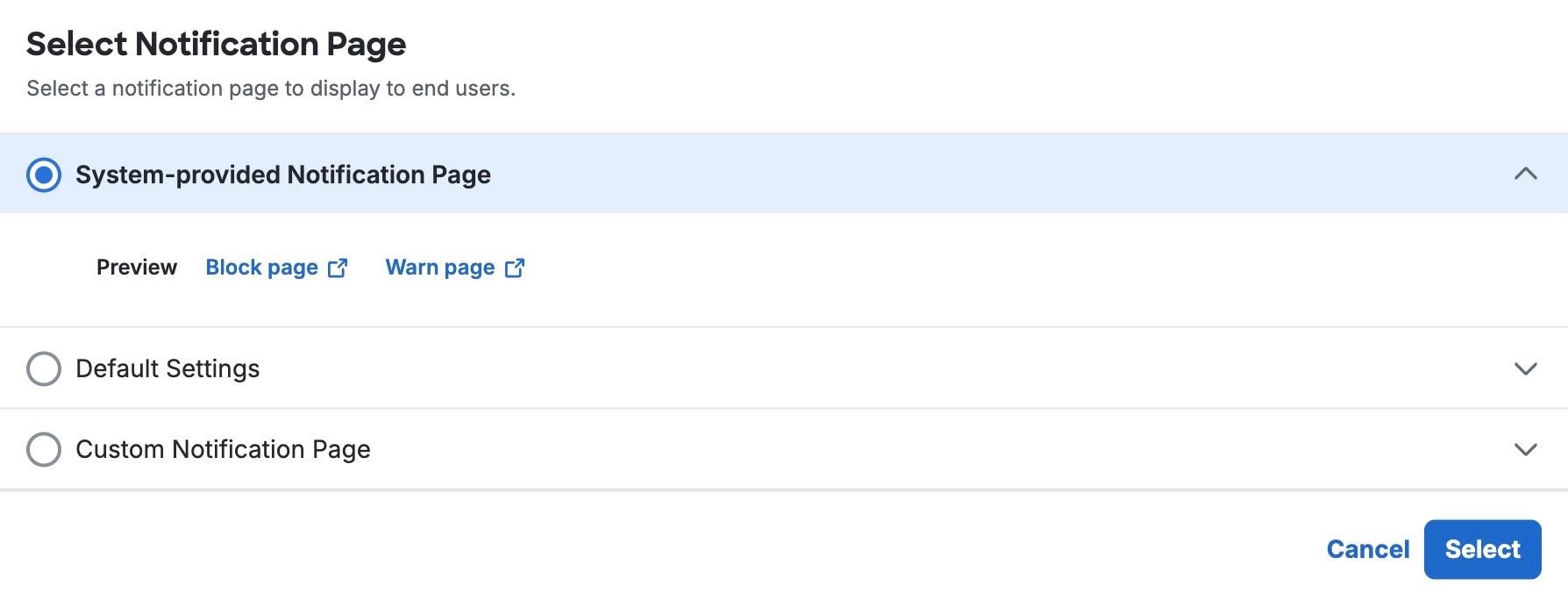
  1. Navigate to Notification Pages, and then click Edit.


    Notifications page displaying options for system-provided notification pages and custom notification pages

  2. Choose one of the options.

    Each option includes a Block notification and a Warn notification.

    1. Click System-provided Notification Pages.

    2. Click Custom Notification Pages.

      Note
      For custom pages, choose the pages that you want to display.
  3. (Optional) To preview the pages that you have selected, click the Preview links.


  4. Click Save.


View Security Profiles

View the configured security profiles in Secure Access.

Procedure

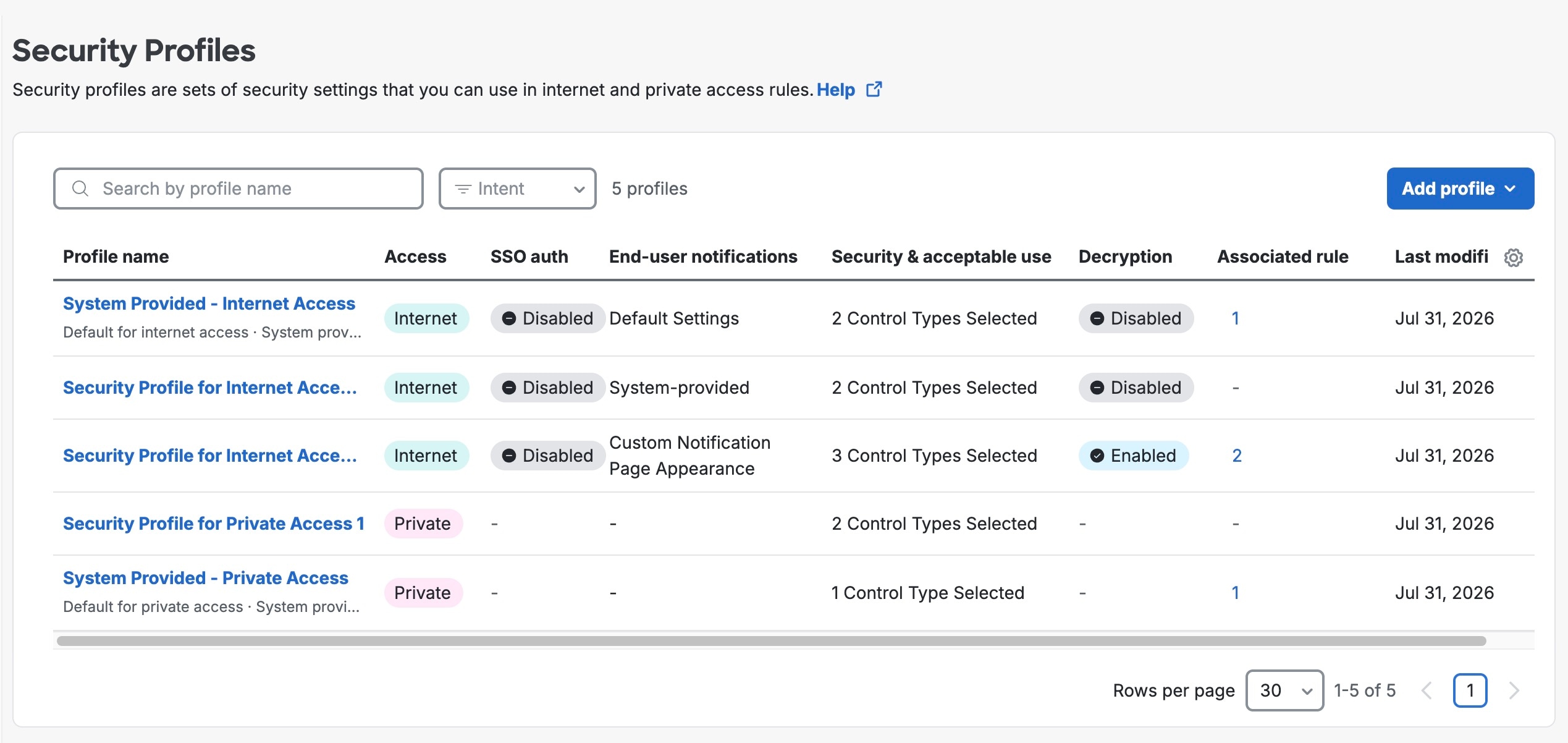
  1. Navigate to Secure > Security Profiles.

  2. Navigate to a security profile and expand the profile. A configured security profile includes these details:

    • Name of the security profile.
    • Applied To—The number access rules where the security profile is included.
    • Access—The type of the security profile.
    • Decryption—Specifies whether decryption is enabled on the profile.
    • SSO Auth—Specifies whether SSO authentication has been enabled on the profile.
    • Security and Acceptable Use—Lists the number of security controls that are enabled on the profile.
    • End-User Notifications—Lists the type of notifications that are configured on the profile.
    • Last Modified—The date when the security profile was last updated.

    Security Profiles page showing security profile details

Configure Additional Security Options

Configure additional functionality that is required for your selected features. For example, configure:


Add a Security Profile on Internet Access Rules


Edit a Security Profile


Delete a Security Profile

After you add a security profile in Secure Access, you can remove it.

Procedure

  1. Navigate to Secure > Security Profiles.

  2. Expand a security profile, and then click Delete.

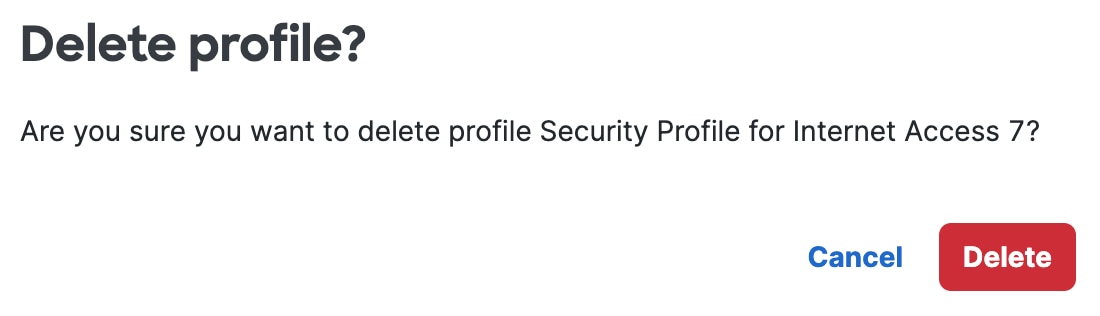
  3. Confirm the removal of the security profile.

    1. a. Click Delete to confirm the removal of the security profile.


      Delete a security profile on the Delete Profile page
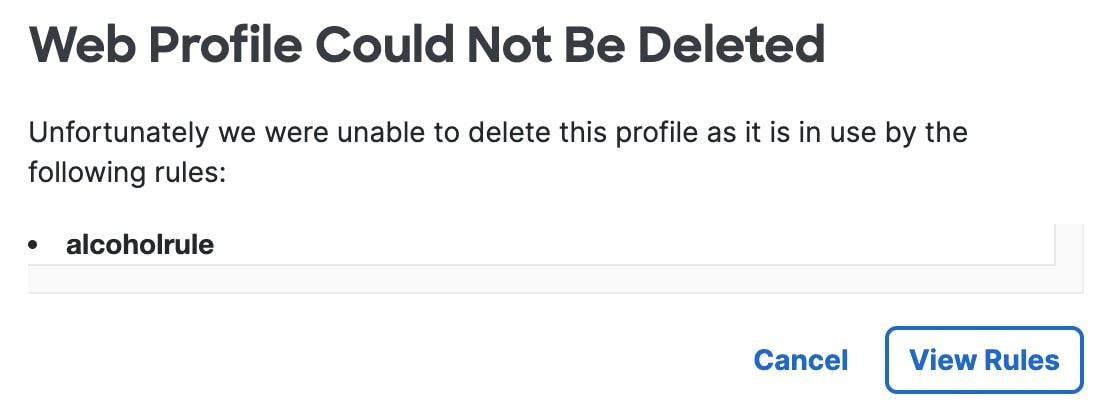
    2. b. If the security profile is in use on an access rule, you can not remove the profile. First remove the security profile from the access rules where it is included, and the try to remove the security profile again.


      Delete Profile page showing details and options for deleting a security profile