Cisco Secure Access Help

PDF

Cisco Secure Access Help

Manage Global Settings for Access Rules

Want to summarize with AI?

Log in

Describes Manage Global Settings for Access Rules in Cisco Secure Access. Not all of the features described here are available to all Secure Access packages.


Note
Secure Access Packages and Feature Availability

Not all of the features described here are available to all Secure Access packages. Information about your current package is listed on the Admin > Licensing page. For more information, see Determine Your Current Package. If you encounter a feature here that you do not have access to, contact your sales representative for more information about your current package. See also, Cisco Secure Access Packages

The Global Settings configuration in the Access policy affects all rules of the applicable type: internet access rules or private access rules.

Some global settings are intended only for troubleshooting purposes. Change these settings only if you have good reason to do so. For more information, Edit Rule Defaults and Global Settings.

You can edit these Global Settings in your Access policy:

To configure the global settings for the Access policy, navigate to Secure > Access Policy > Rule Defaults and Global Settings in Secure Access.


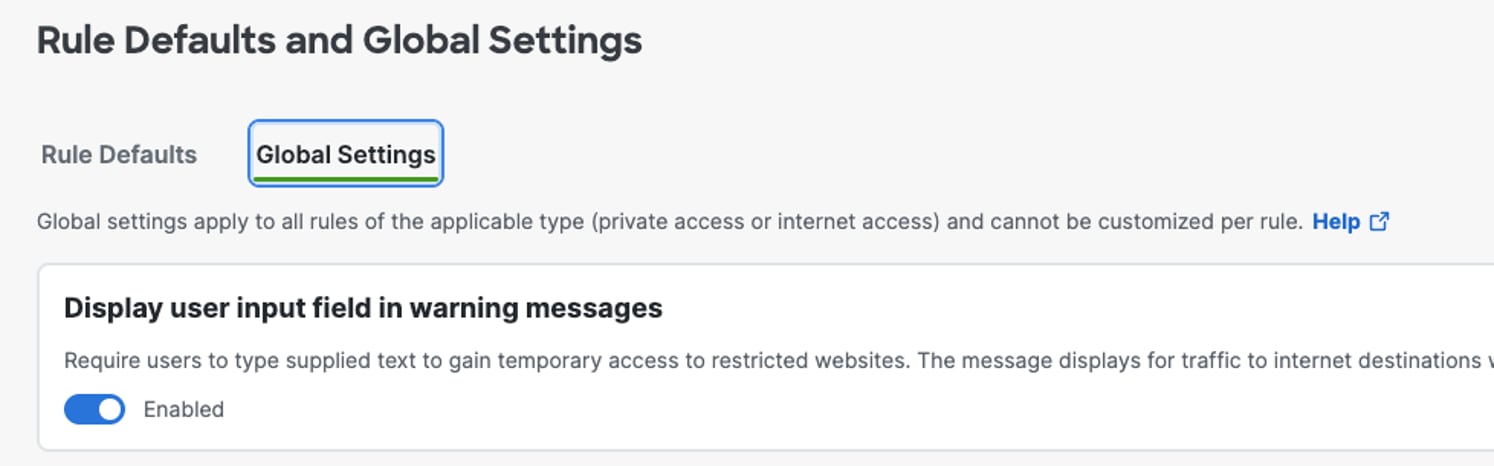
Display User Input Field on Warn Pages

This setting applies only for destinations on internet access rules in the Access policy that have enabled the Warn action.

  • Click to enable the display of the user input field on all Warn pages for internet access rules.


    The Warn Page Enable Global Settings interface.

    Once enabled, all Warn pages that are displayed by Secure Access have the user input field instead of the link to continue to the warning message.

Note

The Display user input field in warning messages option does not affect the use of the organization's custom Warn pages.

About the Warn Page User Input Field

When Secure Access displays a Warn page with the user input field, the end-user must enter the word Continue to reach the destination. If the user's language is not supported, then use Continue.

The value of the user input field is a case-insensitive string.

Once the user enters Continue, Secure Access enables the Continue button on the Warn page. The user then clicks the Continue button to reach the destination. For more information, see Manage Notification Pages.


Microsoft 365 Compatibility

This setting applies only to web security features, not to Intrusion Prevention System (IPS).

The Microsoft 365 Compatibility feature exempts Microsoft 365-related domains, marked as Optimize and Allow in Microsoft's endpoint categories,to bypass inspection and policy enforcement by web security features, allowing traffic to those domains to pass through unaltered. The domains are excluded from HTTPS decryption and content filtering. The Microsoft 365 traffic appears in the Secure Access reports, however, since HTTPS inspection is disabled, traffic is logged only at the host/domain level and does not show the full URL.

Tenant Controls

If you use tenant controls for Microsoft 365, see additional information at Use Tenant Controls in Access Rules.

Limitations

  • Microsoft 365 traffic is still sent to Secure Access's web proxy service in all deployment methods (Tunnel, AnyConnect, PAC). To stop this traffic from hitting Secure Access entirely, add manual 'External Domain' entries or route the traffic direct to the internet from your connecting devices.

  • File Inspection will no longer apply to this traffic.

  • This will not prevent the Microsoft 365 traffic egressing from a Secure Access IP address.

  • This does not apply to all Microsoft/Microsoft 365 domains. Only those categorized as important for performance by Microsoft.

  • This setting allows a number of important Microsoft 365 domains so web security and filtering do not apply to them, and prevents these domains from triggering Secure Access SAML authentication.

Note
MS Intune sync requires "manage.microsoft.com" to be added to the Do Not Decrypt List(s) used in the relevant rules even when Microsoft365 Compatibility is enabled. For more information, see the official Microsoft documentation.

Be added to the Do Not Decrypt List(s) used in the relevant rules even when Microsoft365 Compatibility is enabled. For more information, see the official Microsoft documentation.

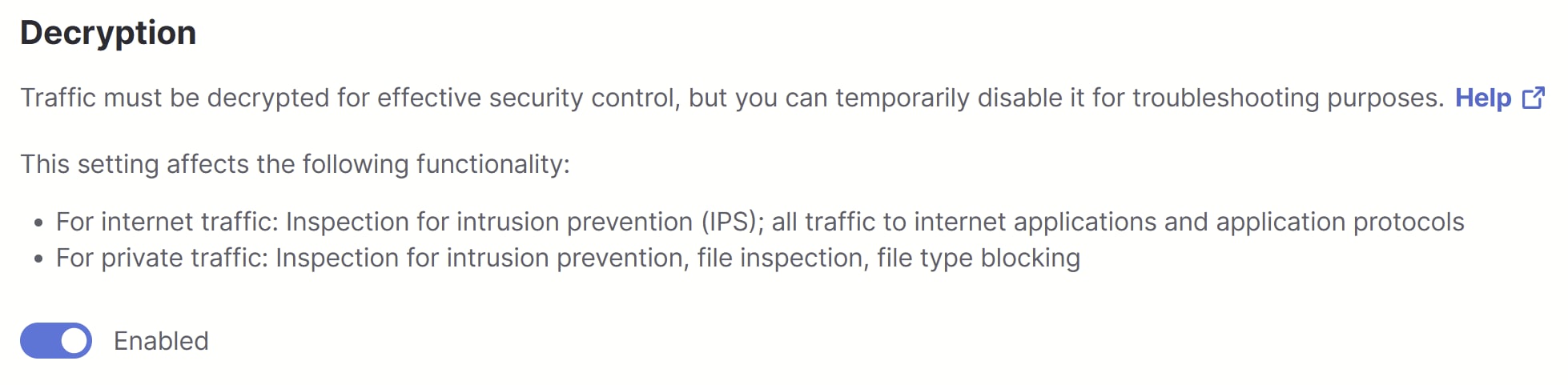
Decryption

Secure Access recommends the decryption of traffic for effective security control, but you can temporarily disable decryption for troubleshooting purposes.

The Decryption Global Setting in the Access policy applies to internet destinations and private resources.

The Decryption setting is used to disable or enable the firewall-based Secure Access Intrusion Prevention System (IPS) and does not affect the Secure Access Secure Web Gateway (SWG) and the inspection of the body of the web messages.

For internet destinations, enable the Decryption setting to inspect the initial phase of the message handshake for all traffic to internet applications and application-layer protocols.

For private destinations, enable the Decryption setting to inspect the initial phase of the message handshake for all traffic to private resources, and perform file inspection and file type blocking.

Disabling decryption does not disable the affected features, but decreases their effectiveness for encrypted traffic. Traffic that is not encrypted is not affected.


For information about other decryption settings, see Manage Traffic Decryption.


Configure Decryption for Specific Sources

To exclude specific internet traffic from decryption, add source IP addresses or Classless Inter-Domain Routing (CIDR) blocks. This setting applies to internet access rules.

Before you begin

You must have Full Admin user role. For more information, see Manage Accounts.

Procedure

  1. Click Rule Defaults and Global Settings, and then select the Global Settings tab .

    The global access rule settings interface.
  2. Under Disable decryption for specific sources, click Add/edit sources.

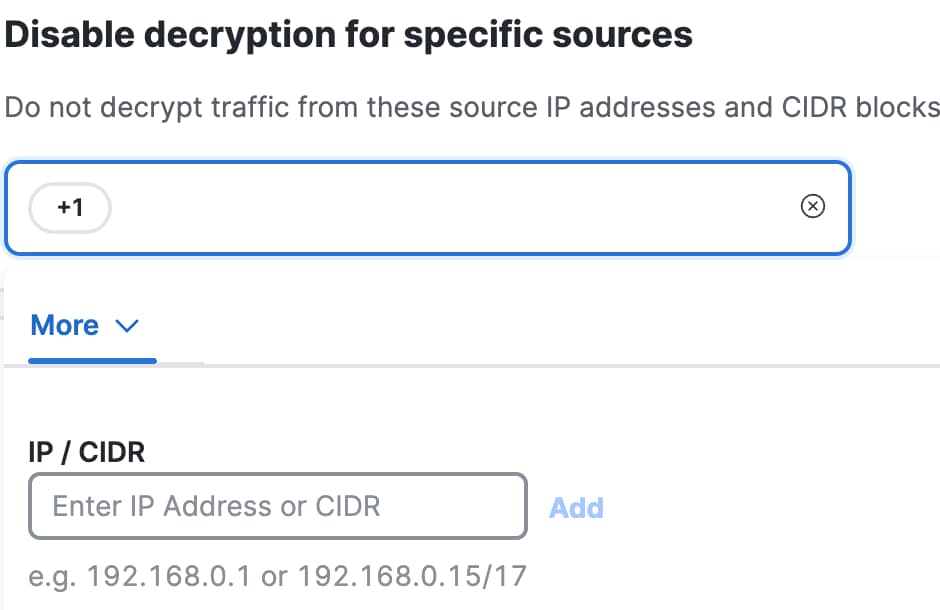
  3. In the Disable decryption for specific sources panel, enter the source IP addresses or CIDR blocks in the Add sources field.

    The decryption for specific sources list interface.

  4. Click + Add.

    The source count updates and the added sources appear in the list.

    The sources address entry added to the list .

  5. (Optional) In the Search sources field, enter an IP address or CIDR block to filter the list.

  6. (Optional) To modify an existing entry, click the Edit (pencil) icon next to the source.

    The Edit sources address entry interface.

  7. (Optional) To remove a source, click the Delete (trash can) icon next to the source.


Client Resolved Domain Destination List

The Client Resolved Domain Destination List global setting provides the Client Resolved Domain destination list in the organization. Administrators can add trusted domains in the Client Resolved Domain destination list, which affects how Secure Access manages the connections to internet destinations on the trusted domains. For more information, see About Client Resolved Domain Destination List.

The Client Resolved Domain Destination List global setting ensures that the Secure Web Gateway (SWG) does not perform DNS lookups to resolve IP addresses on trusted domains. When end users in the organization send a web request over TCP/80 or TCP/443 for a domain in the Client Resolved Domain destination list, the SWG uses the IP address for the domain resolved by the client to connect to the destination.

Enable the Client Resolved Domain Destination List

In Global Settings on the Access policy, enable the Client Resolved Domain Destination List setting.


The Client Resolved Domain Destination List interface.

Disable Decryption for Specific Sources

The Disable Decryption for Specific Sources Global Setting in the Access policy disables the decryption of internet traffic for the configured sources. This setting applies to sources on internet access rules only. The sources may be endpoints or other devices where you cannot install certificates, such as Internet of Things (IOT) devices.

The organization can use the Disable Decryption for Specific Sources setting to disable or enable the firewall-based Secure Access Intrusion Prevention System (IPS) for specific sources. This setting does not affect the Secure Access Secure Web Gateway (SWG) and the inspection of the body of the web messages.

To disable decryption on internet traffic from the sources, add IP addresses or CIDR blocks as sources in the Disable Decryption for Specific Sources setting. For information about other decryption settings, see Manage Traffic Decryption.


The Disable Decryption Sources interface.

Decryption Logging

You can enable or disable decryption logging globally in Global Settings, for traffic to private resources or internet destinations or both.


Certificate Pinning

Certificate pinning is an Internet security mechanism which allows applications to resist impersonation against HTTPS servers using mis-issued or otherwise fraudulent digital certificates. However, if this security feature causes problems when users attempt to access destinations that are both essential and trusted, you may bypass this security feature for destinations that use certificate pinning.

Note

Normally, decryption must be bypassed for sites that use pinned certificates. However, for troubleshooting purposes, you can disable this behavior for intrusion prevention (IPS).


The Global Pinning Bypass interface.