Cisco Secure Access Help

PDF

Cisco Secure Access Help

Provision Users and Groups from Microsoft Entra ID

Want to summarize with AI?

Log in

Describes Provision Users and Groups from Microsoft Entra ID in Cisco Secure Access. Secure Access supports the provisioning of users and groups from Microsoft Entra ID (formerly Azure Active Directory).


Secure Access supports the provisioning of users and groups from Microsoft Entra ID (formerly Azure Active Directory).

With your Secure Access System for Cross-domain Identity Management (SCIM) token, configure the Cisco User Management for Secure Access app on the Microsoft Enter ID portal. When you configure and provision users and groups through the app, Microsoft Entra ID exchanges user and group information with Secure Access.

Note
You do not need to deploy an on-premises Cisco Active Directory (AD) Connector.

Limitations

  • You can provision a maximum of 1000 groups from Microsoft Entra ID to Secure Access. Secure Access supports the provisioning of an unlimited number of users from Microsoft Entra ID. For more information, see Limitations and Range Limits.

  • Concurrent synchronization of the same users and groups from the Cisco AD Connector and the Cisco User Management for Secure Access app is not supported and leads to inconsistent access rule enforcement.

  • To ensure that all users are provisioned, create a dynamic All Users group and assign this group to the Cisco User Management for Secure Access app. For more information, see Dynamic Membership Rules for Groups in Azure Active Directory. You can assign additional groups as required for group-based access rule enforcement.

  • Guest users invited to your Microsoft Entra ID tenant are provisioned to the same Secure Access user group as all other users provisioned by Microsoft Entra ID. Since members of the same user group inherit the same access rules in Secure Access, this may result in your Entra ID guest users gaining access to resources intended only for your Entra ID member users.

  • Provisioning large numbers of users and groups to Secure Access may take several hours.

  • Microsoft Entra ID does not support nested group memberships for group-based assignment to any SaaS application.

  • After the initial provisioning of users and groups, Microsoft Entra ID synchronizes changes to Secure Access once every 40 minutes. Synchronization of updates to identities from Microsoft Entra ID to Secure Access may take up to one hour.

Refresh SCIM Token

We recommend that you refresh the SCIM token at least once every 90 days. Secure Access requires a valid SCIM token to provision the users and groups from Microsoft Entra ID to Secure Access.

After you generate a new SCIM token, immediately copy the token to the Cisco User Management for Secure Access app in Microsoft Entra ID.

For information about refreshing the SCIM token, see Add a Cloud Identity Provider.

Note
The administrators in the Secure Access organization are responsible for refreshing the SCIM token. Secure Access does not perform this action.

Supported Attributes for Users

Cisco Attributes for Users Microsoft Entra ID Attributes
userName userPrincipalName
active Not([IsSoftDeleted])
displayName displayName
name.givenName givenName
name.familyName surname
name.formatted Join(" ", [givenName], [surname])
externalId objectId

Supported Attributes for Groups

Cisco Attributes for Groups Microsoft Entra ID Attributes
displayName displayName
externalId objectId
members members

Configure Provisioning in Microsoft Entra ID

With your Secure Access SCIM token and API Identity URL, set up the Cisco User Management for Secure Access app on Microsoft Entra ID and provision users and groups.

Before you begin

  • Full Admin user role. For more information, see Manage Accounts.
  • A valid Microsoft Entra ID subscription with a premium Microsoft Entra ID license.
  • Add the IdP in Secure Access and generate a valid SCIM token. For more information, see Add a Cloud Identity Provider.
  • No concurrent provisioning of the same users or groups from on-premises AD or Microsoft Entra ID. If you are using the on-premises Cisco AD Connector to import users and groups and choose to import the same users and groups from Microsoft Entra ID, ensure that the on-premises Cisco AD Connector is switched off or that the Cisco AD Connector service on the connector machine is stopped.
  • For IP-to-user mapping deployments, you must use the on-premises Cisco AD Connector. Microsoft Entra ID does not store the private IP to Active AD user mappings.
  • Import the ObjectGUID attribute from Microsoft Entra ID to Secure Access. The on-premises Cisco AD Connector and Cisco Secure Client rely on the ObjectGUID attribute for user identification. If all of your endpoints have the Cisco Secure Client deployed, you do not have to import the ObjectGUID attribute from Microsoft Entra ID.
    • Before you set up the import of the ObjectGUID attribute, ensure that the on-premises Cisco AD Connector that is synchronizing these identities is switched off or that the Cisco Connector service on the connector machine is stopped.
    • To ensure that the ObjectGUID attribute for users is synchronized from Microsoft Entra ID to Secure Access, your endpoints must authenticate against on-premises AD and run the Cisco Secure Client. For more information about importing the ObjectGUID attribute for users, see Tutorial: Configure Cisco Secure Access User Management for automatic user provisioning.
  • If you previously configured access rules that included groups imported from on-premises AD, and then choose to import the same groups from Microsoft Entra ID, you must reconfigure the access rules to map the Microsoft Entra ID groups instead of the on-premises AD groups. In an access rule, on-premises AD group names are displayed with the domain name preceding the group name, for example: Domain1\ADGroup1. For Microsoft Entra ID, only group names are displayed, for example: ADGroup1.

Procedure

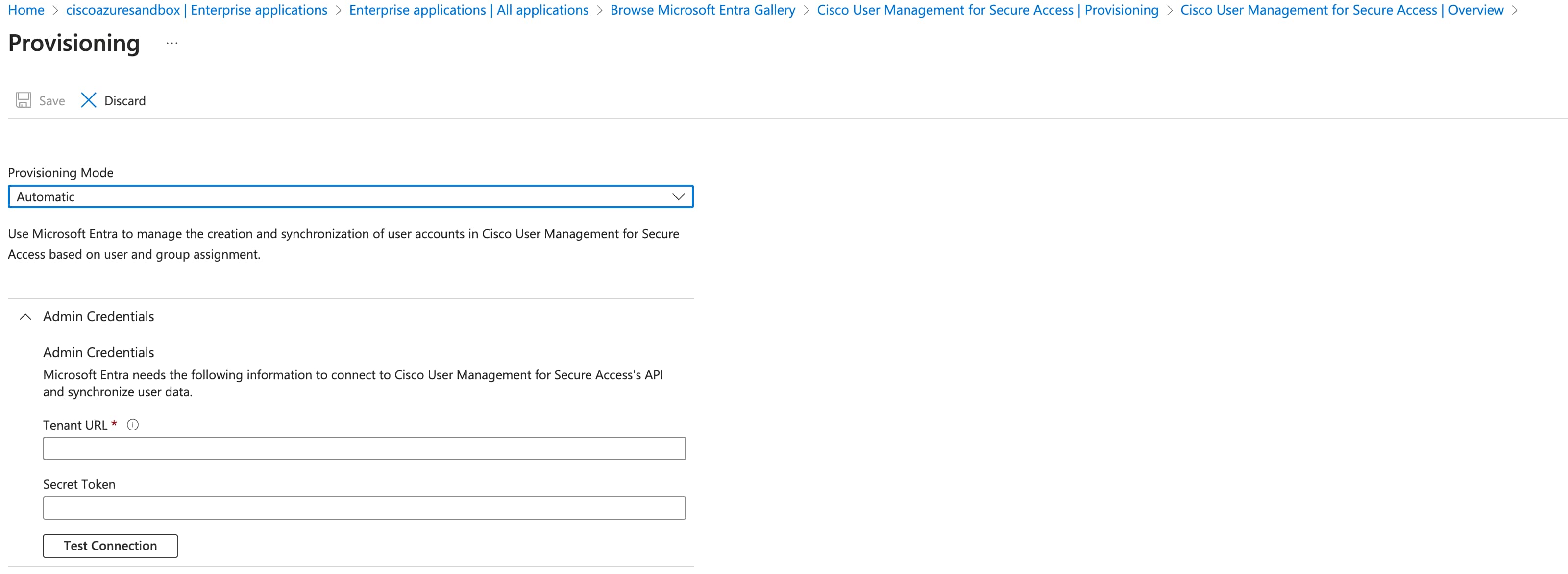
  1. In Microsoft Entra ID, navigate to the Cisco User Management for Secure Accessapp.


    User Management for Secure Access app on Microsoft Entra ID and provision users and groups. In Microsoft Entra ID, navigate to the Cisco User Management for Secure Access app.
  2. Add your Secure Access SCIM API token to the Secret Token field.

  3. Add the Secure Access API Identity URL to the Tenant URL field.

  4. Click Test Connection to confirm that you can use your Secure Access SCIM token to connect the Secure Access API with Microsoft Entra ID.


    API Identity URL to the Tenant URL field. Click Test Connection to confirm that you can use your Secure Access SCIM token to connect the Secure Access API with Microsoft Entra ID.
  5. Complete the steps to provision users from Microsoft Entra ID to Secure Access. For more information, see Tutorial: Configure Cisco Secure Access User Management for automatic user provisioning.

    Review the user attributes that are synchronized from Microsoft Entra ID to the Cisco User Management for Secure Access app in Attribute Mappings. The attributes selected as Matching properties are used to match the user accounts in Cisco User Management for Secure Access app for update operations. If you choose to change the matching target attribute, ensure that the Cisco User Management for Secure Access app supports filtering users based on that attribute.
  6. Click Save.


Configure Guest Users

To provision a guest user from Microsoft Entra ID to Secure Access, sign into the Cisco User Management for Secure app in Microsoft Entra ID and associate the Cisco userName attribute with the Microsoft Entra ID originalUserPrincipalName attribute.

Before you begin

You must have the following configured before you add a guest user to your Entra ID SAML application:

  • Full Admin user role. For more information, see Manage Accounts.

  • Add your Secure Access organization to your Entra ID account. For more information see Add an enterprise application to your external tenant.

  • Register the SAML application with Secure Access. For more information, see Register a SAML app in your external tenant.

  • A valid Microsoft Entra ID subscription with a premium Microsoft Entra ID license.

  • Add the IdP in Secure Access and generate a valid SCIM token. For more information, see Add a Cloud Identity Provider.

  • Import the ObjectGUID attribute from Microsoft Entra ID to Secure Access. The on-premises Cisco AD Connector and Cisco Secure Client rely on the ObjectGUID attribute for user identification. If all of your endpoints have the Cisco Secure Client deployed, you do not have to import the ObjectGUID attribute from Microsoft Entra ID.

    • Before you set up the import of the ObjectGUID attribute, ensure that the on-premises Cisco AD Connector that is synchronizing these identities is switched off or that the Cisco Connector service on the connector machine is stopped.

    • To ensure that the ObjectGUID attribute for users is synchronized from Microsoft Entra ID to Secure Access, your endpoints must authenticate against on-premises AD and run the Cisco Secure Client. For more information about importing the ObjectGUID attribute for users, see Tutorial: Configure Cisco Secure Access User Management for automatic user provisioning.

Limitations and Guidelines

Review the following recommended use cases and limitations to keep in mind as you add a guest user to your Entra ID:

  • For IP-to-user mapping deployments, you must use the on-premises Cisco AD Connector. Microsoft Entra ID does not store the private IP to Active AD user mappings.

  • No concurrent provisioning of the same users or groups from on-premises AD or Microsoft Entra ID. If you are using the on-premises Cisco AD Connector to import users and groups and choose to import the same users and groups from Microsoft Entra ID, ensure that the on-premises Cisco AD Connector is switched off or that the Cisco AD Connector service on the connector machine is stopped.

  • If you previously configured access rules that included groups imported from on-premises AD, and then choose to import the same groups from Microsoft Entra ID, you must reconfigure the access rules to map the Microsoft Entra ID groups instead of the on-premises AD groups. In an access rule, on-premises AD group names are displayed with the domain name preceding the group name, for example: Domain1\ADGroup1. For Microsoft Entra ID, only group names are displayed, for example: ADGroup1.

Procedure

  1. Complete the prereuqisites listed above.

  2. In your SAML application, navigate to the Cisco User Management for Secure Access app.

  3. Navigate to the Attribute Mappings of your SAML app.

  4. Click Add New Mapping.

  5. Add a mapping for the source attribute with the following conditions. For more information, see Emit claims based on conditions:

    • For the User Type Any, map the userName (or source) value to user.userprincipalname.

    • For the User Type External user, map the userName (or source) value to user.mail

  6. Click Save.