Cisco Secure Access Help

PDF

Cisco Secure Access Help

Manage Imported Users and Groups

Want to summarize with AI?

Log in

Describes Manage Imported Users and Groups in Cisco Secure Access. It summarizes the related concepts, procedures, and operational details presented throughout the topic.


Cisco Secure Access supports manually provisioning users and groups. Upload an CSV file in Secure Access with the organization's users and groups. For more information, see Import Users and Groups from CSV File.

Once you provision users and groups, you can delete the imported CSV file and upload a new CSV file with the users and groups in the organization.



Import Users and Groups from CSV File

Cisco Secure Access supports provisioning users and groups manually from a comma-separated values (CSV) file. Export your Microsoft Active Directory (AD) users and groups to a CSV file. We recommend using CSVDE.EXE from a domain controller.

For each upload, the CSV file can have up to 4000 rows. An import may require ten minutes. Each subsequent CSV file upload replaces the contents of the previous upload. For large numbers of users and groups, we recommend using AD provisioning.

Note
To switch from AD provisioning to CSV import, you must uninstall your Secure Access AD Connectors and delete the AD Connectors in Secure Access. For more information, see Provision Users and Groups from Active Directory.

Before you begin

Procedure

  1. Navigate to Connect > Users and User Groups, and then click Configuration management.


    The Users and Groups Top Nav interface.
  2. On the Configurations tab, click Integrate directories.


    The Integrate Directories Button interface.
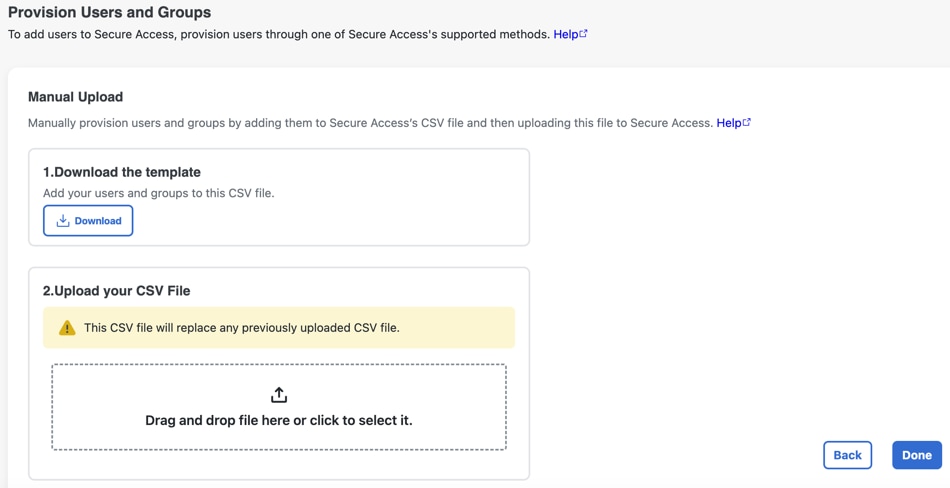
  3. For Provisioning Method, click Manual Upload to provision users or groups in your organization.


    The Secure Access Provision Manual Upoad interface.
  4. Click Download to save the Secure Access import template to your local system. The template is a CSV file that supports the following format:

  5. Add users or groups to the Secure Access CSV template file, and then upload the CSV file to Secure Access. For example:

    DN,sn,givenName,userPrincipalName,mail,memberOf
    last_name1,first_name1,emp20@cisco.com,emp20@cisco.com,adminGroup
    last_name2,first_name2,emp2@cisco322.onmicrosoft.com,emp2@cisco322.onmicrosoft.com,adminGroup
    last_name3,first_name3,user5@vvaidya.com,user5@vvaidya.com,adminGroup
    last_name4,first_name4,employee1@company.com,employee1@company.com,adminGroup
    last_name5,first_name5,demouser@company.com,demouser@company.com,adminGroup
              

    The Provision Manual Import CSV interface.
  6. Click Done.


CSV File Format

The CSV file must include the users and groups information in a comma delimited format.

Header row:

DN,sn,givenName,userPrincipalName,mail,memberOf

Object row:

"CN=SAMLUser,CN=Users,DC=mycompany,DC=local",last_name_1,first_name_1,samluser@mycompany.com,samluser@mycompany.com,"CN=Group2,CN=Users,DC=mycompany,DC=com"

The following characters are not supported:

 %<([{\\^-=$!|]})?*+>

CSV File Fields

Field Required Notes Supported Number of Characters
DN No "CN=SAMLUser,CN=Users,DC=mycompany,DC=local" 64
sn Yes The user's surname (family name or last name). 64
givenName Yes The user's given name (legal first name). 64
userPrincipalName Yes The userPrincipalName corresponds to the principal that Secure Access receives in the SAML assertion, and is often identical to the object's mail attribute. However, this is not always the case. The userPrincipalName is constant, but the mail attribute may change. Example: samluser@mycompany.com 64
mail Yes Only valid email addresses. Example: samluser@mycompany.com 256
memberOf No "CN=Group2,CN=Users,DC=mycompany,DC=local" 1024

A user may belong to multiple groups, which are defined in the memberOf attribute.

An example value of the memberOf field:

“CN=Group1,CN=Users,DC=dcloud,DC=local;CN=Group2,CN=Users,
DC=dcloud,DC=local;CN=Group3,CN=Users,DC=dcloud,DC=local;
CN=Group4,CN=Users,DC=dcloud,DC=local”

View Provisioned Users and Groups in Secure Access


Upload a New CSV File with Users and Groups

Upload a new CSV file in Secure Access. The new CSV file replaces the previously provisioned users and groups in the organization.
Before you begin

Procedure

  1. Navigate to Connect > Users and User Groups, and then click Configuration management.


    The Users and Groups Top Nav interface.
  2. On the Configurations tab, navigate to Directories, and then expand the Manually Added user directory.

  3. Click Upload new CSV, and then upload a CSV file that contains users and groups in your organization.


    The Manage Imported Users Groups interface.

Delete an Imported CSV File

Remove an imported CSV file in Secure Access.

Before you begin

Procedure

  1. Navigate to Connect > Users and User Groups, and then click Configuration management.


    The Users and Groups Top Nav interface.
  2. Click the Configurations tab, navigate to Directories, and then expand the Manually Added user directory.

  3. Click Delete, and then remove the CSV file that contains the provisioned users and groups in your organization.
