Cisco Secure Access Help

PDF

Cisco Secure Access Help

Troubleshoot Resource Connectors and Connector Groups

Want to summarize with AI?

Log in

Troubleshooting information for common issues that can occur with resource connectors and connector groups.


If you encounter issues with your deployed Cisco Secure Access Resource Connectors, follow the instructions to troubleshoot before calling Cisco Support. You can run the diagnostic commands in the Connector Diagnostics command-line interface (CLI) or the troubleshooting tools for containers to get the status of a resource connector.

About Resource Connector Issues

Resource Connectors may be exchanging traffic successfully but not communicating otherwise with Secure Access.

This can cause problems with automatic software updates, monitoring connector health, gathering metrics, and deleting or revoking a connector, including automatically deleting inactive connectors.

These issues are typically temporary and self-repairing.

General Troubleshooting

If you see issues with the resource connectors or resource connector groups that are deployed, try the following:

  • Check the Connectivity section on the Overview in Secure Access.

    The Secure Access Overview provides a high-level view of the status of your organization's configured connectors and connector groups. For more information, see Secure Access Overview Dashboard.

  • Check the Connector Groups page for issues.

    Navigate to > Connect > Network Connections > Connector Groups and look at the Status column for the applicable connector group.

  • Check Monitor > Activity Search for logged events related to connectors.

  • Determine whether the issue affects a single connector or all connectors in the group.

    If the issue affects only one connector, you can delete the connector and deploy a new one.

  • Check for a Secure Access service outage. For more information, see Secure Access Status Portal.

  • Temporarily disable a connector, then enable the connector again as appropriate.

  • Run diagnostics on a resource connector that is deployed with virtual machines. For more information, see Connector Diagnostics (CLI).

  • Run diagnostics on a resource connector that is deployed in a container. For more information, see Connector Troubleshooting Tools.

Note
Some troubleshooting guidance outside of this document may refer to connectors as "agents", "app connectors", or "application connectors".

Throughput Capacity is Less Than Expected

  • Ensure that connectors are using DTLS and not TLS.

  • Run diagnostics on the connector and look for Protocol in the output. For more information, see Connector Diagnostics (CLI) and Connector Troubleshooting Tools.

  • If the protocol shows TLS, check the following:

  • If you make changes, reboot the instance.

    Note

    If you are using Standard_D4as_v5 instance type and intend to enable Accelerated Networking, rebooting does not push changes. Enable Accelerated Networking on the connector VM's network interface. In the Azure portal, select Enable accelerated networking on the Networking tab when you create the VM. Accelerated Networking improves network throughput and reduces CPU load on the connector. To enable it on an existing connector VM:

    1. Stop the VM so that its status is Stopped. Restarting the VM is not enough.

    2. Open the VM's network interface, then enable Accelerated networking.

    3. Start the VM. You can confirm the setting with the Azure CLI: az network nic show -g <resource-group> -n <nic-name> --query enableAcceleratedNetworking. The output is true when Accelerated Networking is enabled.


Users Cannot Connect to Private Resources

  • Ensure that you have assigned the resource to the applicable connector group. For more information, see Assign Private Resources to a Connector Group.
  • Verify that all connectors in the group can reach the resource.
  • Check the status of the connector group that the resource is associated with: Navigate to Connect > Network Connections > Connector Groups and look at the Status column for the applicable connector group.
  • For causes of user connectivity issues that are not specifically related to resource connectors, see Troubleshoot Private Access Rules.

Connector Software Auto-Upgrades

For general information about over-the-air (OTA) connector updates, see Maintain and Monitor Resource Connectors and Connector Groups.

Troubleshooting Connector Software Updates

  • If the upgrade fails for a single connector, Secure Access does not update the software on the other connectors in the connector group.

    Try deleting the connector instance and then deploy a new connector. For more information, see Disable, Revoke, or Delete Resource Connectors and Groups.

    Secure Access automatically retries updates on all connectors. The upgrade problem may be temporary and self-repairing.

  • The network requirements for traffic on resource connectors may change. We recommend that you review the your organization's firewall or access control list periodically. For information about the network requirements for Resource Connectors, see Allow Resource Connector Traffic to Secure Access.

  • If the upgrade of the connector continues to fail, check for problems with your network or the deployed connector instances.

    Run diagnostics on the connector. For more information, see Connector Diagnostics (CLI) and Connector Troubleshooting Tools.


Connector Operating System (OS) Version has Security Vulnerabilities

Secure Access shows connector version issues in a list of connectors with a yellow icon (). Hover over the icon to identify the problem.
If you see a yellow icon for a connector version on the connector group's list of connectors, the connector operating system (OS) may have vulnerabilities. To determine whether this is the case, hover over the status icon. If OS vulnerabilities have been reported, you should replace the affected connectors.

For more information, see Maintain and Monitor Resource Connectors and Connector Groups.

Manage Access Control and Vulnerabilities for Containers

  • The organization's administrators are responsible for the management of vulnerabilities and access control on the host or virtual machine.

Connector is Expired

To ensure the integrity of your deployed connectors, Secure Access validates each connector during the connector's renewal period. The renewal period spans several weeks where Secure Access checks the status of a deployed connector. Toward the end of the renewal period if the connector's state is not valid, Secure Access disconnects the resource connector and the connector expires.

Check the Status of Your Connector

We recommend that you log into a deployed resource connector periodically and check the status of the connector.

  1. Log in to the virtual machine for the resource connector.
  2. In the connector's diagnostic output, locate sse_cloud, and then review the resource connector's diagnostic information.

If your resource connectors expire frequently, we recommend that you review the prerequisites for deploying resource connectors in your environment. For more information, see Requirements and Prerequisites for Resource Connectors and Connector Groups.

(VMware Only) View Connector Diagnostic Information

The resource connector console on VMware displays diagnostic information before the resource connector is shutdown.

For example:

systemd-shutdown\[1\]\: Failed to acquire terminal, using /dev/null stdin/stdout/stderr instead: Input/output error

Check for an Expired Connector in Secure Access

  1. Navigate to Connect > Network Connections > Connector Groups.
  2. Locate the Connector Group table and click on a Connector Group.
  3. Locate the connector and confirm that its Status is Expired.

Clean Up an Expired Connector

  1. Delete the expired connector instance from your virtual environment.
  2. Delete the expired connector from the connector group in Secure Access. For more information, see Disable, Revoke, or Delete Resource Connectors and Groups.
  3. If needed, deploy a new connector. For more information, see Add Connectors to a Connector Group.

Delete the Connector Container

For information about removing the connector container, see Delete the Container.


Stop a Connector

If you need to stop a Resource Connector for any reason, power it off from within the deployment environment (for example: AWS, VMware, Azure).

Stop the Connector Container

For information about stopping the connector container, see Deploy a Connector in Docker-Stop Container.


Unable to Revoke or Delete a Connector

This includes the inability of Secure Access to automatically delete an inactive resource connector.

This situation is likely to be temporary and self-repairing, and can occur even if the connector is still passing traffic to private resources. If the problem does not resolve itself, run diagnostics on the resource connector. For more information, see Connector Diagnostics (CLI).


Unable to Sync

An unable to sync error condition indicates that the resource connector can not connect to the Secure Access Controller component.

When a resource connector is unable to sync, Secure Access does not:

  • Display the metrics for the resource connector.
  • Update the configuration for the resource connector.
  • Perform over-the-air upgrades on the resource connector.

To troubleshoot the error condition, run the Command-line Interface (CLI) diagnostic tool to check the internet connectivity on the Controller. Also ensure that the firewall rules in the organization's environment allow the resource connector to make outbound connections to the Controller. For more information, see Allow Resource Connector Traffic to Secure Access.

If the error condition persists, contact Cisco Support at https://www.cisco.com/c/en/us/support/web/tsd-cisco-worldwide-contacts.html.


For example, the CPU Load chart does not have current data, or the graphs that you see when you click a connector ID in the list of connectors in a group are not up to date.

This situation is likely to be temporary and self-repairing, and can occur even if the connector is still passing traffic to private resources. If the problem does not resolve itself, we recommend that you get the diagnostic information about the resource connector. For more information, see Connector Diagnostics (CLI) and Connector Troubleshooting Tools.


(Container Only) Connector Troubleshooting Tools

To troubleshoot connector issues that cannot be resolved by restarting or redeploying the connector instance, run the Secure Access troubleshooting scripts on the container and connector instance.

To understand the results of the diagnostic command, see Diagnostic Codes.

Supported Standard Linux Troubleshooting Commands

You can use these Linux commands to provide information about a resource connector instance:

  • ping

  • nslookup

  • traceroute

  • tcptraceroute

  • netstat

  • free

  • df

  • vmstat

  • iostat

  • mpstat

  • reboot

  • uptime

  • date

  • clear

Run Diagnostic or Techsupport Scripts

For more information, see Run Diagnostic and Techsupport Scripts and Run dnslog on Resource Connectors.

The diagnostic script runs a series of ping and DNS tests on the local IP address, gateway, Secure Access APIs, and headend IP addresses. The script also checks connectivity on HTTPS ports to various Secure Access endpoints, along with system artifacts created through the connector instance provisioning process.

Note
The diagnostic ping tests provide additional network troubleshooting information. The diagnostic output may report a ping failure reaching the Secure Access hosts, which does not indicate network connectivity issues with the resource connector.

The techsupport script provides information about the resource connector:

  • Version of the resource connector software.

  • VPN tunnel state and related information.

  • System monitoring metrics, such as disk and memory statistics.

  • Information snapshot of the connector host, from DNS to Network interface details, iptables, routes, sysctl system settings, and monitoring information.

  • Recent periodic resource connector software logs.

Troubleshoot Container Deployments

For more information, see Troubleshoot Container Deployments.


(VM Only) Connector Diagnostics (CLI)

To troubleshoot connector issues that cannot be resolved by restarting or redeploying the connector instance, run diagnostic commands on the connector instance.

Note
The diagnostic ping tests provide additional network troubleshooting information. The diagnostic output may report a ping failure reaching the Secure Access hosts, which does not indicate network connectivity issues with the resource connector.

Supported Commands

Secure Access supports commands that you can run on a resource connector instance. For more information, see Supported Standard Linux Troubleshooting Commands.

For more information about using tcpdump with resource connectors, see Run tcpdump on Resource Connectors.

Command Description
diagnostic Try this command first when troubleshooting using the CLI. Runs a series of ping and DNS tests on the local IP address, gateway, Secure Access APIs, and headend IP addresses. It also checks connectivity on HTTPS port to various Secure Access endpoints, along with system artifacts created through the connector instance provisioning process.

dnslog

Captures the DNS lookups that pass through the connector and allows you to view the capture, upload it to Cisco Secure Access, or upload it to a remote host.

help Lists commands available to the acadmin user.
routeadd Add routes to the resource connector. Use routeadd -n IP/MASK -g GW_IP where the network is -n IP/MASK and the gateway is -g GW_IP. Routes added with this command do not persist across reboots.
routedel Delete routes added using the routeadd command. Use routedel -n IP/MASK -g GW_IP where network is -n IP/MASK and gateway is -g GW_IP. This command does not delete system created routes.
routeshow Display all routes in the system.
sshkey In addition to the SSH key configured when you deployed the resource connector, you can add short-lived SSH keys on the resource connector. Use the sshkey command to manage the resource connector's public SSH keys for the acadmin user. Run sshkey -h to list the command-line options.
tcpdump Display packet capture information and filter on IP address and port, with limited functionality. Use the tcpdump command with the supported filters to capture the network events on the resource connector. Run tcpdump -h to list the available command-line options.
techsupport Displays the following information:
  • Software version.

  • VPN tunnel state and related information.

  • System monitoring metrics, such as disk and memory statistics.

  • Information snapshot of the connector host, from DNS to Network interface details, iptables, routes, sysctl system settings, and monitoring information.

  • Recent periodic resource connector software logs.

version Show the connector software version and the platform OS version running on the connector instance.

Run the Diagnostic Command on the Resource Connector

To understand the results of the diagnostic command, see Diagnostic Codes.

In a shell on the resource connector, run the diagnostic command, which displays a summary of events or the details for all events on the resource connector.

Procedure

  1. Run ssh with the SSH key that you configured while deploying the connector instance.

  2. Sign in with the acadmin username.

  3. At the shell prompt, enter diagnostic.


Supported Standard Linux Troubleshooting Commands

You can use these Linux commands to provide information about a resource connector instance:

  • ping
  • nslookup
  • traceroute
  • tcptraceroute
  • netstat
  • free
  • df
  • vmstat
  • iostat
  • mpstat
  • reboot
  • uptime
  • date
  • clear

Run tcpdump on Resource Connectors

Run tcpdump on a resource connector to view the connector's packet capture (PCAP) file or upload the connector's PCAP file to Cisco Support or a remote host.

Before you begin

  • An instance of a resource connector deployed in a virtual machine (VM).

  • Credentials that you will use with SSH to sign in to the connector.

Procedure

  1. Run ssh with the SSH key that you configured while deploying the connector instance.

  2. Sign in to the connector with the acadmin username.

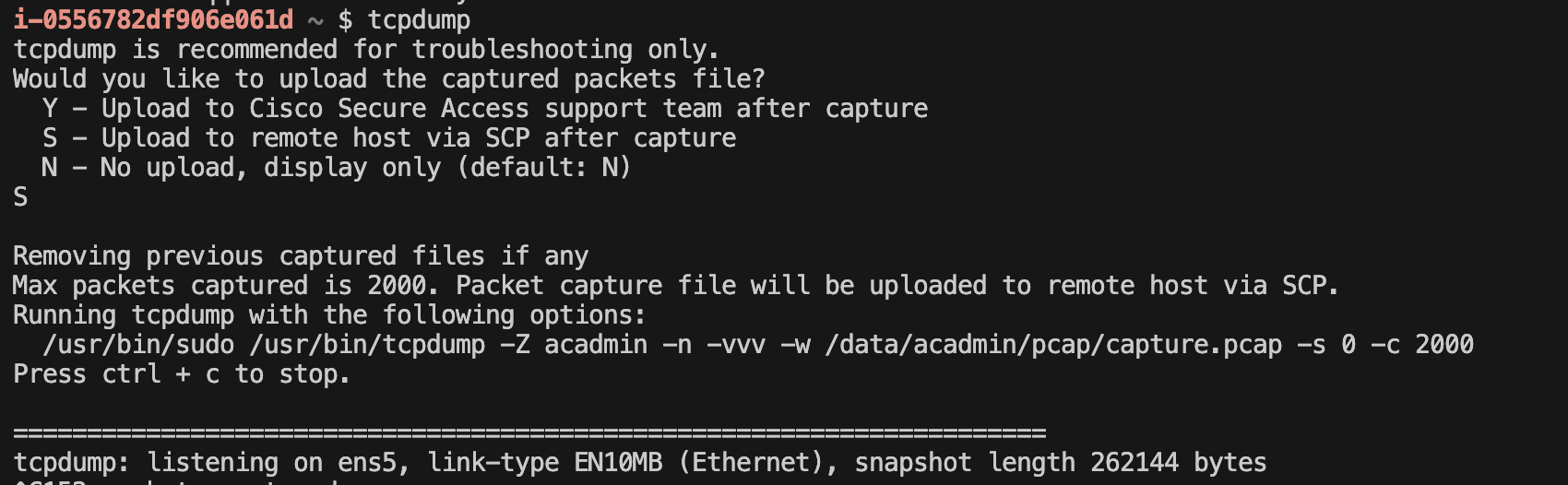
  3. At the shell prompt, enter tcpdump with one of the available options.

    The default option is N, which displays the output of the PCAP file in the connector's shell.

    The Tcpdump Scp View interface.
    1. Choose Y to upload the resource connector's PCAP file to Cisco Secure Access Support.
    2. Choose S to upload the resource connector's PCAP file to a remote host using the Secure Copy Protocol (SCP). Enter the details of the remote host where the system will upload the PCAP file.
      • Remote host username.

      • Remote host IP address or hostname.

      • Remote host directory path where the system will upload the packet capture file.

      • Password for the remote user.


Run dnslog on Resource Connectors

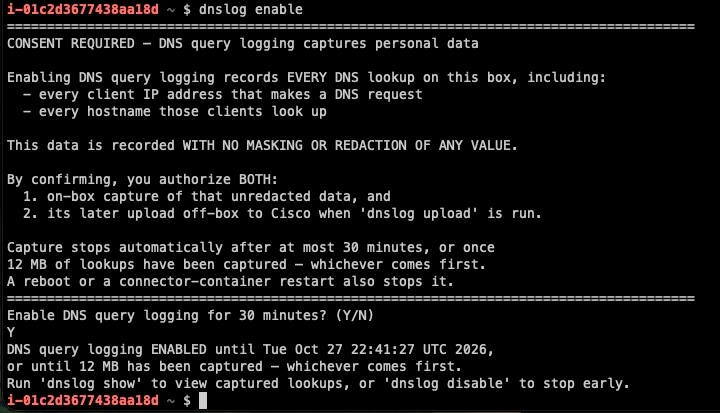
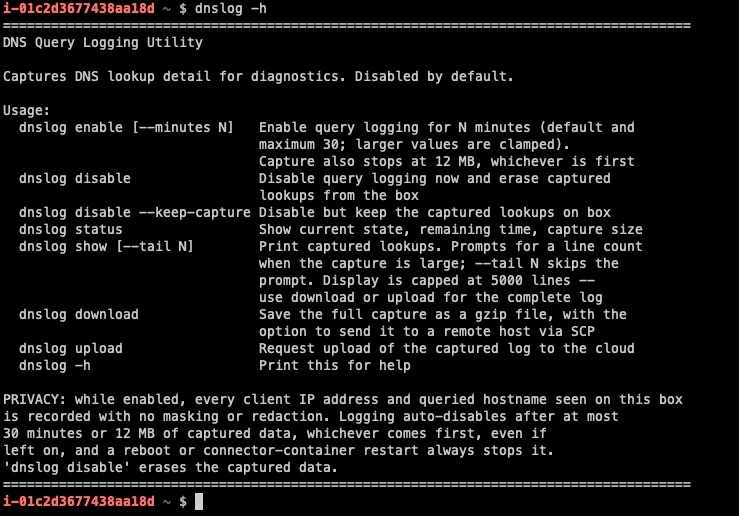
Run dnslog on a resource connector to capture the DNS lookups that pass through the connector, then view the capture, upload it to Cisco Secure Access, or upload it to a remote host.

Note

While capture is enabled, the connector records every client IP address and every hostname looked up, with no masking or redaction. Capture stops automatically after 30 minutes or 12 MB of data, whichever comes first.

Before you begin

  • A resource connector deployed in a virtual machine (VM) or in a container.

  • For a VM: credentials that you will use with SSH to sign in to the connector.

  • For a container: a user account with sudo access on the host machine.

Procedure

  1. Sign into the connector.

    • VM: Run ssh with the SSH key that you configured while deploying the connector, and sign in with the acadmin username.

    • Container: Sign in to the host machine. On a container connector, run each command below as sudo /opt/connector/data/bin/dnslog instead of dnslog.

  2. At the shell prompt, enter dnslog enable. Read the consent notice, then enter Y to start the capture.

  3. Reproduce the DNS issue while the capture runs.

  4. Retrieve the capture:

    • Enter dnslog show to display the captured lookups in the connector's shell.

    • Enter dnslog upload to upload the capture to Cisco Secure Access.

    • Enter dnslog download to save the capture as a file on the connector. On a VM, choose S to upload the file to a remote host using the Secure Copy Protocol (SCP), then enter the remote host username, the IP address or hostname, the directory path, and the password for the remote user.

  5. Enter dnslog disable to stop the capture and erase the captured data from the connector. TO list al the options, enter dnslog -h.


Diagnostic Codes

When you run the diagnostic commands, you will see state codes. For any issues that are not described with a diagnostic code, contact Cisco Secure Access Support at https://www.cisco.com/c/en/us/support/web/tsd-cisco-worldwide-contacts.html.

If an issue is not listed in the following tables, or an issue persists after you have taken the recommended action, contact Cisco TAC.

Diagnostic Codes for Connector Update Issues

Code for Upgrade State Description Recommended Action If Issues Persist
1–99 Normal state or upgrade is in progress. No action needed. N/A
100,102 Upgrade failed. Contact Support (Cisco TAC).
101 Secure Access will automatically attempt the upgrade again. Monitor to ensure successful retry. Contact Support (Cisco TAC).
200 Docker login authentication failure. Check docker login credentials for container. For VM, monitor to ensure successful retry. Contact Support (Cisco TAC) to provide guidance when setting up the Docker account.
201–204 Secure Access will automatically attempt the upgrade again. Monitor to ensure successful retry. Contact Support (Cisco TAC).
204 Issue may be self-repairing. Monitor to ensure successful upgrade. Contact Support (Cisco TAC).
206 Upgrade failed. Check for full disk. Contact Support (Cisco TAC).
207,208 Upgrade failed. To get more information, run the techsupport diagnostic command. Contact Support (Cisco TAC).
210 Upgrade failed. Secure Access will automatically attempt the upgrade again. Check for disk issue. Monitor to ensure successful retry. Contact Support (Cisco TAC).
211 Secure Access will automatically attempt the upgrade again. Monitor to ensure successful retry. Contact Support (Cisco TAC).
217 Docker hub download failed due to rate limiting. Authenticate with docker, using docker login. Contact Support (Cisco TAC) to provide guidance when setting up the Docker account.
219 Host does not have sufficient disk space. Free up at least 2G of disk space in host to ensure this auto recovers. Contact Support (Cisco TAC).

Diagnostic Codes for Other Connector Issues

Code for Daemon Init State Recommended Action If Issues Persist
6 None; there are no issues. N/A
101 Deploy a new connector instance. --
102 Deploy a new connector instance. Ensure that you have correctly copied the provisioning key. --
103 Deploy a new connector instance. Contact Support (Cisco TAC)
104 Deploy a new connector instance. Contact Support (Cisco TAC)
105 Deploy a new connector instance. --
106 Ensure that you have correctly copied the provisioning key. Ensure that connector can connec to the Secure Access cloud. For more information, see Allow Resource Connector Traffic to Secure Access. --
108 Ensure that the connector disk is writeable. --
109 Ensure that the connector disk is writeable. --
110 Ensure that the connector disk is writeable. --
111 Ensure that connector can connect to the Secure Access cloud. For more information, see Allow Resource Connector Traffic to Secure Access. --
112 Ensure that the connector instance time is correct. Ensure that connector can connect to the Secure Access cloud. For more information, see Allow Resource Connector Traffic to Secure Access. --
113 Ensure that the connector disk is writeable. --
114 Deploy a new connector instance. Ensure that connector can connect to the Secure Access cloud. For more information, see Allow Resource Connector Traffic to Secure Access. --
115 Unable to sync the resource connector with Secure Access. If the error condition persists, contact Cisco Support at https://www.cisco.com/c/en/us/support/web/tsd-cisco-worldwide-contacts.html. Ensure that the connector can connect to Secure Access. For more information, see Allow Resource Connector Traffic to Secure Access. --
116 Deploy a new connector instance. Contact Support (Cisco TAC)
117 Deploy a new connector instance. Contact Support (Cisco TAC)
118, 119 Deploy a new connector instance. --
All others Deploy a new connector instance. Contact Support (Cisco TAC)