Understand how to use the Cisco Assistant to troubleshoot access issues that your users are having with private resources.
The Cisco Assistant for Secure Access is skilled at interpreting prompts to troubleshoot when users are unable to access private resources. For more information, see Get Started with the Cisco Assistant.
The Cisco Assistant for Secure Access has context awareness within each thread. Once you begin a thread with a prompt, you can continue the conversation with follow-up prompts that the Assistant can interpret by referring to earlier prompts. The Assistant's context window for troubleshooting prompts is limited to the thread's five most recent prompts and does not include details from the Assistant's responses.
Procedure
-
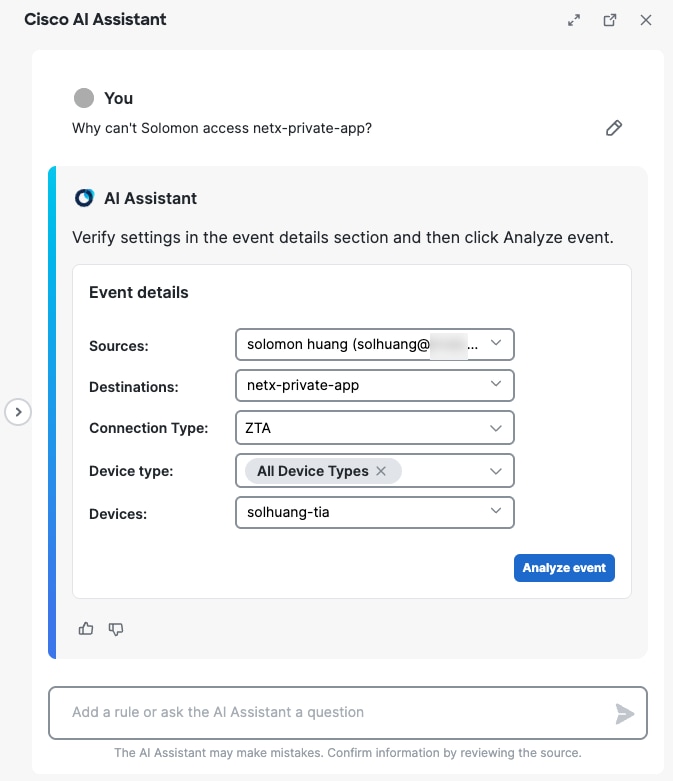
Craft your prompt — When you craft a prompt to troubleshoot access to private resources, phrase your prompt as follows:
Why can't [Source user] access [Destination]?The Assistant will reply with a card prompting you to verify and add information.
-
Click Analyze event.
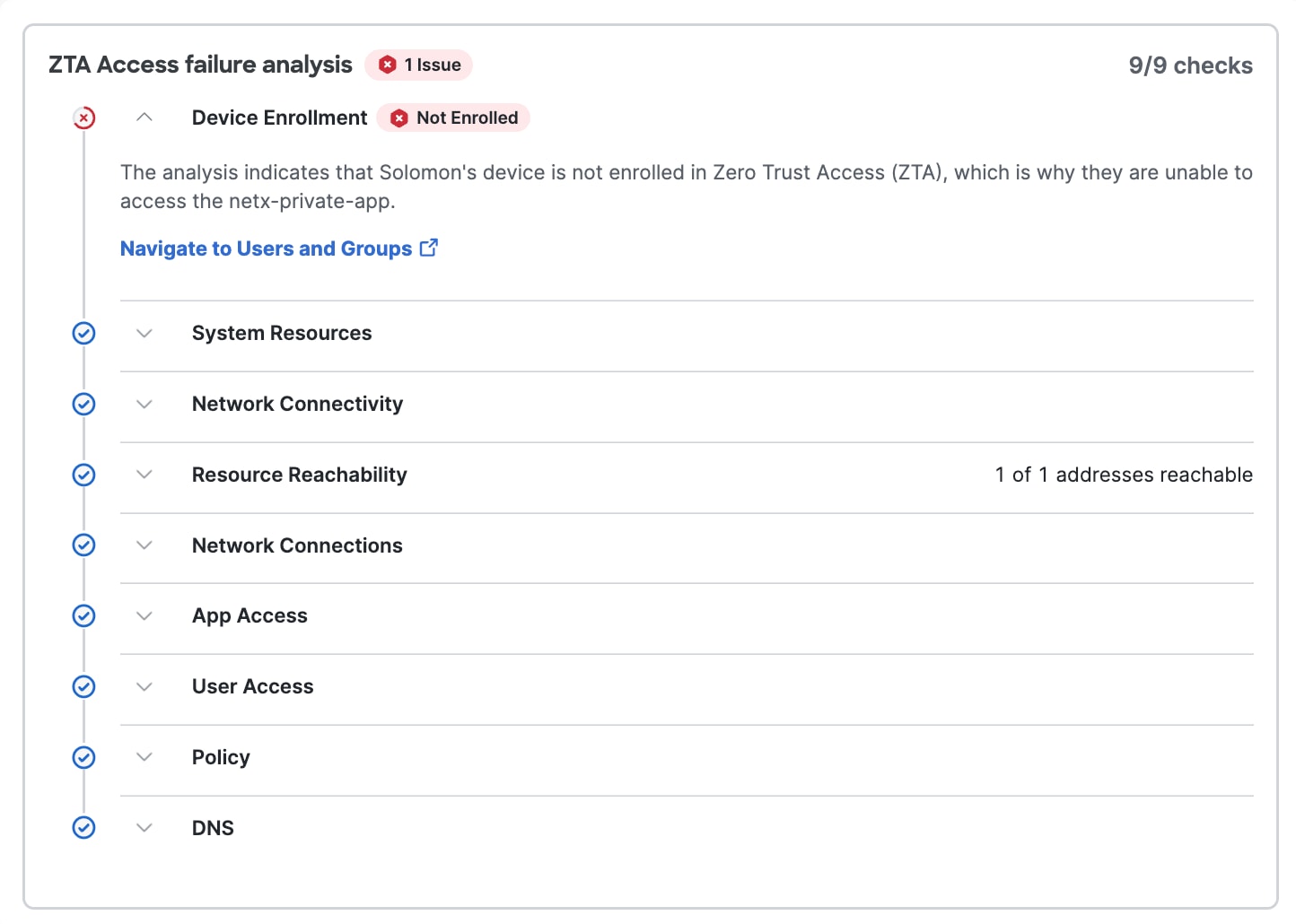
The results include a natural language summary of the Event Analysis and a failure analysis card with details about nine checks.
When the Assistant confirms that there are issues with access, the failure analysis card includes detailed results of the access checks performed by the Assistant.
What to do next
Review the details to learn more about the access issues. Follow links to navigate to Secure Access menus to troubleshoot failures, issues, and warnings.
For guidance on private access rules and other configuration options for private resources, see Add a Private Resource – What's Next.