Cisco Secure Access Help

PDF

Cisco Secure Access Help

Enable File Type Controls

Want to summarize with AI?

Log in

Describes Enable File Type Controls in Cisco Secure Access. In Cisco Secure Access, you can manage the file type controls for either internet or private access in the Security profile.


In Cisco Secure Access, you can manage the file type controls for either internet or private access in the Security profile. The file type control settings determine whether an end user can access certain types of files on internet or private destinations.

For internet destinations and internet access rules in the Access policy, Secure Access supports the option to manage the upload, download, or upload and download of file types selected in the Security profile. Secure Access released this option beginning on June 1, 2025 and completing the rollout of the feature on July 31, 2025.

About File Type Controls for Internet Access

In a Security profile, configure the file type controls for files on internet destinations. You can choose whether to control the upload, download, or upload and download of certain types of files. Then, add the Security Profile for internet access to the internet access rules in the Access policy.

If File Type Blocking is enabled and a user device attempts to download or upload a selected file type from an internet destination, Secure Access presents a Block page instead of the requested resource.

Note
Blocking some file types may cause a website not to display correctly.

About File Type Controls for Private Access

In a Security profile, configure the file type controls for files on private destinations. You can choose whether to download certain types of files. Then, add the Security Profile for private access to the private access rules in the Access policy.
Enable File Type Blocking for Internet Access

Enable File Type Blocking on internet access rules in the Access policy.

Before you begin

  • Full Admin user role. For more information, see Manage Accounts.

  • Enable decryption in the same Security profile for internet access where you configure the file type controls.

Procedure

  1. Navigate to Secure > Security Profiles.

  2. Click Add Profile and then choose Internet Access, or expand an existing Security profile.

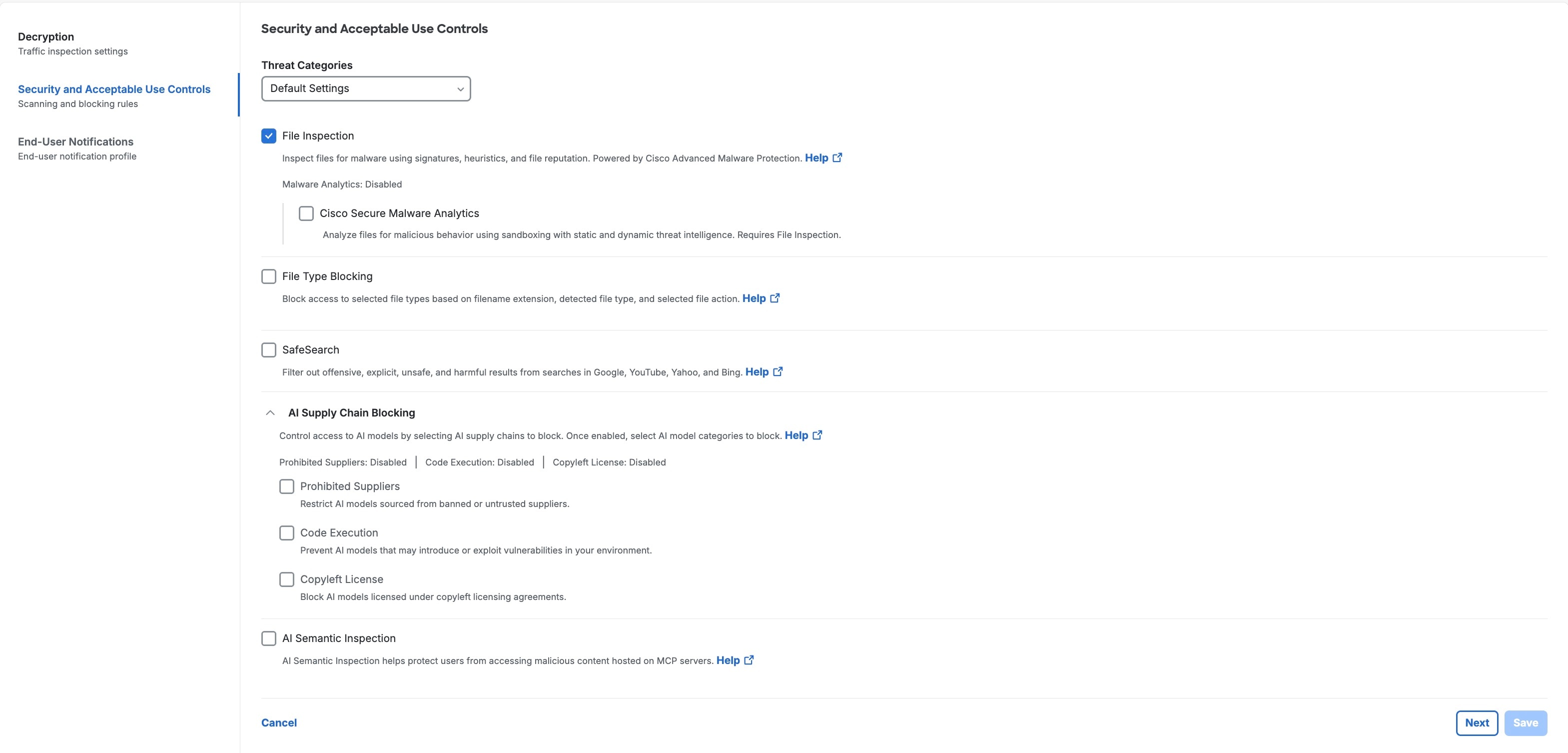
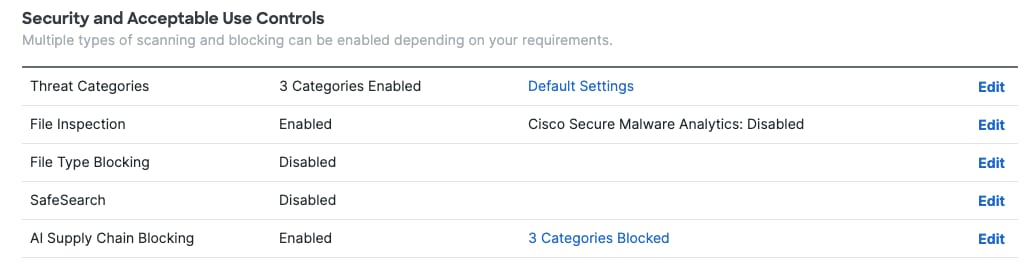
  3. Navigate to Security and Acceptable Use Controls, navigate to File Type Blocking.


    And then choose Internet Access, or expand an existing Security profile. Navigate to Security and Acceptable Use Controls, navigate to File Type Blocking, and then click Edit.
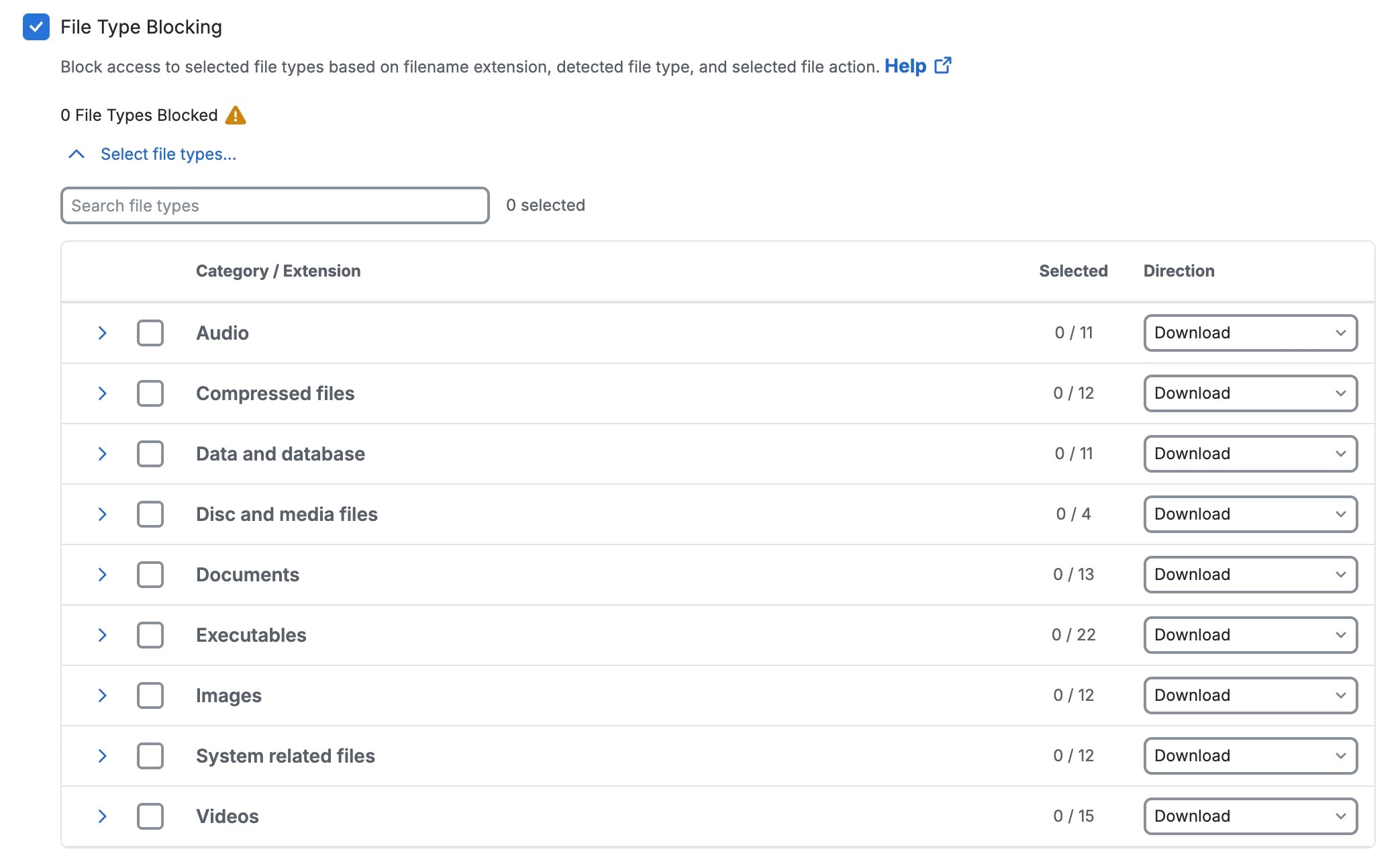
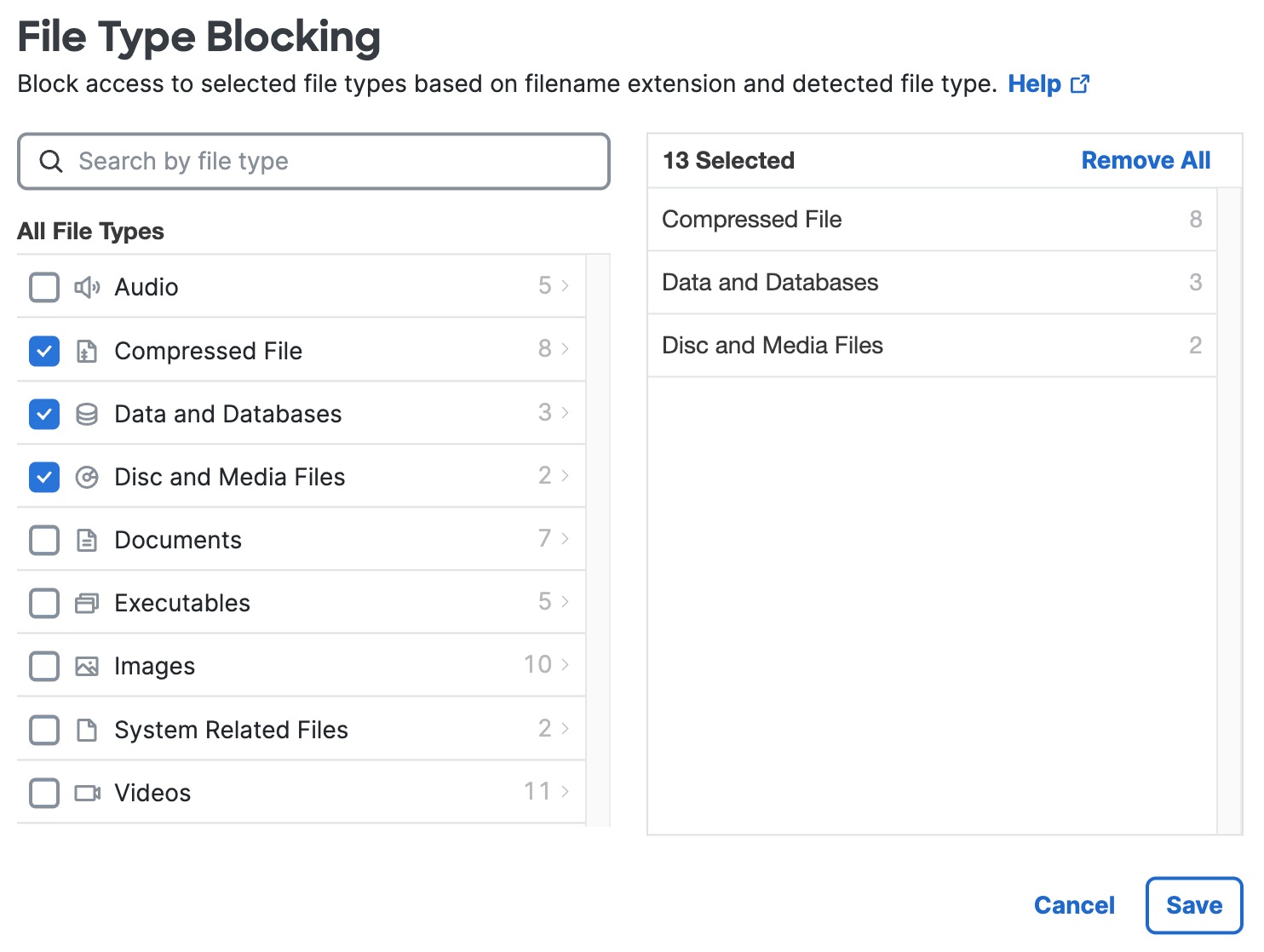
  4. For File Type Blocking, search for specific file types or choose the file types to block.

    1. Check the categories of the file types to choose all file types in the group, or expand a file type category to choose specific file types.
      For more information about available file types, see File Types to Block.
      Note
      When an entire file type group is selected, all future file types added to that group are also blocked.
    2. Choose either Upload, Download, or Both.

      When an entire file type group is selected, all future file types added to that group are also blocked. Choose either Upload, Download, or Both.
  5. Click Save.

    Use the Security profile in an internet access rule to apply the file type blocking security controls to the configured destinations.


Enable File Type Blocking for Private Access

Enable File Type Blocking on private access rules in the Access policy.
Before you begin

  • Full Admin user role. For more information, see Manage Accounts.

  • In private access rules, configure decryption for private resources as rule destinations.

Procedure

  1. Navigate to Secure > Security Profiles.

  2. Click Add Profile and then choose Private Access, or expand an existing Security profile.

  3. Navigate to Security and Acceptable Use Controls, navigate to File Type Blocking, and then click Edit.


    And then choose Private Access, or expand an existing Security profile. Navigate to Security and Acceptable Use Controls, navigate to File Type Blocking, and then click Edit.
  4. For File Type Blocking, search for specific file types or choose the file types to block.

    1. Check the categories of the file types to choose all file types in the group, or expand a file type category to choose specific file types.
      For more information about available file types, see File Types to Block.
      Note
      When an entire file type group is selected, all future file types added to that group are also blocked.

      The Security Profile Private File Type Blocking interface.
  5. Click Save.

    Use the Security profile in a private access rule to apply the file type blocking security controls to the configured destinations.


Review File Type Controls Through Reports

File types enabled through security profiles are listed in the Activity Search Report.

Before you begin

  • A minimum user role of Read-only. For more information, see Manage Accounts.

Procedure

  1. Navigate to Monitor > Activity Search.

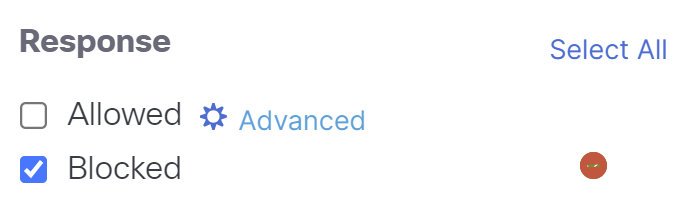
  2. Under the Response filter, choose Blocked.


    File types enabled through security profiles are listed in the Activity Search Report. Navigate to Monitor Activity Search. Under the Response filter, choose Blocked.
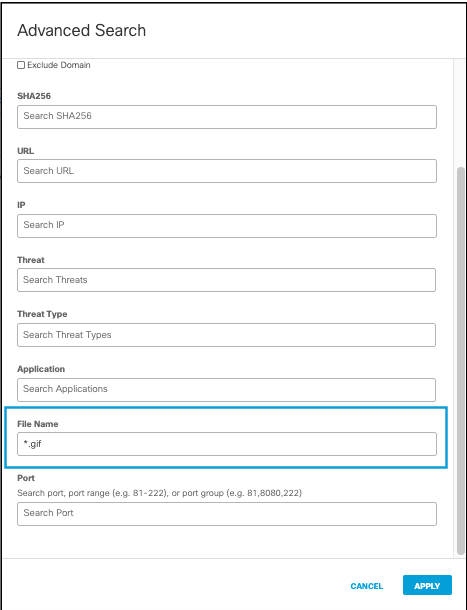
  3. Click Advanced in the search bar to bring up the Advanced search.

  4. Under File Name, enter the asterisk wildcard symbol and a file type to search by and then click Apply.

    The results will filter by events where files of that type were blocked.


    The Search by Wildcard Filetype interface.
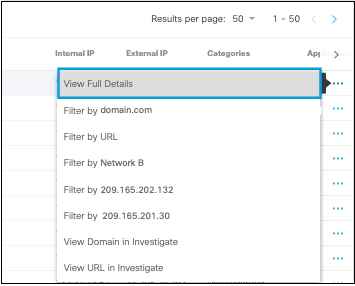
  5. Click the action menu and select View Full Details.


    The View Full Details interface.
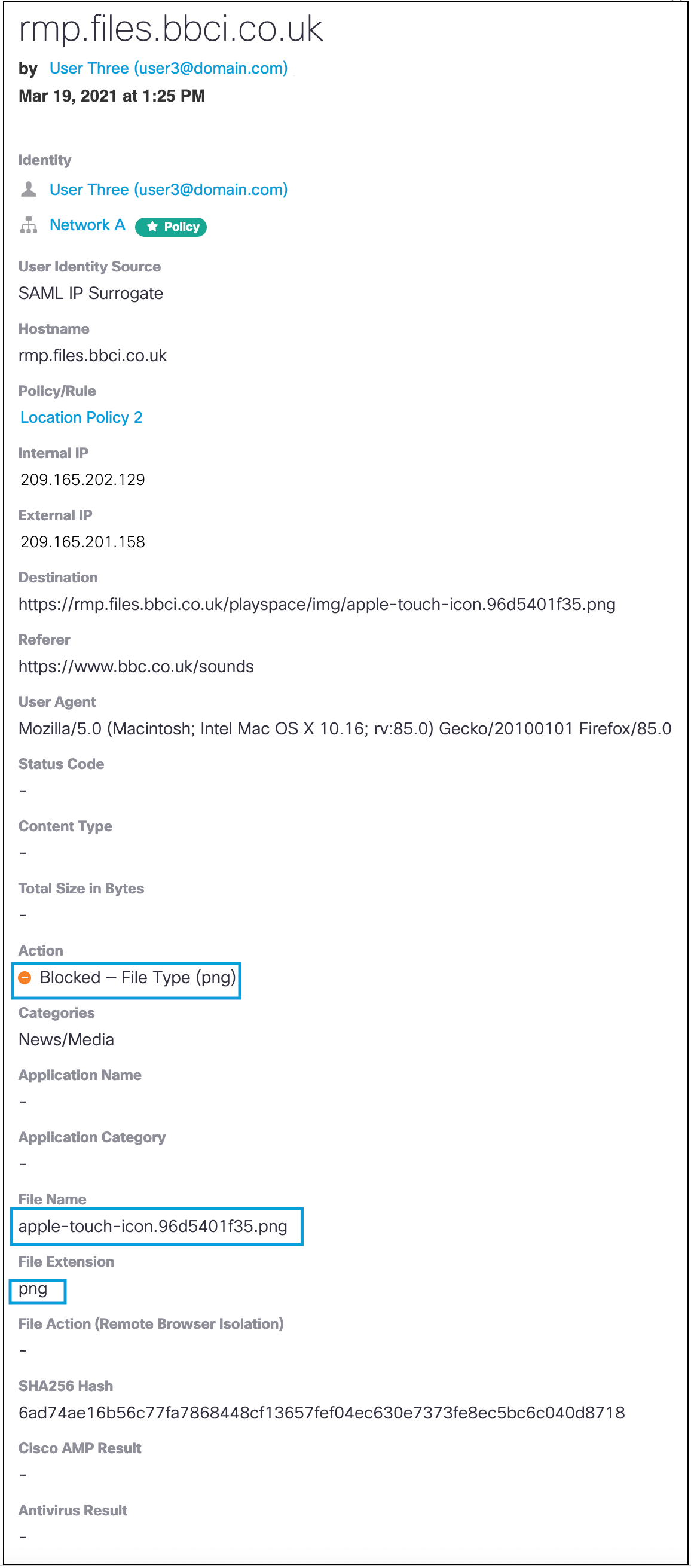
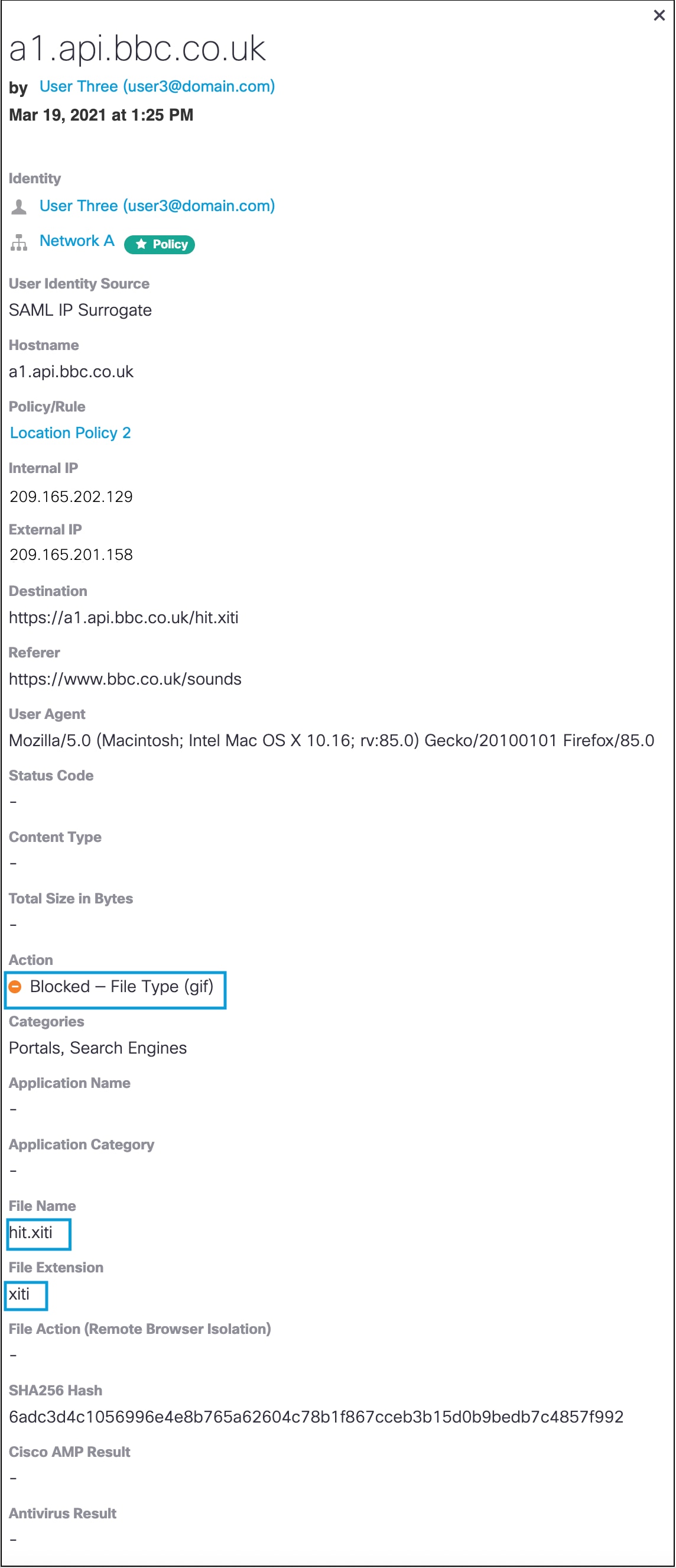
    • View further details of the blocked file, such as the action taken, the name of the file, and the file extension.

      In cases where the file extension is displayed in the file extension column but does not match the extension shown against the file type block control action, the file type control block action should be trusted because it is more accurate and based on the detection engine.

      For example, the file extension listed here is shown as a .xiti.


      The File Type Controls File Details interface.

      The File 2 in Activity Search interface.

      When you examine the details, however, you discover that the file type is actually a .gif, which was successfully detected and blocked by the File Type Control engine.


      The File 2 Details Activity Search interface.