Cisco Secure Access Help

PDF

Cisco Secure Access Help

Set up the Zero Trust Access App for iOS Devices

Want to summarize with AI?

Log in

Describes Set up the Zero Trust Access App for iOS Devices in Cisco Secure Access. End users can access private resources from their Apple iOS mobile devices (iPhone or iPad) using the Zero Trust Access app.


End users can access private resources from their Apple iOS mobile devices (iPhone or iPad) using the Zero Trust Access app. This Cisco Secure Client app uses Apple's platform-native zero trust network access technology.

Zero Trust Access app for iOS:


The Zero Trust App for IOS interface.

System Requirements

Apple iPhone or iPad running iOS 17.2 or later

Guidelines and Limitations

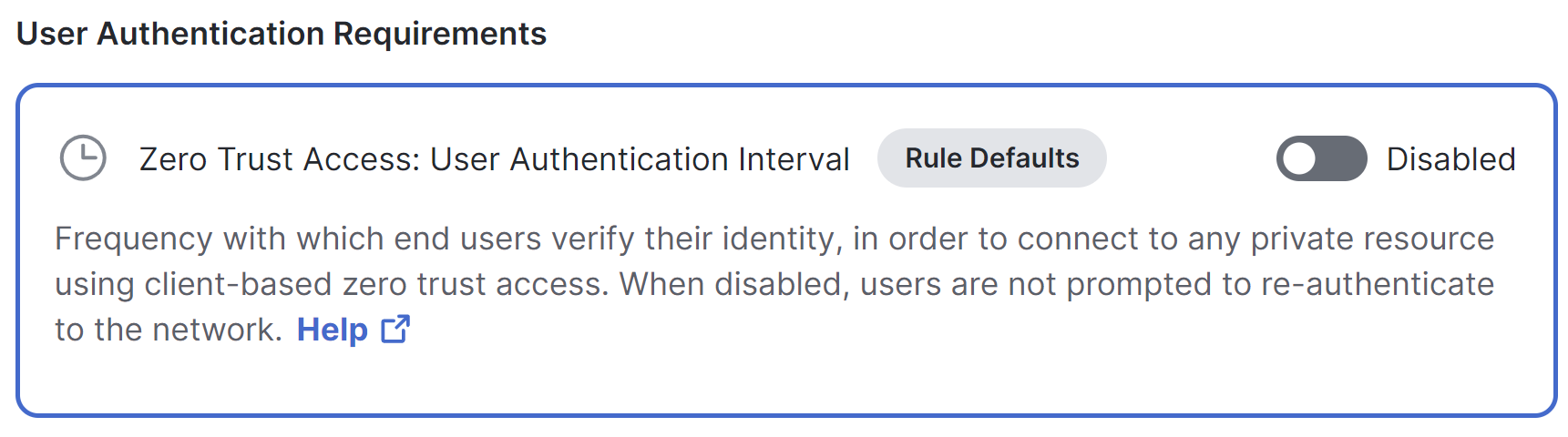
  • iOS does not currently support step-up authentication, so users will not be able to use the Zero Trust Access app to access a private resource if step up authentication is enabled for that resource. You can disable this functionality by default on the Rule Defaults page, or disable it in private access rules that include access for iOS devices:


    The Step Up Auth interface.

    For information, see Network Authentication for Zero Trust Access.

  • Traffic originating from the iOS client has an implicit subdomain wildcard on every rule. So, for example, if a resource is configured with the address foo.com, iOS traffic to that resource will also match bar.foo.com. Configure your private resources and rules accordingly.


Configure iOS Settings

Configure iOS Settings in Secure Access

We strongly recommend making the following configuration changes in the Secure Access dashboard:

  1. Configure a client-based posture profile that includes iOS devices and supported iOS versions: Navigate to Secure > Endpoint Posture Profiles. For information, see Add a Client-Based Zero Trust Access Posture Profile.

  2. Ensure that each applicable private resource is configured to allow client-based Zero Trust Access connections. For information, see Add a Private Resource.

  3. Ensure that a network tunnel group or resource connector group is configured to send ZTA traffic to this resource. Navigate to Connect > End User Connectivity. For information, see Manage Network Connections.

  4. Configure a private access rule that allows traffic to the applicable private resources using the posture profile you configured in Step 1.

  5. Ensure that the end user is configured for single sign-on authentication (SSO).

Configure iOS Settings in Mobile Device Manager (MDM)

At this time, Apple iOS 5.1.19 supports certificate-based zero touch enrollment through the ManagedApp tool. Administrators can use a compatible EMM solution with Declarative Device Management (DDM) support for managed applications to provision the enrollment choice configuration and enrollment certificate identity to ZTA. For more information specifically on Apple managed apps, search for "Apple’s guidance for configuring managed apps".

Use the following configurations for certificate-based zero touch enrollment:

  • The device runs iOS 18.4 or later, which supports the ManagedApp configuration and credential delivery used by this feature.

  • ZTA 5.1.19 or later is deployed as a managed app.

  • The EMM solution supports Apple’s DDM managed application configuration and credential provisioning. General DDM support alone does not establish support for these capabilities.

  • A valid ZTA enrollment choice file is configured for certificate-based enrollment, and a certificate identity matching its certificate selection requirements is available.

  • ”enrollment_choice”: <enrollment choice file content>. This allows you to deploy a different enrollment choice file instead of the default file.

  • ”DeviceUniqueIdentifier”: <device UDID>. This allows the admin to set a unique device ID to the enrolled device into each connection request to the private resource to assist in identify the user's device.

Using the EMM solution, provision the certificate identity and enrollment choice configuration to the managed ZTA app. A certificate identity includes the certificate and its associated private key.


Install the App

There are two ways to distribute the app to IOS devices:

  • You or end users can obtain the app from the App Store

  • You can use your EMM/MDM vendor ecosystem


Have End Users Enroll in Zero Trust Access

The Zero Trust Access client app will walk end users through the enrollment process, which they should find reasonably straightforward.

You can give your end users the following instructions for (if applicable) installing the app and enrolling in Zero Trust Access:

  1. If your administrator has not yet installed the Zero Trust Access app on your device: Install the app from the App Store.

  2. In order to enroll your device for Zero Trust Access, you will need your work email address and your single sign-on credentials.

  3. Launch the app and follow the instructions.

    In order to avoid unpredictable disruptions when accessing your organization's resources, you should allow notifications.
    1. You will be prompted to sign in using Single sign-on credentials.

    2. When you see an Approve prompt, verify that the information on the screen is correct, then tap Approve.

    3. You may need to sign in again the first time you access an application on your network.

  4. You may be required to sign in again periodically in order to access applications on your network. This is expected.


Notes for administrators

  • The enrollment process recommends that users allow notifications. Notifications keep users up-to-date on Zero Trust Access and allows the Zero Trust Access application to communicate with the backend relay configuration.

  • To monitor and troubleshoot client-based zero trust access connections from mobile devices, see Monitor and Troubleshoot Zero Trust Access from Mobile Devices.