Provides instructions for completing the Edit an Internet Access Rule workflow in Cisco Secure Access. It explains the sequence of actions and relevant settings presented in the procedure.
Once an internet access rule is created in Secure Access, you can modify the access rule's criteria and security control options.
Before you begin
-
Full Admin user role. For more information, see Manage Accounts.
Procedure
-
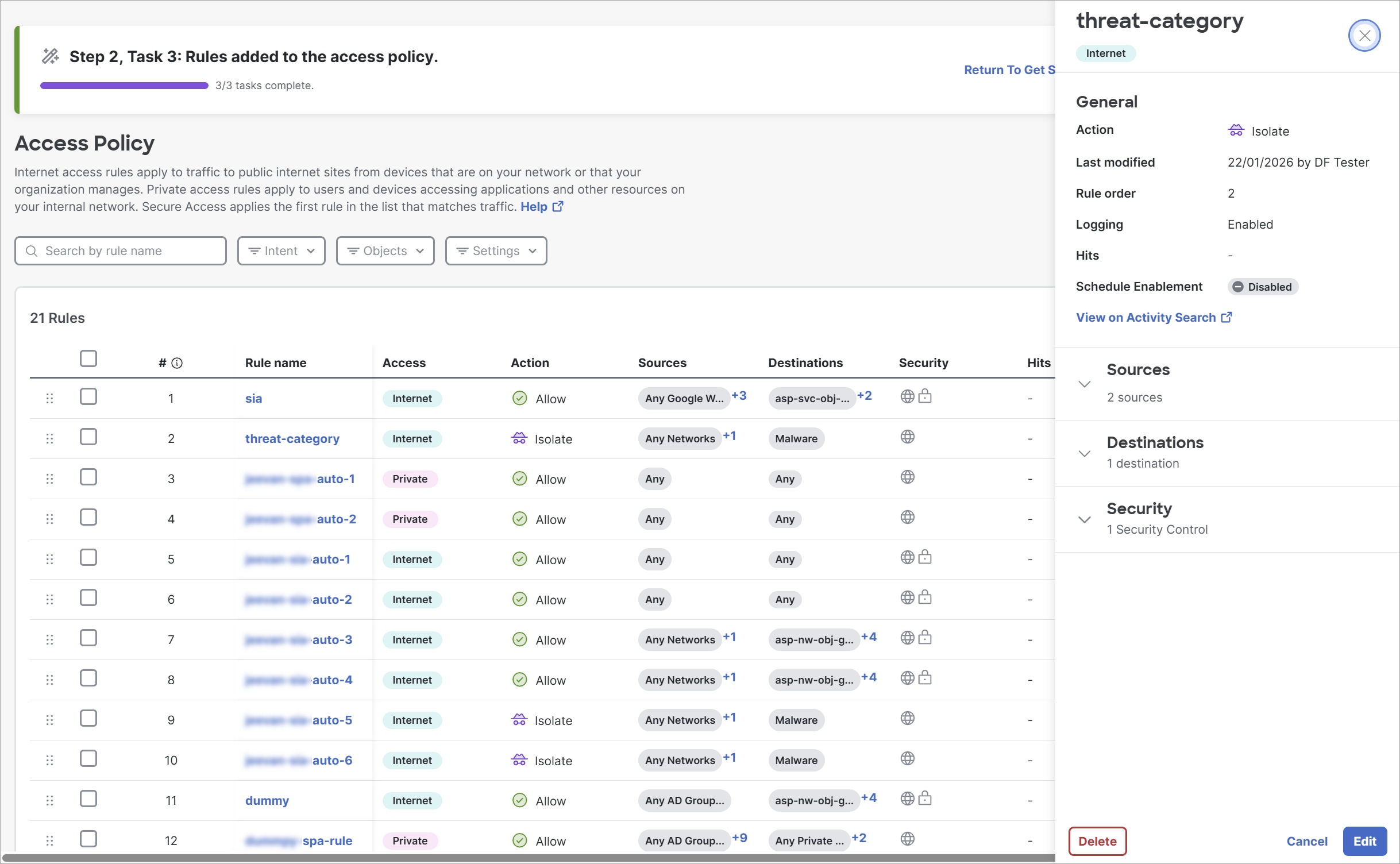
In the access rules table, click the name of an internet rule that you want to edit.
-
In the rule details section, click Edit to modify the access rule.
-
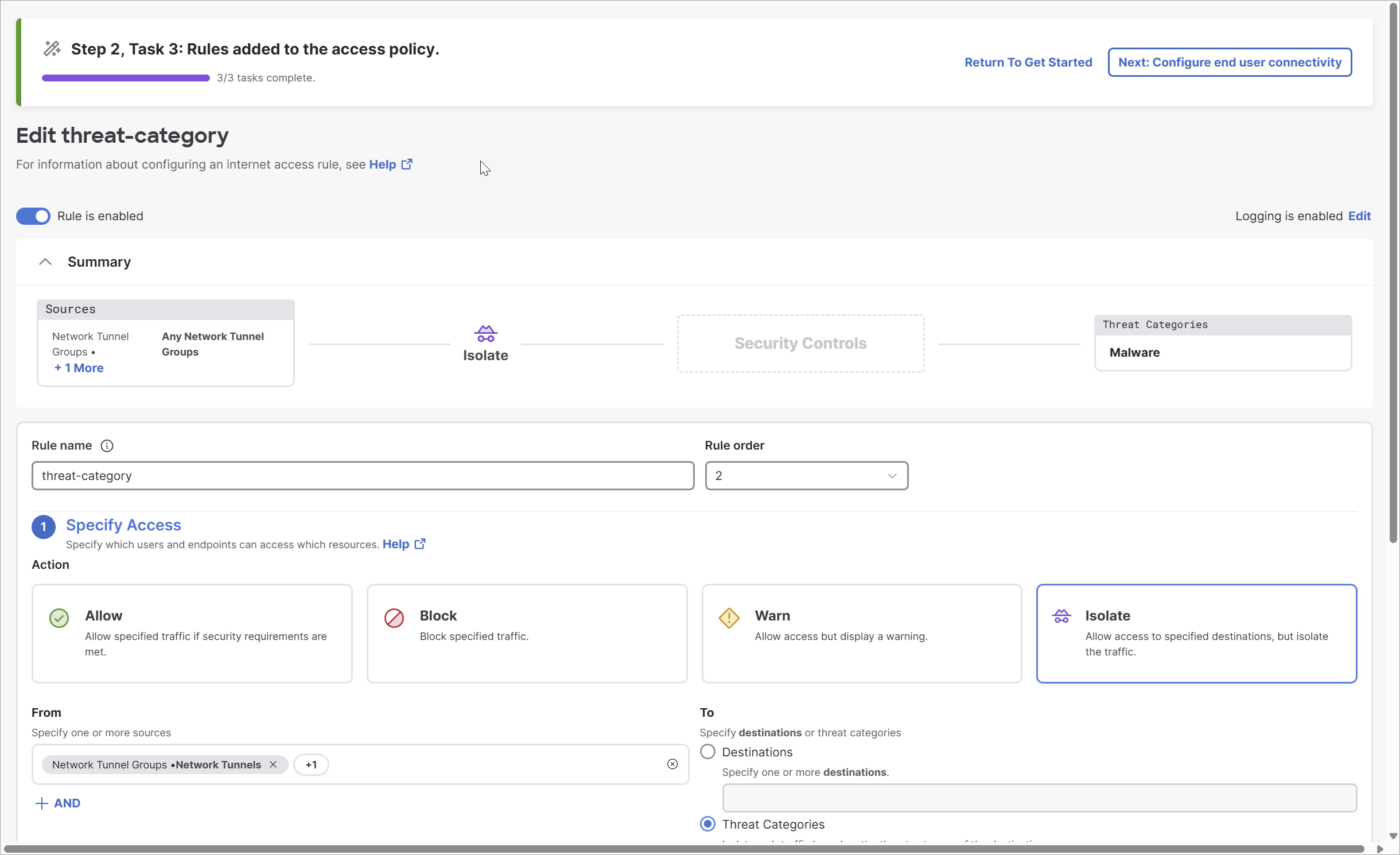
Change the access criteria.
- To change the rule action, choose the required Action.
-
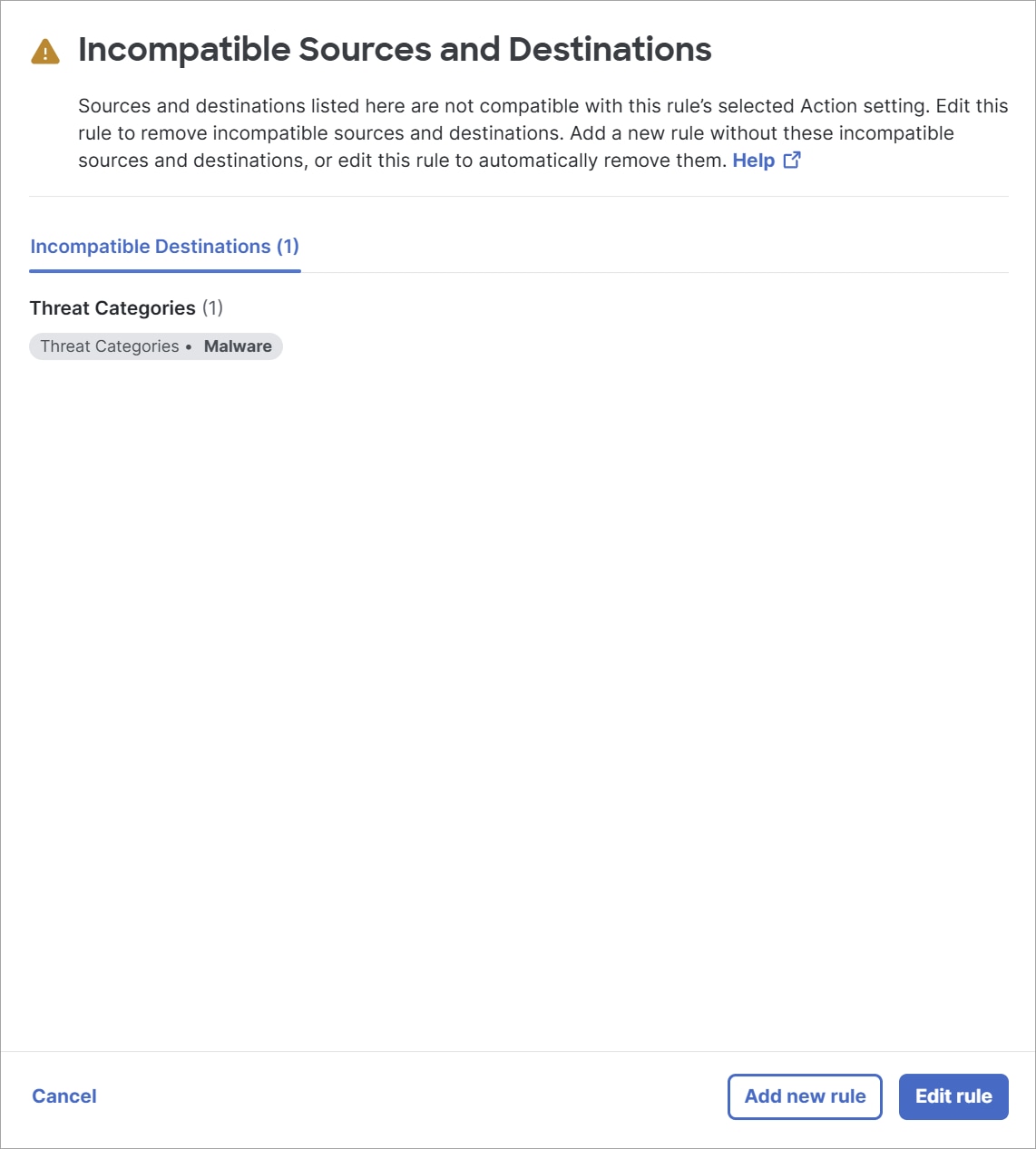
The system automatically checks if the existing sources and destinations are compatible with the selected action. If the existing sources and destinations are not compatible with the selected Action, the Incompatible Sources and Destinations pop-up displays the incompatible sources and destinations.
-
- To change the rule action, choose the required Action.