Cisco Secure Access Help

PDF

Cisco Secure Access Help

Manage Threat Categories

Want to summarize with AI?

Log in

Describes Manage Threat Categories in Cisco Secure Access. Secure Access groups harmful destinations into categories based on the type of threat they present, and allows you to control access to those destinations.


Secure Access groups harmful destinations into categories based on the type of threat they present, and allows you to control access to those destinations. You create lists of threat categories to block access to, then specify a threat category list in each security profile for internet access, then specify one of these security profiles in each internet access rule.

For a list of all threat categories and a description of each, see Threat Category Descriptions.

Default Threat Category List

A default threat category list ships with Secure Access. This default list is included in the default security profile for internet access and by default in all security profiles for internet access that you create.

You can change the enabled threat categories in the default list, and you can create different threat category lists to use in different security profiles.

The following threat categories are enabled in the threat categories list that is included by default in security profiles for internet access: Malware, Command Control Callbacks, and Phishing.

Reporting on Threat Category Access Attempts

When traffic is blocked based on one of these categories, Secure Access generates a reporting event.

If a domain matches a threat category but is not set to be blocked by a web security setting in the security profile selected for your rule, it is still reported as an allowed visit to a destination that matches one of the threat categories.

Threat Category Descriptions

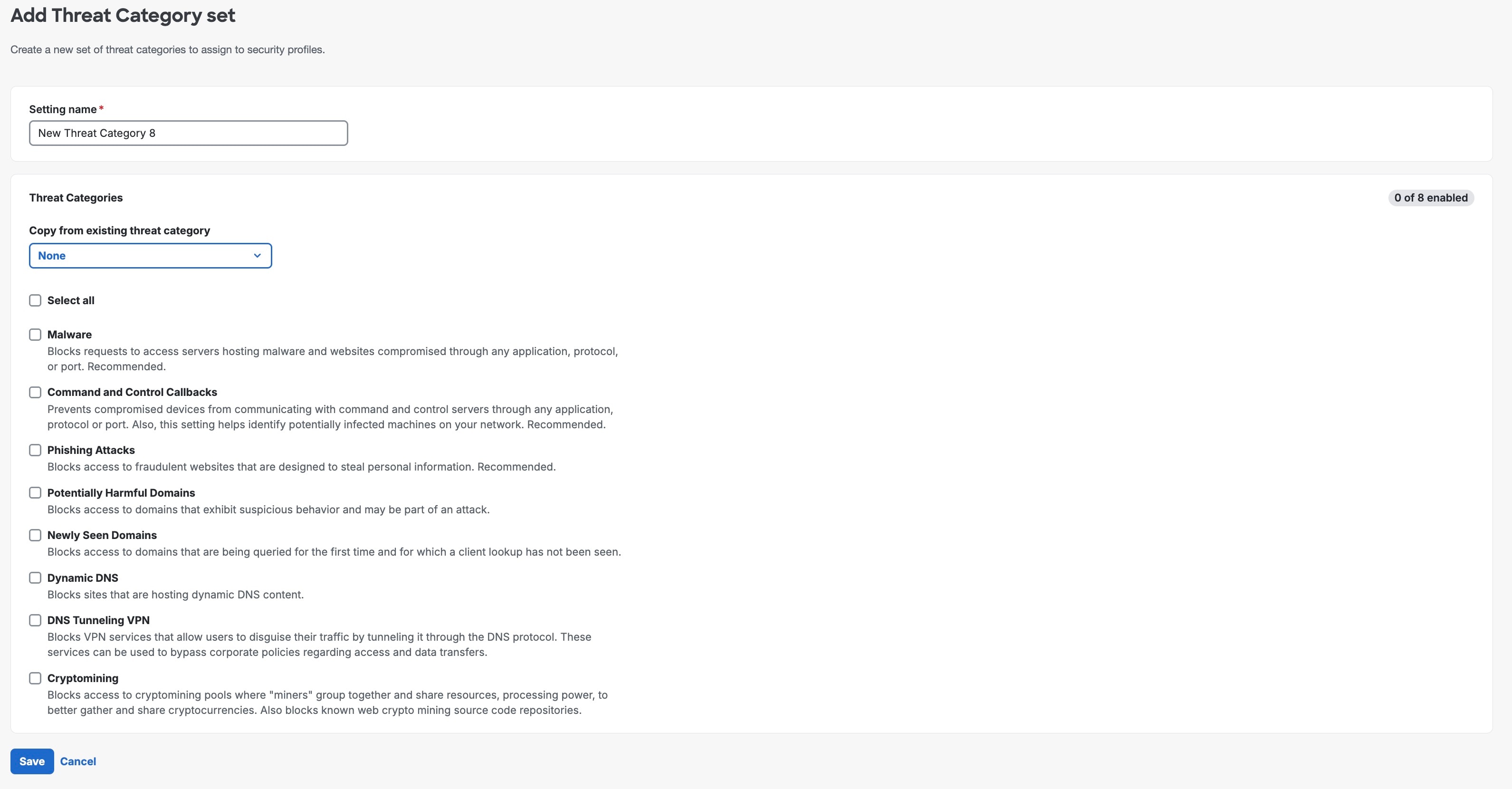
  • Malware—Blocks requests to access servers hosting malware and websites compromised through any application, protocol, or port. Recommended.

  • Command Control Callbacks—Prevents compromised devices from communicating with command and control servers through any application, protocol or port. Also, this setting helps identify potentially infected machines on your network. Recommended.

  • Phishing Attacks—Blocks access to fraudulent websites that are designed to steal personal information. Recommended.

  • Potentially Harmful Domains—Blocks access to domains that exhibit suspicious behavior and may be part of an attack.

  • Newly Seen Domains—Blocks access to domains that are being queried through Secure Access for the first time and for which Secure Access has not yet seen a client lookup. Not all new domains are necessarily harmful; blocking access to this category may block access to legitimate sites.

  • Dynamic DNS—Blocks access to sites that host dynamic DNS content. Not all sites in this category are necessarily harmful; blocking access to this category may block access to legitimate sites.

  • DNS Tunneling VPN—Blocks VPN services that allow users to disguise their traffic by tunneling it through the DNS protocol. These services can be used to bypass corporate policies regarding access and data transfers.

  • Cryptomining—Blocks access to crypto mining pools where "miners" group together and share resources—processing power—to better gather and share cryptocurrencies. Also blocks known web crypto mining source code repositories.


Add a Threat Category List

You can create different threat category lists to use in different security profiles for internet access, which you can then use in different internet access rules.

For example, you may want to block access to potentially risky sites for some users, even if this means potentially blocking access to legitimate sites, while for other users you may want to avoid blocking access to any legitimate sites even if it may expose them to risky sites.

Before you begin

Procedure

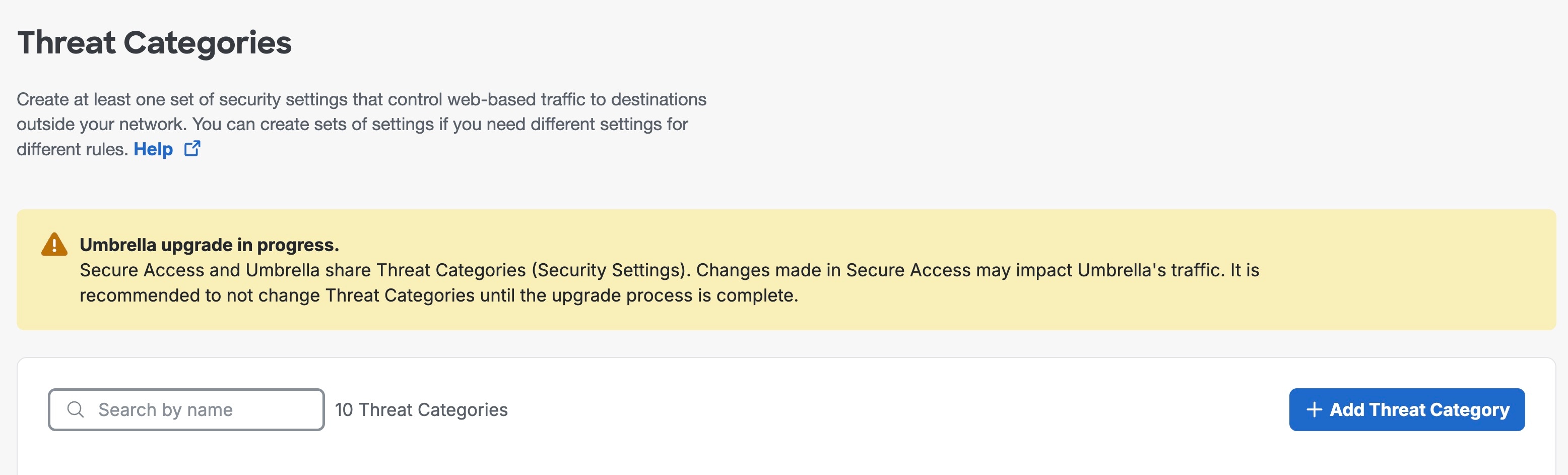
  1. Navigate to Secure > Settings > Threat Categories and click Add Threat Category.


    Threat categories page displaying an option to add

  2. Give your setting a good descriptive Setting Name.

  3. Select Security Categories.

    For more information about the categories, see Manage Threat Categories.


  4. Select Security Feeds.


  5. Click Save.

    This new threat category list is now available for selection when you Add a Security Profile for Internet Access.


Dispute a Threat Categorization

When a destination is classified in a category which you disagree with, you can dispute the categorization. Secure Access and Cisco Talos share a unified set of threat categories. You can submit a category dispute request through Cisco Talos.

Before you begin

  • You must have credentials for your Cisco account.

Procedure

  1. Navigate to talosintelligence.com.

  2. Click Support.

  3. Click Content Categorization.

  4. Click Cisco Login.

  5. Sign in with your cisco.com credentials.

  6. Follow instructions on the screen.


How to Dispute a Threat Categorization

Prerequisites:

You must have credentials for your cisco.com account.

  1. Navigate to talosintelligence.com.
  2. Click Support.
  3. Click Content Categorization.
  4. Click Cisco Login.
  5. Sign in with your cisco.com credentials.
  6. Follow instructions on the screen.