Cisco Secure Access Help

PDF

Cisco Secure Access Help

Third-Party Apps Report

Want to summarize with AI?

Log in

Describes Third-Party Apps Report in Cisco Secure Access. The Third-Party Apps report lists third-party cloud applications that have been authorized to access sanctioned tenant applications.


The Third-Party Apps report lists third-party cloud applications that have been authorized to access sanctioned tenant applications. This report provides visibility to the risks to which your system is exposed by third-party app authorizations. From this report admin users can also block or allow access to third-party applications, overriding all existing authorizations and preventing users from authorizing the app in the future.

Currently the report presents information only about third-party applications authorized through Microsoft 365 tenants and Google Drive tenants.

  • For Microsoft 365 tenants, you must authorize the tenant application for third-party access detection. For more information, see Enable Cloud Access Security Broker Protection for Microsoft 365 Tenants. Third-Party Apps discovery for Microsoft 365 tenants is aggregated and processed on an hourly basis.

  • For Google Drive tenants, you must authorize the tenant application for third-party access detection. For more information, see Enable Cloud Access Security Broker Features for Google Drive. In the case where the Secure Access administrator has blocked access from third-party applications, Secure Access prevents users from authorizing third-party apps by scanning for access granted to third-party applications every 7 minutes. This is necessary because Google Drive does not allow third-party access to be permanently blocked using an API; the frequent scans enable Secure Access to detect and revoke new third-party authorizations. A Google Drive administrator can override an application's authorization manually through the Google Drive interface and permanently block access to any third-party application.
View the Third-Party Apps Report

Before you begin

Viewing the report requires a minimum user role of Read-Only. To use the block/unblock override feature, you must have the Admin user role. For more information, see Manage Accounts.

Procedure

  1. Navigate to Monitor > Reports > Third-Party Apps.

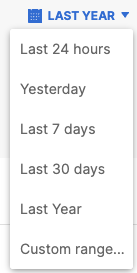
  2. Choose a time frame of application detection events. You can view the results for the last 24 hours, Yesterday, Last 7 Days, Last 30 Days, the Last Year (default), or a Custom range.


    A time frame of application detection events. You can view the results for the last 24 hours, Yesterday, Last 7 Days, Last 30 Days, the Last Year (default), or a Custom range.
  3. View the following columns for information on third-party application access events.

    • Applications: The names of third-party applications that users have authorized through the tenant application listed under the Source column. For applications whose names appear as links, Secure Access can provide additional information; click the link for an app name to view app details and traffic data for the last 90 days. See View App Details for more information.

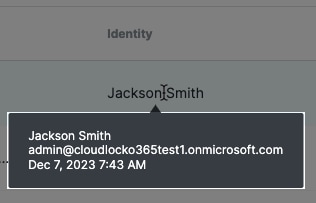
    • Identity: The names of users that have accessed the third-party applications. Hover over a name to see the email address for the user and the date and time of the access event.


    • Tenant Name: The name of the tenant from which authorization originated. (See Manage Cloud Malware Protection for information about authenticating tenant applications.)

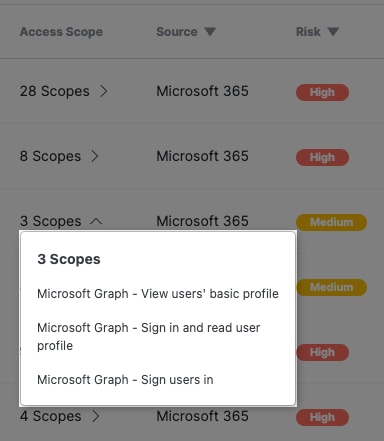
    • Access Scope: The number of access permission scopes granted to the third-party application. Click on a value in the Access Scope column to see the scopes listed by name.


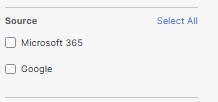
    • Source: The tenant application from which authorization originated. The report presents information about third-party applications authorized through Microsoft 365 or Google tenants. For more information, see Enable Cloud Access Security Broker Protection for Microsoft 365 Tenants or Enable Cloud Malware Protection for Google Drive. You can filter the report results by values in this column using the filter selections on the left side of the screen.


      The Source Filter interface.
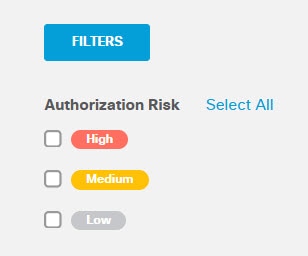
    • Authorization Risk: The risk scope Umbrella has calculated for the third-party application, based on the access scopes granted by the user that authorized the application to access an application tenant. The possible values are Low, Medium, and High. You can filter the report results by values in this column using the filter selections on the left side of the screen.


      The Auth Risk Filters interface.
    • App Risk: The overall weighted risk score assigned to the app. This could be calculated by Secure Access (based on Business risk, Usage risk, Vendor compliance, and Community risk (if available)) or assigned by you. The possible values are Very Low, Low, Medium, High, and Very High.

    • Detected: The time and date when Secure Access detected the access event.

    • Status

      Block/Allow status for the third-party application:

      • Blocked - The system has blocked users from granting access to the application via sanctioned tenant. (Overriding the access granted by a tenant application.)

      • Failed to Block - The system has attempted to block users from granting access to the application via sanctioned tenant, but the block attempt failed. Retry the block action; if it fails again, check that your tenant authentication is active. (You may need to re-authenticate.) If you are still unable to block the application, contact Support.

      • Allowed - The system allows users to grant access to the application via sanctioned tenant.

      • In progress - A block or unblock action is in progress. (The action in progress will appear dimmed in the Permissions column.)

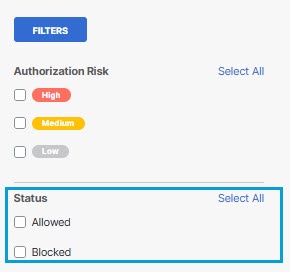
        You can filter the report results by the values Allowed and Blocked in this column using the filter selections on the left side of the screen.


        The Status Filter interface.
      • Permissions: This column offers administrators the ability to override the tenant access granted to third-party apps by another user. The possible actions are:

        • Block - Block the third-party applications from accessing the application via a sanctioned tenant, overriding access granted by other users.

        • Unblock - Allow the third-party application to access the application via a sanctioned tenant.

        The options in this column will appear dimmed if they are not available for any of the following reasons:

        • The user does not have admin privilege.

        • A block or unblock action is in progress.

        • A block action has failed

  4. Sort columns by Tenant Name, Applications, Source, Risk, or Detected.

  5. Click the Refresh button at the top of the report to update results.


    A block action has failed Sort columns by Tenant Name, Applications, Source, Risk, or Detected. Click the Refresh button at the top of the report to update results.

Search the Third-Party Apps Report

Before you begin

Viewing the report requires a minimum user role of Read-Only. To use the block/unblock override feature, you must have the Admin user role. For more information, see Manage Accounts.

Procedure

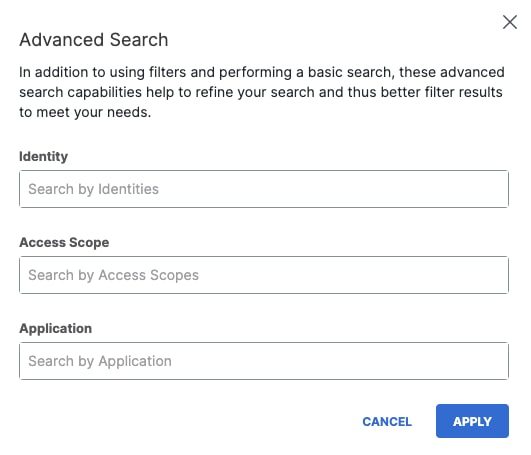
  1. Use the search bar above the report results to search by a specific application, identity, or permission scope.


    The Admin user role. For more information, see Manage Accounts. Use the search bar above the report results to search by a specific application, identity, or permission scope.

    Select a search result to apply it as a filter to the report columns Application, Identity, or Access Scope.

  2. Click Advanced to perform a targeted search.


    Select a search result to apply it as a filter to the report columns Application, Identity, or Access Scope. Click Advanced to perform a targeted search.
    Note
    • There is a three-character minimum for search terms.

    • The search feature does not support wildcards.

    • The system does not search detail information from the Identity column.

    • Search results reflect matches found for all third-party applications that users have authorized. Results are not restricted by the time frame or filters applied to the report.


Export the Third-Party Apps Report

Click Download CSV at the top right of the report to export results in CSV format.

Before you begin

Viewing the report requires a minimum user role of Read-Only. To use the block/unblock override feature, you must have the Admin user role. For more information, see Manage Accounts.

Procedure

  1. The export will include results of the time frame and filters applied to the report.

  2. The file name format will be Third_Party_Apps_Third_Party_Apps_YYYY_MM_DD_hh_mmss.sssZ.csv

    Where:

    • YYYY-MM-DD represents the date of the download.

    • hh_mm_ss.sss represents the time of the download.


View App Details

The details page for an app lists summary information about the app, including:

  • The risk score for the app, and the details on how it was calculated.

  • The identities that have made DNS requests and seen traffic for the app.

  • The detailed attributes of the app, which can help you perform a risk/benefit analysis of permitting the app to be used in your environment.

From the App Details page you can change some details assigned to the application by Secure Access.

Note
App details are also accessible from the App Discovery Report.

Procedure

Before you begin

A minimum user role of Read-only. For more information, see Manage Accounts.

Procedure

  1. Navigate to Monitor > Reports > Third-Party Apps.

  2. For applications whose names appear as links, Secure Access can provide additional information. Click the link for an app name to view app details and traffic data for the last 90 days.

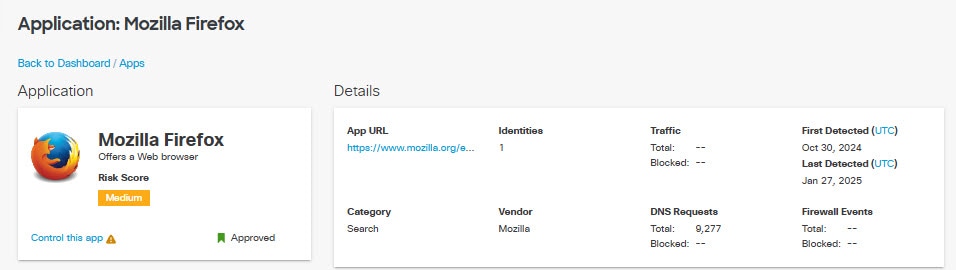
  3. View the initial details of the app, including the name and a description of the app.


    The Application Initial Details interface.
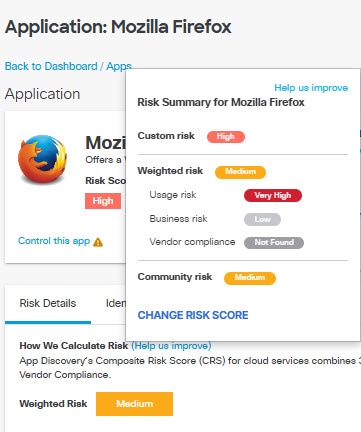
    • Risk Score—The overall score assigned to the app. This could be calculated by Secure Access or assigned by you. Hover over the Risk Score icon to display the risk Summary for the app:
      The Step 3b Custom interface.

      The risk summary displays:

      • The Custom risk score, which appear if you have chosen to override the Weighted risk score calculated by Umbrella. Too apply a Custom risk score see Change App Details.

      • The Weighted risk score calculated by Umbrella based on Business risk, Usage risk, Vendor compliance, and Community risk (if available).

      • The Community risk score, which appear if one or more other users have assigned a Custom risk score to the app. Secure Access calculates the Community risk score as a median of the Custom risk scores assigned to the app by all users.

      You can click on CHANGE RISK SCORE to change the risk score for the app, overriding the value assigned by Secure access. The possible values are Very High, High, Medium, Low, and Very Low. More for information see Change App Details.

    • A label describing the review status of the app for your installation: Unreviewed, Approved,Not Approved , or Under Audit. Hover over the status label to override the status assigned by Secure Access. You can change the status label to Approved, Not Approved, or Under Audit. More for information see Change App Details.

      Note
      App labels are primarily used for tracking and filtering, to help you keep track of the app review process within your organization. They do not of themselves control access to an app. However, if you establish an app risk profile that uses Label Status as a criteria, and that profile is used in an internet access rule, that rule may cause an application to be blocked or allowed based on the value of its app label.
    • For controllable apps, click Edit App Controls, Control This App, or Block This App to choose which application lists to add this app to and whether to block or allow it.

      • Block This App—Appears when a block has not been configured for this app, or a red tooltip icon will appear if the app setting is configured but has not yet been applied to a policy.

      • Control This App—Appears when Block or Allow have not been configured for this app, or a red tooltip icon will appear if the app setting is configured but has not yet been applied to a policy.

      • Edit App Controls—Appears when the app has already had settings configured but can be edited.

        For more information see Control Apps.

    • App URL—The URL of the app.

    • Category—The category the app falls under. For more information, see Application Categories.

    • Identities—The number of sources that accessed the app.

    • Vendor—The owner of the app.

    • Traffic—The number of bytes of total traffic and bytes blocked.

    • DNS Requests—The total number of DNS requests and the percentage of requests blocked by Secure Access.

    • First Detected—The date the app was first detected.

    • Last detected—The date the app was last detected.

  4. Click Risk Details.

    The Risk Details tab displays the app's risk score and how it was calculated, including Business Risk, Usage Risk, and Vendor Compliance.


    The Risk Details interface.
  5. Click Identities.

    The Identities tab lists your organization's sources that have made DNS requests and traffic for this app.

    Click the Download CSV icon to download this information as a CSV file.


    Click the Download CSV icon to download this information as a CSV file.
  6. Click Attributes.

    The Attributes tab lists the various attributes associated with this app.


    The Attributes tab lists the various attributes associated with this app.

What to do next

Attributes are divided into categories. Click a category name to view the attributes associated with it. (Not all applications will show all attribute categories.)

For each displayed attribute, Secure Access shows whether the attribute applies to the application and the dates when the attribute information was collected and updated. Use the attributes to evaluate the risk that the application will expose your environment to data breaches, identity theft, financial fraud, and other cyber threats.

The attribute categories are:

  • Compliance attributes — Indicate whether the application complies with the requirements of a number of certifications such as GDPR, HIPAA, and FEDRAMP.

  • Vulnerabilities attributes — Indicate whether the application is vulnerable to exploits that attackers could use to compromise the security of the affected systems, steal sensitive data, or cause other types of damage.

  • Access control attributes — Indicate the methods the application supports to manage and restrict access based on a user's identity, role, and authorization level.

  • Data security attributes — Indicate the practices and technologies the application uses to protect data from unauthorized access, use, disclosure, modification, or destruction.

  • Auditability attributes — Indicate the abilities the application provides for an administrator to review the activity and transactions of a system, to ensure that it is operating in a compliant and secure manner.

  • Email authenticity attributes — Indicate what methods the app provides to verify that email is actually from the sender that it claims to be from, and that the message has not been tampered with or altered in any way during transit.