Cisco Secure Access Help

PDF

Cisco Secure Access Help

Manage Destination Lists

Want to summarize with AI?

Log in

Describes Manage Destination Lists in Cisco Secure Access. A destination list is a collection of domains, URLs, IP addresses (IPv4 and IPv6), and CIDR blocks.


A destination list is a collection of domains, URLs, IP addresses (IPv4 and IPv6), and CIDR blocks. Use destination lists in internet access rules to block, allow, or isolate traffic, or in DLP rules to monitor or block sensitive data uploaded to the web.

Guidelines and Best Practices

  • Domains in destination lists must comply with the format described in RFC-1035.

  • Each fully qualified domain name that you add in a destination list must contain less than 253 characters.

  • Secure Access assumes implied left asterisk wildcards in domains. You may not include wildcards in domains. For more information, see Control Access to Domains.

  • In URLs, Secure Access assumes right-side wildcards by URL path segment. (i.e., https://www.example.com matches https://www.example.com/abc/def but not https://www.sub.example.com/abc/def.) You must use URLs that follow standard syntax rules. (See RFC-3986). Secure access normalizes the format. (See Control Access to Custom URLs.)

Destination List Examples

Valid destination list entries:

  • example.com (Domain)

  • sub.domian.com (Domain)

  • http://www.example.com/path.file.txt (URL)

  • us (Country code top-level domain)

  • com (Top-level domain)

  • 198.51.100.0 (IPv4 address)

  • 2001:DB8::/32 (IPv6 CIDR)

  • 102.9.2.0/24 (CIDR block)

Invalid destination list entries:

  • example.* (Uses asterisk)

  • 2001:DB8:/128 (Malformed address)

  • 2001:DB8:/32 (Malformed CIDR)

  • http://www.example.com/path/file?.txt (URL with ? wildcard)


Add a Destination List

Cisco Secure Access enables administrators to manage destinations that are grouped by destination lists. Destination lists either allow or block access to destinations. Destinations represent domains, URLs, CIDRs, and IPv4 and IPv6 addresses. For information about supported destination types and guidelines, see Manage Destination Lists.

After you add a destination list with destinations, you can select the destination list on the internet access rules in the organization's policy.

For information about uploading a list of destinations from a file, see Upload Destinations from a File.

Before you begin

Procedure

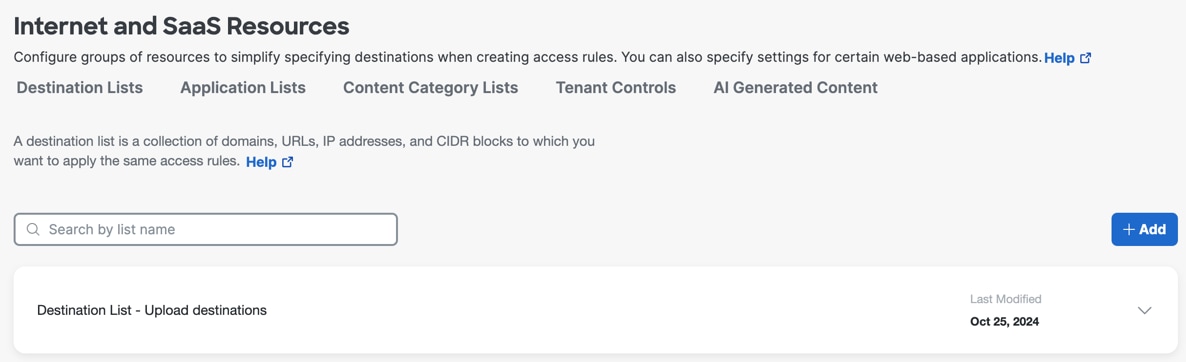
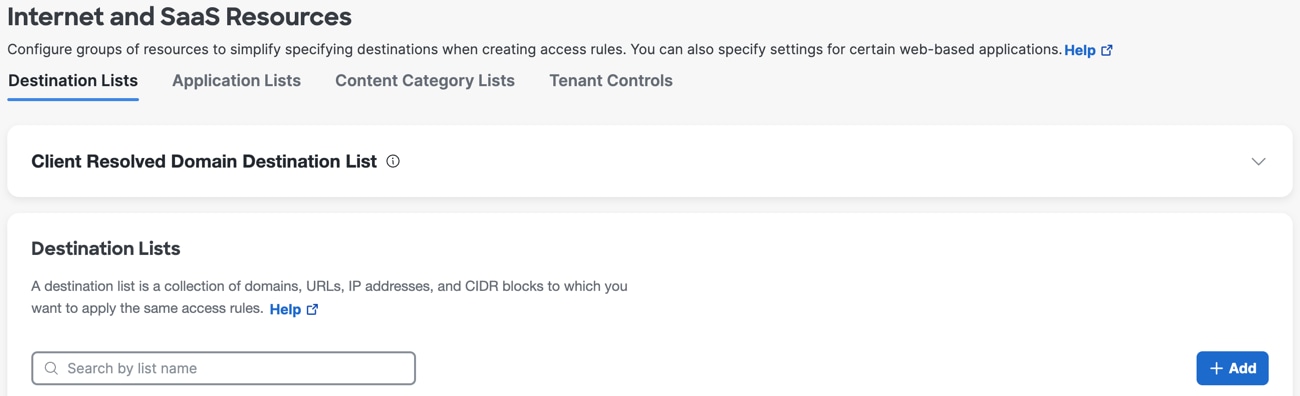
  1. Navigate to Resources > Internet and SaaS Resources > Destination Lists.

  2. Click Add.


    Internet and Saas Resources page with option to add a destination
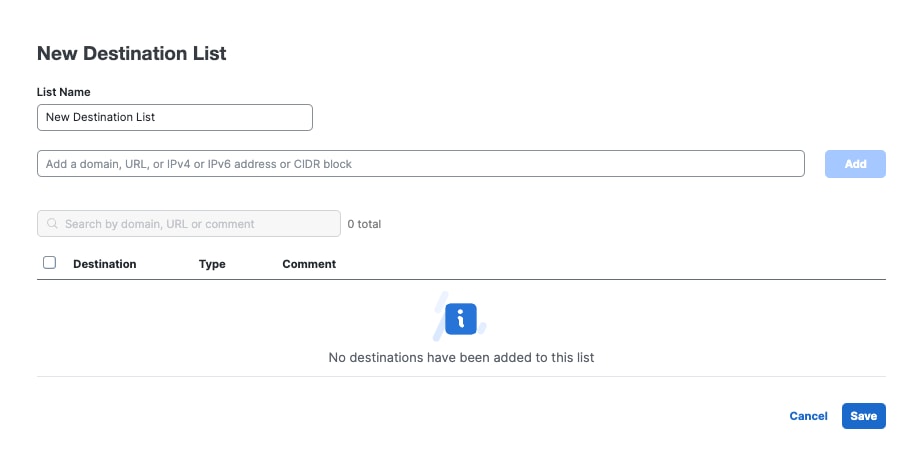
  3. For List Name, enter a descriptive name.


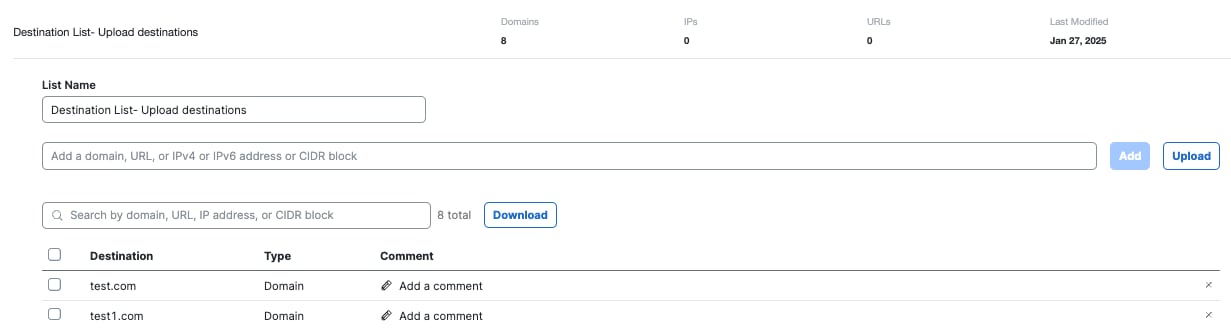
    New Destination List page showing fields to enter for the new destination list
  4. In the next field, enter a domain, URL, IPv4 or IPv6 address, or CIDR block.

    Note

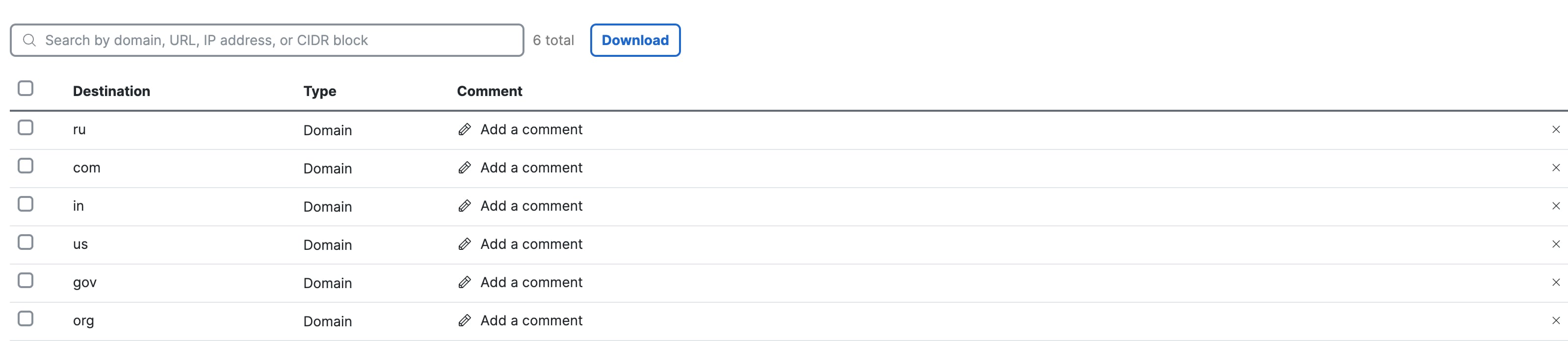
    You can add a top-level domain (TLD) in the destination list.


    Adding domain and IP address information
  5. Click Add.

    Tip
    You can upload destinations in bulk from a text or CSV file, but you must first save and edit the destination list. For more information, see Upload Destinations from a File.
  6. Click Save.

    The destination list is available as a destination when you add an internet access rule.

Upload Destinations From a File

Cisco Secure Access provides the option to import destinations from a text or CSV file into an existing destination list. Before you can upload a file with the destinations to Secure Access, create a destination list or use an existing destination list in the organization. For information about supported destination types and guidelines, see Manage Destination Lists.

Note
Supported files for upload

Files must be text or CSV files and must include only one destination per line. Before uploading, review your list for extra-space characters and commas. Exceptions to the format of a single destination per line can result in errors.

Before you begin

Procedure

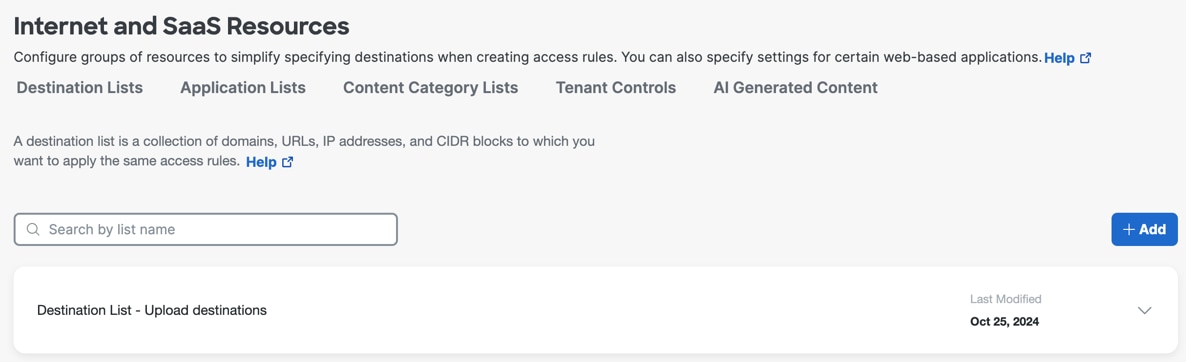
  1. Navigate to Resources > Internet and SaaS Resources > Destination Lists.


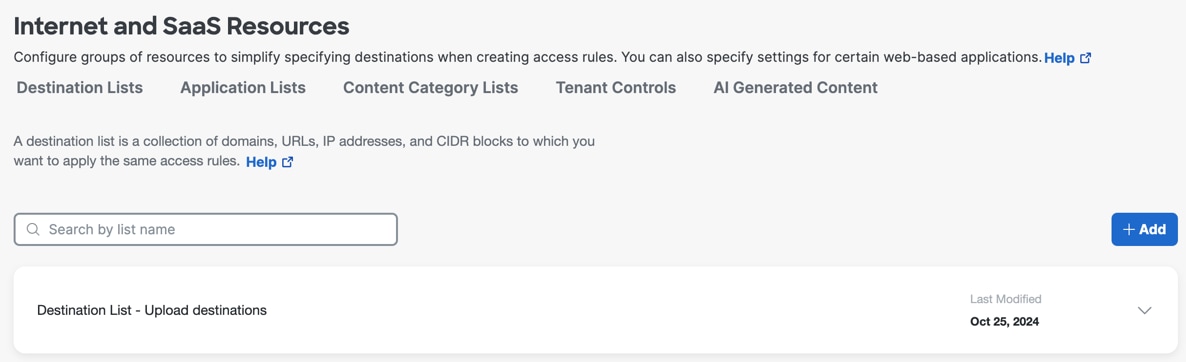
    Internet and SaaS Resources page with an option to add a destination list
  2. If you are uploading destinations to an existing destination list, navigate to the destination list and click the caret to expand the destination list.

  3. If you require a new destination list for the destinations in the text file, add a destination list.

    You don't need to add any destinations.

    1. Save the new destination list.
    2. Click the caret in the table row to expand the new destination list.

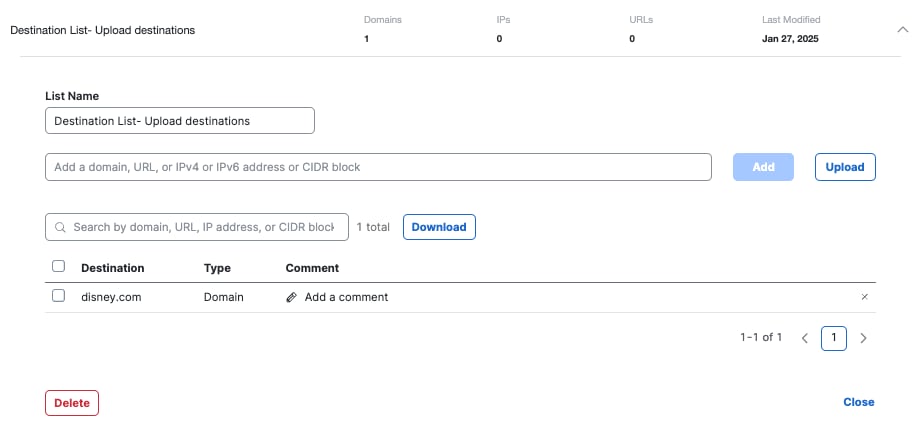
      Uploading a destination list
  4. Click Upload. The current uploader supports text and CSV files in the format of one destination per line. Excel files are not supported.

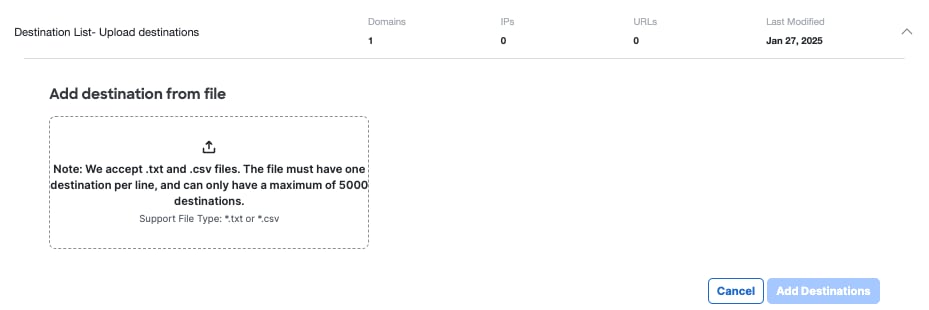
  5. Select or drag and drop a .txt or CSV file that contains your destinations.

    If you want to remove the file and choose a different file, click Replace.


    Adding destinations from a file
  6. Click Add Destinations.

    Supported destinations in the file are added to your destination list.

    If your bulk upload includes unsupported destinations, the upload does not fail, but only supported destinations are added.

  7. Immediately after uploading the destinations, look for a pop-up message. If the file contained unsupported destinations, this pop-up is displayed.


    Popup showing an error message when the file contains unsupported destinations
  8. To download a spreadsheet that you can use to determine which destinations failed and why, click the link in the pop-up.

  9. Click Save.


Edit a Destination List

Cisco Secure Access supports creating and managing destination lists. After you add a destination list, you can edit the destination list or remove the destination list from the organization. If a destination list is part of an enabled internet access rule, changes are effective immediately.

Before you begin

Procedure

  1. Navigate to Resources > Internet and SaaS Resources > Destination Lists.

  2. Expand a destination list.


    Internet and SaaS Resources page with an option to add a destination list
  3. Make your changes.

    Tip
    You can upload destinations in bulk from a text or CSV file. For more information, see Upload Destinations from a File.

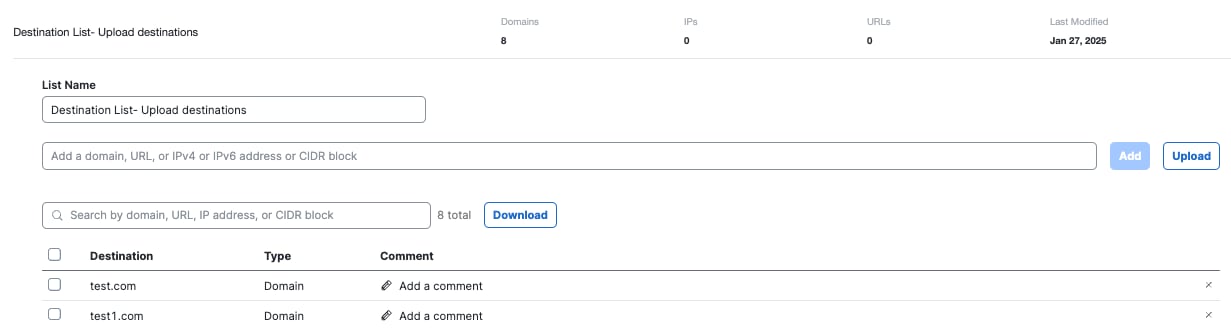
    Edit destination list details

Search the Destination List

Use destination list search to find a destination list entry by destination list name, destination, or comment.

Before you begin

  • Sign in to Secure Access or Umbrella with permission to view destination lists.

  • Have a search term ready. You can search by destination list name, destination, or comment.

Procedure

  1. Navigate to Resources > Internet and SaaS Resources page and click the Destination Lists tab.

  2. In the primary search bar at the top of the screen, enter a keyword to search on and submit. Expand the compressed destination lists to view the keyword that matches.

  3. Enter a full or partial search term. You can search for any of the following items:

    • A destination list name

    • A destination, such as a domain, URL, or IP address

    • A comment, such as a support ticket number or the name of an administrator

  4. Press Enter or wait for the search results to appear.

  5. Review the results. The search returns exact and partial matches. Matching text is emphasized in the results. If the item you need is not shown, request more results to display the next set of matches. The interface shows up to 10 matches at a time.

  6. Select the result that matches the destination or comment you want to review.

  7. (Optional) Expand a destination list and in the list’s expanded view, enter additional keywords to the secondary search to further refine the search within the specified destination list. These additional keywords do not replace the primary search request and are not applied to other destination lists generated from the primary search.

  8. Verify that the corresponding destination list opens to the matching line item.

  9. To delete the current search, click Reset all from the primary search bar at the top of the window. This action does remove the refined search within the secondary search if you opted to perform Step 7.


Delete a Destination List

Use the following procedure to permamently delete a destination list from your organization. This list is not visible or accessible after this action.

Procedure

  1. Navigate to Resources > Internet and SaaS Resources > Destination Lists.

  2. Expand a destination list.

  3. Click Delete at the bottom of the row contaning the list.

  4. In the pop-up window, click Delete again to confirm the action. Click Cancel if you want the destination list to remain.


Download Destinations to a CSV File

Cisco Secure Access destination lists are reusable lists of destinations. After you've added a destination list to Secure Access, you can download a comma-separated values (CSV) file that contains the destinations in the destination list.

Downloading a CSV file of the destinations is useful for when you need to update the destinations or share the destinations with teams that do not have permission to view the destination list in Secure Access. The CSV file includes the information about the destinations in the destination list, including whether destinations are allowed and blocked.

You can remove or add entries in the CSV file, and then upload a file of destinations to a destination list. For more information, see Upload Destinations from a File.

Before you begin

Procedure

  1. Navigate to Resources > Internet and SaaS Resources > Destination Lists.

  2. Expand a destination list and click Download.

    The information for the destinations in the destination list are saved in a CSV file on your system.


    Downloading a destination list

Control Access to Custom URLs

Adding custom URLs to a destination list allows Secure Access to extend a domain in a destination list to encompass full URLs. This allows you to control access to a web site's pages based on the full URL of that portion of the web site pages.

Prerequisites

  • Install a root certificate to support SSL decryption of URLs.

  • The custom URL destination list is protocol-agnostic. This means that Secure Access does not expect that it's possible to know which protocol a web site will use in advance. Therefore, adding a protocol in front of a URL is not required when defining a destination list. Instead, with SSL decryption enabled, Secure Access can block a URL whether it's HTTP or HTTPS and thus minimize the difficulty of creating a destination list. For more information, see Manage Certificates.

Troubleshooting

If you encounter issues with the custom URL feature, contact Support and include the output of the following commands:

macOS

dig proxy.opendnstest.com
dig debug.opendns.com txt

Windows

nslookup proxy.opendnstest.com
nslookup -type=txt debug.opendns.com

Block a URL

To block a URL, you can add it to a blocked destination list or create a new blocked destination list for URLs.

To add a URL to an existing blocked destination list:

Procedure

  1. Navigate to Secure > Access Policy.

  2. Expand a destination list

  3. Add a URL.

  4. Click Save.

    Note
    It is important to specify the URL correctly so that what's in your policy rule matches what the user is trying to access and is controlled correctly by access settings (block, allow, or warn—depending on the policy type).

URL Normalization

URLs normalize automatically using the following criteria:

URL Normalization
Protocol Schema (the protocol should be stripped) hxxp://xyz.com/test → xyz.com/test
Username: Password (should be stripped) user: pass@xyz.com → xyz.com
Ports (should be stripped) xyz.com:8080/abc → xyz.com/abc
Trailing slashes (stripped from the end of the URL) xyz.com/abc/ → xyz.com/abc

URL Normalization for Destination Lists

URL filtering conforms to URL normalization standards. Certain guidelines must be followed to ensure that the URL you are entering is what you want to block or allow. These can sometimes mean that the way a URL is displayed in the browser's address bar is not how it should be specified in a destination list. This is not done automatically. You must format the URL using the guidelines listed here for it to be blocked or allowed as intended. For guidelines, see URL Normalization.


Troubleshooting Unblocked URLs

If the Secure Access block page does not display when navigating to a URL you expect to be blocked, ensure that the policy rule with the destination list enabled is higher in order than other rules that the enrolled resources may be part of.

Wait up to five minutes before testing again after any changes are made to ensure that enough time has passed for the changes to be replicated throughout Secure Access.

If problems persist, clear the local browser cache on your machine. Alternatively, clear your machine's DNS cache—a reboot will accomplish this.

Also, check to see if you have a local—on-premise—proxy that is interfering.

Additionally, confirm that you have installed certificates. For more information, see Manage Certificates.


Reporting for Blocked URLs

The Secure Access Activity Search report supports the use of URLs as a search filter.


Search using URLs

After you've filtered for URLs, add another filter to show the custom block URLs that belong to your destination lists.


Examples

The following examples show a single URL and what you can and cannot enter to have a block of that URL enforced. The list of URLs is built out from a single example, modifying a single parameter to show whether the URL "//a.co/cx/15195/100/setup_1848x19m.exe?z=z&super=bad&test=yes" would be blocked based on a URL.

In these examples, the protocol is stripped as it would be by the interface.

If you wanted to block this URL a.co/cx/15195/100/setup_1848x19m.exe?z=z&super=bad&test=yes the following logic would apply.

URL Blocked? Reason
a.co/cx/15195/100/setup_1848x19m.exe?z=z&super=bad&test=yes Yes The full URL is entered.
a.co/cx/15195/100/setup_1848x19m.exe?super=bad&test=yes&z=z Yes "&" is a delimiter; therefore, it's added as another level to the URL after the word "yes".
a.co/cx/15195/100/setup_1848x19m.exe?super=bad&test=yes No "?" is a delimiter so the URL still would begin at the "yes" and any enforcement would happen after that.
a.co/cx/15195/100/setup_1848x19m.exe? No Given the "?", it still means only characters after "yes" will be enforced; therefore, a direct download of this file would be allowed.
a.co/cx/15195/100/setup_1848x19m.exe No We will still only block any paths after "yes"; therefore, a direct download of this file would be allowed.

If you want to block this URL g.com/a/d, the following logic applies.

Note
These are only examples of destination list entries that would and would not block the URL g.com/a/d.
URL Blocked? Reason
g.com/a/d Yes The full URL is entered.
g.com/a/d?g Yes Delimits the path with the query "g" but still just a delimiter thus this will be enforced.
g.com/a/d? Yes URL + the "?" delimiter.
g.com/a/ No The URL ends with "/d" so anything before "/d" would not be enforced.
g.com/a/?a No The URL ends with "/d" so anything before "/d" would not be enforced.

If you want to block this URL d.co/cx/15195/100, the following applies.

Note
These are only examples of which destination list entries would block the URL "d.co/cx/15195/100" and which would not.
URL Enforced Reason
d.co/cx/15195/100 Yes The full URL is entered.
d.co/cx/15195/100/? Yes Everything after the delimited "/" after 100 would be blocked.
d.co/cx/15195/100/ Yes Everything after the delimited "/" after 100 would be blocked.
d.co/cx/15195/100 Yes Everything after the delimiting "/" after 100 would be blocked.
d.co/cx/15195/10 No The delimiter is only for paths after the "/" so any changes to the final path of /100/ would be ignored.
d.co/cx/15195/1000 No The delimiter is only for paths after the "/" so any changes to the final path of /100/ would be ignored.
d.co/cx/15195/ No The delimiter is only for paths after the "/" so any changes to the final path of /100/ would be ignored.
d.co/cx/15195 No The delimiter is only for paths after the "/" so any changes to the final path of /100/ would be ignored.
Note
There are normalization rules that most administrators never encounter. If you find that a URL is not being properly filtered and you've confirmed that all criteria are met, see the URL Normalization RFC.

Control Access to Domains

Domains in destination lists must comply with the format described in RFC-1035. You may not use wildcards in domains in destination lists; Secure Access assumes implied left wildcards in domain entries. A domain in a destination list matches traffic to all paths in that domain and its subdomains.

Destination list entry: Matches all traffic where the domain matches:
example.com *.example.com
www.example.com *.www.example.com
com *.com

For more information about troubleshooting possible error conditions with destination lists, see Troubleshoot Destination Lists.

Depending on what you want to do, you may need multiple internet access rules and destination lists. Remember:

The following internet access rule examples illustrate how you can use destination lists to control access to a public internet domain:

  • To block all traffic to example.com:

    • Create Rule A with the block action, using a destination list containing example.com.

  • To block traffic to a subdomain and allow traffic to the rest of the domain continue to match rules:

    • Create Rule A with the block action using a destination, list containing sub.example.com.

  • To allow traffic to a subdomain, but block the rest of the domain:

    • Create Rule A with the allow action, using a destination list containing sub.example.com.

    • Create Rule B with the block action, using a destination list with example.com.


About Client Resolved Domain Destination List

The Client Resolved Domain destination list is a destination list that Secure Access creates only for organizations to manage trusted domains.

To use the Client Resolved Domain destination list, enable the Client Resolved Domain Destination List global setting in the Access policy. For more information, see Client Resolved Domain Destination List.

When end users in the organization send a web request for a domain in the Client Resolved Domain destination list, the Secure Web Gateway (SWG) uses the IP address for the domain resolved by the client to connect to the destination. The Secure Web Gateway does not perform DNS lookups to resolve the IP address for the trusted domain.

Administrators can perform these operations on the Client Resolved Domain destination list:


Add Domains in Client Resolved Domain Destination List

After you enable the Client Resolved Domain Destination List global setting in the Access policy, Secure Access shows the Client Resolved Domain destination list in the organization. For more information, see About Client Resolved Domain Destination List.

Administrators can add and manage trusted domains in the Client Resolved Domain destination list.

Before you begin

  • Full Admin role in Secure Access. For more information, see Manage Accounts.

Procedure

  1. Navigate to Resources > Internet and SaaS Resources > Destination Lists.


    The Client Resolved Internet Saas Resources interface.
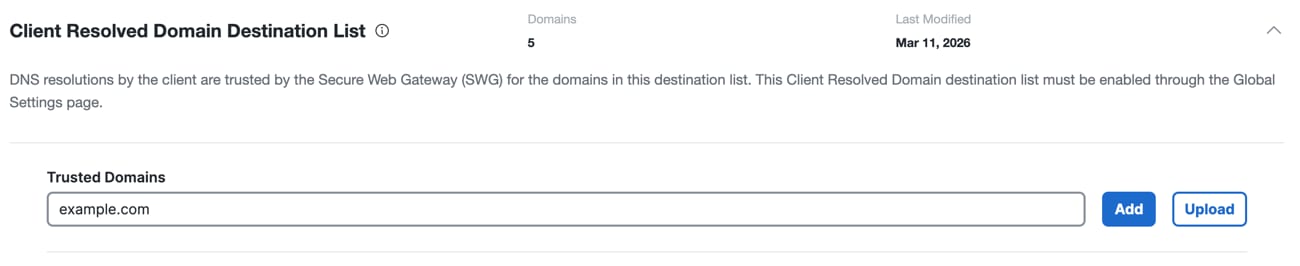
  2. Expand Client Resolved Domain Destination List.


    The Client Resolved Destination List Add Domain interface.
  3. Navigate to Trusted Domains, enter a domain name, and then click Add.

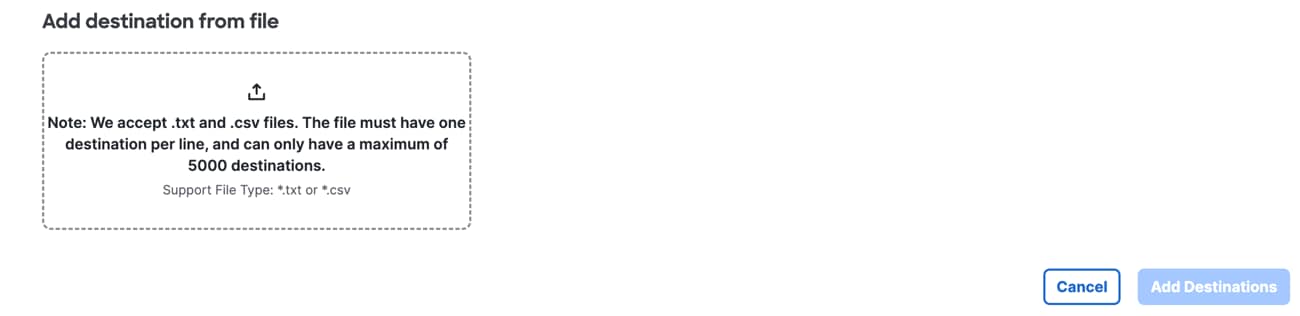
  4. (Optional) Click Upload to import a list of domain information in a file.


    The Client Resolved Destination List Upload Txt CSV interface.
    1. Click in the Add destination from file text area and then upload the trusted domains in a CSV or TXT file.
    2. Click Add destinations.
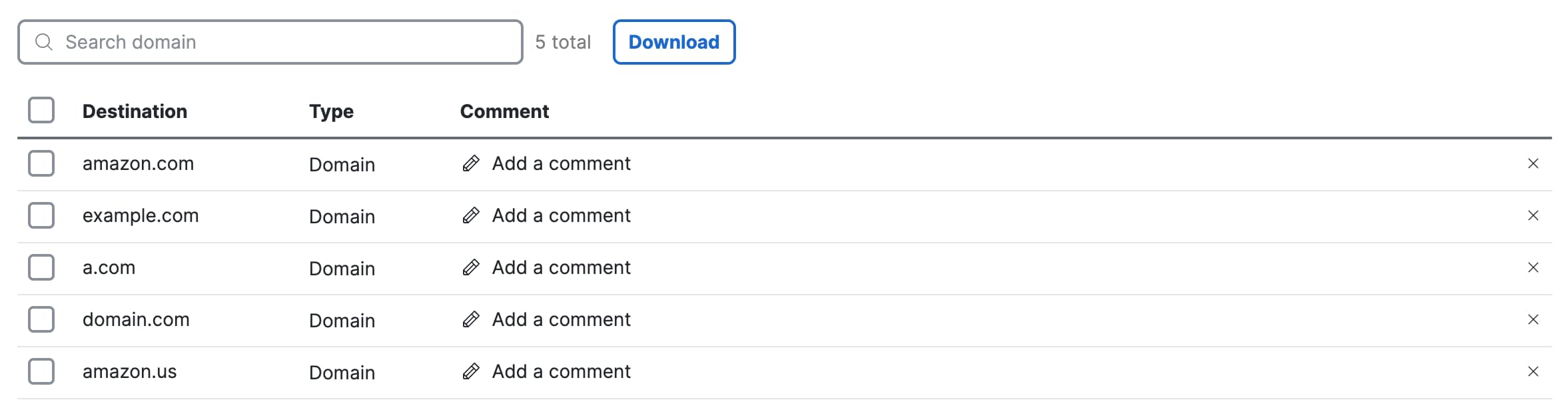
  5. (Optional) Add a comment for a domain in the Client Resolved Domain destination list.


    The Client Resolved Destination List List interface.
    1. Navigate to an entry in the destination list and click on the pencil icon (Add a comment).
    2. Enter a comment in the text area and then click Add.
  6. Click Close.


Download Domains in Client Resolved Destination List

Once you add domains in the Client Resolved Domain destination list in Secure Access, you can download the domains in a comma-separated values (CSV) file.

Downloading the domains in a CSV file enables you to update the domains and then upload the domains in to Secure Access, or share the domains with teams that do not have permission to view the Client Resolved Domain destination list in Secure Access.

Before you begin

Procedure

  1. Navigate to Resources > Internet and SaaS Resources > Destination Lists.


    The Client Resolved Internet Saas Resources interface.
  2. Expand Client Resolved Domain Destination List.

  3. Click Download to save the domains in the CSV file on your system.


    The Client Resolved Destination List List interface.
  4. Click Close.


Delete Domains in Client Resolved Domain Destination List

After you enable the Client Resolved Domain Destination List global setting in the Access policy, Secure Access makes the Client Resolved Domain destination list available in the organization. For more information, see About Client Resolved Domain Destination List.

Administrators can delete and manage trusted domains in the Client Resolved Domain destination list.

Before you begin

  • Full Admin role in Secure Access. For more information, see Manage Accounts.

Procedure

  1. Navigate to Resources > Internet and SaaS Resources > Destination Lists.


    The Client Resolved Internet Saas Resources interface.
  2. Expand Client Resolved Domain Destination List.

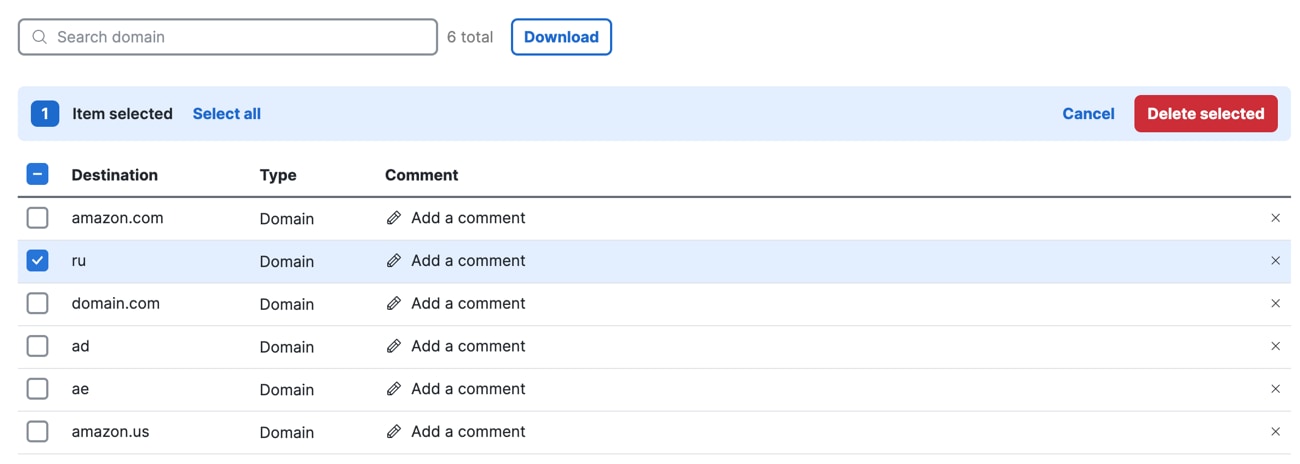
  3. Navigate to a row in the trusted domains table and either select the domain or click the X at the end of the row.

    1. If you selected the checkbox for the domain, click Delete selected.

      The Client Resolved Destination List Delete interface.
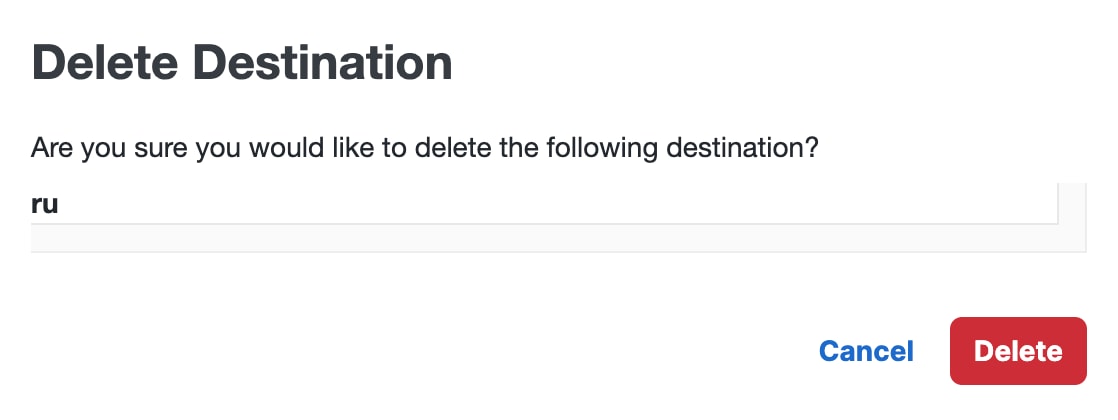
  4. Click Delete to confirm the removal of the domain in the Client Resolved Domain destination list.


    The Client Resolved Destination List Delete Modal interface.
  5. Click Close.


Troubleshoot Destination Lists

When you add a malformed destination or unsupported type of destination to a destination list, you may encounter an error condition. In most cases, Secure Access displays an error message that describes the reasons for the error condition.

Destination lists support the following destination types:

  • Fully-qualified domain name (FQDN). This may include a wildcard only if exact domain match is enabled at the time the domain is added to the list.

  • Top-level domain (TLD)

  • IP address

  • URL

For more information about destination lists, see Add a Destination List.

Destination Lists and Common Error Conditions

Action Error Message Additional Information
Entered a destination that does not match the type and format expected by the destination list. Invalid Domain, Invalid URL, Invalid IP
  • Check the format and type of the destination that you added.

  • Enter the correct format of the destination.

Added a URL that has an error in the domain, path, or query. Check to confirm that the URL was entered correctly.
  • Secure Access requires that URLs follow RFC-3986 Uniform Resource Identifier (URI): Generic Syntax.

  • Check the characters in the URL.

  • Check the composition of the URL.

  • You can add a partial URL to leverage right-side wildcarding. For more information, see Control Access to Custom URLs.

Added a URL that is found in a high-volume domain list. The URL belongs to a domain that does not present a security concern, but if proxied may impact Secure Access performance. Instead, consider adding only the domain.
  • If you do not trust the destination, consider blocking the domain.

  • Generally, high-volume domains do not present a security risk and do not require additional inspection.

Added a destination that is found in the protected allow list. The supplied destination matches the Secure Access global allow list and cannot be saved.
  • Destinations in the protected allow list either host services other than HTTP or are critical to Secure Access operations. Secure Access only proxies services that use HTTP.

  • If the error occurs when you add a URL and you don't trust the destination, consider blocking the domain.

  • If you are not sure why the destination is considered protected, contact support.

Entered a URL that contains non-ASCII characters.

Invalid URL.

  • Try percent-encoding the URL or block the domain.

Uploaded a list of destinations in which at least one of the URLs or domains contains an error. There was an issue with one or more of the destinations in the uploaded list.
  • A bulk upload error message.

  • Secure Access provides a link to the list of destinations that were not added from the uploaded destination list.

  • Correct or remove the destinations from your bulk upload list and try again.

  • Secure Access does not add destinations from an uploaded destination list unless all of the destinations are accepted.

Entered a destination that is not accepted by Secure Access. Invalid destination.
  • A generic error message.

  • Entered a destination that is not accepted by Secure Access.

  • You have encountered an error condition that is not categorized by Secure Access. We recommend that you contact Support.

Entered a destination that matches a destination in an existing destination list. This destination already exists in the destination list.
  • Secure Access does not add a destination that already appears in a destination list.

Entered a domain name in a destination list that contains more than 253 characters. Destination too long.
  • Check the number of characters in the domain name.