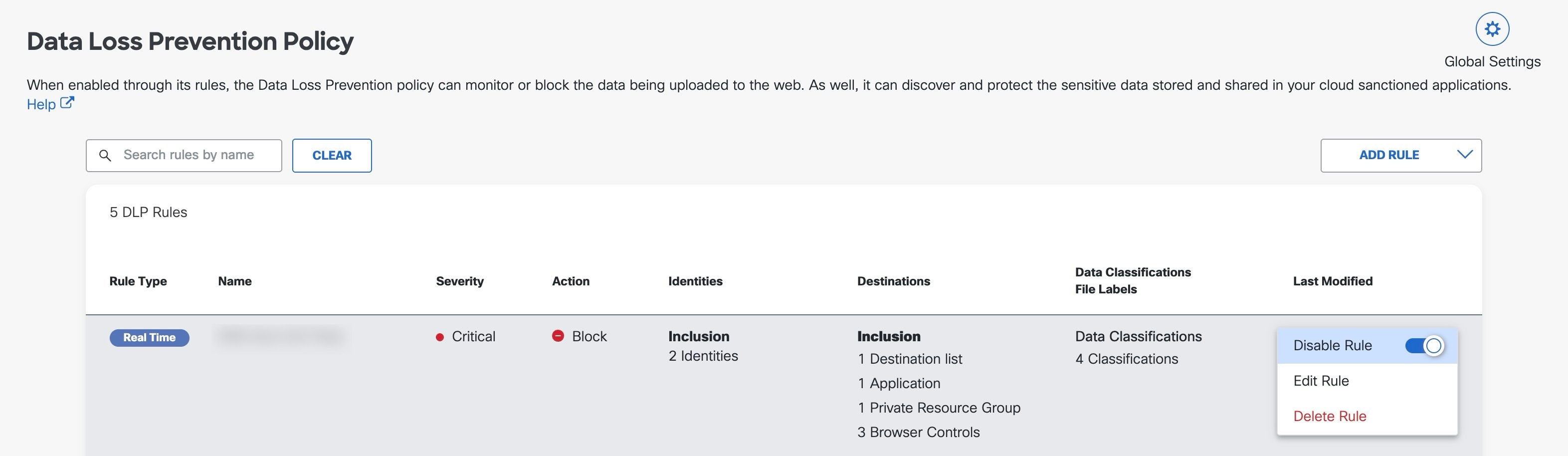
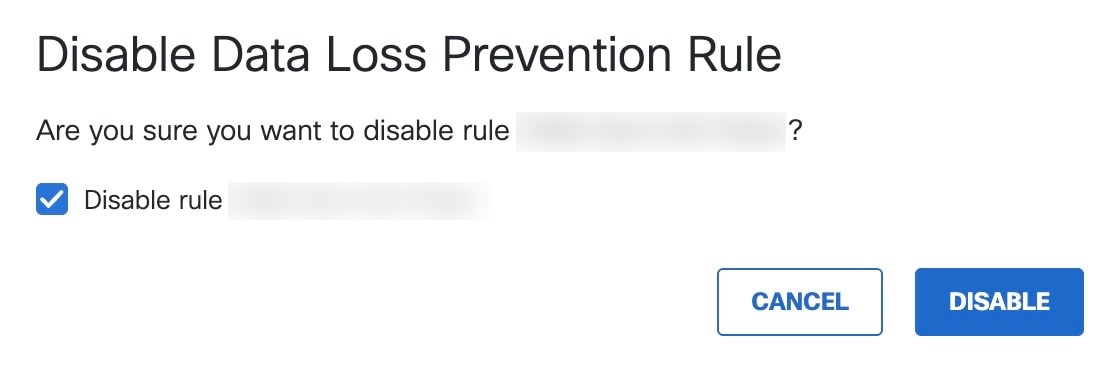
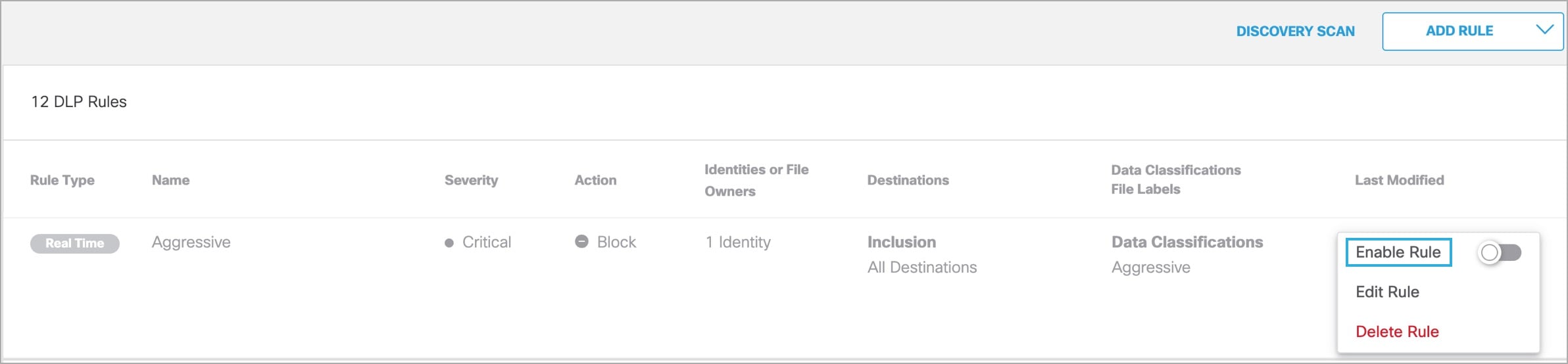
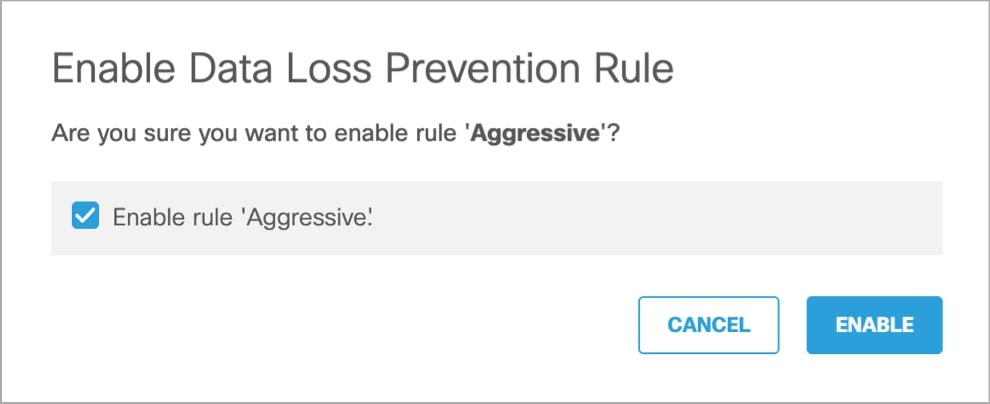
Describes Enable or Disable a Data Loss Prevention Rule in Cisco Secure Access. Newly added rules are automatically enabled for the Data Loss Prevention policy.
Newly added rules are automatically enabled for the Data Loss Prevention policy. When you navigate to , disabled rules appear faded. Note that enabling or disabling a rule does not impact any running Discovery Scan, it only impacts incoming events for the scan.
Prerequisites
- Full Admin user role. For more information, see Manage Accounts.
- For Real Time DLP rules, HTTPS Inspection must be enabled either on the Web Default Policy, or at least one web policy ruleset where the same identity is configured in a DLP rule. For example, if the identity "Network A" is configured for a DLP rule, it must also be configured for a web policy ruleset where HTTPS is enabled. For more information, see Manage Traffic Decryption and Manage Web Profiles.