Cisco Crosswork Planning Design 7.2.x User Guide

PDF

Cisco Crosswork Planning Design 7.2.x User Guide

View job details

Want to summarize with AI?

Log in

Describes how to verify the details of submitted background jobs using the Job Manager. This allows you to monitor job status, review output files, and access comprehensive job information efficiently.


Complete these steps to see the details of the submitted background jobs.

Procedure

1.

From the main menu, choose Job Manager.

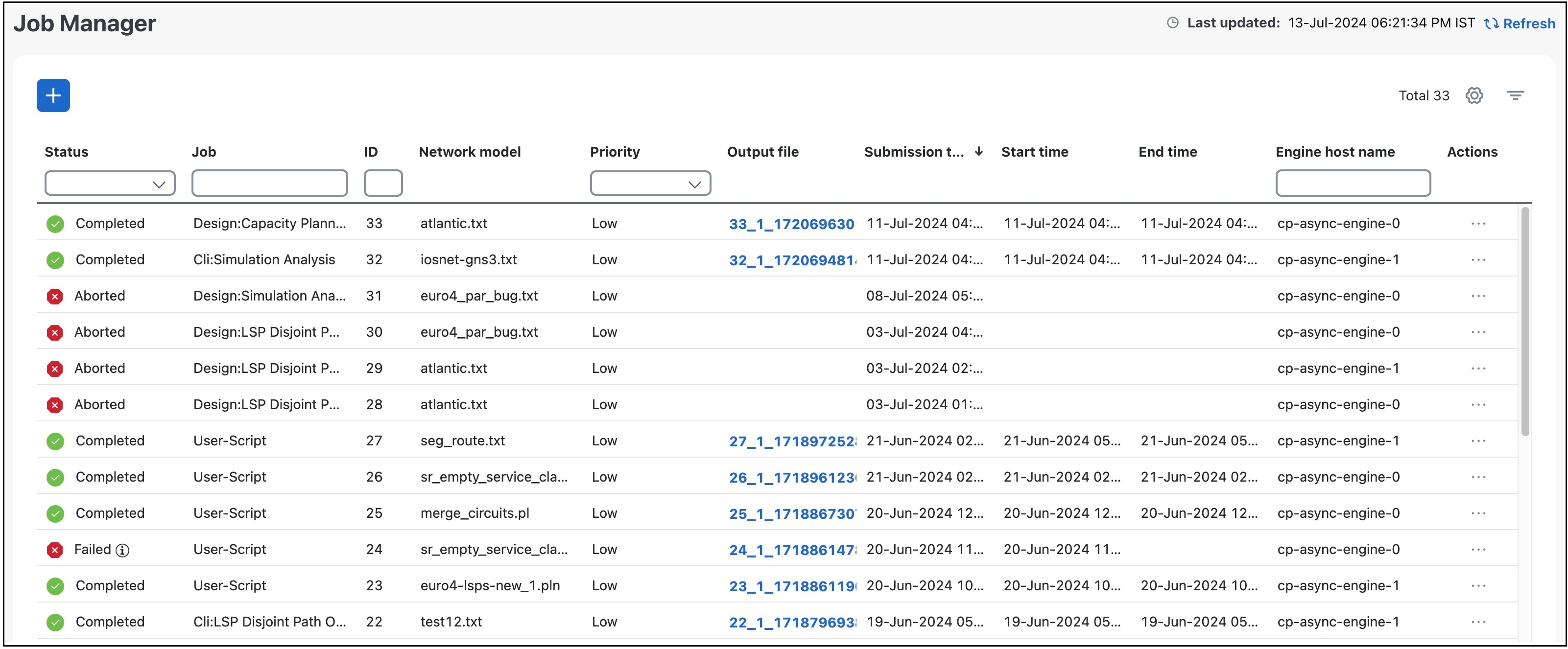
The Job Manager page opens, displaying the list of all jobs submitted as background jobs.

Figure 1. Job manager page
Job Manager page

The jobs are displayed in descending order of creation time, with the most recent job shown first. To sort the data in the table, click a column heading. Click the column heading again to toggle between ascending and descending sort order.

Click to show or hide the columns. Check the check boxes for the columns you want to show and uncheck the ones you want to hide.

Use to toggle the display of the floating filters at the top of each column. Using this filter you can set the filter criteria on one or more columns in the table. To clear all the filters, click the X icon in the Filters field that appears above the table.

2.

The Status column shows the types of states: Completed, Scheduled, Queued, Running, Failed, and Aborted. For any failed job, click shown next to the error for more information. For more information on all the columns, refer to Table 1.

3.

The Output file column lists the tar file that is generated after the job has been successfully completed. Click the name of the output file to view the output plan file details. You can either download this plan file or import to the user space. For more information, refer to Access output plan files from job manager.

4.

Click > View details under the Actions column to view a comprehensive summary of the details of the submitted jobs.

If a job is in Scheduled, Queued, or Running state, you can use > Cancel under the Actions column to abort the job.


Job manager column details

This topic describes each column displayed on the Job Manager page, including their purpose and available options.
Table 1. Job manager column details

Column

Description

Status

Indicates the status of the submitted background job. The available status types are: Completed, Scheduled, Queued, Running, Failed, and Aborted.

Job

Indicates the type of the job.

If a job is submitted via

  • tools or initializers in the Network Design page, the Job column displays "Design: Tool/initializer name"

  • add-ons, the Job column displays "Add-on: Add-on name"

  • Using CLI option in the Job Manager page, the Job column displays "Cli: Tool/initializer name", and

  • Using Script option in the Job Manager page, the Job column displays "User-Script".

ID

Indicates the Job ID. When a job is submitted as a background job, a Job ID is created, which is displayed in this column.

Network model

Indicates the network model in which the job was submitted.

Priority

Indicates the priority of the job. When a job is submitted as a background job, you have the option to assign priority, which is displayed in this column. The available options are: High, Medium, and Low.

Options

Indicates the configuration options used while submitting the job. This column is hidden by default.

Output file

Indicates the file that is generated after the job has been successfully completed. Click this file to access the updated network model.

Submission time

Indicates the timestamp at which the job was submitted.

Start time

Indicates the timestamp at which the job execution began.

End time

Indicates the timestamp at which the job execution was completed successfully.

Engine host name

Indicates the engine name used for the job execution.

Schedule

Indicates the timestamp at which the job was scheduled to begin. This column is hidden by default.

Submitted by

Indicates the name of the system or user that submitted the job. For scheduled jobs, this column displays "system" as the job is submitted by the system at the scheduled time. For all other jobs, the "Submitted by" and "Created by" columns display the same information. This column is hidden by default.

Created by

Indicates the user who submitted the job. This column is hidden by default.

Actions

Displays the comprehensive summary of the submitted jobs when you use the > View details option under this column. You can also use > Cancel to abort the job if it is in the Scheduled, Queued, or Running state.