Cisco Crosswork Planning Design 7.2.x User Guide

PDF

Cisco Crosswork Planning Design 7.2.x User Guide

Global simulation parameters

Want to summarize with AI?

Log in

Describes how global simulation parameters define network behavior during failure scenarios and impact route and optimization simulations.


Cisco Crosswork Planning lets you set global parameters that affect how LSPs are routed or rerouted.

To access these options, click or choose Actions > Edit > Network options in the toolbar, then click the Simulation tab.
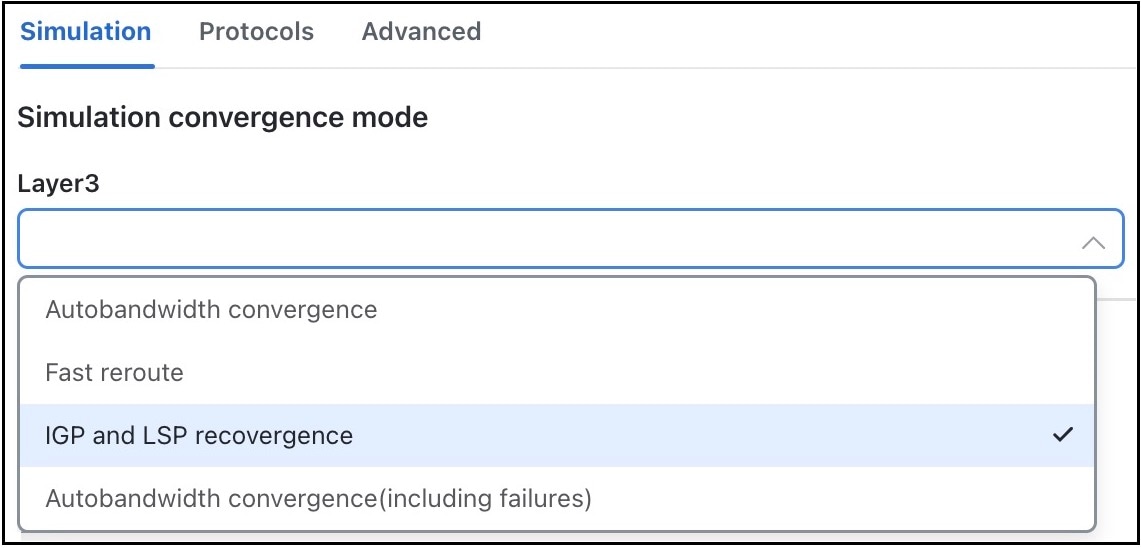
Figure 1. Global simulation parameters
Global simulation parameters

By default, Cisco Crosswork Planning simulates the state of the network once it has fully responded to a failure. Specifically, this is the network state after LSPs have re-established new routes around the failure, and the IGP has fully reconverged. This is called the IGP and LSP reconvergence simulation mode.

Other simulation modes include Fast reroute (FRR), Autobandwidth convergence, and Autobandwidth convergence (including failures). For more information on these modes, refer to Configure RSVP-TE Routing.

Optimization tool behavior

The optimization tools only work in IGP and LSP reconvergence mode. If you attempt to run an optimization tool in a different convergence mode, the system prompts you to confirm; if you proceed, the simulation automatically switches to IGP and LSP reconvergence mode.


Set LSP establishment order

Use this task for testing different routing outcomes based on varying establishment orders.

Cisco Crosswork Planning establishes LSPs in the order in which they appear in the plan. The routing of a specific LSP might depend on previously established LSP routes. You can modify this order by changing a random seed. Cisco Crosswork Planning then establishes LSPs in a random order that is determined by this number. Although you cannot predict the order based on the number, if you use the same number multiple times, Cisco Crosswork Planning establishes the LSPs in the same order each time. For example, varying the LSP establishment order lets you check whether certain orders result in higher utilizations.

Procedure

1.

In the toolbar, click or choose Actions > Edit > Network options.

The Network options page opens.

2.

In the Label switched paths section under the Simulation tab, enter a number in the LSP establishment order seed field. The default is 0.

3.

Save your changes.