Explains how to configure patch files to identify differences between two plan files and apply targeted changes.
The patch file created identifies how to get to the plan file identified in the To file field from the plan file identified in the From file field. These patch files only include differences in new, modified, and deleted objects that are supported by the Cisco Crosswork Planning YANG model.
Examples:
-
If From file iosnet.txt contains 33 LSPs and To file atlantic.txt contains 23 LSPs, the patch file identifies which 10 LSPs to delete from plan iosnet.txt to create plan atlantic.txt.
-
If From file iosnet.txt contains 10 LSPs and To file atlantic.txt contains 15 LSPs, the patch file identifies which 5 LSPs to add to plan iosnet.txt to create plan atlantic.txt.
-
If both plan files contain the same LSP, but in From file iosnet.txt the LSP has a SetupBW property equal to 100 and in the To file atlantic.txt it does not, the patch file identifies the need to modify the SetupBW property of this LSP in plan iosnet.txt so that it matches plan atlantic.txt.
Complete these steps to create patch files that identify differences between two plan files.
Procedure
-
From the plan file you want to use as the target (the "To file"), choose from the toolbar.
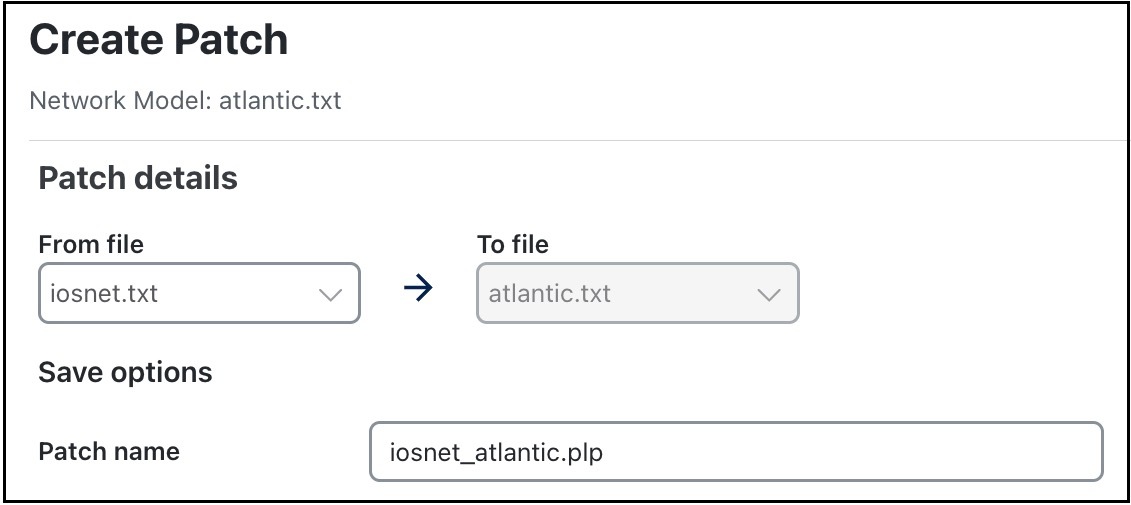
The patch file is created successfully. The generated patch file is saved under . Use the  button under the Actions column to open, download, delete, or view details of the patch file.