Cisco Crosswork Planning Design 7.2.x User Guide

PDF

Cisco Crosswork Planning Design 7.2.x User Guide

LSP disjoint path optimization

Want to summarize with AI?

Log in

Explains how LSP disjoint path optimization enables the creation and optimization of disjoint LSP routes to ensure that LSPs do not share routing objects, such as interfaces or nodes.


A LSP disjoint path optimization is a tool in Cisco Crosswork Planning that

  • creates disjoint LSP paths for RSVP LSPs and SR LSPs, and

  • optimizes these paths based on user-specified constraints.

LSPs and LSP paths are disjoint when they do not route over common objects, such as interfaces, or nodes. Using disjoint LSPs ensures service continuity and high resiliency in the event of network failures. For example, this tool lets you route LSPs to have disjoint primary and secondary paths that are optimized to use the lowest delay metric possible.

If it is not possible to achieve the optimization as defined by the routing selection, path requirements, and constraints, the tool provides the best disjoint paths and optimization possible.

Note
  • The LSP disjoint path optimization tool supports both Inter-Area and Inter-AS functionalities.

  • The optimizer can be applied to both RSVP LSPs and SR LSPs. However, only one type of LSPs can be optimized at a time.

To access the LSP disjoint path optimization tool, from the toolbar, choose Actions > Tools > LSP optimization > LSP disjoint path optimization.

When the optimization completes, the system tags the LSPs with DSJOpt and generates a report containing the optimization results.
Disjoint path optimization inputs


Disjoint routing selection options

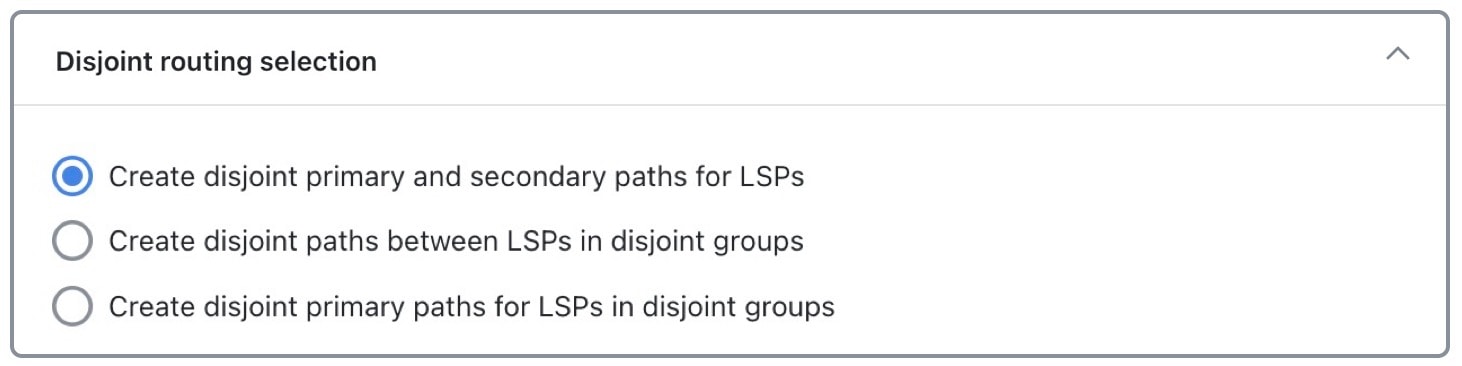
The Disjoint routing selection section provides several options for configuring how LSP routes are managed in the system.

Configurable disjoint routing options

Figure 1. Disjoint routing selection options
Disjoint routing selection options

The routing options include:

  • Create disjoint primary and secondary paths for LSPs: For all LSPs, whether they are in a disjoint group or not, routes all LSP paths so that they are disjoint from all other paths belonging to that LSP. This disjointness extends beyond primary and secondary paths to include all other path options (for example, tertiary).

  • Create disjoint paths between LSPs in disjoint groups: For all LSPs that are in disjoint groups, routes all LSP paths so that they are disjoint from all other paths belonging to LSPs in that disjoint group. This disjointness extends beyond primary and secondary paths to include all other path options (for example, tertiary).

    For example, all LSPs in disjoint group East are rerouted to be disjoint from each other. All LSPs in disjoint group Southeast are rerouted to be disjoint from each other. However, LSP paths in the East group are not rerouted to be disjoint from those in the Southeast group.

  • Create disjoint primary paths for LSPs in disjoint groups: For all LSPs that are in disjoint groups, reroutes only their primary paths so that they are disjoint from each other.

Additional behaviors in Cisco Crosswork Planning

  • No new LSP paths are created. Only existing LSP paths are rerouted.

  • Explicit hops are modified or created for RSVP LSPs.

  • Segment lists are created only for LSP paths, and only LSP path segment lists are updated. If a segment list is associated with an LSP (rather than an LSP path), that LSP segment list is removed.


Disjoint path requirements

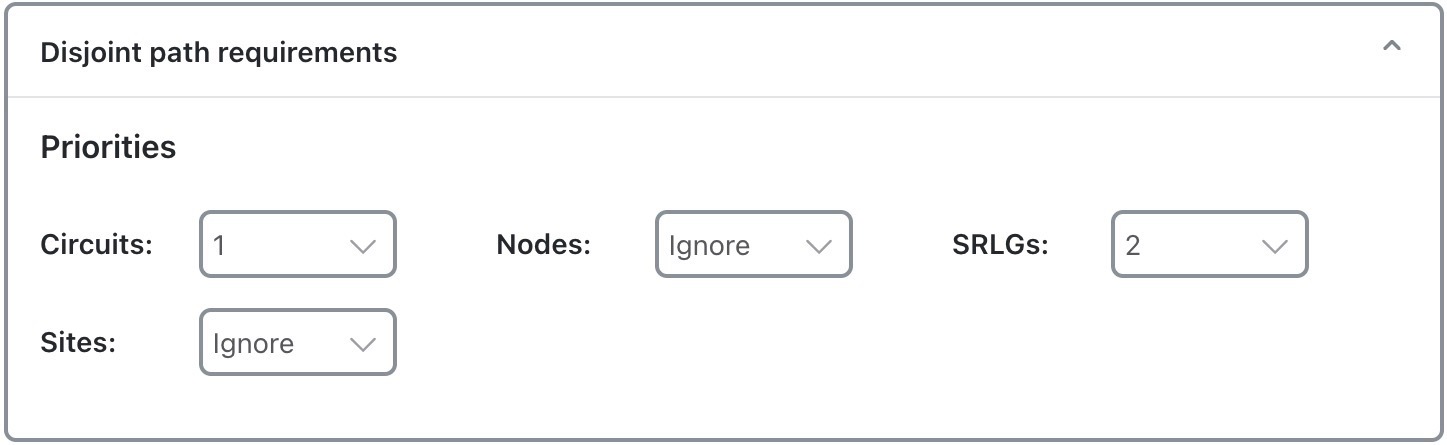
The disjoint path requirements identify the priority for creating disjointness across a path. Disjointness priorities 1, 2, 3, and Ignore are available for circuits, SRLGs, nodes, and sites. The tool tries to create disjointness for all objects that have a priority set other than Ignore. If full disjointness cannot be achieved, the tool prioritizes disjointness based on these values.
Figure 2. Disjoint path requirements
Disjoint path requirements

For example, in Disjoint path requirements, Circuits have a priority of 1, SRLGs have a priority of 2, and the other objects are ignored. If the tool cannot achieve full disjointness across both circuits and SRLGs, it prioritizes the disjointness of circuits over SRLGs.


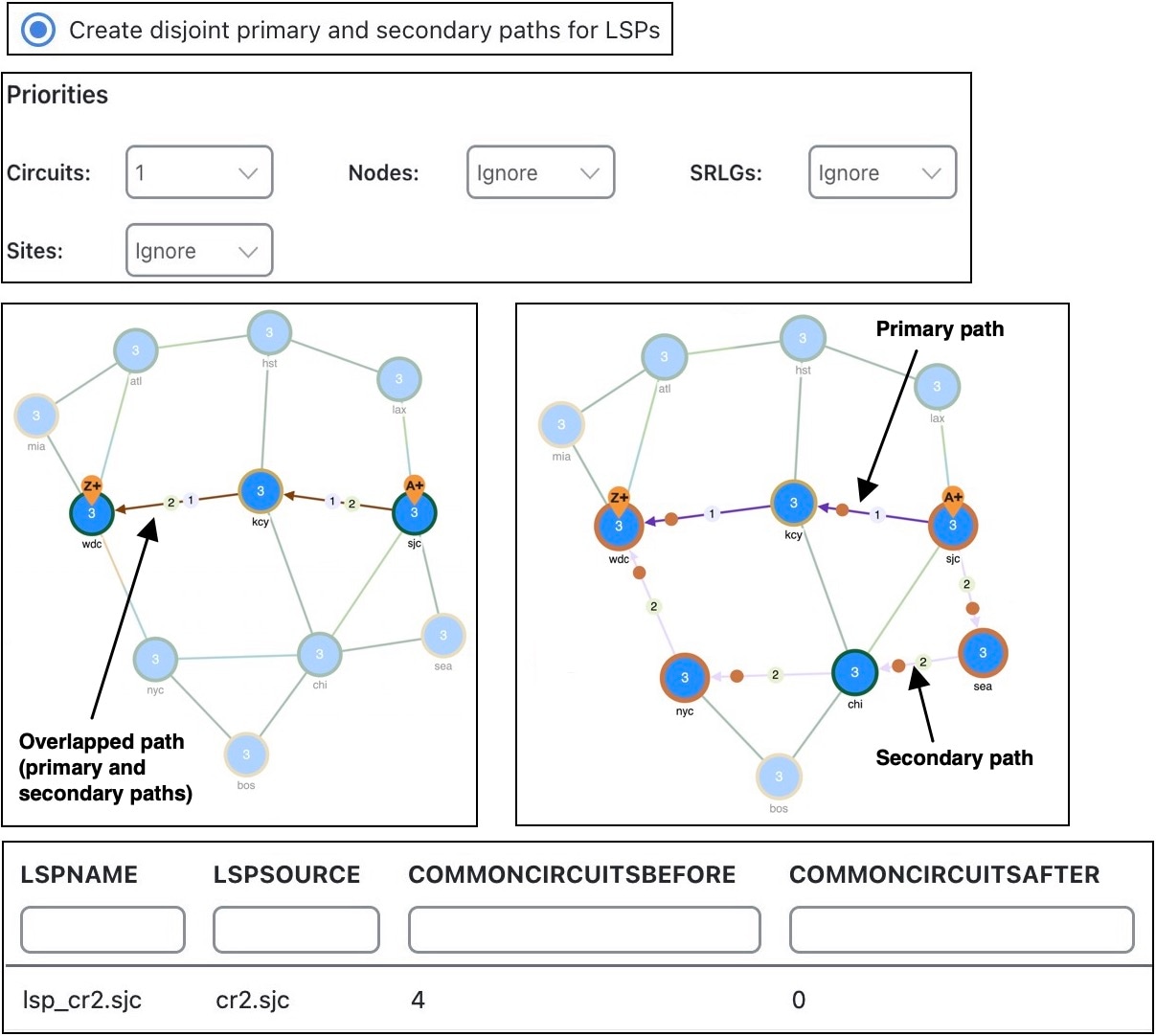
RSVP LSP path comparison example

This example compares the characteristics of primary and secondary RSVP LSP paths based on disjoint circuit settings. The LSP has a primary and secondary LSP paths that use the same route from cr2.sjc to cr2.wdc. The LSP is not a member of a disjoint group.

The Primary and secondary paths based on disjoint circuit requirements shows the explicit interface hops set for the secondary LSP path that force it to take a different route from cr2.sjc to cr2.wdc. As the disjoint path requirement is only circuits, the primary and secondary paths route across different circuits, as indicated in the resulting report.

Figure 3. Primary and secondary paths based on disjoint circuit requirements
Primary and secondary paths based on disjoint circuit requirements

Path constraint options

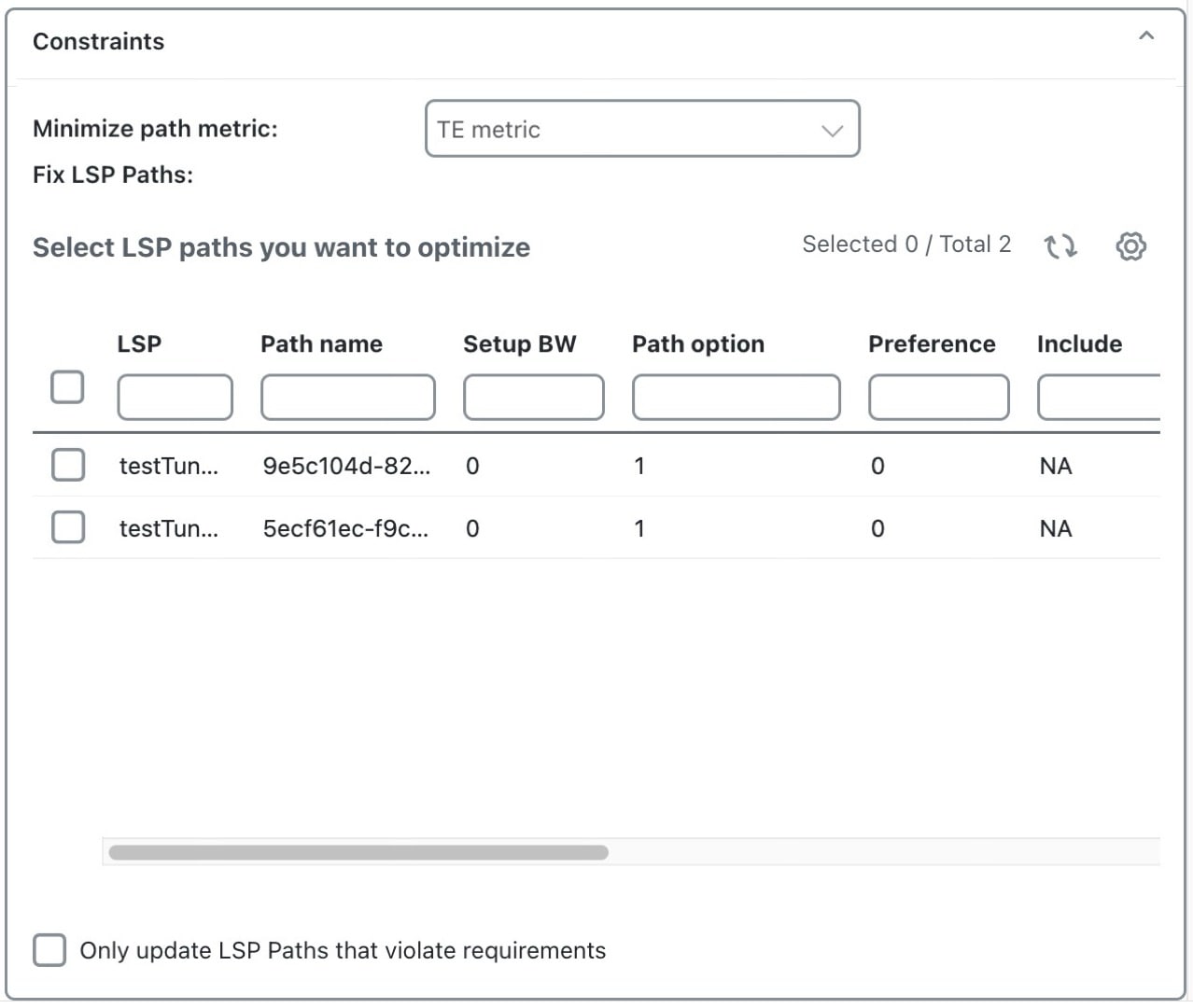
The Constraints section provides the these options for path management:
  • Minimize path metric: Paths are optimized to minimize the sum of the metrics along the path with respect to delay, TE, or IGP metrics. These properties are configurable from the Add/Edit Interface page, and delays can also be set in the Add/Edit Circuit page.

  • Fix LSP Paths: Selected or tagged LSP paths are not rerouted. This constraint is useful when you have previously optimized specific LSPs within the network and want to maintain their routes.

  • Only update LSP Paths that violate requirements: Paths are modified only if they violate the requirements specified in the area of the Disjoint path requirements page.

Constraints options

Disjoint route optimization for SR LSPs

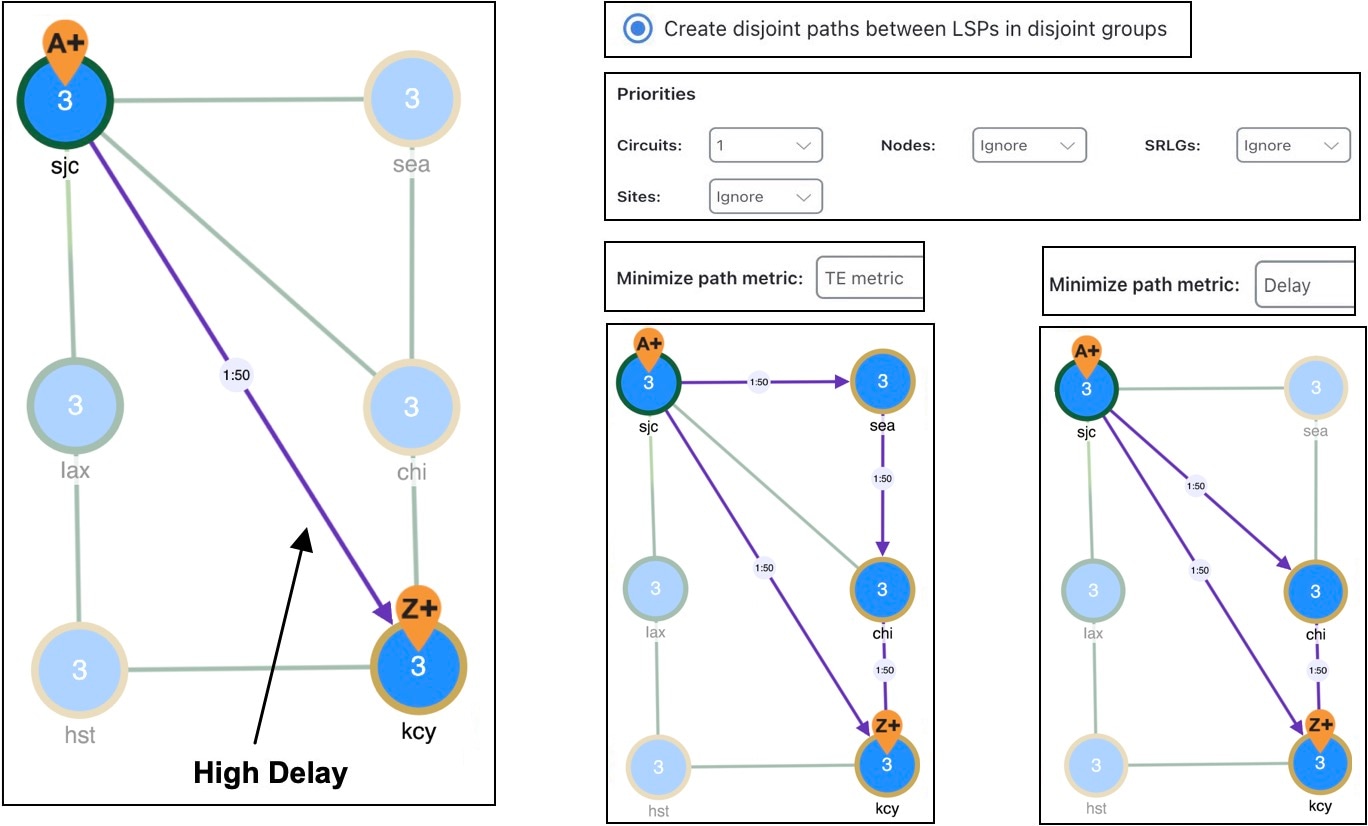
This example shows how disjoint routes can be optimized for two SR LSPs using the same source (sjc) and destination (kcy).

In this example:

  • Both LSPs belong to the same disjoint group, and both LSPs have an LSP path.

  • The circuit between sjc and kcy has significantly higher delay than the other circuits.

  • The only disjoint path requirement selected is circuits.

  • Routing of SR LSPs shows this:

    • Before using the LSP Disjoint Path Optimization tool, both LSP paths use the same route. There are no segment list hops.

    • When you select the option to create disjoint paths between LSPs in the same disjoint group and use the TE metric for the shortest path calculation, two disjoint LSP path routes are created. Both routes include a segment list node hop (as indicated by the orange circle around the node) on the destination node. One route also includes a segment list node hop on sea, which ensures a different route is used.

    • When you select the same disjoint option and use the Delay metric for the shortest path calculation, one LSP is moved away from the high-delay sjc-kcy circuit. Traversing that circuit does not provide the shortest latency path.

Figure 4. Routing of SR LSPs
Routing of SR LSPs

Create disjoint groups for LSPs

Use this task to assign LSPs to disjoint groups, to define separate routing options and priorities.

Disjoint groups are used to ensure that LSPs within the same group choose alternate routes. This setup minimizes path overlap, so each LSP uses a different route based on assigned priorities.

Before you begin

  • The network model must already contain the primary LSP paths. If using the option to create disjoint primary and secondary paths, it must also at least contain secondary LSP paths, though it can contain other path options, such as tertiary.

  • If you are creating disjoint paths between LSPs in the same disjoint group, you must first add the LSPs to the disjoint groups.

Procedure

1.

Open the plan file (refer to Open plan files). It opens in the Network Design page.

2.

In the Network Summary panel on the right side, choose one or more LSPs from the LSPs table.

3.

Click Edit icon.

4.

Click the Advanced tab.

5.

Expand the Explicit route selection section and enter the Disjoint group name.

6.

Assign priorities to LSPs within these groups, if needed. Higher priority LSPs are assigned shorter routes based on the selected metric. The higher the number, the lower the priority.

Example:

There are two LSPs in the same disjoint group, each with a different disjoint priority. Run the LSP disjoint path optimization tool to create disjoint paths for LSPs in the same disjoint group using TE metrics as a constraint. The LSP with a disjoint priority of 1 routes using the lowest TE metric, and the LSP with a disjoint priority of 2 routes using the second lowest TE metric.
7.

Save your changes.


Run the LSP disjoint path optimization tool

Use this task to run the LSP disjoint path optimization tool to ensure that your LSPs use disjoint paths. This reduces the risk from single points of failure and enforces compliance with network path requirements.

Procedure

1.

Open the plan file (refer to Open plan files). It opens in the Network Design page.

From the toolbar, choose Actions > Tools > LSP optimization > LSP disjoint path optimization.

Alternatively, choose Preset workflows > Perform optimization, select LSP Optimization as the optimization type, select LSP disjoint path optimization from the drop-down list, and click Launch.

2.

Select the LSPs for which you want to optimize the disjoint paths.

3.

In the Disjoint routing selection section, select how to route the disjoint paths. For more information, refer to Disjoint routing selection options.

4.

In the Disjoint path requirements section, select the disjoint path requirements and priorities. For more information, refer to Disjoint path requirements.

5.

In the Constraints section, select the constraints. For more information, refer to Path constraint options.

6.

(Optional) In the Tag updated LSP Paths with field on the Run Settings page, override the defaults for how LSP paths are tagged (DSJopt).

7.

On the Run Settings page, choose whether to execute the task now or schedule it for a later time. Choose one of these Execute options:

  • Now: Choose this option to execute the job immediately. The tool runs and changes are applied to the network model immediately. A summary report appears. You can access the report any time later using Actions > Reports > Generated reports option.

  • As a scheduled job: Choose this option to execute the task as an asynchronous job. Set these options:

    • Priority: Select the priority of the task.

    • Engine profiles: Select the engine profile as needed. This section lists all the available asynchronous engine profiles.

    • Schedule: Set the time at which you want to run the tool.

    The tool runs at the scheduled time using the selected engine profile. You can track the status of the job at any time using the Job Manager page (from the main menu, choose Job Manager). Once the job completes, import the output plan file into user space to visualize it. For more information, refer to Access output plan files from job manager.

    Note
    Ensure that you save the plan file before you schedule the job. Any unsaved changes in the plan file are not considered when you run the tool as a scheduled job.
8.

(Optional) If you want to display the result in a new plan file, specify a name for the new plan file in the Display results section.

In the previous step:
  • If you have selected to run the task immediately, by default, the changes are applied on the current plan file. If you want to display the results in a new file, select the Display results in a new plan file check box and enter the name of the new plan file.

  • If you have scheduled the task to run at a later time, by default, the results are displayed in the Plan-file-1. Update the name, if required.

9.

Submit your changes.

What to do next

Refer to LSP disjoint path optimization report.


LSP disjoint path optimization report

The LSP Disjoint Path Optimization report provides a summary of the optimization results.

Each time the optimization tool is run, a report is automatically generated. You can access this information at any time by choosing Actions > Reports > Generated reports and then clicking the LSP Disjoint Path Optimization link in the right panel.

The resulting report summarizes the number of LSPs and number of updated LSP paths. Depending on the disjoint option selected, the report summarizes the uniquely distinguishing attributes, such as LSP name and disjoint group name.

The LSP Disjointness, and Path Disjointness areas all list the number of common objects (selected as disjoint path requirements) before and after the optimization, as well as disjointness violations based on these requirements before and after the optimization.