Cisco Crosswork Planning Design 7.2.x User Guide

PDF

Cisco Crosswork Planning Design 7.2.x User Guide

SRLGs

Want to summarize with AI?

Log in

Outlines what SRLGs are and their purpose in network design.


A Shared Risk Link Group (SRLG) is a network grouping mechanism that

  • contains network elements, such as links or circuits, that may all fail simultaneously due to a single cause, and

  • is commonly used to improve network resiliency by identifying points of shared risk.

Example

An SRLG may contain all the circuits whose interfaces belong to a common line card. If the line card fails, all circuits in that SRLG will be affected at once.


Create SRLGs

Complete these steps to create SRLGs.

Procedure

1.

Open the plan file (refer to Open plan files). It opens in the Network Design page.

2.

Create SRLGs using one of these methods:

  • From the toolbar, choose Actions > Insert > SRLG.

  • In the Network Summary panel on the right side, navigate to the SRLGs tab and then click Add icon.

    For more information on showing or hiding network summary tables, refer to Show or hide tables or columns.

3.

Enter the SRLG name.

4.

From the Object type drop-down list, choose the type of object that you want to include in the SRLG.

5.

For each object to include in the SRLG, check the check box under the Included column.

6.

Click Add.


Create SRLGs for circuits only

Complete these steps to create SRLGs for circuits.

Procedure

1.

Open the plan file (refer to Open plan files). It opens in the Network Design page.

2.

Open the Add/Edit Circuits page using any of these methods:

  • To create a new circuit, use the steps in Create objects, where Object is Circuit.

  • To create SRLGs for selected circuits, select one or more circuits from the Circuits tab. Then, click Edit icon.

3.

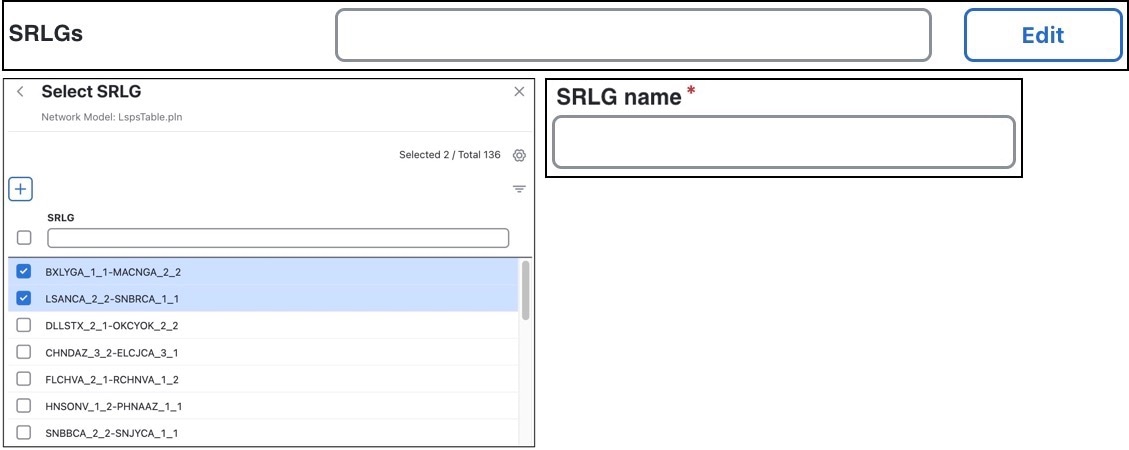
Click Edit button associated with the SRLGs field.

SRLGs for circuits
4.

Associate the selected circuits with one or more existing SRLGs. Alternatively, create a new SRLG.

To associate circuits with an existing SRLG ...

To create a new SRLG ...

  1. For each SRLG in which you want to include the selected circuits, check the check box.

  2. Save your changes.

  1. Click Add icon.

  2. Enter the new SRLG name, and click Save.

5.

Click Add or Save in the Add or Edit Circuit page, as appropriate.