Cisco Crosswork Planning Design 7.2.x User Guide

PDF

Cisco Crosswork Planning Design 7.2.x User Guide

LSP paths

Want to summarize with AI?

Log in

Describes the configuration and visualization properties of LSP paths within a network design.


LSPs can be assigned one or more LSP paths. Like LSPs, LSP paths have properties that vary depending on whether the path is for an RSVP LSP or SR LSP. If these properties are omitted, then they are inherited from the LSP. If these properties are set in the LSP path, they override the LSP settings. For information on these properties, refer to Configure RSVP-TE Routing and Configure Segment Routing.

Path options and active path

A path option is a configuration parameter that

  • assigns a numeric value to each LSP path

  • determines the sequence in which paths are established, and

  • enables prioritization of network routes based on operational requirements.

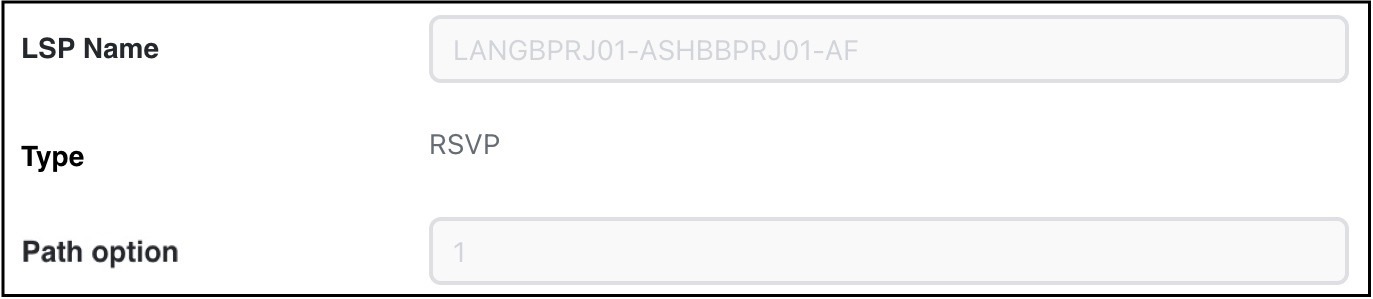
Each LSP path includes a Path option property, which you can set when adding or editing an LSP path. The system attempts to establish LSP paths in order of increasing path option value: path option 1 is tried first, followed by path option 2, and so on. The LSP is routed using the first path that can be successfully established.

Figure 1. Path option
Path option

Alternatively, you can specify which LSP path to use by setting the Active path field under the Routing section (Add/Edit LSP page). Selecting an active path allows you to override the default path option order and explicitly control which path is used for routing.


Create LSP paths

Use this task to create LSP paths.

Procedure

1.

Open the plan file (refer to Open plan files). It opens in the Network Design page.

2.

In the Network Summary panel on the right side, from the LSPs table, choose the LSPs to which you are adding LSP paths.

3.

From the toolbar, choose Actions > Insert > LSPs > LSP Paths, or click Add icon in the LSP Paths table.

The Insert LSP Path window appears.

4.

If you are satisfied with the LSPs that you selected in Step 2, click Next. Make changes to the selection, if required.

5.

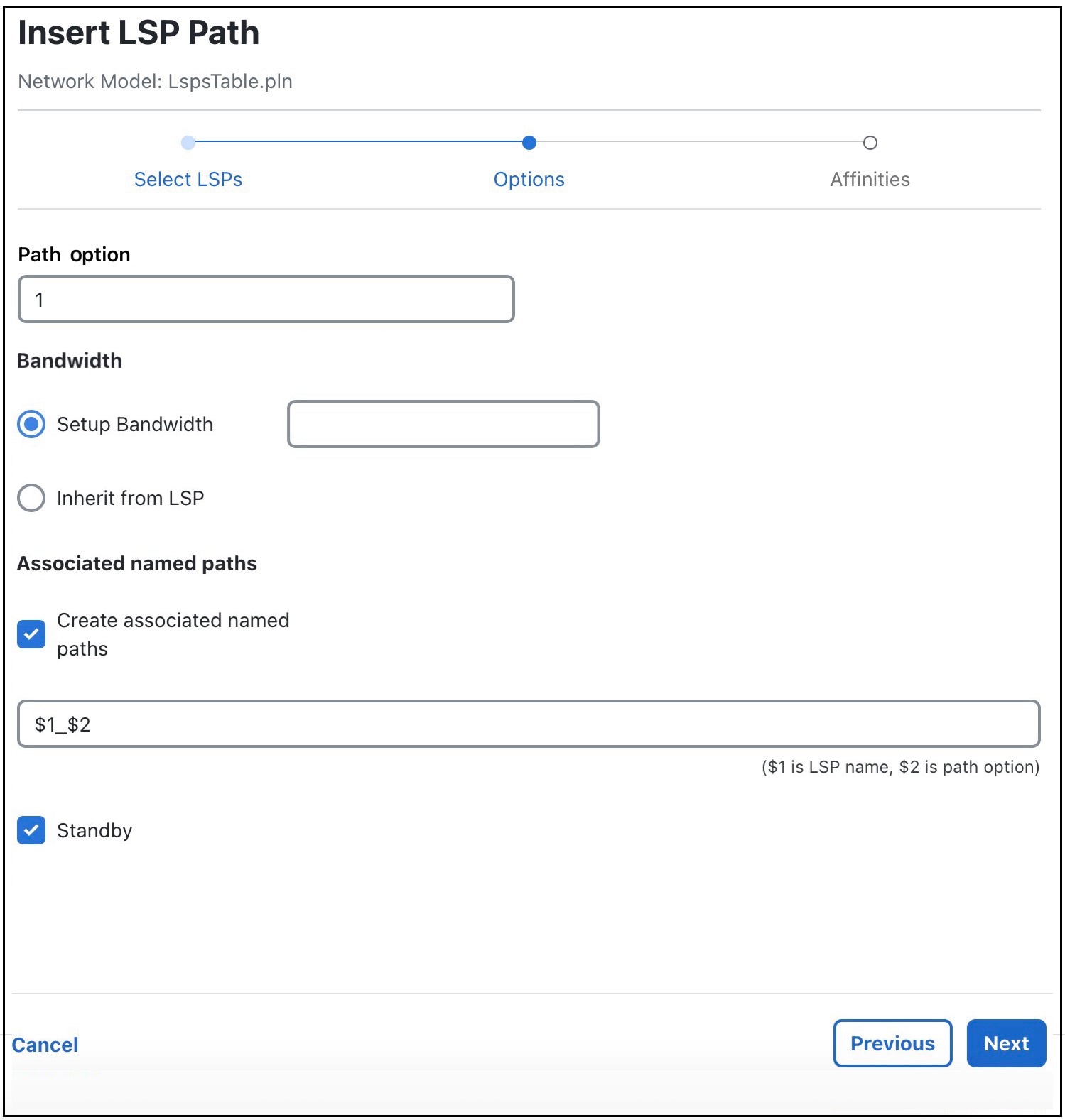
In the Path option field, enter the order in which the LSP path is activated. Lower numbers have preference over higher numbers.

Create LSP Paths
6.

If you are creating an LSP path from SR LSPs, proceed to Step 7. If this is an RSVP LSP path, optionally set these properties. For information on these properties, refer to Configure RSVP-TE Routing.

  1. To set the bandwidth, specify the Setup Bandwidth for the LSP path, or specify that it should inherit the bandwidth from the LSP.

  2. To create associated named paths, check this option and complete the name using $1 for the LSP name and $2 for the path option.

  3. If this is a standby LSP path, check Standby, which ensures the paths are always active.

7.

Click Next.

8.

Make the required changes in the Affinities page to associate the LSP path with affinities.

  1. For each rule (Include, Include any, Exclude), choose whether the LSP path should inherit the LSP affinity rule or whether it should be based on rules defined in the table.

  2. If you chose to use the table, choose the rule for each affinity you are associating with the LSP path.

9.

Submit your changes.


Path latency calculations

Cisco Crosswork Planning calculates shortest latency paths for LSPs and demands using these rules:

  • By default, Cisco Crosswork Planning uses the shortest path from the source to the destination of the LSP or demand, where the weight on each interface is the delay value for that interface.

  • If the delay for any interface is zero (as it is by default), a small (0.00001 ms) delay is used instead. This means that if all the delays for the interfaces in the plan are zero, the path with the smallest number of hops is selected.

  • If two paths have the same latency, paths with the smaller number of hops are preferred.