Cisco Crosswork Planning Design 7.2.x User Guide

PDF

Cisco Crosswork Planning Design 7.2.x User Guide

VPN node properties

Want to summarize with AI?

Log in

Lists the properties that define VPN nodes and determine which VPNs the nodes belong to and how the demands are routed.


VPN nodes are defined by the properties that determine which VPNs the nodes belong to and how the demands are routed.

  • Site: Name of the site on which the VPN node resides.

  • Node: Name of the node on which the VPN node resides. This node name corresponds to the one in the Nodes table.

  • Type: The type of VPN. The options include VPWS, VPLS, or L3VPN. Alternatively, you can enter a string value to create a new one. Once entered, the new VPN type appears in the drop-down list and is available for other VPN nodes and VPNs.

  • Name: Name of the VPN node.

  • VPN: Name of the VPN in which this VPN node resides. The drop-down list shows existing VPNs of the same type set in the Type field. You can create a VPN node without setting its VPN, but without it, the VPN node is not included in simulations as a member of any VPN.

  • Description: Description for the VPN node.

    To simulate RT connectivity, you must set the VPN Connectivity property to RT and then set the RT import and RT export properties on the individual VPN nodes within it.

  • RT import and RT export: The pairing of RT values identifies which VPN nodes connect with each other. For more information, refer to VPN topology and connectivity.

  • RD: Route Distinguisher (RD) uniquely identifies routes within a VRF as belonging to one VPN or another, thus enabling duplicate routes to be unique within a global routing table.


Create VPN nodes

Use this task to create VPN nodes.

Procedure

1.

Open the plan file (refer to Open plan files). It opens in the Network Design page.

2.

From the toolbar, choose Actions > Insert > VPNs > VPN node.

Alternatively, in the Network Summary panel on the right side, click The VPN nodes tab in the Network Summary panel allows users to manage and configure VPN nodes within the network setup. in the VPN nodes tab.

The VPN nodes tab is available under the More tab. If it is not visible, then click the Show/hide tables icon (The VPN nodes tab in the Network Summary panel allows users to manage and configure VPN nodes within the network setup.) and check the VPN nodes check box.

3.

Click The VPN nodes tab in the Network Summary panel allows users to manage and configure VPN nodes within the network setup..

4.

Enter the VPN node configuration details.

  1. In the Site and Node fields, choose the site in which the VPN node will exist, and choose the node on which the VPN node is being configured.

  2. From the Type drop-down list, choose a VPN type. The options are: L3VPN, VPLS, and VPWS.

  3. In the Name field, enter the name of the VPN node, which does not have to be unique.

  4. From the VPN drop-down list, choose the VPN to which you are adding this VPN node. If you do not see the VPN that you expect to see, check if you have selected the correct VPN type in the Type drop-down list.

  5. Optionally, enter a description that identifies the VPN node. For example, a customer name might be helpful.

  6. If the Connectivity for the VPN is RT, enter the applicable route targets in the RT import and RT export fields. All VPN nodes with the same RT import as another VPN node's RT export can receive traffic from that VPN node. Those VPN nodes with the same RT export as another VPN node's RT import can send traffic to that VPN node.

  7. Optionally, in the RD field, enter a route distinguisher.

5.

Click Add to create the VPN node.

The VPN node is created and appears in the VPN nodes table. The VPN node is now associated with the specified site, node, and VPN instance with the configured connectivity settings.


Add VPN nodes to VPNs

Use this task to add VPN nodes to a specific VPN.

Procedure

1.

Open the plan file (refer to Open plan files). It opens in the Network Design page.

2.

In the Network Summary panel on the right side, select one or more VPN nodes in the VPN nodes table and click A flowchart illustrating the steps to add VPN nodes to existing VPNs for effective network organization and management. The chart outlines the process and options available for editing VPN nodes..

Note

If you are editing a single VPN node, you can also use the The diagram illustrates the process of adding VPN nodes to VPNs, highlighting the steps involved and the options available in the user interface. > Edit option under the Actions column.

3.

In the VPN drop-down list, choose the VPN to which you are adding the VPN nodes. If you do not see the VPN that you expect to see, check if you have selected the correct VPN type in the Type drop-down list.

4.

Save the changes.

The VPN nodes are successfully added to the selected VPN and the configuration is saved.


VPN nodes table

The VPN nodes table lists the VPN node properties. It also includes columns that show each VPN nodes' relationship within the VPN and its traffic.

Table 1. VPN nodes table

Column

Description

Total connect

Number of VPN nodes that are connected to this VPN node as defined by the RT Import and RT Export pairings. These may or may not be in the same VPN.

VPN connect

Number of VPN nodes that are connected to this VPN node and are in the same VPN as defined by the VPN column.

Num VPN nodes

Number of nodes in the VPN that this VPN node belongs to as defined by the VPN column. This value is "na" if the VPN node does not belong to a VPN.

Src traff meas

Total amount of measured traffic entering the VPN at this node (source traffic).

Dest traff meas

Total amount of measured traffic leaving the VPN at this node (destination traffic).

Tags

A user-defined identifier that makes it easy to group VPN nodes into a single VPN. If you give a VPN node a tag, when you create a VPN later, you can identify its VPN nodes using tags.

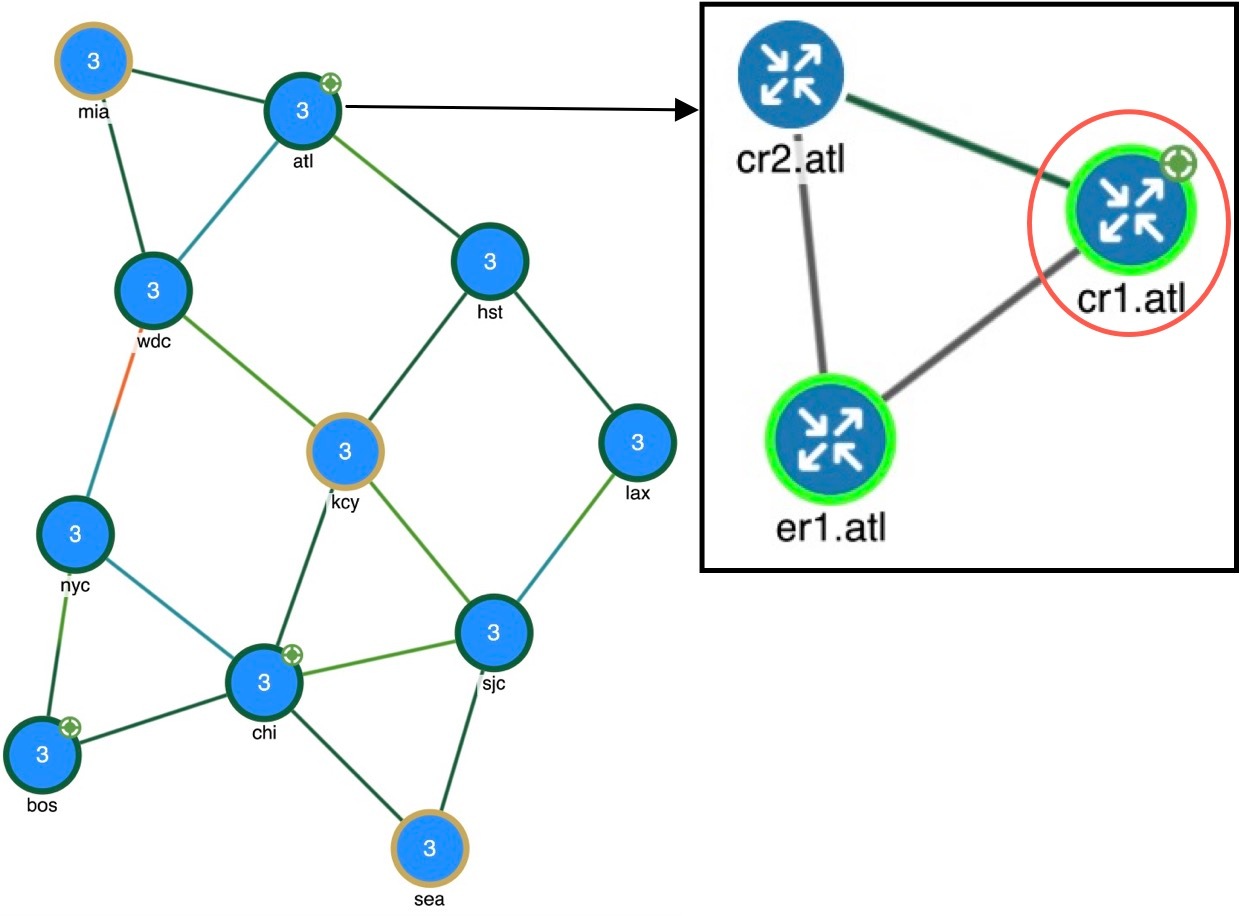
Once selected from the VPN nodes or VPNs table, the associated site and the nodes within that site appear with a green circle on it (VPN nodes within a VPN).

Note

VPN nodes are not selectable from the network plot. You can only select and filter to them through tables.

Figure 1. VPN nodes within a VPN
VPN nodes within a VPN