Cisco Crosswork Planning Design 7.2.x User Guide

PDF

Cisco Crosswork Planning Design 7.2.x User Guide

Affinities

Want to summarize with AI?

Log in

Introduces affinity-based RSVP LSP routing and outlines affinity creation, interface assignment, association rules, routing examples, and LSP mesh usage for simulations.


An affinity is a mechanism that

  • enables path diversity for LSPs, and

  • allows assignment of attributes to physical network circuits and LSPs to implement a variety of routing policies.

For example, you can use affinities to restrict certain traffic to specific topological regions, or you can force primary and backup LSP paths onto different routes so they do not simultaneously fail.

Cisco Crosswork Planning supports an unlimited number of 64-bit affinities, each of which is defined by a number and an optional name. Named affinities are sometimes called administrative groups or link coloring.

The default plan files have 0-31 unnamed and unassigned affinities.

Create and edit affinities

Use this task to create new affinities or edit existing affinities used in RSVP LSP routing policies.

Procedure

1.

Open the plan file (refer to Open plan files). It opens in the Network Design page.

2.

From the toolbar, choose Actions > Edit > Admin groups.

The Admin groups page opens.

3.

To create a new affinity:

  1. Click Add.

  2. In the Affinity and Name fields, enter the affinity number and affinity name.

    Affinity numbers must be unique. Affinity names are optional and must also be unique.

  3. Save your changes.

4.

To modify an existing affinity:

  1. Select the affinity you want to edit.

  2. Click Edit.

  3. In the Affinity and Name fields, enter the affinity number and affinity name.

    Affinity numbers must be unique. Affinity names are optional and must also be unique.

  4. Save your changes.


Assign affinities to interfaces

Use this task to assign affinities to interfaces so RSVP LSP routing can include or avoid selected network resources during simulations.

To use affinities, you must assign them to interfaces in a way that encourages favorable routes and discourages others. For example, continental paths can have one affinity and international paths can have another.

Affinities

Procedure

1.

Open the plan file (refer to Open plan files). It opens in the Network Design page.

2.

From the Interfaces table, select one or more interfaces to which you are assigning the affinities.

3.

Click Edit icon.

Note

If you are editing a single interface, you can also use the > Edit option.

4.

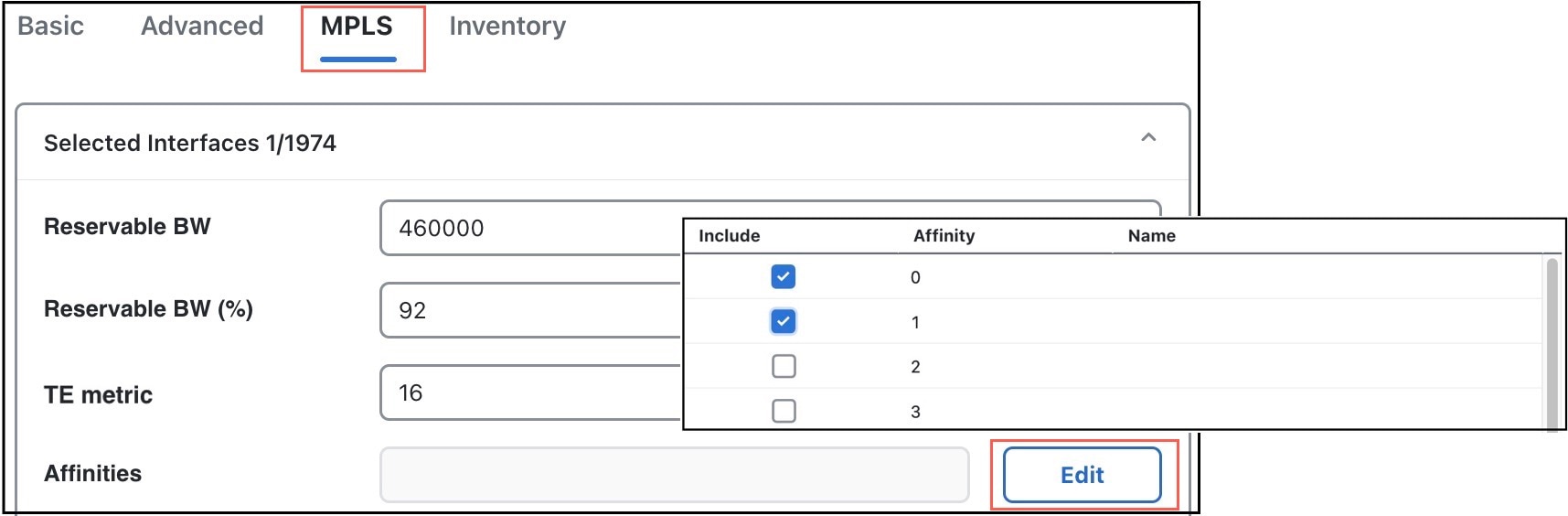
Click the MPLS tab.

  1. Click the Edit button next to the Affinities field.

  2. In the Include column, check the boxes for the affinities that you want to associate with the selected circuits.

  3. Click Save.

5.

Save your changes.

You can also use these steps to assign affinities to interfaces through the Edit Circuit page. However, you must choose and assign the affinity twice: once to each interface.


LSP affinity associations

For affinities to influence LSP routing, you must associate LSPs with the affinities assigned to interfaces that you want to include or exclude in the routing process. If no affinity is specified, the LSP can be routed through any path. Explicit routes can also have affinities for hops with a Loose relationship (refer to Named paths and explicit LSP routing).

Inclusion and exclusion rules

You can choose any of these rules while associating LSPs with affinities:

  • Include: Only use interfaces that include all affinities.

  • Include any: Use interfaces that include at least one affinity.

  • Exclude: Do not use interfaces with this affinity.

LSP paths inherit the LSP affinities. However, you can edit LSP path affinities to have priority over the LSP affinities.


Example of affinity-based LSP routing

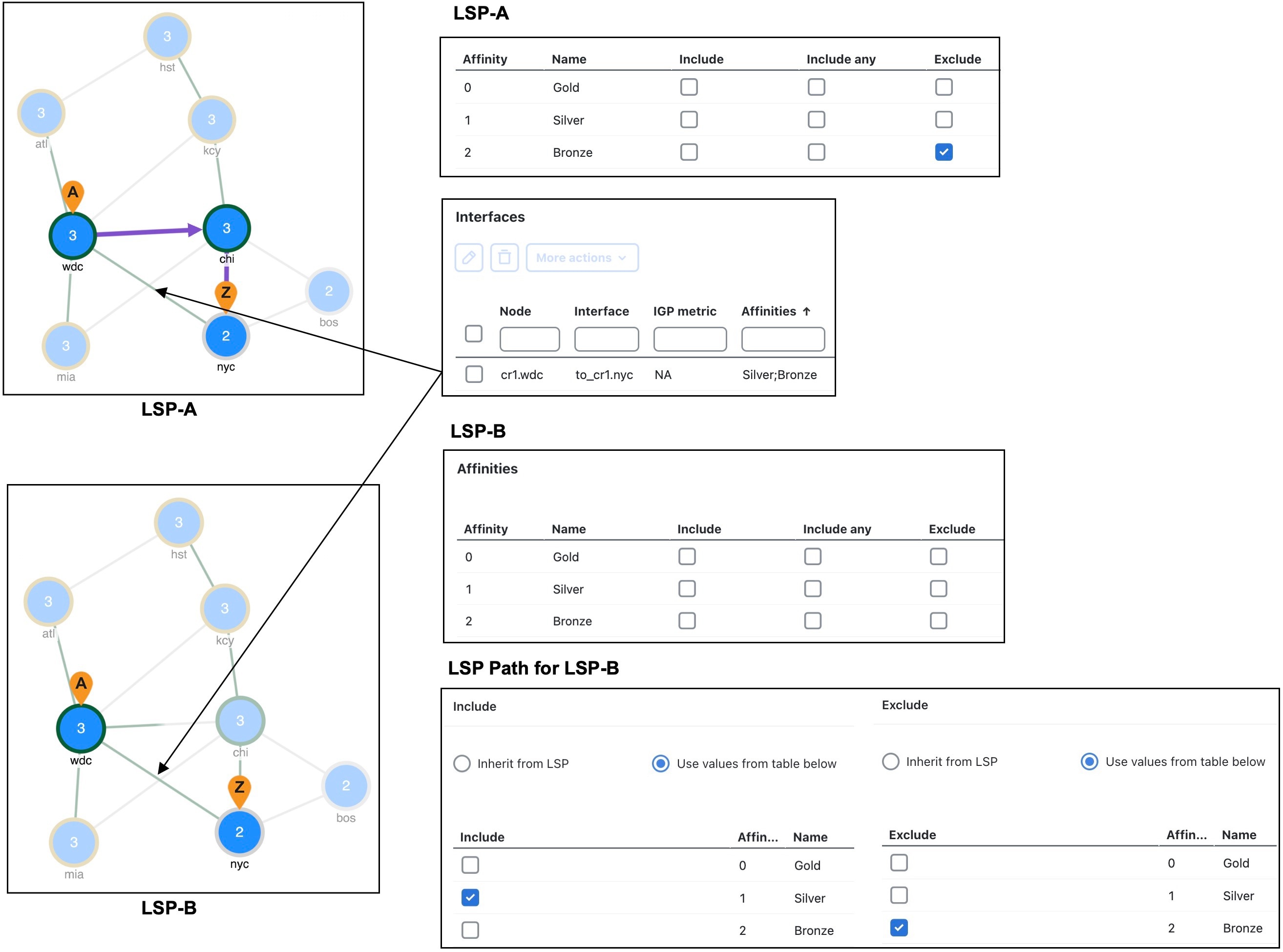
This example demonstrates how affinities affect the routing of two LSPs with the same source and destination nodes.

  • The to_cr1.nyc interface between wdc and nyc is assigned to both affinities 1 (Silver) and 2 (Bronze). No other interfaces are assigned affinities.

  • LSP A is configured to exclude all interfaces assigned to affinity 2. While it cannot take the shortest path using the to_cr1.nyc interface, it can route around it.

  • LSP B is not associated with any affinities. Its LSP path is configured to include any interfaces assigned to affinity 1 (Silver) and exclude those assigned to affinity 2 (Bronze). Since the to_cr1.nyc interface is assigned to both affinities, LSP B cannot route.

Figure 1. Affinity-based LSP routing example
Affinities example

Assign LSPs to affinities

Use this task to associate LSPs with affinities so routing can include or exclude interfaces with matching affinity settings.

Procedure

1.

Open the plan file (refer to Open plan files). It opens in the Network Design page.

2.

From the LSPs table, choose one or more LSPs to which you are associating the affinities.

3.

Click Edit icon.

Note

If you are editing a single LSP, you can also use the > Edit option under the Actions column.

4.

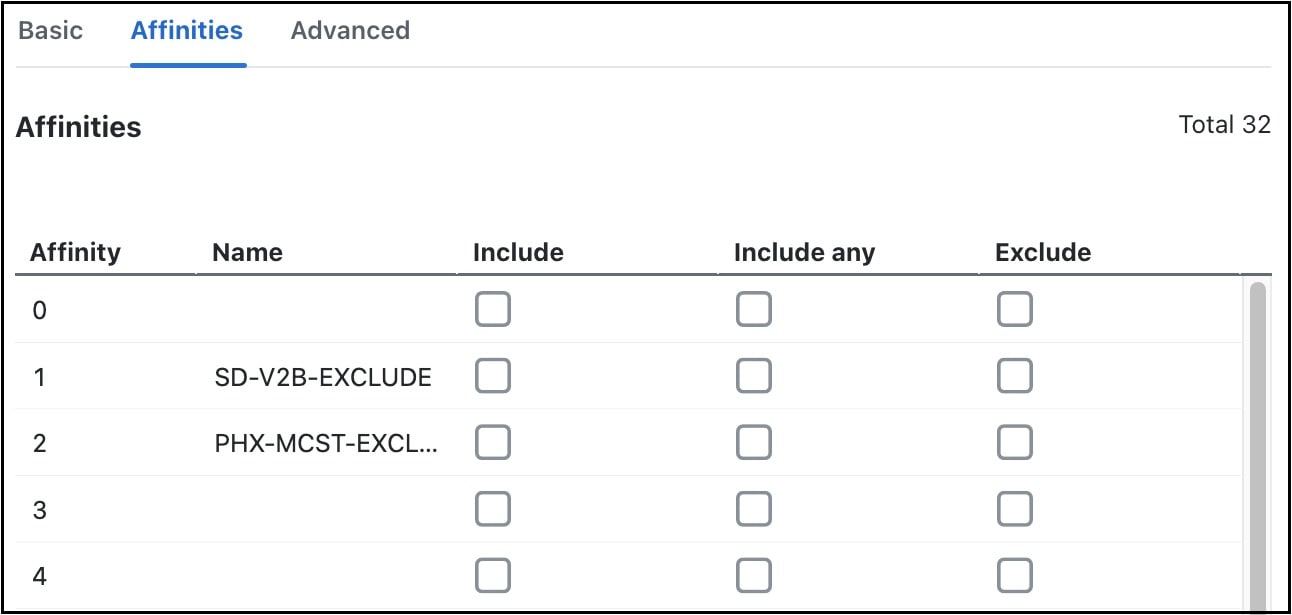
Click the Affinities tab.

Figure 2. LSP affinities
LSP affinities
5.

Choose the inclusion or exclusion rule (Include, Include any, or Exclude) for the affinity you are associating with the selected LSPs.

6.

Save your changes.


Assign LSP paths to affinities

Use this task to associate LSP paths with affinities.

Procedure

1.

Open the plan file (refer to Open plan files). It opens in the Network Design page.

2.

From the LSP paths table, choose one or more LSP paths to which you are associating the affinities.

3.

Click Edit icon.

Note

If you are editing a single LSP path, you can also use the > Edit option under the Actions column.

4.

In the Affinities section, click the Edit button.

5.

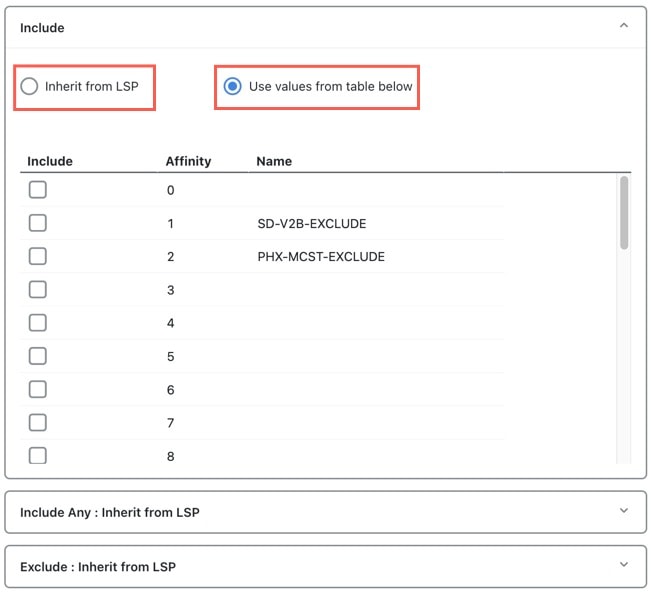
Choose the inclusion or exclusion rule (Include, Include any, or Exclude) for the affinity you are associating with the selected LSP paths. You can choose the LSP paths to inherit the LSP affinities or choose the values from the table. After making the selections, click Save.

Figure 3. LSP path affinities
LSP path affinities
6.

Save your changes.


Assign affinities when creating LSP meshes

Use this task to assign affinities while creating LSP meshes so that the generated LSPs use the intended routing constraints.

Procedure

1.

Open the plan file (refer to Open plan files). It opens in the Network Design page.

2.

From the toolbar, choose Actions > Insert > LSPs > LSP mesh.

Alternatively, in the Network Summary panel on the right side, click Add icon > LSP mesh in the LSPs tab.

3.

After selecting the required nodes and options, go to the Affinities page.

4.

In the Affinities section, click Choose affinities.

5.

Choose the inclusion or exclusion rule for each affinity you are associating with all LSPs in the mesh, and click Add.

6.

Submit your changes.