Cisco Crosswork Planning Design 7.2.x User Guide

PDF

Cisco Crosswork Planning Design 7.2.x User Guide

Run tools or initializers using CLI

Want to summarize with AI?

Log in

Explains how to configure tools or initializers using CLI to automate network tasks.


In addition to running the tools and initializers from the Network Design page, Cisco Crosswork Planning supports running them using CLI.

Complete these steps to run the tools or initializers using CLI:

Procedure

1.

From the main menu, choose Job Manager.

The Job Manager page opens, displaying the list of all jobs submitted as background jobs.

2.

Click Add icon > Using CLI.

A list of all available tools and initializers appears.

3.

Select the required tool or initializer and click Next.

A list of all available plan files appears.

4.

Select the plan file in which you want to run the tool or initializer, and click Next.

The number of plan files you can select varies based on the tool or initializer chosen in the previous step. An error message appears at the top when the allowed number is exceeded.

5.

Enter the input configuration options in the text field, and click Next.

For help with this, click Usage Help. The Usage Help page displays the details of the configuration parameters that you can use in a specific tool or initializer. It also displays syntax, required configuration options, optional configuration options, and an example command.

Note
You can enter only the Optional options. You need not enter the tool name and the Required options.

On this page, you can also update the tool or initializer, and name of the output file.

  • To change the tool or initializer, click Edit next to the tool name that you already selected.

  • To update the name of the output file, enter the new name in the Output file field. By default, tool_out.txt is used as the file name.
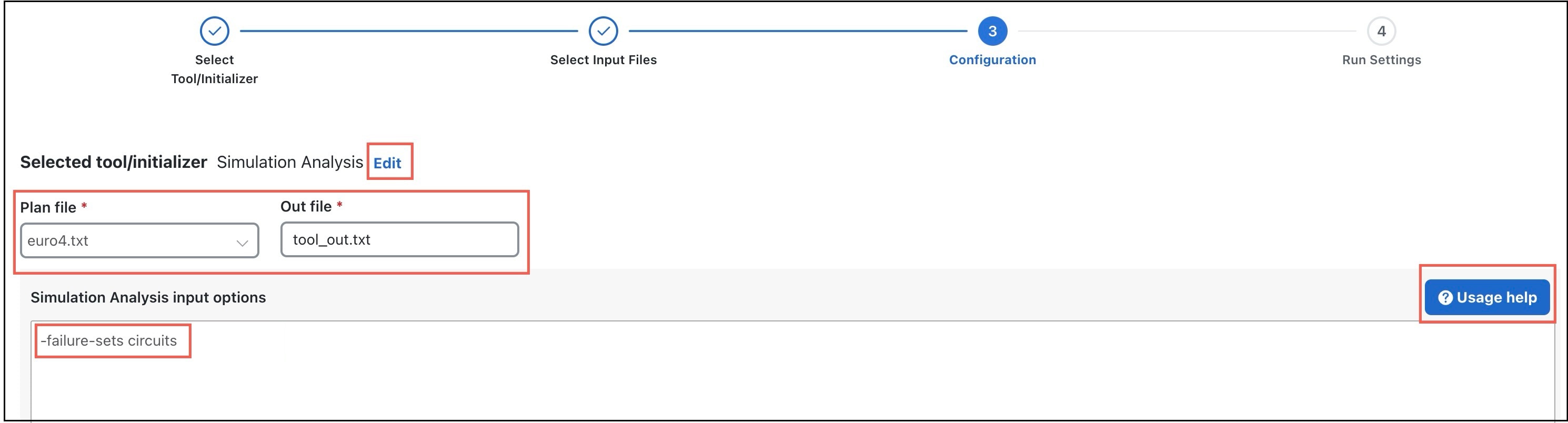
6.

On the Run Settings page, choose whether to execute the task immediately or schedule it for a later time. Choose from these Execute options:

  • Now: Choose this option to run the tool/initializer immediately using the selected engine profile.

  • As a scheduled job: Choose this option to execute the task as an asynchronous job. The tool runs at the scheduled time and using the selected engine profile.

Based on the selection, set these options:

  • Priority: Select the priority of the task.

  • Engine profiles: Select the engine profile as needed. This section lists all the available asynchronous engine profiles.

  • Schedule: Set the time at which you want to run the tool. This option is available only for scheduled jobs.

7.

Track the status of the job on the Job Manager page. The job name is prefixed with "Cli:" in the Job column. Once the job completes, import the output plan file into user space to visualize it. For more information, refer to Access output plan files from job manager.

The tool or initializer runs as configured, and the output plan file is available for import and visualization in user space.