Cisco Crosswork Planning Design 7.2.x User Guide

PDF

Cisco Crosswork Planning Design 7.2.x User Guide

Named paths and explicit LSP routing

Want to summarize with AI?

Log in

Introduces named paths for explicit RSVP LSP routing and outlines hop examples plus procedures to create and edit named paths.


Named paths specify a route though the network using an ordered list of adjacencies. The route is defined by named path hops, which can be nodes or interfaces. Each hop type specifies whether the route should be strict, loose, or excluded.

  • Strict: The LSP must reach the named path hop directly from the previous one, with no intermediate interfaces.

  • Loose: The LSP is routed to this hop from the previous hop using CSPF. Intermediate interfaces can be used.

  • Exclude: The node or interface is excluded from the LSP path. This hop type cannot be combined with strict or loose hops in the same named path.

The named paths and their hops are listed and selectable from the Named paths and Named path hops tables. The advantage of having separate tables is that you can have named paths that have missing or unresolved hops. Also, the path name can be reserved even if it is not part of the Cisco Crosswork Planning simulation. The hop type is identified visually on the plot, as well as listed in the Type column of the Named path hops table.
Named path hops example

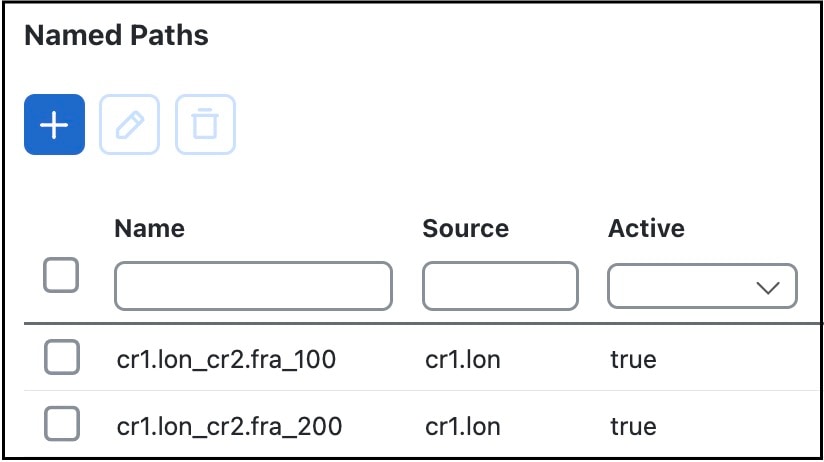
Example named paths the cr1.lon_cr2.fra LSP extends the earlier example (Example RSVP LSP and associated LSP paths), showing two named paths for the cr1.lon_cr2.fra LSP. This shows that the first two LSP paths each have a named path. The naming convention is <LSP_Name>_<Path_Option>, which in this case is cr1.lon_cr2.fra_100 and cr1.lon_cr2.fra_200.

Figure 1. Example named paths the cr1.lon_cr2.fra LSP
Example Named Paths

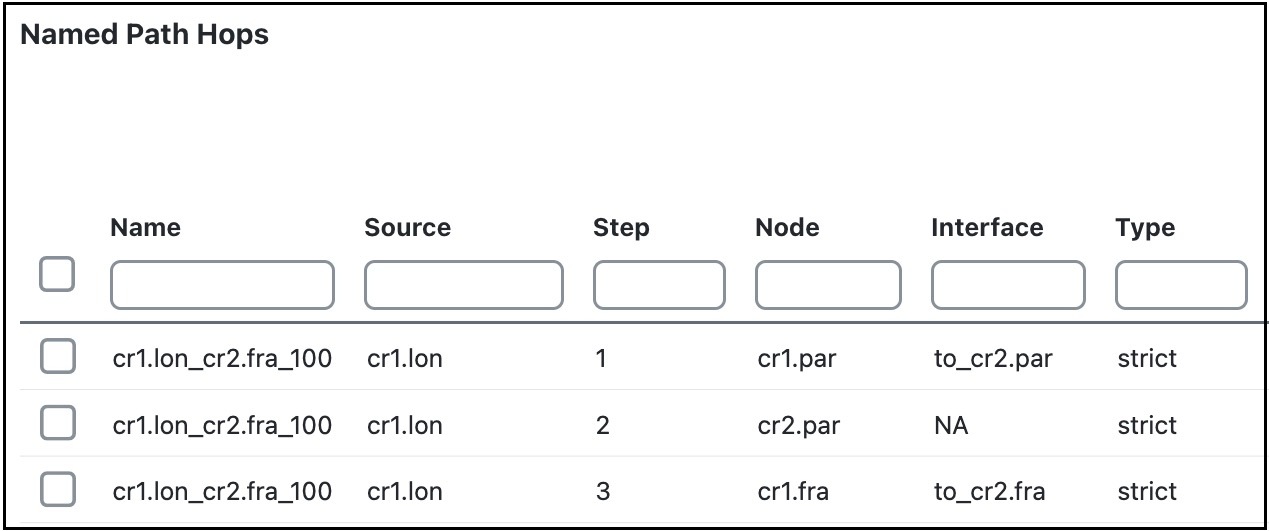
The hops for each named path are defined in a separate table called Named Path Hops. Example named path hops for cr1.lon_cr2.fra_100 shows the named path hops for the cr1.lon_cr2.fra_100 named path. The Step column shows the hop order.

  • The first hop is an interface hop: a strict hop on the interface from cr1.par to cr2.par.

  • The second is a node hop, also strict, to cr2.par.

  • The third hop is an interface hop: a strict hop on the interface from cr1.fra to cr2.fra.

  • Hops for cr1.lon_cr2.fra_200 are defined similarly.

Figure 2. Example named path hops for cr1.lon_cr2.fra_100
Example named path hops

Create named paths and their hops

Use this task to create named paths and define ordered hops for explicit RSVP LSP routing through the network.

Procedure

1.

Open the plan file (refer to Open plan files). It opens in the Network Design page.

2.

Create named paths using any of these options:

  • From the toolbar, choose Actions > Insert > LSPs > Named path.

  • In the Network Summary panel on the right side, click Add icon in the Named paths tab.

    The Named paths tab is available under the More tab. If it is not visible, then click the Show/hide tables icon () and check the Named paths check box.

  • When creating LSP paths, check the Create associated named paths check box. Using this option does not create hops.

3.

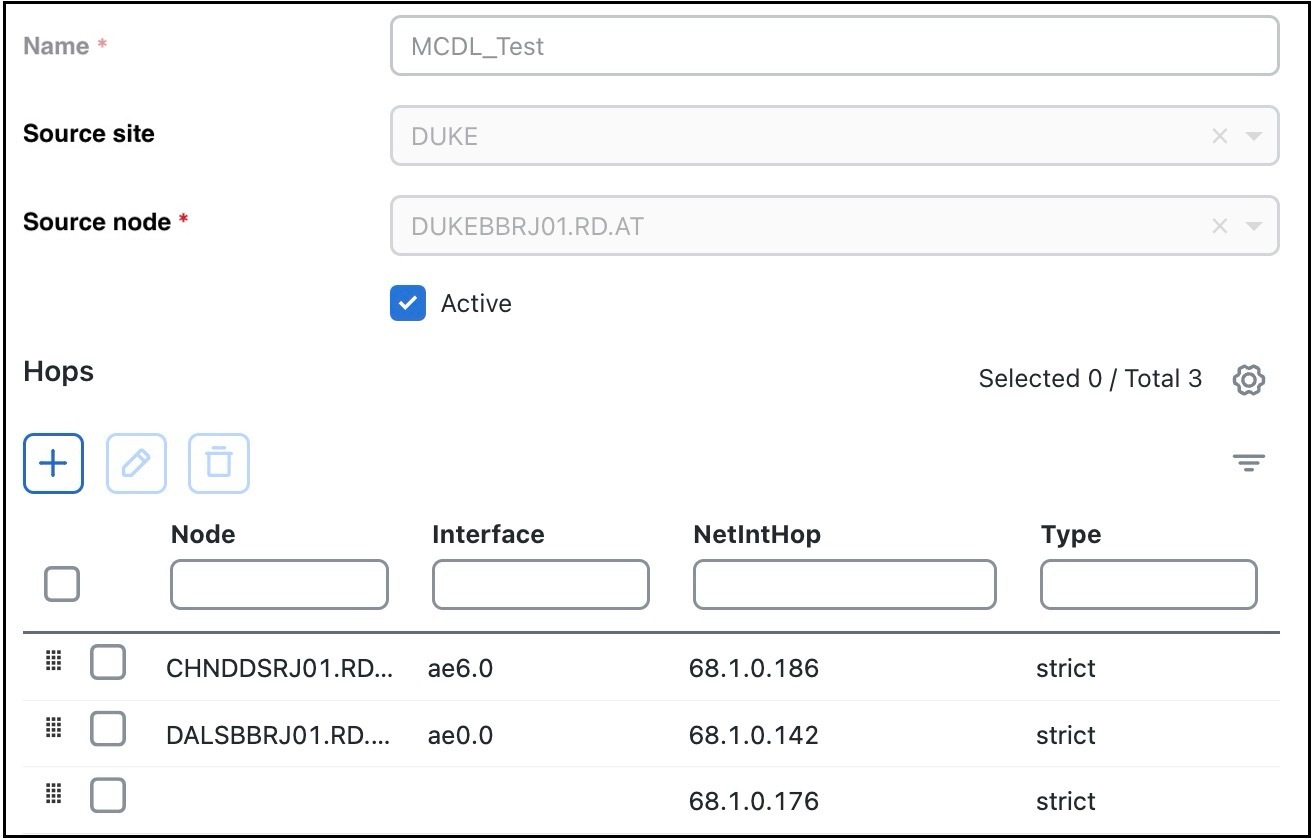
Enter these information:

  • Name: Enter the name of the named path.

  • Source site and Source node: Use these options to change the source site or source node.

  • Active check box: Use this option to make the named path active.

Named path hops
4.

Configure the hop options:

  • To add a new hop, click Add icon.

  • To edit an existing hop, select it from the Hops list and then click Edit icon. The Edit page opens for named path hops.

  • To delete an existing hop, choose it from the Hops list, click Delete icon.

5.

To continue creating or editing the named path hop, use these options.

  • Choose the site, node, and interface. For node hops, do not choose an interface.

  • Choose the Type as Loose, Strict, or Exclude. For more information on these options, refer to Named paths and explicit LSP routing.

6.

Click Add.


Edit named paths and their hops

Once the named paths are created, you can create, edit, or delete their named path hops. Note that discovered named paths can contain unresolved hops, which are nodes and interfaces that are not in the plan file. For information about resolving named paths, refer to Unresolved LSP destinations and hops.

The recommended method of editing the named path hop type is to access it directly from the Named paths table. This is the most efficient way of viewing the entire path.

Procedure

1.

Select one or more named paths from the Named paths table.

2.

Click Edit icon.

Note

If you are editing a single named path, you can also use the > Edit option.

3.

In the Hop section, edit the Named path hop details, as required. For more information, refer to Create named paths and their hops.

4.

Save your changes.