Configure the operating mode for Radio interfaces to establish wireless connections between devices with matching frequencies.
Configure the Radio mode using the GUI to set the operating frequency and enable wireless connections between devices.
To establish a wireless connection the operating frequency should be same between the devices.
Before you begin
Follow these steps to configure a Radio mode using GUI:
Procedure
| 1. | Set the operating mode for specified Radio (Radio1 and Radio2) interface. 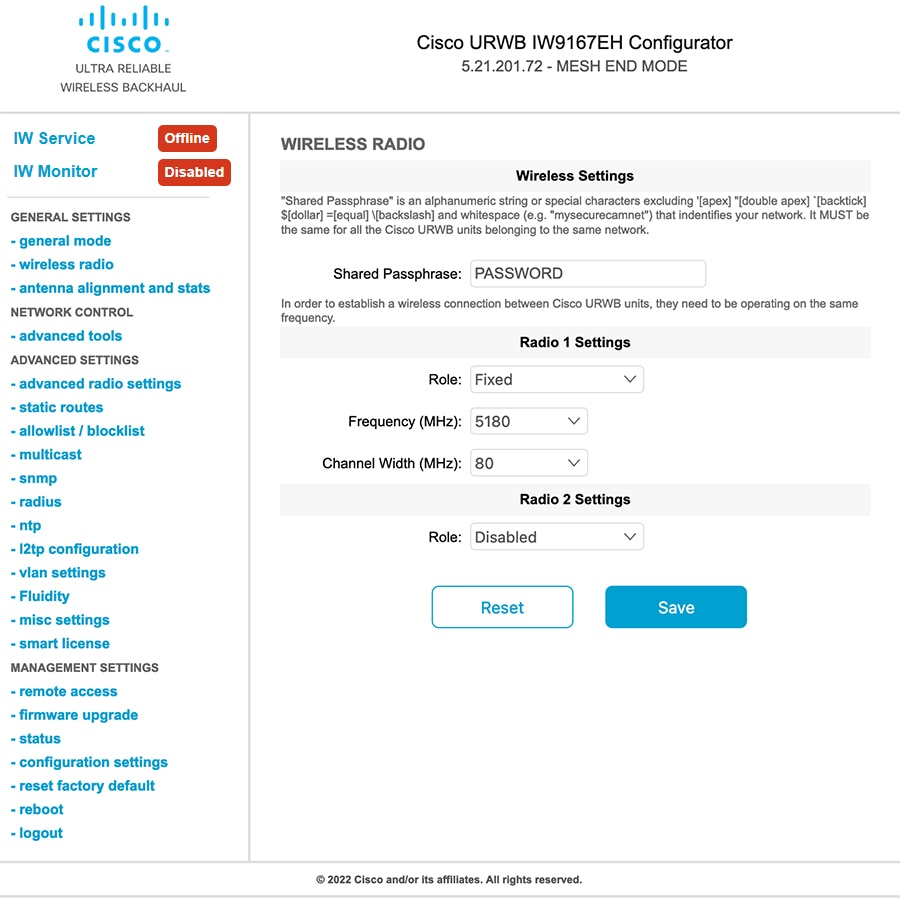
|
|
| 2. | In the WIRELESS RADIO section, choose Radio 1 Role as Fluidmax Primary with FluidMAX Cluster ID. In this scenario, the frequency selection for the Primary is enabled and Secondary is disabled. In the ADVANCED RADIO SETTINGS window, go to Max TX Power section, and choose power level as 1 from the Select TX Max Power drop-down list and URWB transmission power control (TPC) automatically selects the optimum transmission power. 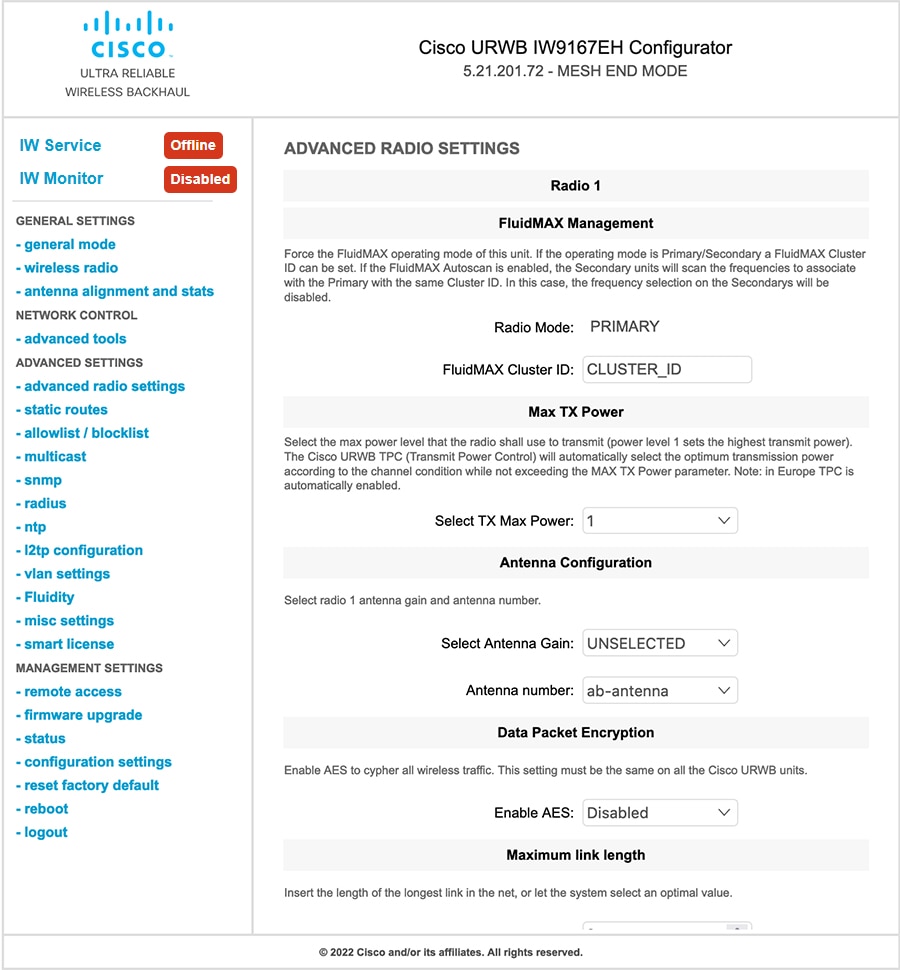
|
|
| 3. | In the WIRELESS RADIO section, choose Radio 1 Role as Fluidmax Secondary with FluidMAX Cluster ID. In the ADVANCED RADIO SETTINGS, if you check the FluidMAX Autoscan check box, the secondary devices scan the frequencies to associate with the Primary with the same Cluster ID. In this case the frequency selection on the Secondary is in disable mode. In the Max TX Power section, and choose power level as 1 from the Select TX Max Power drop-down list and URWB TPC automatically selects the optimum transmission power. 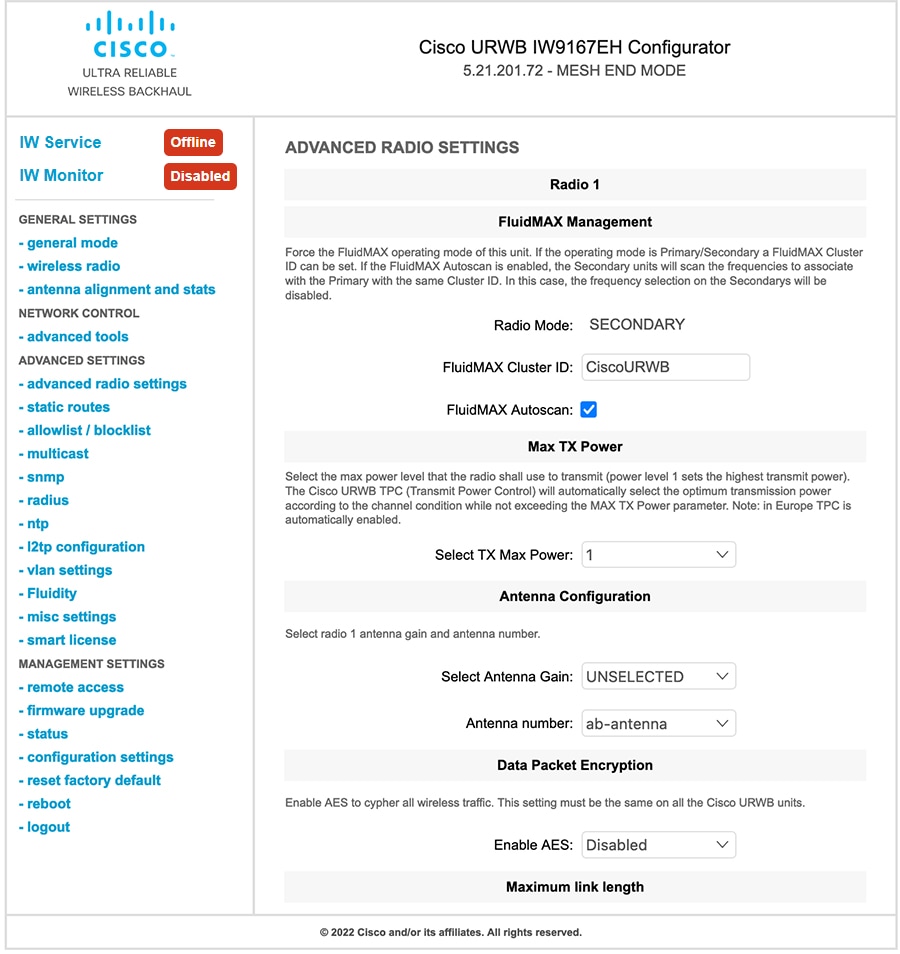
|
|
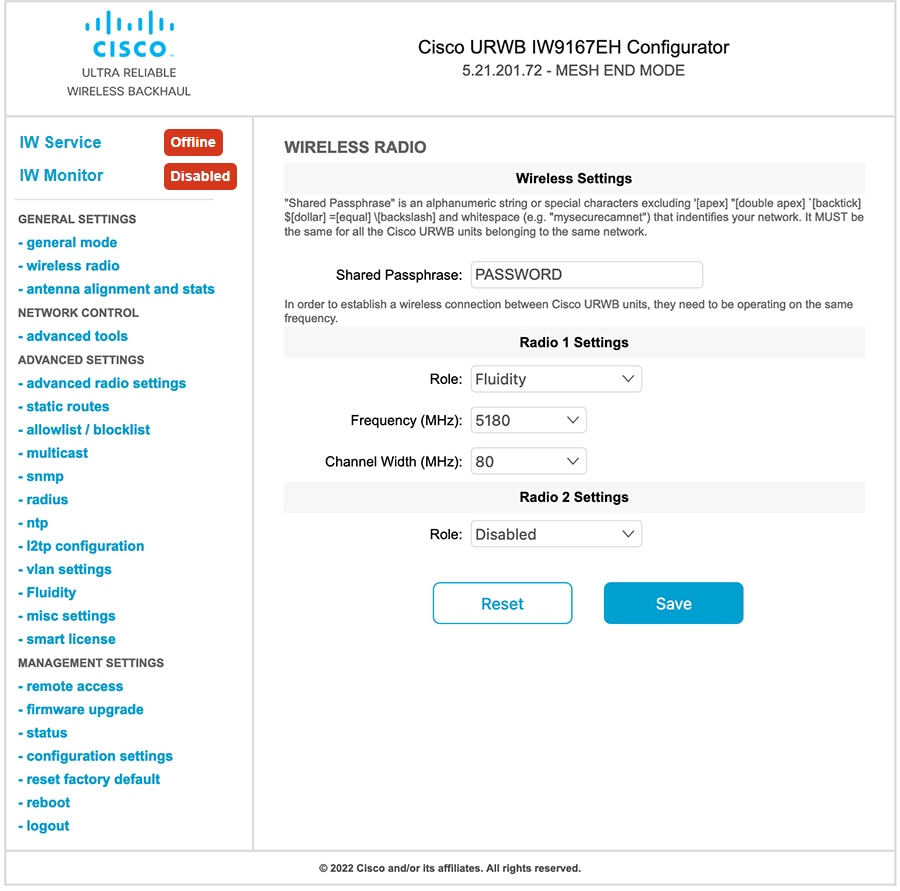
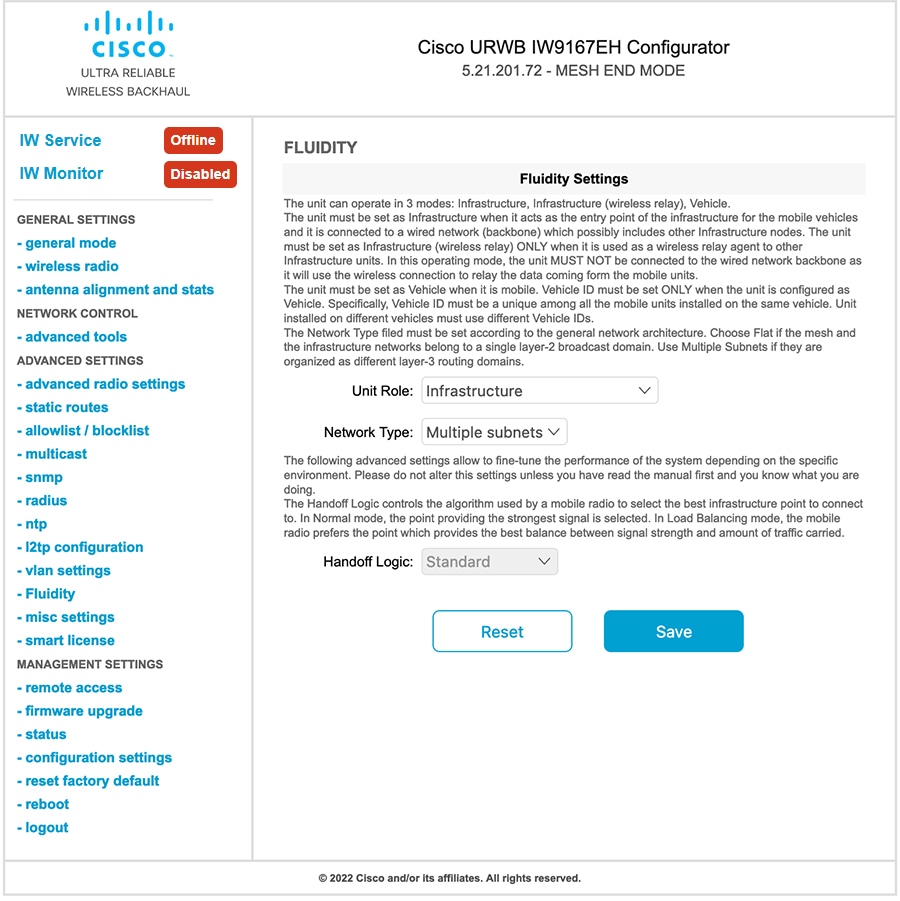
| 4. | In the Fluidity SETTINGS section, choose Unit Role as Infrastructure from the drop-down list. When the device acts as the entry point of the infrastructure for the mobile vehicles or choose unit role as Infrastructure (WIRELESS relay) only when it used as a wireless relay agent to other infrastructure unit or choose unit role as a Vehicle when it is mobile. |
|
| 5. | Choose network type based on the general network architecture.
|