Important.
Results generated by AI. Before using results, verify accuracy and completeness.
Copy
Troubleshoot connectivity by checking network cabling, DNS, required cloud domains, HTTPS access, and fallback IP settings in provisioning mode.
This task guides you through basic connectivity checks, including Ethernet, DNS resolution, HTTPS access on TCP port 443, and fallback IP configuration, so the device can reconnect or remain reachable for offline setup.
This task helps you when a device cannot connect to IoT Operations Dashboard Industrial Wireless Service or cannot reach the network while in provisioning mode.
Procedure
1.
If the device fails to connect to Industrial Wireless (IW) Service, verify these items to reach Industrial Wireless (IW) Service:
Check if the ethernet cable leading to the device is connected correctly.
Check if the local DNS server can fix the IP address of Industrial Wireless (IW) Service cloud server and if the address can be reached.
Check if access point uses an outbound HTTPS connection on tcp/443 for these domains:
device.ciscoiot.com
US.ciscoiot.com
EU.ciscoiot.com
If Industrial Wireless (IW) Service is still offline, perform a local (offline) configuration using the device's configurator interface.
2.
If the device fails to connect to the network in provisioning mode, follow these steps:
Enter alternative Local IP, Local Netmask, Default Gateway, Local DNS 1, and Local DNS 2 values as needed, using Industrial Wireless (IW) Service image and click the Save fallback IP.
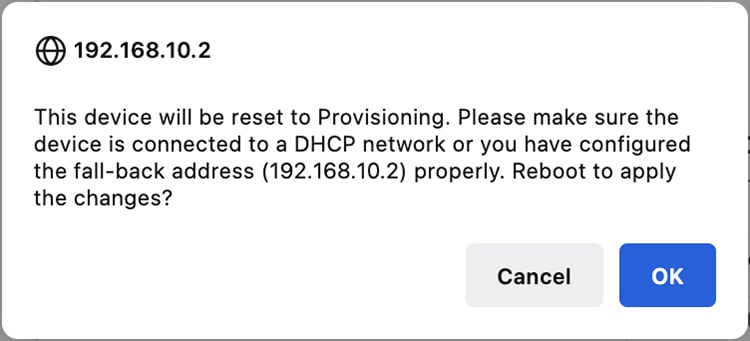
A reboot confirmation pop-up appears:
Example:
Figure 1. Reboot confirmation popup
Click OK or Reset to go back to Industrial Wireless (IW) Service and adjust the settings.
Once you click OK, the device reboots and remains in provisioning mode.
The device attempts to connect to the network using the new connection values.
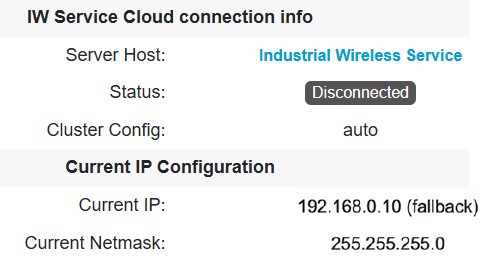
If the device fails to connect to the network using the DHCP settings, IW Service Cloud connection Status is shown as Disconnected.