Configure the device to reset to factory default SETTINGS using the GUI interface.
Reset the device to factory default to revert all device configuration SETTINGS, including the device IP address and administrator password, to factory defaults.
You can reset the device to factory default either by pressing a reset button for 30 seconds when power is supplied to the access point or through configurator interface. For more information about reset button, see Using the Reset Button.
A hard reset reverts all device configuration SETTINGS, including the device IP address and administrator password to factory defaults. Instead if you want to reboot the device, see Reboot the device using GUI.
Do not perform a hard reset unless the device requires reconfiguration using its factory configuration as the starting point. Hard reset resets the device's IP address, administrator password, and it disconnects the device from the network.
To reset of the device configuration, use the steps:
Procedure
| 1. | In the MANAGEMENT SETTINGS, click reset factory default. 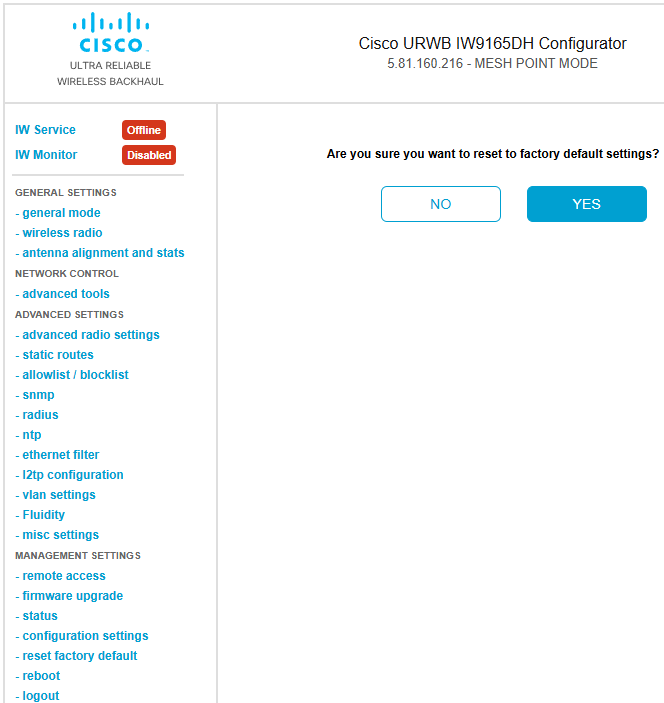
|
|
| 2. | Click YES in the confirmation pop-up window. To abort the factory reset, click NO. |
|
| 3. | If you have previously saved a configuration file for the device, you can restore the saved configuration SETTINGS to the device, see Save and RESTORE the device SETTINGS. |