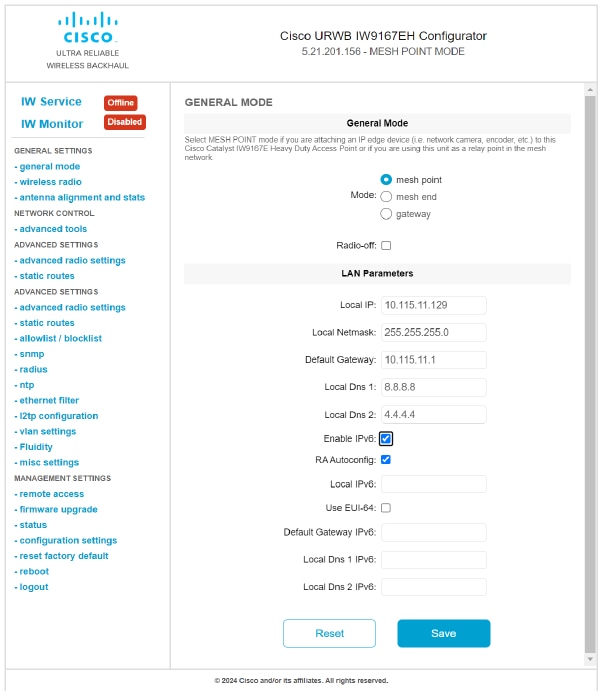
Configure static IPv6 SETTINGS through the URWB configurator GUI interface.
Enable and configure static IPv6 addressing to provide manual control over the device's IPv6 network configuration instead of relying on automatic configuration methods.
Static IPv6 configuration allows you to manually set the device's IPv6 address, gateway, and DNS servers. This is useful when you need specific network SETTINGS that differ from automatically assigned addresses.
Before you begin
Follow these steps to enable and configure static IPv6 using the GUI:
Procedure
| 1. | Log in to the configurator by entering your credentials on the web login page.
Once you successfully log into the GUI, the URWB configurator displays.
|
|
| 2. | In the GENERAL SETTINGS, click GENERAL mode to open the GENERAL Mode window.
|
|
| 3. | Check the Enable IPv6 check box.
The system automatically enables the
RA Autoconfig.
|
|
| 4. | Enter IPv6 address in the Local IPv6 field. |
|
| 5. | (Optional) Check the Use EUI-64 check box.
|
|
| 6. | (Optional) Enter the gateway IP address in the Default Gateway IPv6 field. |
|
| 7. | (Optional) Enter the DNS server 1 IP address in the Local DNS 1 IPv6 field. |
|
| 8. | (Optional) Enter the DNS server 2 IP address in the Local DNS 2 IPv6 field. |
|
| 9. | Click Save. |