Cisco Ultra-Reliable Wireless Backhaul Standalone, Software Configuration Guide, Release 26.1.x

PDF

Cisco Ultra-Reliable Wireless Backhaul Standalone, Software Configuration Guide, Release 26.1.x

Verify provisioning mode using GUI

Want to summarize with AI?

Log in

Verifies whether the device is in provisioning mode.


These steps show how to verify if the device is in provisioning mode:

Procedure

1.

To verify if the device is in provisioning mode, go to the device configurator interface. The status is shown as Provisioning:

Example:
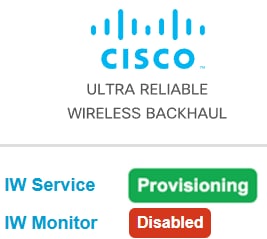
Figure 1. Provisioning mode page
The image illustrates the device configurator interface displaying the status of a device in provisioning mode, indicating that the IOTOD IW service is connected and operational.
2.

If the status is shown as Cloud-Managed or Offline, choose either of these options:

3.

If the device is in provisioning mode, the device configurator interface is shown:

The device's status and LEDs blink continuously and LEDs repeat this cycle until the device either enters a fallback condition, or enters Cloud-Managed, or Offline mode. To know more about LED status, see LED pattern for Catalyst IW9165 or LED pattern for Catalyst IW9167.

Example:
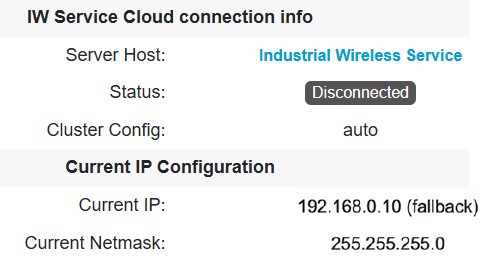
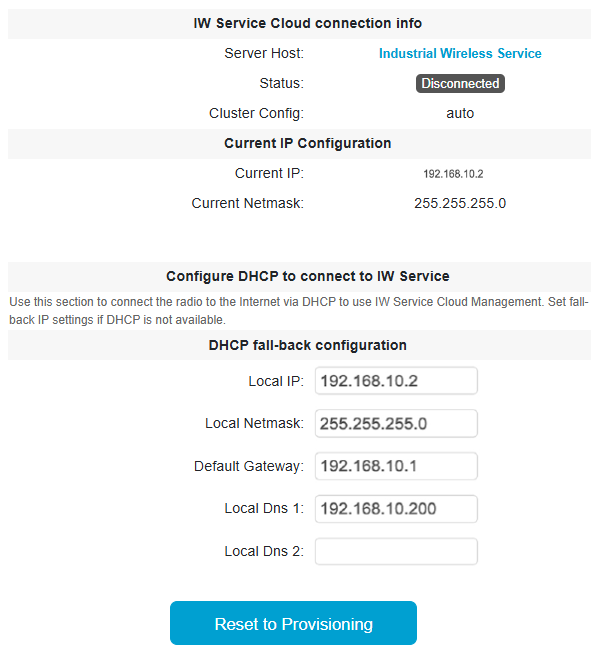
Figure 2. Cloud connection info
The device configurator interface displays the connection settings for devices in provisioning mode, allowing users to modify the current configuration. The device configurator interface displays the device's status and blinking LEDs while in provisioning mode, indicating its current operational state.

If the connection to Industrial Wireless (IW) Service is successful, the cloud connection info status is shown as Connected.

Example:
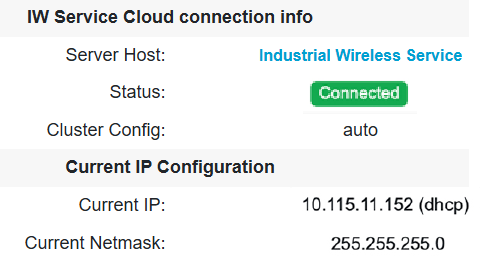
Figure 3. Cloud connection info
The image illustrates the initial configuration steps for devices in provisioning mode, highlighting the use of DHCP and the necessary CLI command for setting a static IP address and related network settings.