Configure ethernet filter SETTINGS to manage ethernet types and protocols in the allowlist through the GUI interface.
This task allows you to manage ethernet filter configurations including adding specific and detected ether types to the allowlist, clearing ethernet types, and configuring ethernet protocol settings.
Use the ethernet filter functionality to control which ethernet types and protocols are permitted. This configuration helps manage network traffic filtering at the Layer-2 level.
Procedure
|
1. |
In the ADVANCED SETTINGS, click ethernet filter.
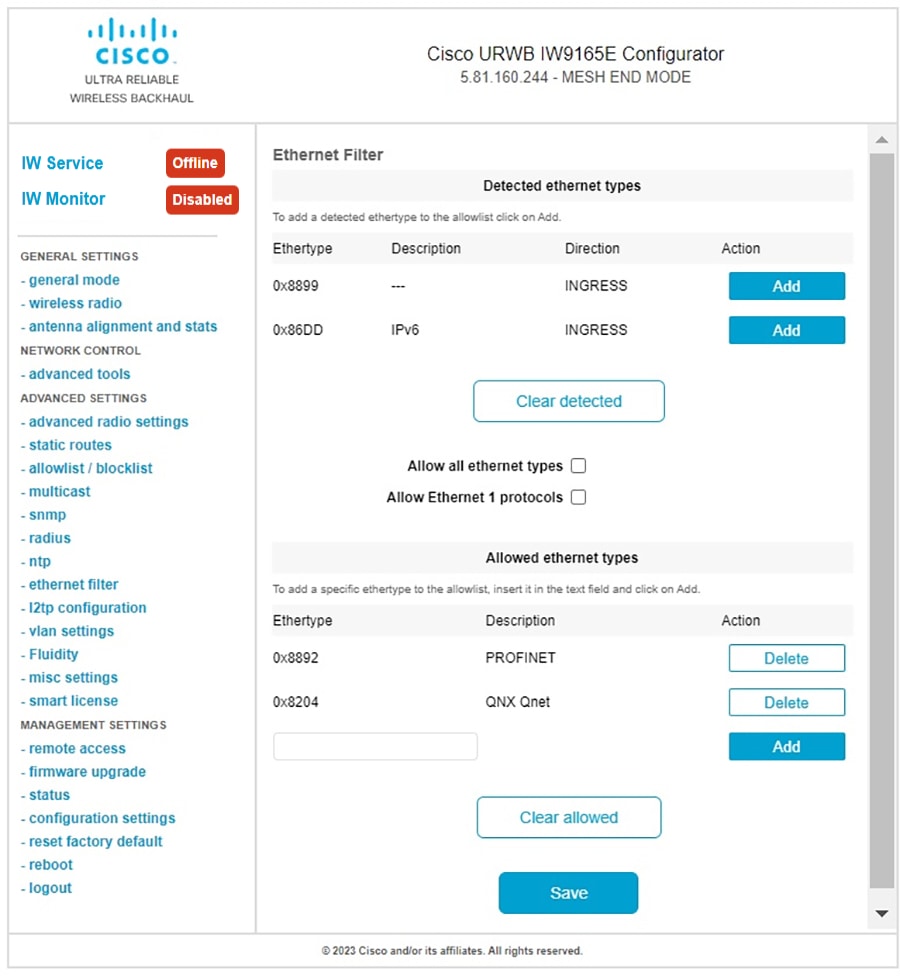
The Ethernet Filter window appears.
|
|
2. |
Add an ether type to the allowlist.
-
Click Add in the Detected ethernet types section.
-
In the Allowed ethernet types section, enter the Ethertype name in the text box and click Add.
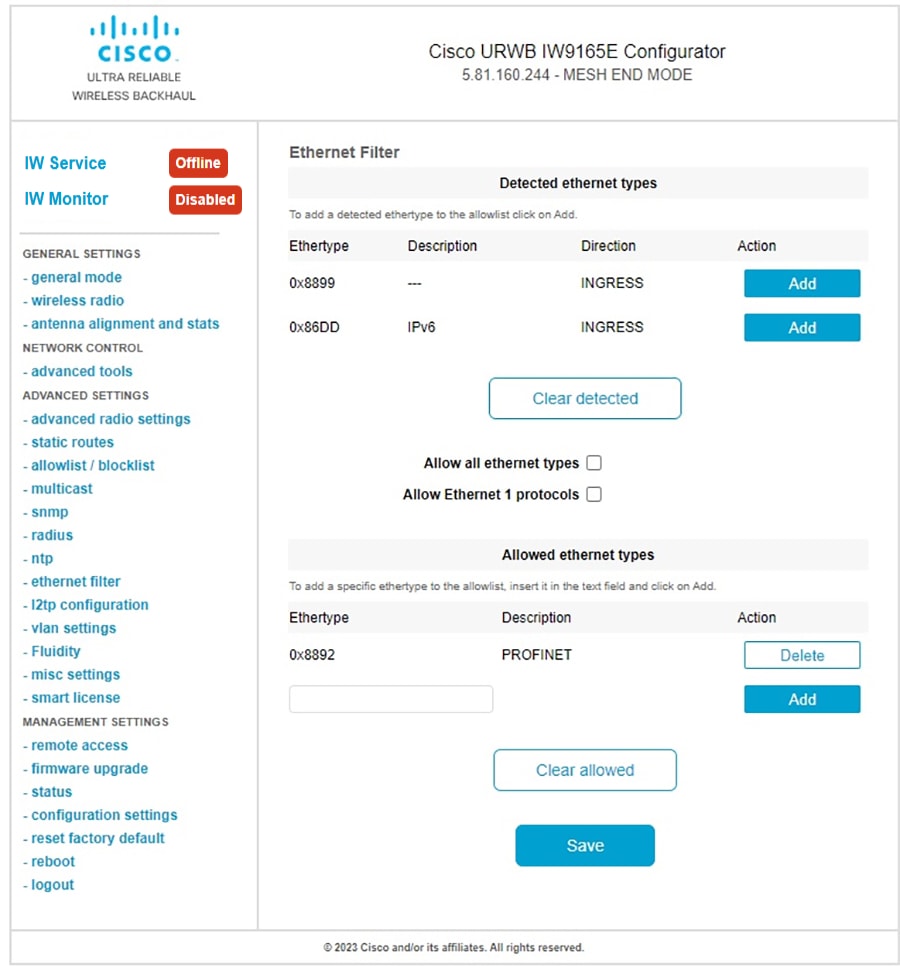
You can view the added ether types reflected in the Allowed Ethernet type section.
The following images show the specific and detected ether types added to the allowlist:
|
|
3. |
Clear all allowed ethernet types from the allowlist.
-
In the ADVANCED SETTINGS, click ethernet filter.
The Ethernet Filter window appears.
-
Click Clear allowed in the Allowed ethernet types section to remove all ethernet types from the allowlist.
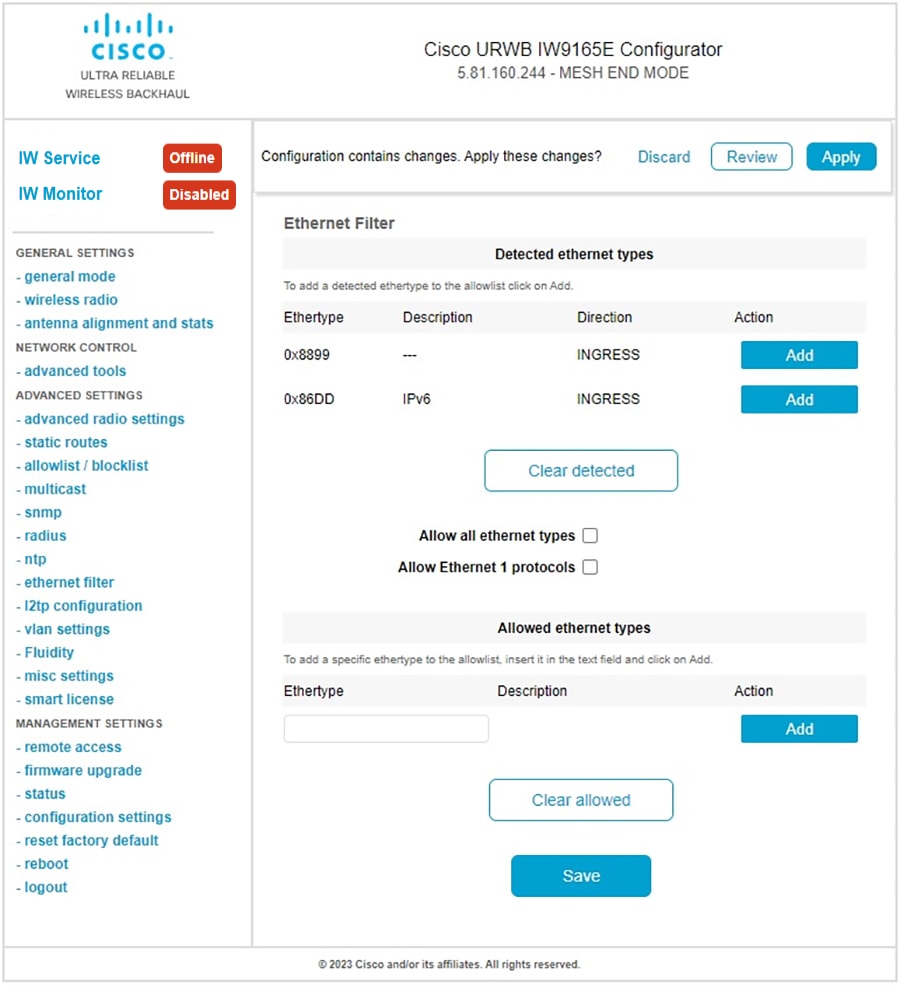
All ethernet types are removed from the allowlist.
The following image shows all allowed ethernet types cleared from the allowlist:
|
|
4. |
Clear all detected ethernet types from the allowlist.
-
In the ADVANCED SETTINGS, click ethernet filter.
The Ethernet Filter window appears.
-
Click Clear detected in the Detected ethernet types section to remove the detected ethernet types from the allowlist.
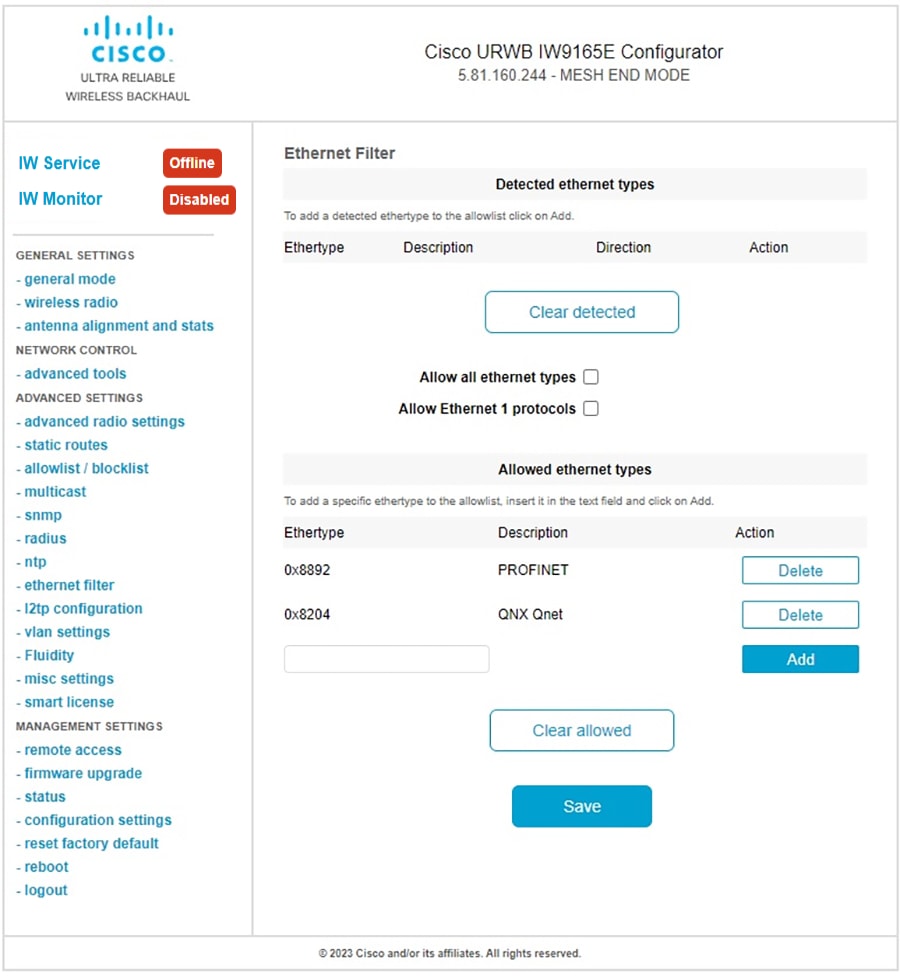
All detected ethernet types are removed from the Detected ethernet types section.
The following image shows all detected ethernet types cleared from the allowlist:
-
|
|
5. |
Add or allow all ethernet types to the allowlist.
-
In the ADVANCED SETTINGS, click ethernet filter.
The Ethernet Filter window appears.
-
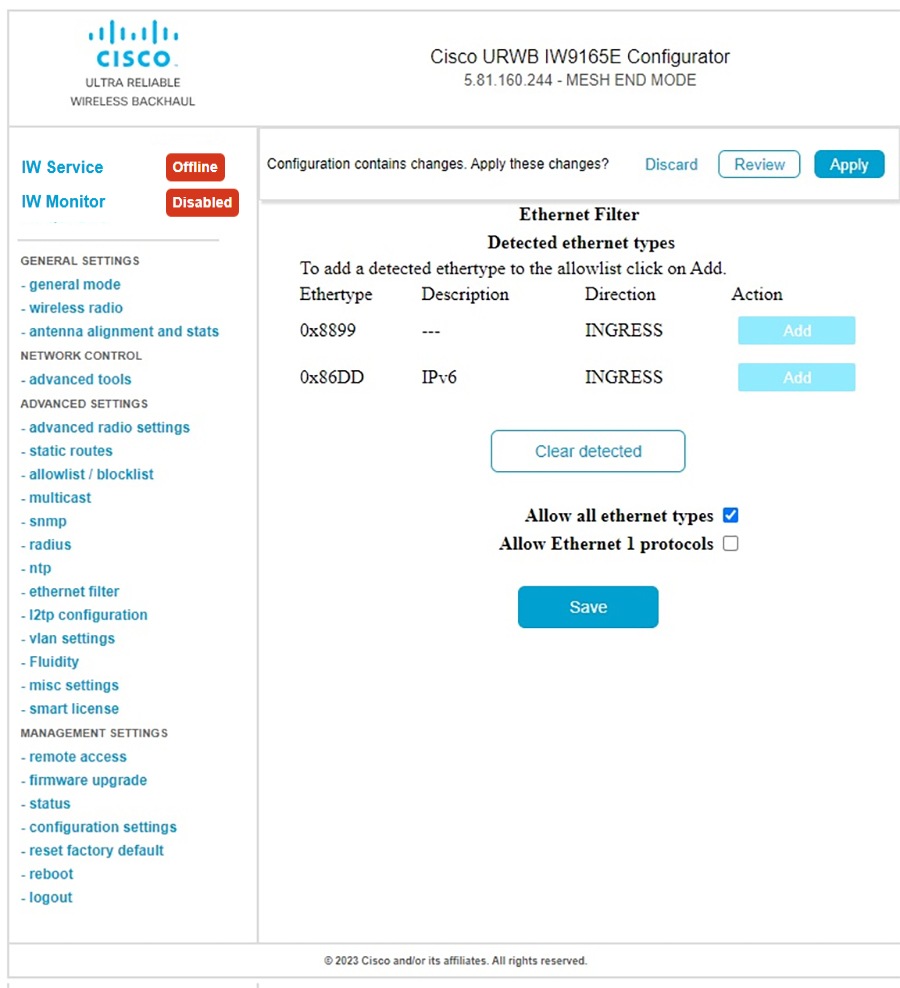
Check the Allow all ethernet types check box in the Ethernet Filter section to allow all ethernet type to allowlist.
-
Click Save and then Apply to change the configuration.
The following image shows adding of all ethernet types to the allowlist:
|
|
6. |
Configure an Ethernet 1 protocol.
-
In the ADVANCED SETTINGS, click ethernet filter.
The Ethernet Filter window appears.
-
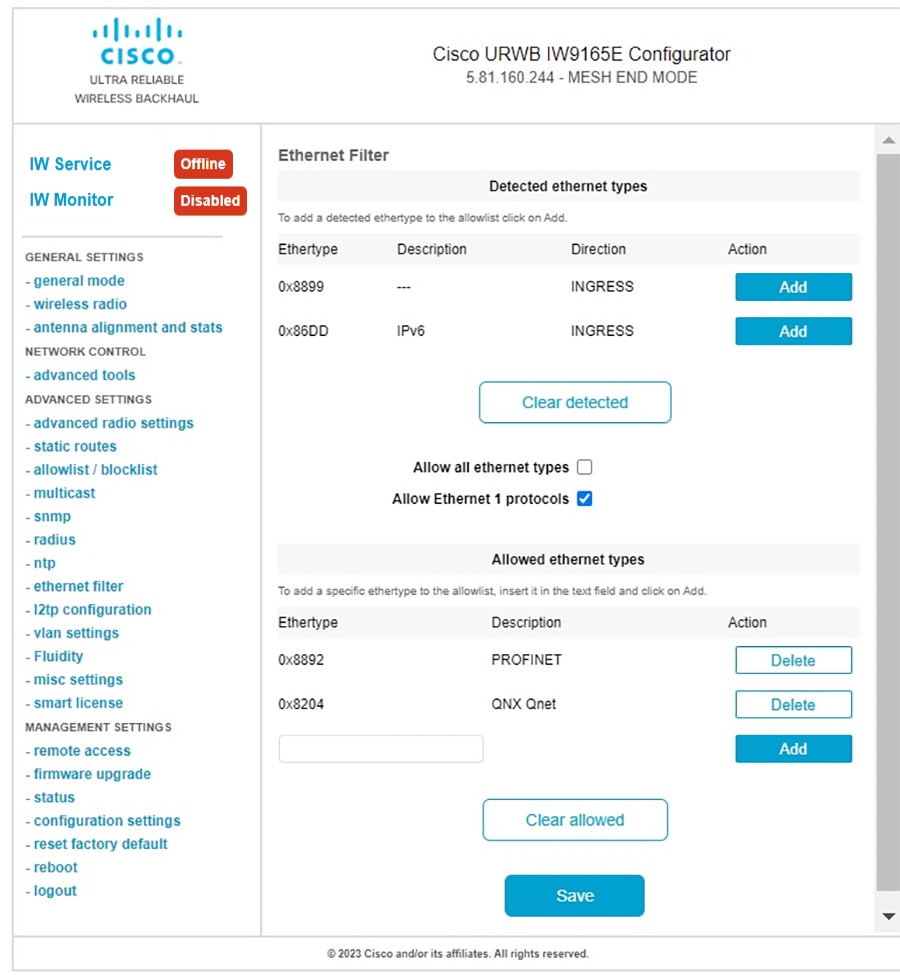
Check the Allow Ethernet 1 protocols check box in the Ethernet Filter section to enable ethernet 1 protocol mode.
-
Click Save and then Apply to change the configuration.
The following image shows the configuration of allowing an ethernet 1 protocol:
|