Provides instructions to verify device onboarding and status of SD‑WAN VPN tunnels to ensure branch connectivity and proper network operation.
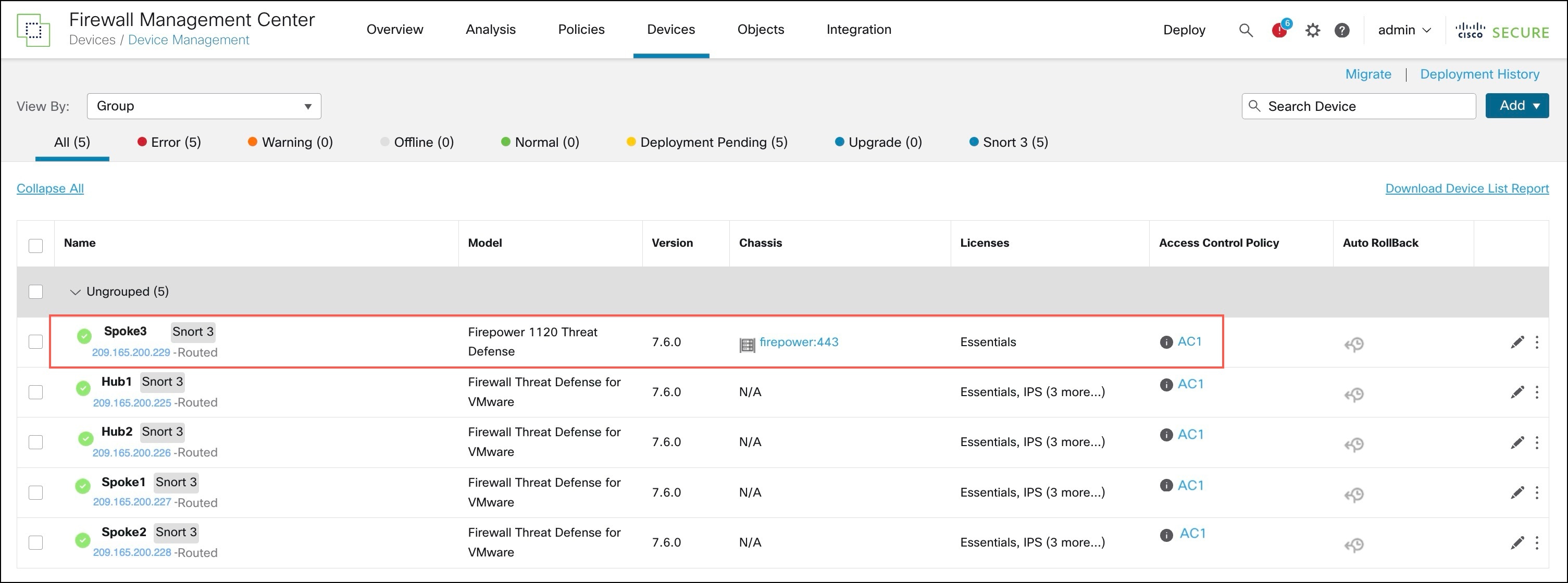
View the Onboarded Device in the Device Management Page
After the device template is successfully applied on the device, you can view the device in the Device Management page.
Verify Tunnel Statuses in the Site-to-Site VPN Summary Page
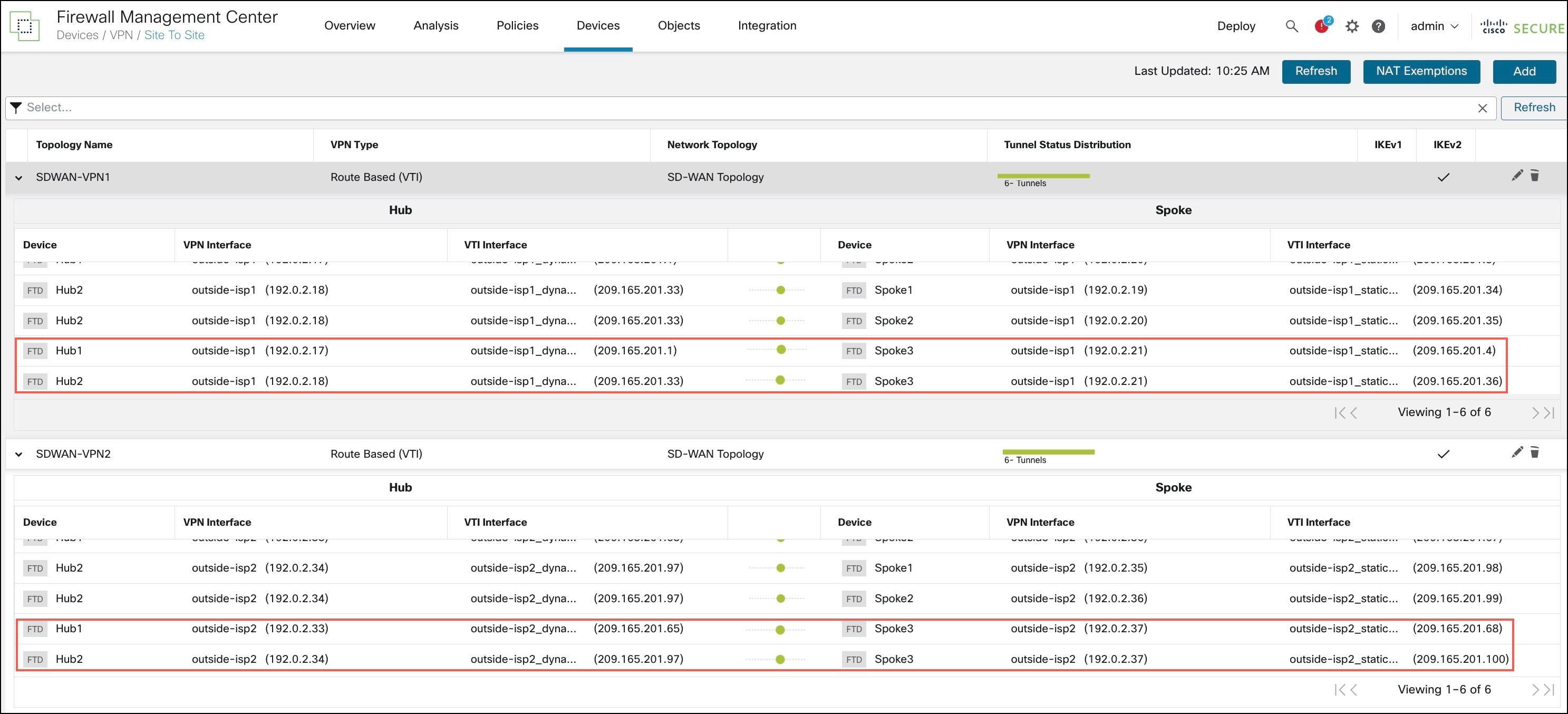
To verify the statuses of the VPN tunnels, choose Device > VPN > Site To Site.
After the device template is successfully applied on the device, the device (Spoke3) gets added to the SD-WAN topologies.You can view the VPN tunnels between the hubs and the spokes, and also the VPN tunnels between the hubs and the onboarded device, Spoke3.
Verify Tunnel Statuses in the Site-to-Site VPN Dashboard
To view details of the SD-WAN VPN tunnels, choose Overview > Dashboards > Site-to-site VPN.
Following are the VPN tunnels of the two SD-WAN topologies: SDWAN-VPN1 and SDWAN-VPN2:
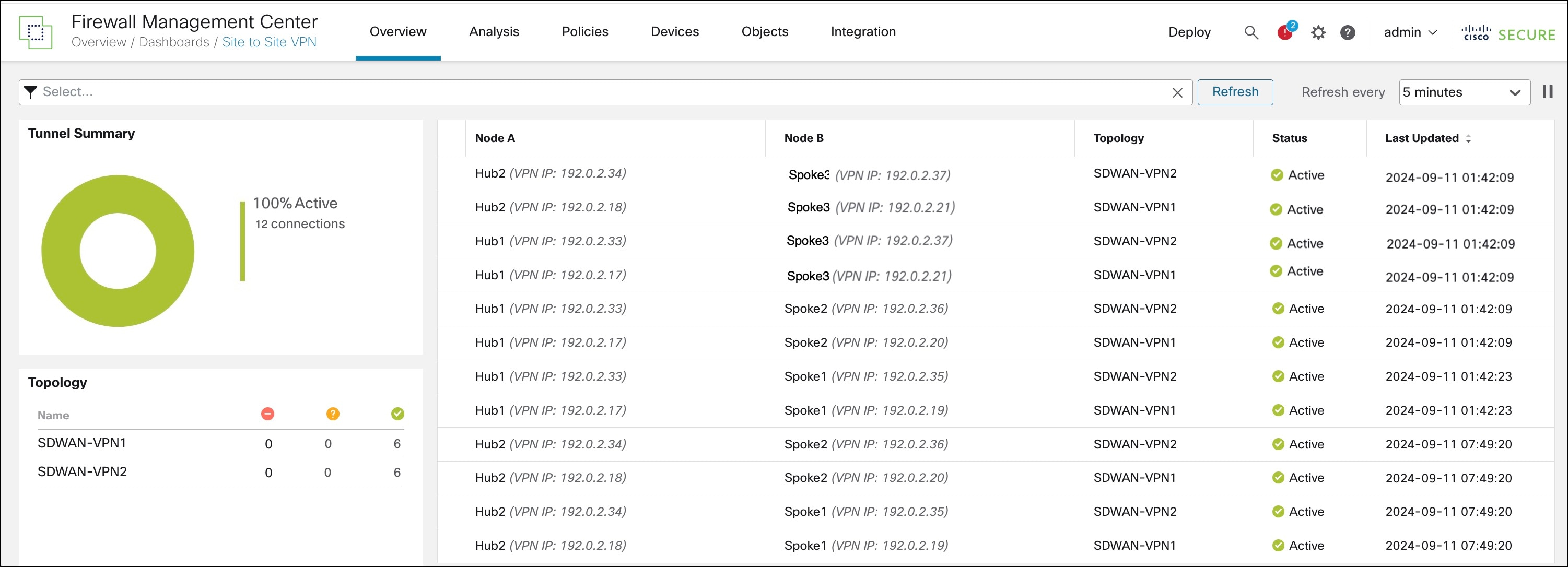
You can also see the VPN tunnels between Spoke3 and the two hubs.
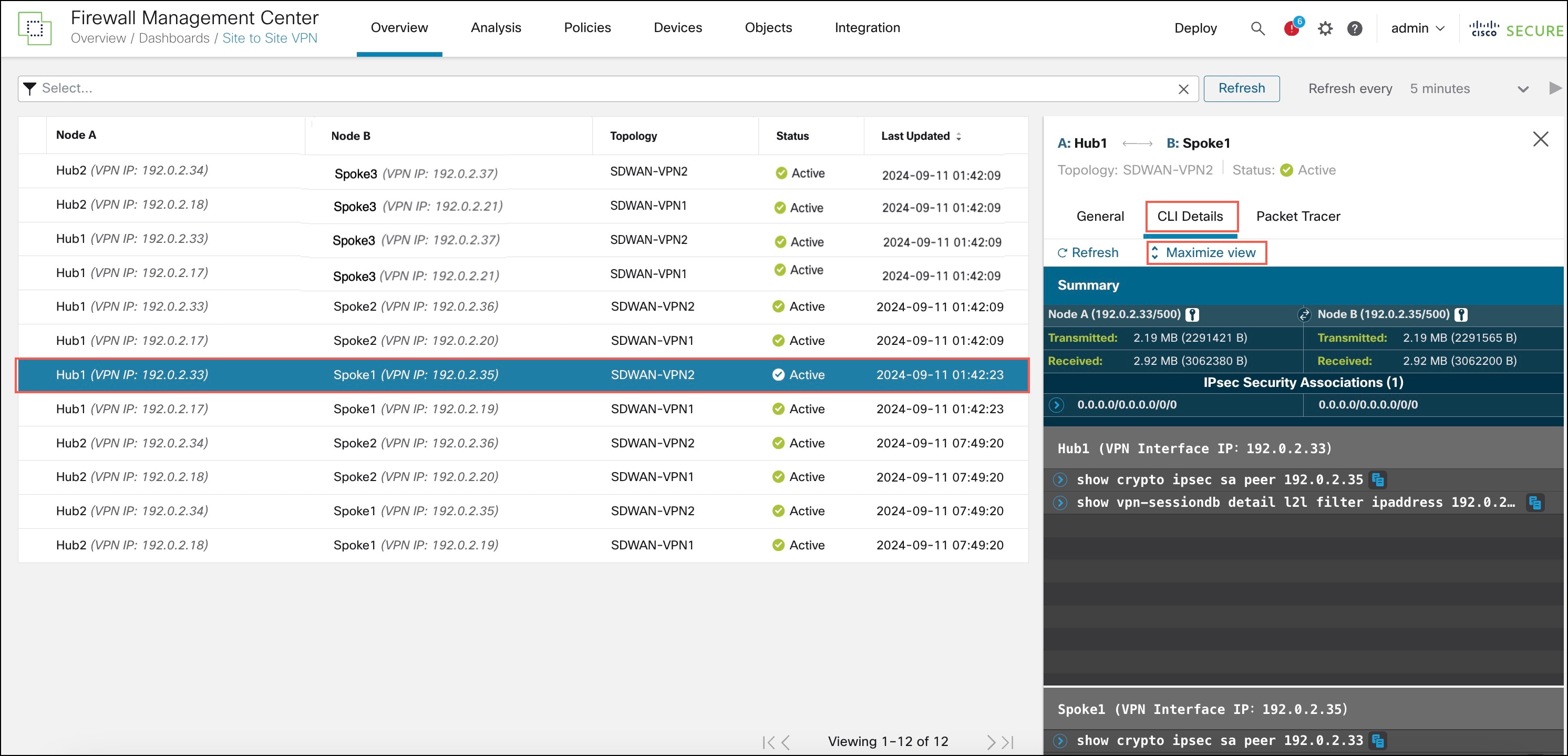
To see more details about each tunnel:
-
For each tunnel, hover your cursor over a topology and click the View icon
 to view more information about the tunnels.
 -
Click the CLI Details tab.
-
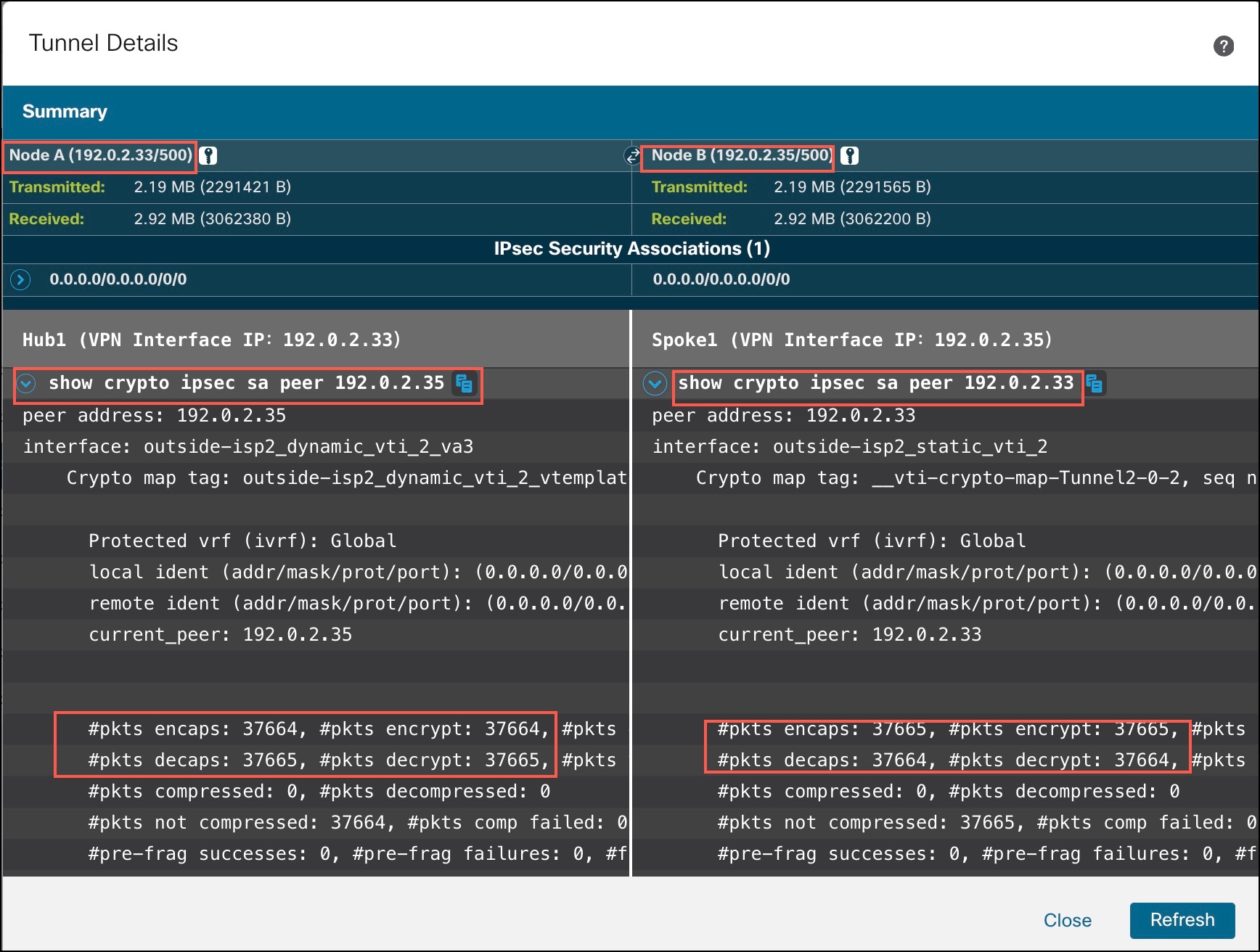
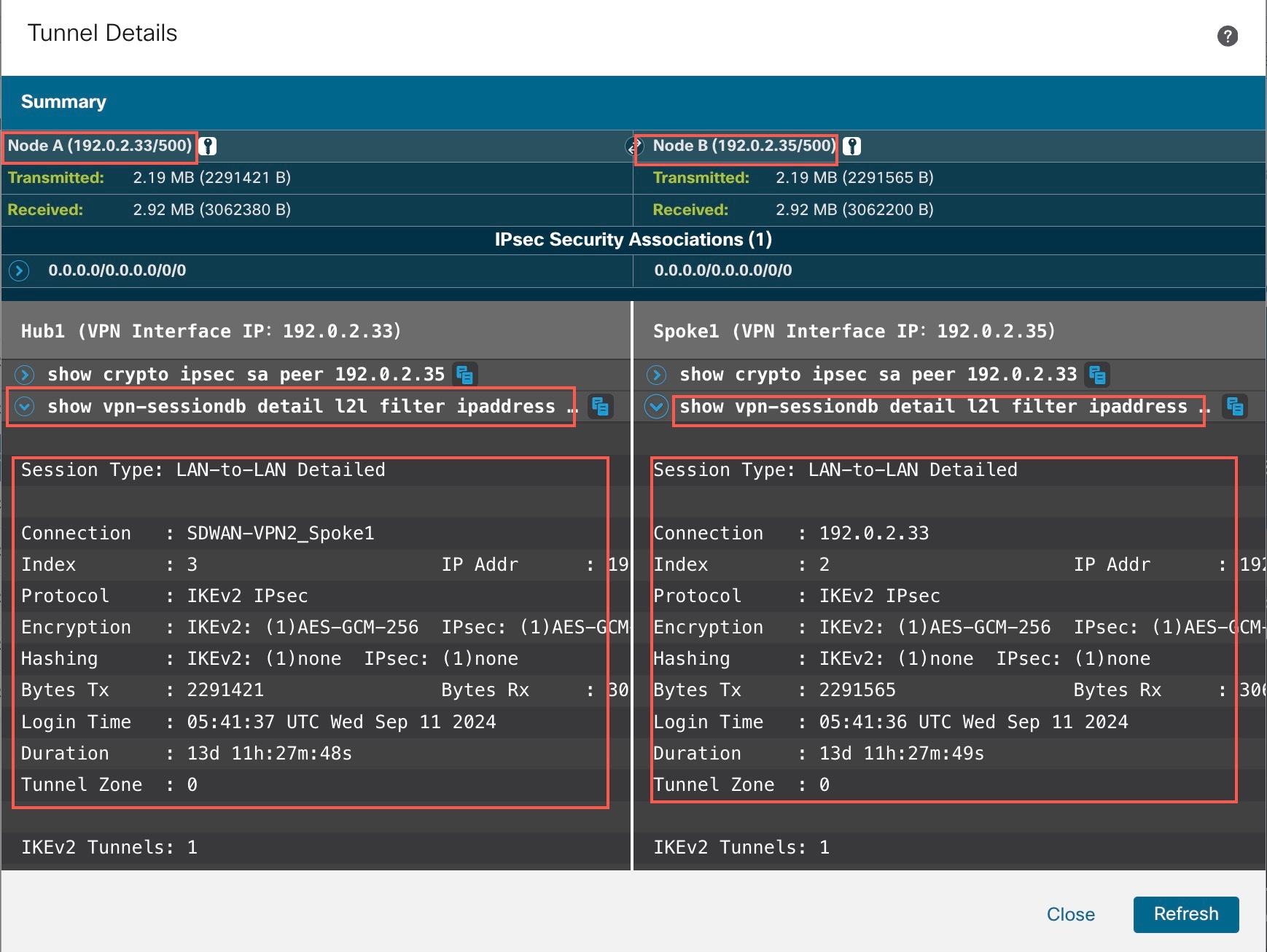
Click Maximize View. You can view the output of the following commands:
-
show crypto ipsec sa peer: Shows the number of packets that are transmitted through the tunnel.
-
show vpn-sessiondb detail l2l filter ipaddress: Shows more detailed data for the VPN connection.
-
Verify Routing Information of the Firewall Threat Defense Device
To verify the routing information of the hub and the spokes, use the show route command on the device using the Firewall Management Center or the device CLI. You can also use the show bgp command.
-
In the Firewall Management Center, choose Devices > Device Management.
-
Click the edit icon adjacent to the device.
-
Click the Device tab.
-
Click CLI in the General card.
In the CLI Troubleshoot window, enter show route in the Command field and click Execute.
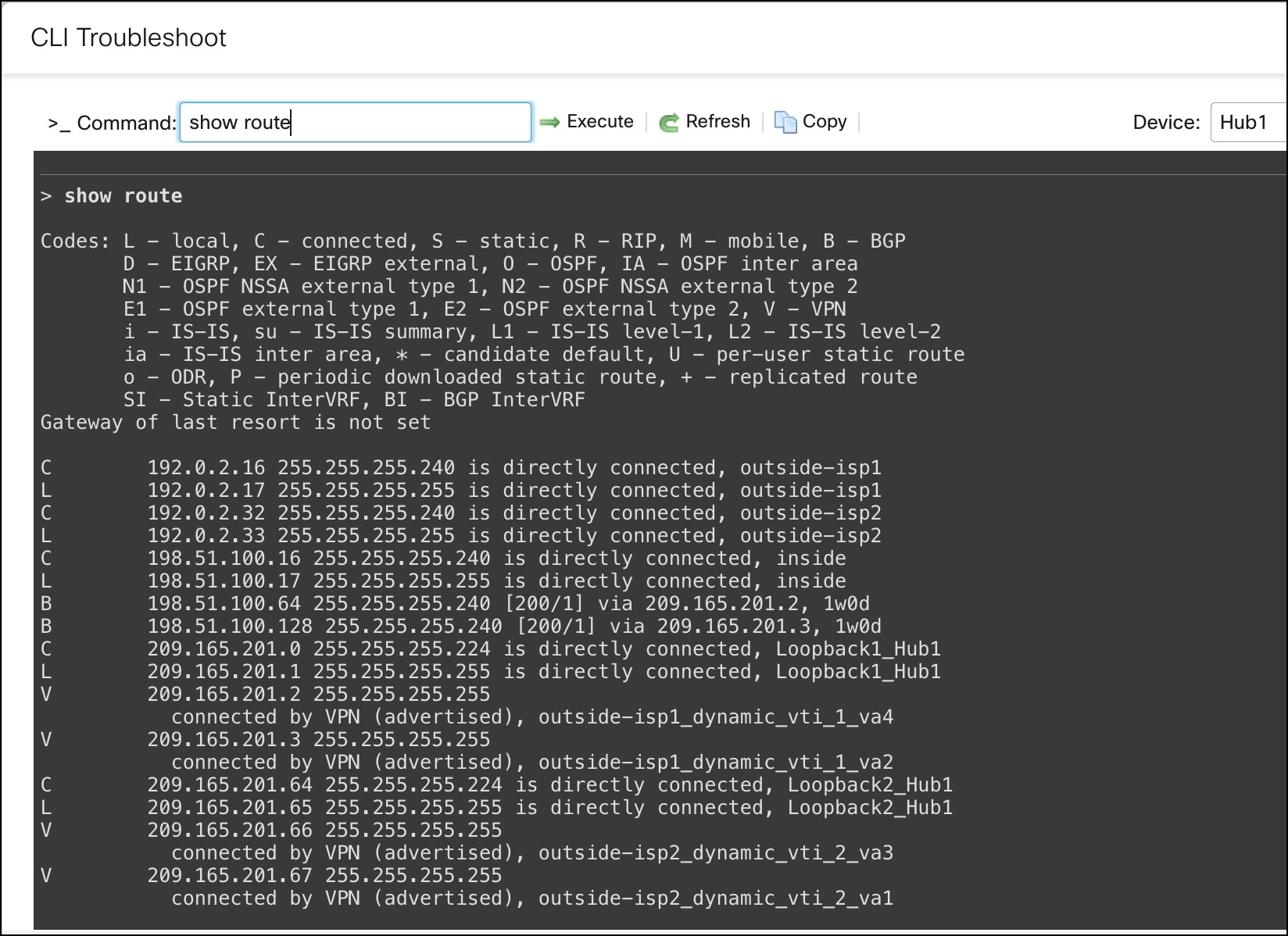
You can also use the show bgp or show bgp summary commands.
View Tunnel Interface Configurations of the Firewall Threat Defense Device
To verify the interface configuration on the Firewall Threat Defense device, use the show running-config interface command.
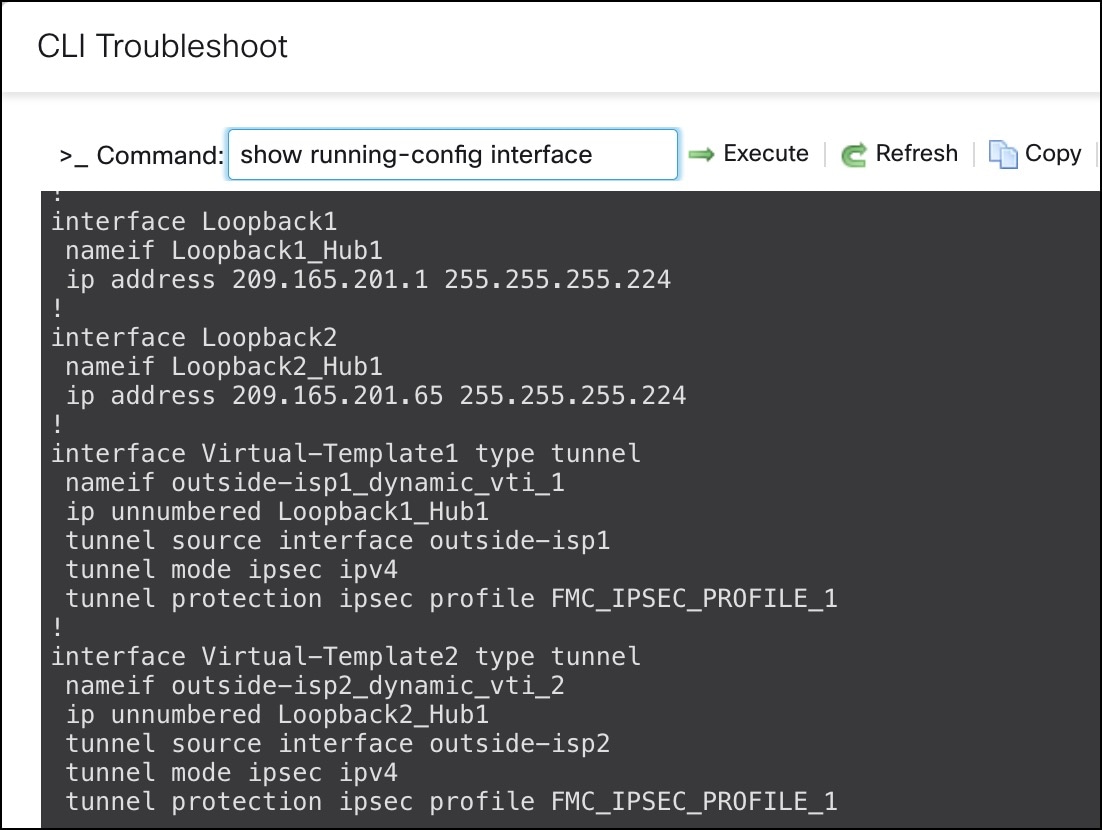
To view the dynamic VTIs of hubs and static VTIs of spokes:
-
Choose Devices > Device Management.
-
Click the edit icon adjacent to the device.
-
Click the Interfaces tab.
-
Click the Virtual Tunnels tab.
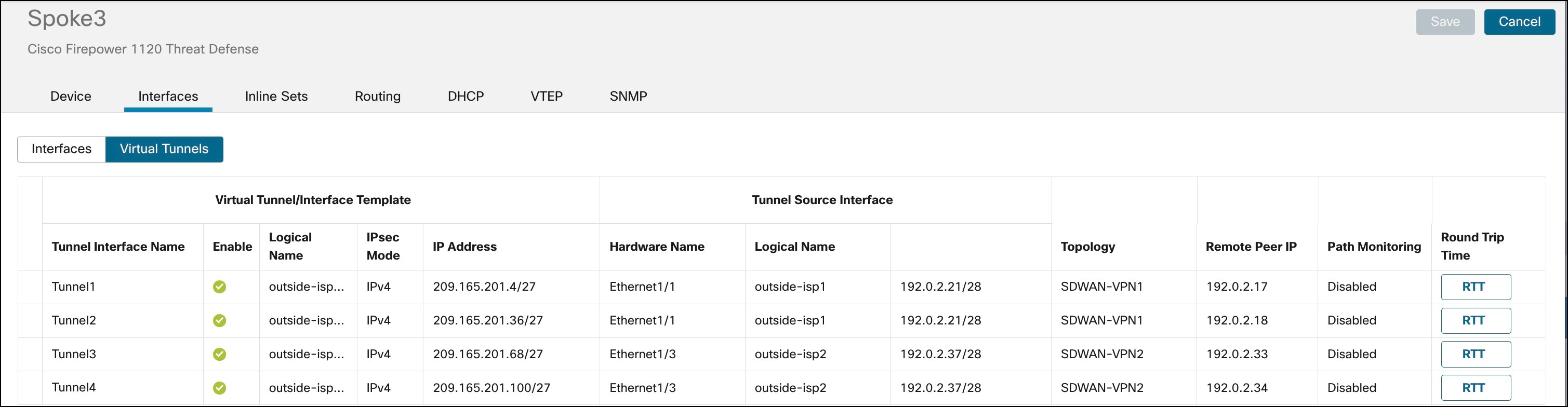
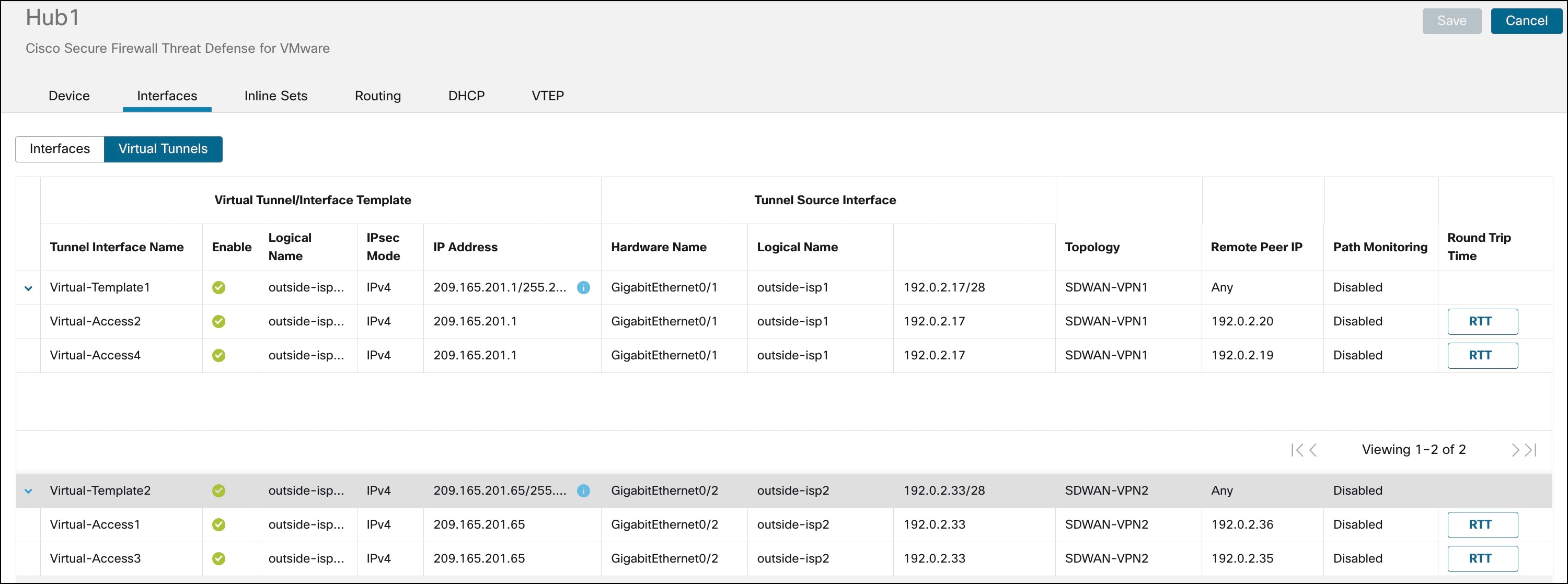
For each VTI, you can view details such as name, IP address, IPsec mode, tunnel source interface details, topology, and remote peer IP.
The dynamic VTI and the dynamically created virtual access interfaces of Hub1 are shown in the figure below:
The static VTIs created on Spoke1 are shown in the figure below: